MR8740、MR8741_user_manual_eng_20191016H.pdf - 第108页
4.2 Saving Data 96 For details on mouse operations for basic file sc reens, see "1. 5.7 File Operations" (p.34). 4.2.4 Saving Example (Saving for Memory Division) Saving a Memory Division Waveform File 1 Config…
4.2 Saving Data
95
4
Chapter 4 Saving/Loading Data & Managing Files
• If the MR8990 is installed, one data item more than the number of data items
specified with the A and B cursors may be saved.
• The data that is measured and saved with the MR8990 will be the same data
twice in a row.
7
Making advanced settings
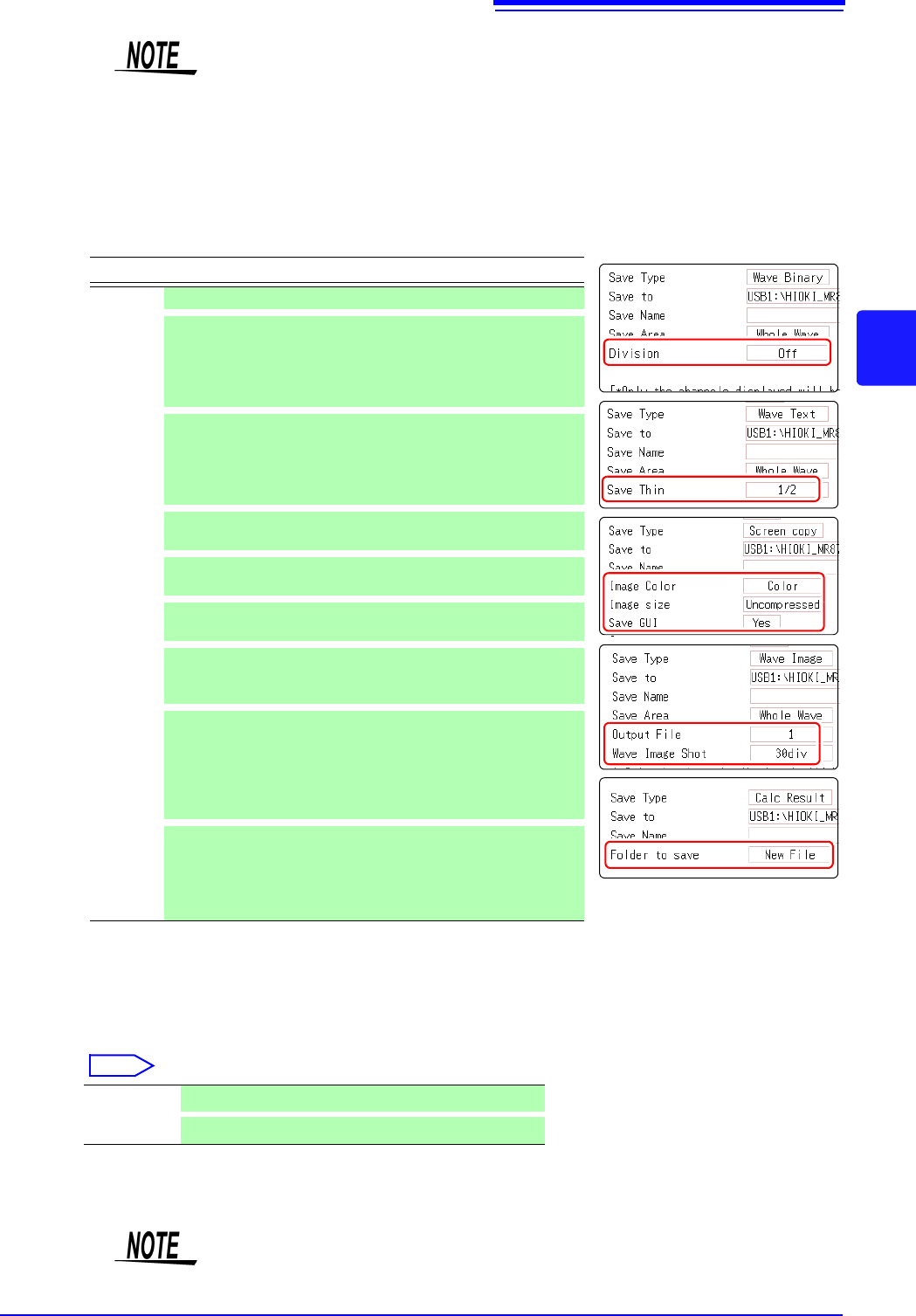
Available settings will differ, depending on the save type. Refer
to the table below.
8
(For memory function)
When using the memory division function
Select the blocks to be saved
Move the flashing cursor to the [Save Block].
Select
This completes the data save settings. When [SAVE] is clicked,
the saving operation will use these settings.
Save Type Settings Description
Setting - -
Wave
Binary
Division (Off, 16 M, 32 M, 64 M)
Select this to divide a large file into several files for
saving.
A folder with the specified name is created and data
are saved as multiple files in that folder.
Wave Text
Save Thin (Off, 1/2 to 1/1000)
Select this to use thinning (sub-sampling) when sav-
ing data.
Only a specified subset (one out of several data) is re-
tained.
Screen
Copy
(Hard
copy of
the
display)
Image Color (Color, Gray, Mono, Mono (Rev))
Specifies the color for the created image file.
Image
size
(UnCompressed, Compressed)
Determines whether the image file is compressed.
Save GUI (Yes, No)
Determines whether the GUI section is also saved.
Wave
Image
(Print
Image)
Output File (All, 1 to 250)
Specifies the number of files to save.
(Memory Function and Recorder Function)
Wave Image
Shot
(1 to 60 div)
Specifies the data volume per file.
If the number of measurement data is lower than the
number of selected divisions, only the number of
measurement data will be saved. (Memory Function
and Recorder Function)
Calc
Result
Folder to
save
(New File, Existing File)
Determines whether data are saved under a new file
name every time (with automatically incremented
number if the same file name exists), or appended to
the same file.
All Blks Blocks with waveforms are all saved.
Start-End
All used blocks from the start block are saved.
If [Image size] is used when saving a display image file, the image may not be
viewable with some image viewer applications.
4.2 Saving Data
96
For details on mouse operations for basic file screens, see "1.5.7 File Operations" (p.34).
4.2.4 Saving Example (Saving for Memory Division)
Saving a Memory Division Waveform File
1
Configure the memory division settings, and then perform measurement.
See: "Chapter 11 Memory Division Function" (p.241)
2
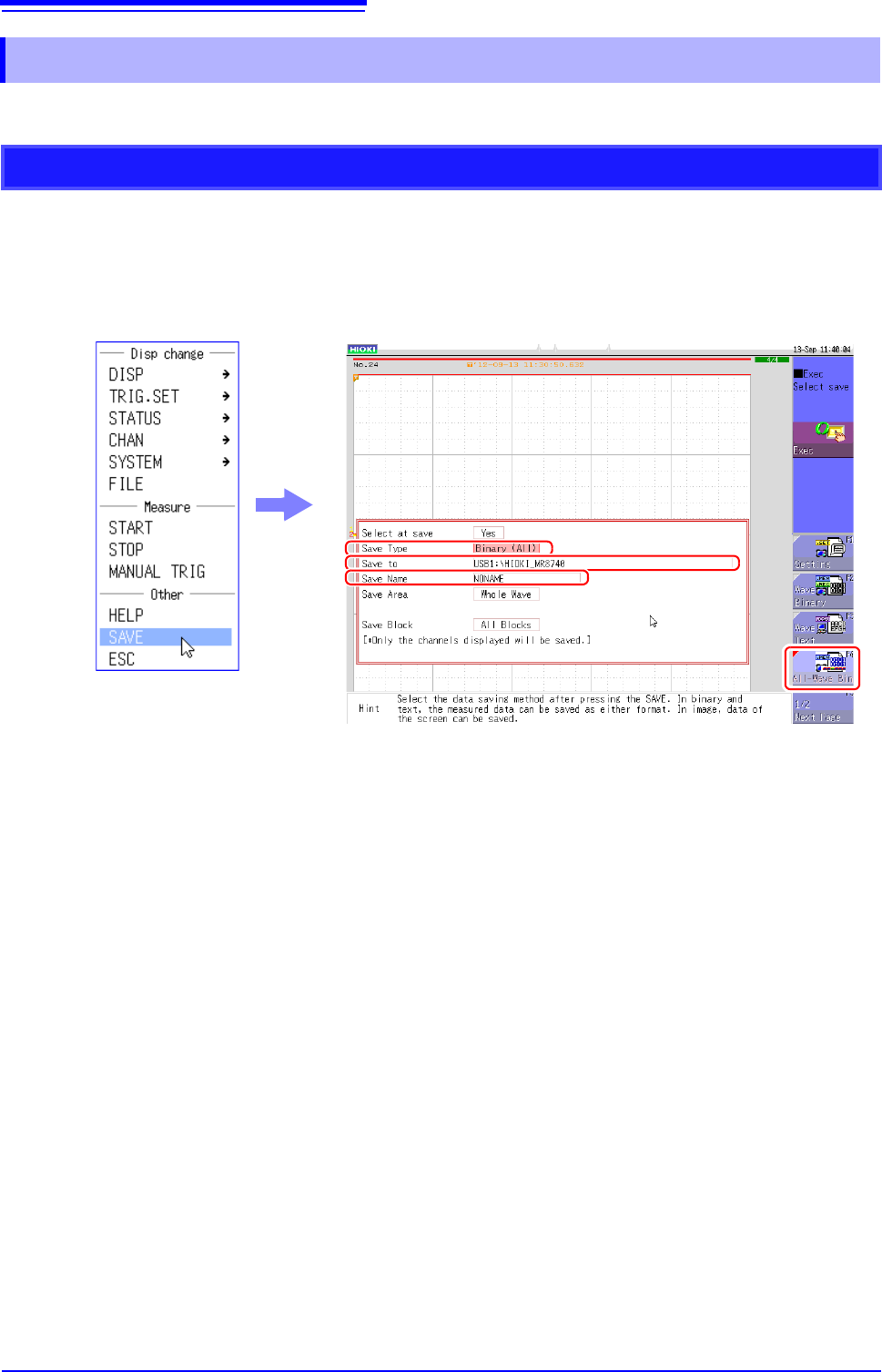
Right-click to display the list menu, and then click [SAVE].
3
Set [Save Type] to [ALL-Wave Bin].
(The setting item indication is "ALL Bin".)
If you select [Wave Binary] instead of [ALL-Wave Bin] here, the data of the currently displayed
block is saved.
4
Set [Save To].
See: "4.2.3 Saving Data Selectively (SAVE)" (p.93)
5
Set [Save Name].
See: "4.2.3 Saving Data Selectively (SAVE)" (p.93)
3
4
5
4.2 Saving Data
97
4
Chapter 4 Saving/Loading Data & Managing Files
6
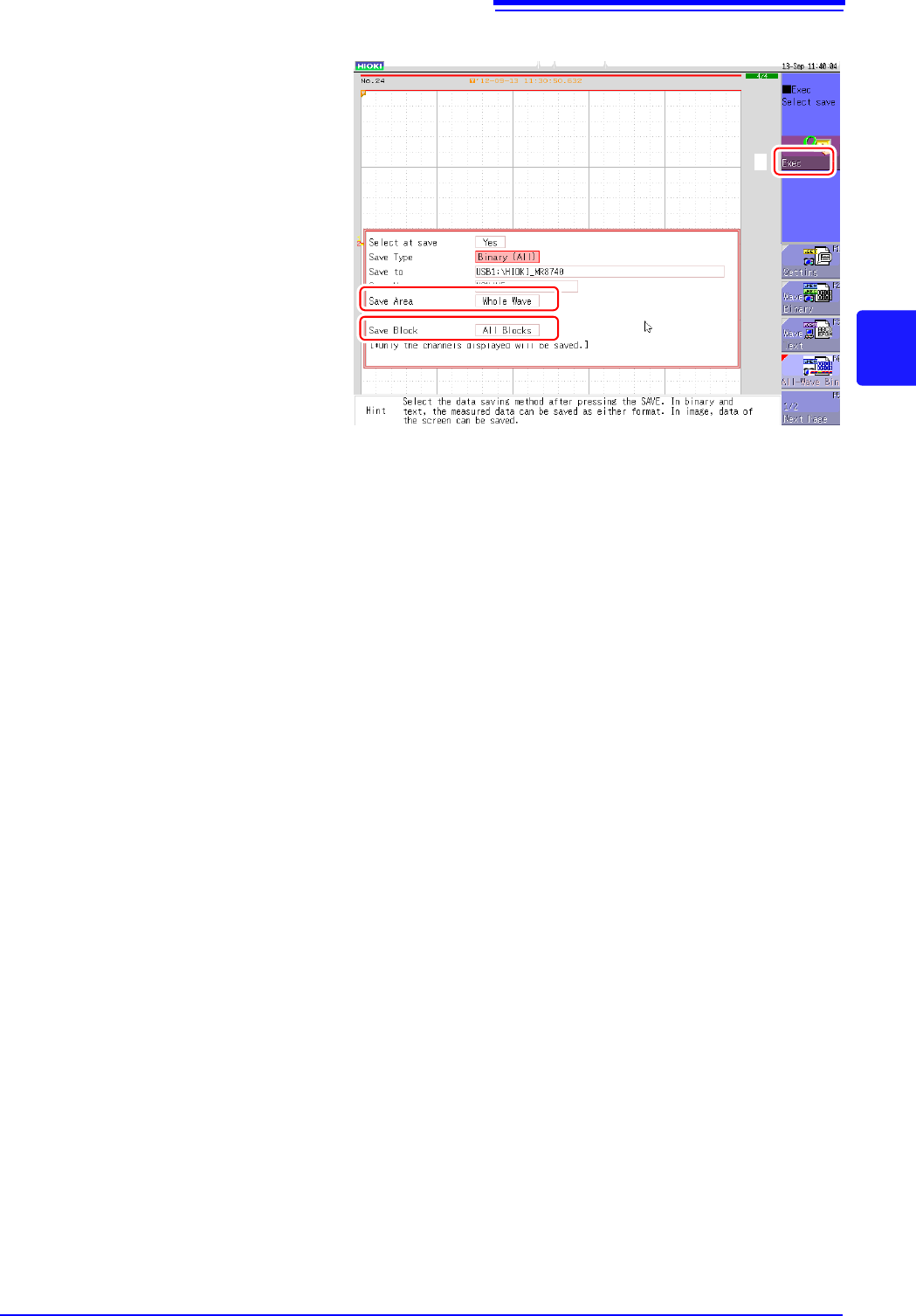
Set [Save Area].
(All waveforms or waveforms
between A and B)
7
Set [Save Block].
[All Blks]
Saves all blocks with waveforms.
[Start-End]
Saves all blocks from the start
block to the end block.
8
Configure each setting, and
then click [Exec].
When the data is saved, a folder
is created under the name set as
the save name, and the wave-
form data of each block and the
SEQ file (memory block integra-
tion file) are saved in that folder.
6
7
8