MR8740、MR8741_user_manual_eng_20191016H.pdf - 第324页
312 Additional Descripti on ___ _______________________________________ Selecting a Screen Color Select [Color Edi t] to display the [Custom Color] screen . Change the [R] (red), [G] (green) and [B] (blue) values of each…
311
11
Chapter 14 System Environment Settings
13
14
Language Selects the display language.
Auto Scale Variable values are automatically changed according to changes in scaling and
voltage range.
See: "7.5 Variable Function (Setting the Waveform Display Freely)" (p.155)
Start Action To prevent operating mistakes from unintentionally starting measurement, the
[START] operation method can be changed. This setting does not affect external
control terminal functions.
Stop Action Normally, clicking [STOP] once causes measurment to stop after the specified
recording length is completed, and clicking it twice stops measurement immedi-
ately. However, this setting is provided to allow a single click of [STOP] to stop
measurement.
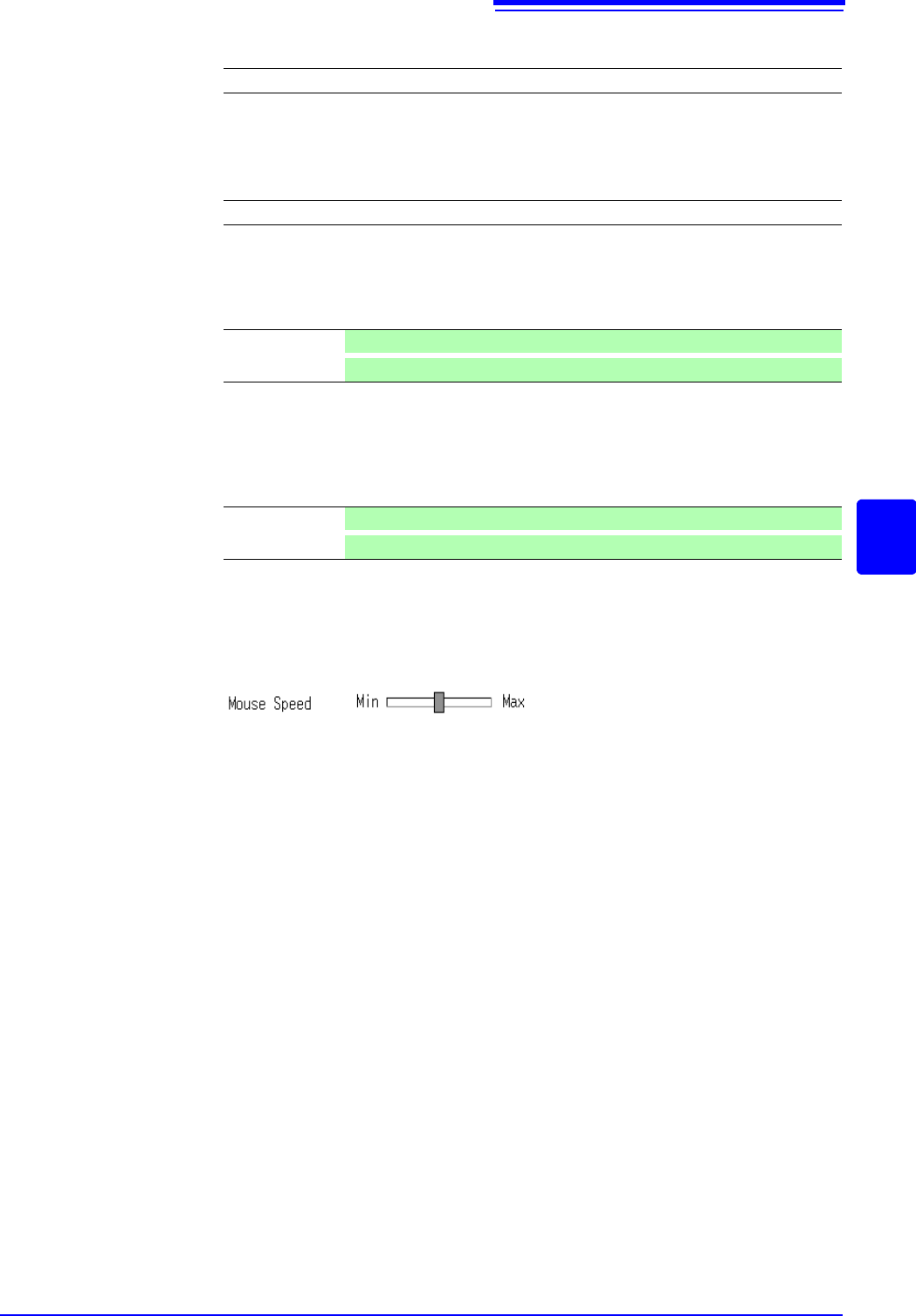
Mouse Speed Sets the mouse movement speed. Use the mouse to move the square while
holding down the left button. Moving it towards "Min" makes the mouse pointer
move more slowly, while moving it towards "Max" makes the pointer move more
quickly.
English (default setting)/ Japanese / Korean/ Chinese
Off / On (default setting)
Click Once Click once with the mouse to start measurement. (default setting)
Click Twice
Click twice with the mouse to start measurement.
Click Twice Click twice with the mouse to stop measurement. (default setting)
Click Once
Click once with the mouse to stop measurement.
312
Additional Description __________________________________________
Selecting a
Screen Color
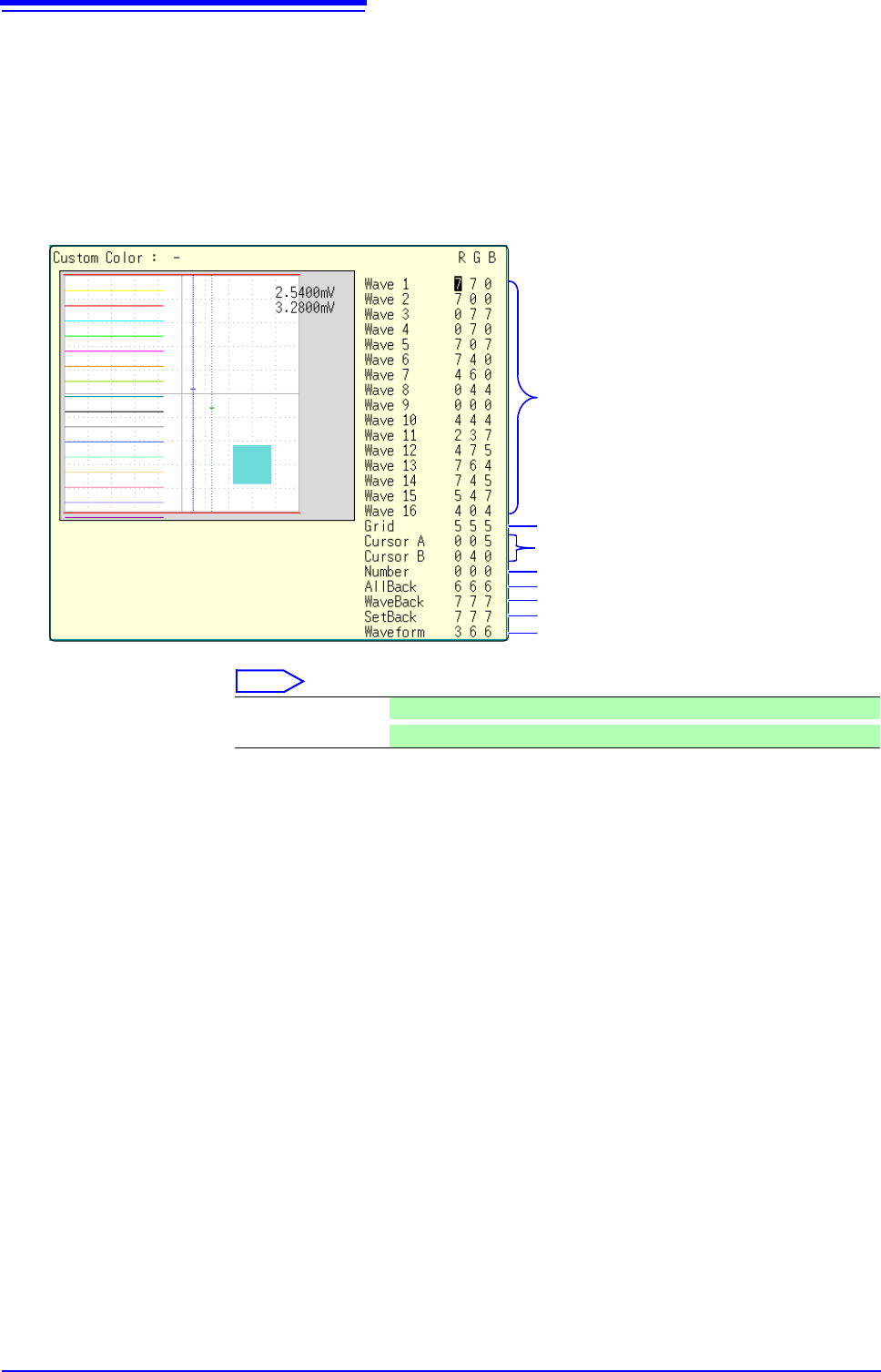
Select [Color Edit] to display the [Custom Color] screen.
Change the [R] (red), [G] (green) and [B] (blue) values of each item to change
its color.
See: "7.1.3 Alphanumeric Input" (p.141)
[Custom Color] screen
Select
Color setting for each waveform
Grid (graticule) color
Colors of cursor A and B lines
Color of numerical values
Background color
Background color of the Waveform screen
Background color of the setting screen
Evaluation area color
Done Applies the settings.
Reset
Reverts to the default settings.
313
12
Chapter 15 Connection to a Computer
14
15
This instrument is equipped with an Ethernet 100BASE-TX interface for LAN communications. You
can control the instrument from PCs and other devices by connecting it to a network with 10BASE-T
or 100BASE-TX cable (maximum length 100 m).
Connection to a
Computer Chapter 15
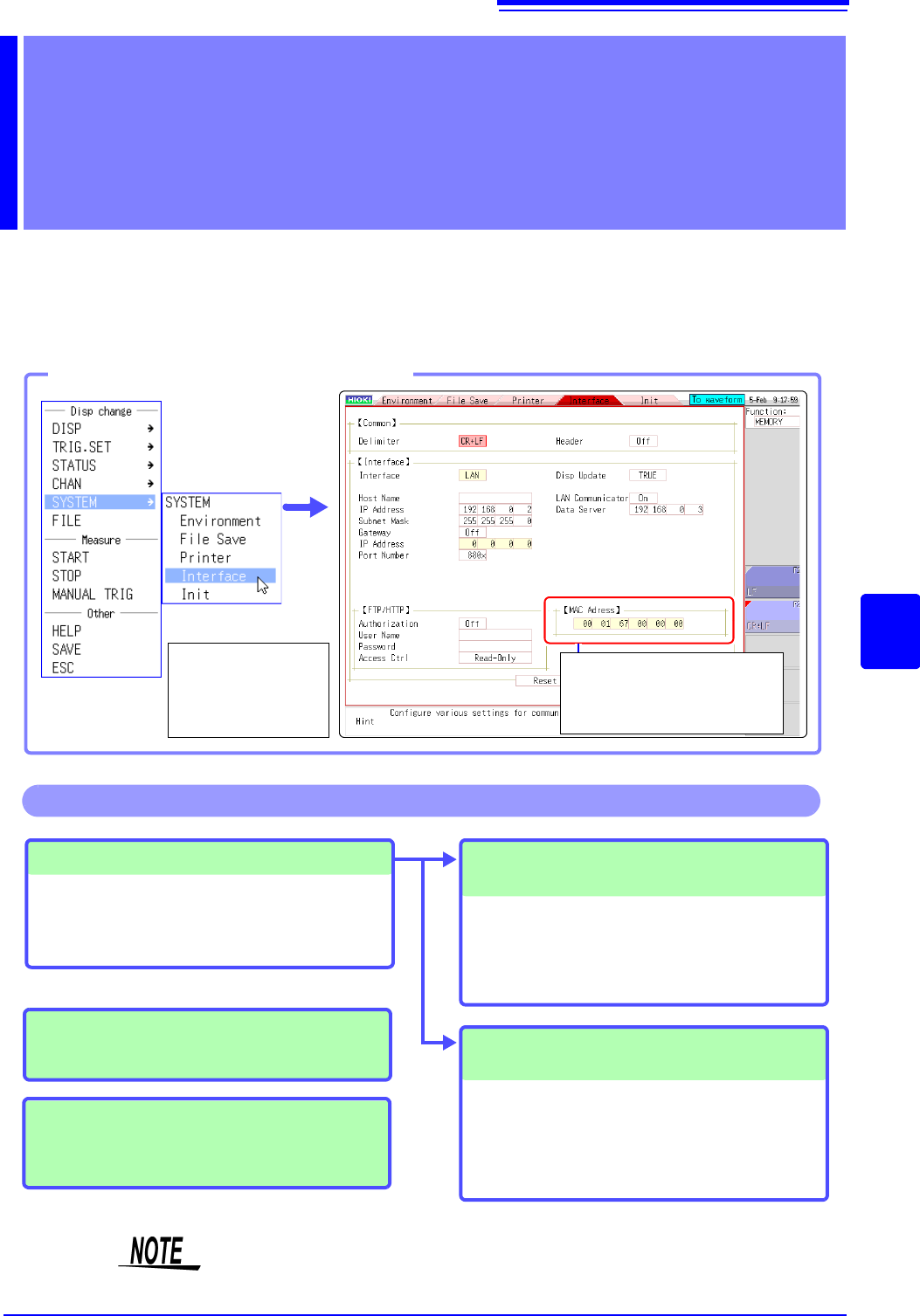
Opening the [Interface] sheet
MAC Address
This is a unique number that is
used to identify devices in a net-
work.
Select [SYSTEM]
and then [Inter-
face] from the right-
click menu.
LAN connections and settings (p.314)
• Connecting the instrument and a PC over a
network
• Making 1:1 Connections between the instru-
ment and a PC
Accessing files on the instrument via
FTP (p.327)
The instrument is equipped with an FTP (File
Transfer Protocol, compliant with RFC959) serv-
er. You can use a PC FTP client to transfer files to
instrument media and perform other file opera-
tions.
Controlling the instrument by command
communications (p.332)
You can control the instrument by creating pro-
grams and connecting to the command communi-
cations port by TCP.
For more information about commands, refer to
the communications operation manual on the sup-
plied application disk.
Operations available from the [Interface] sheet
Remote control of the instrument using
an Internet browser (p.320)
Operating the instrument remotely and
acquiring data by using Model 9333 LAN
Communicator (p.334)
The settings of both block I and block II need to be made for MR8740.