MR8740、MR8741_user_manual_eng_20191016H.pdf - 第151页
7.1 Adding Comments 139 6 Chapter 7 Utility Functions 7 Comments added for each channel can be displayed o n-screen. (Allowed number of characters: up to 40) 7.1.2 Adding a Channel Comment T o display a comment on the sc…
7.1 Adding Comments
138
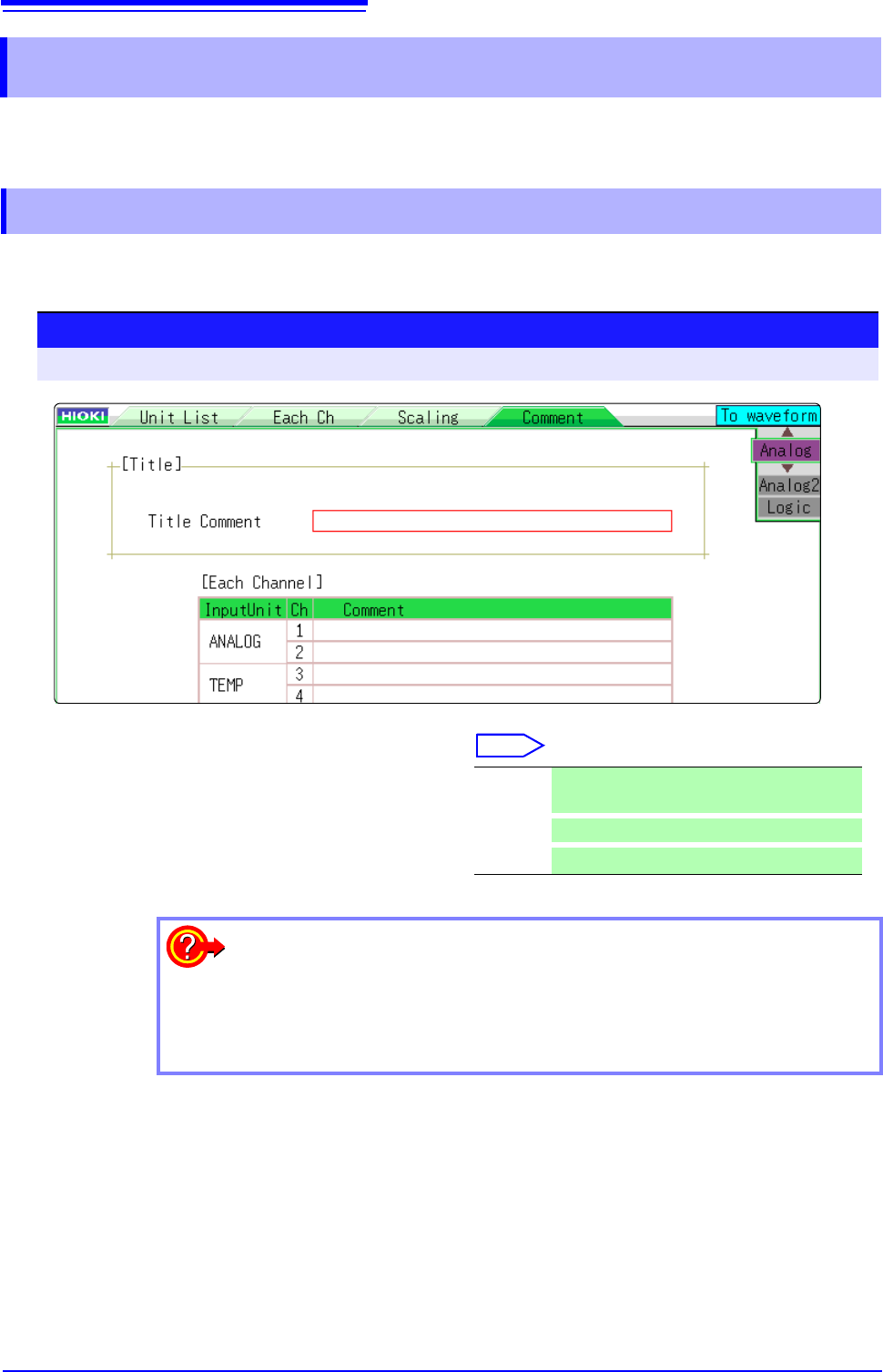
This section explains how to enter title comments and channel comments.
Information about alphanumeric input is also provided.
When you enter a title comment, it can be displayed at the top of the Waveform screen. (Allowed
number of characters: up to 40)
7.1 Adding Comments
7.1.1 Adding a Title Comment
1
Procedure
To open the screen: Right-click and select [CHAN] [Comment] sheet
1
Enter a title comment.
Select
Move the flashing cursor to the [Title Com-
ment] item, and then click.
Input Enter comment text.
See: "Entering Text" (p.141)
Clear
Clear entered information
Undo
Return to condition of preceding step
To select from preset terms
Clicking [PRESET] after activating text input brings up a list of preset terms.
It is also possible to select words from previously entered titles (History func-
tion).
See: "Entering Text From a Term List Or History List" (p.142)
7.1 Adding Comments
139
6
Chapter 7 Utility Functions
7
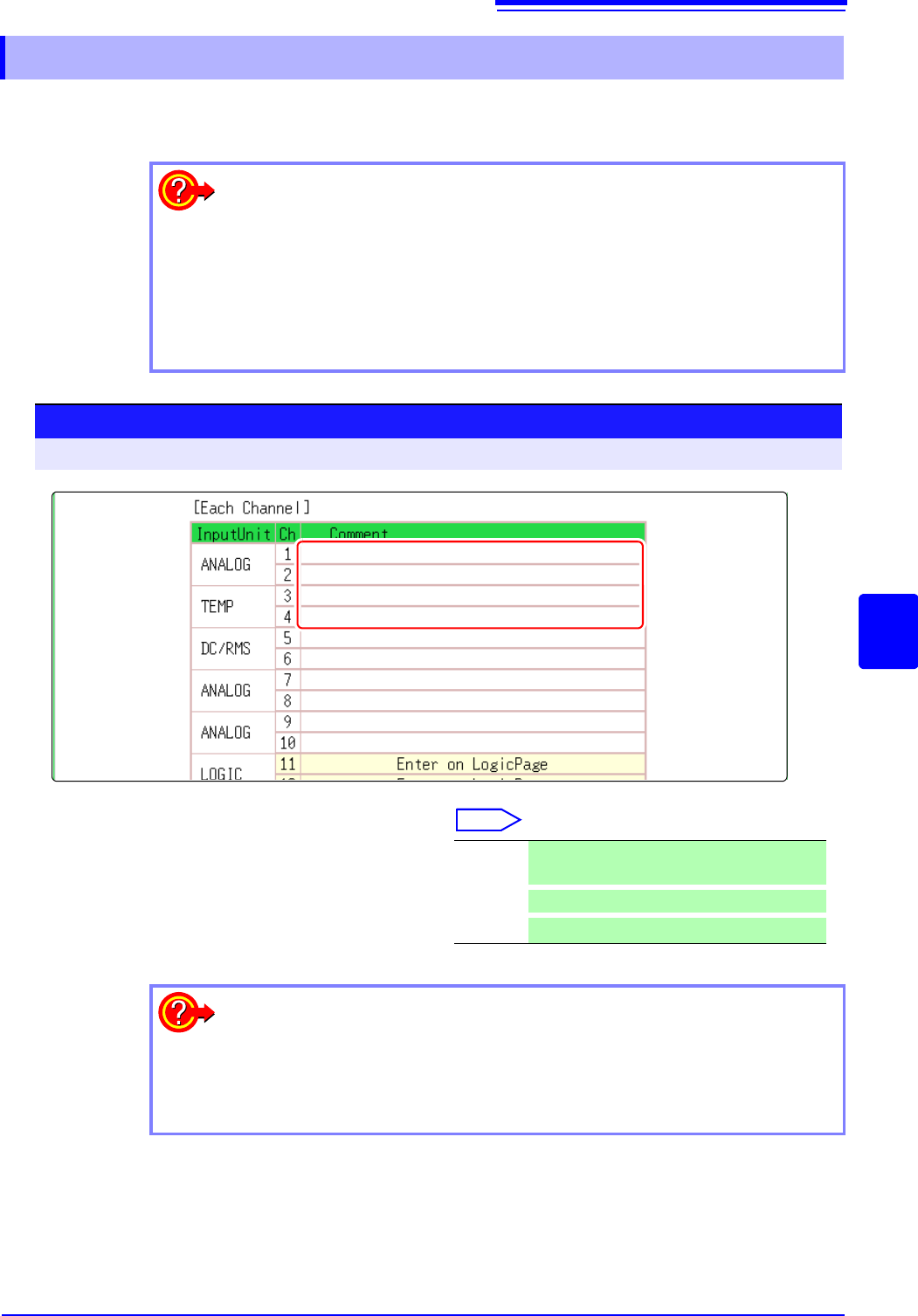
Comments added for each channel can be displayed on-screen. (Allowed number of characters: up
to 40)
7.1.2 Adding a Channel Comment
To display a comment on the screen
Right-click and select [DISP] , and then select a comment.
See: "6.7.2 Showing Comments On Waveform Screen" (p.134)
To copy a comment to another channel
The [Comment] sheet can be used to copy a comment.
See: "7.8 Copying settings to other channels (calculation No.) (Copy function)" (p.160)
1
Procedure
To open the screen: Right-click and select [CHAN] [Comment] sheet
1
Enter the comment for each analog chan-
nel.
Select
Move the flashing cursor to the [Comment]
item, and then click.
Input Enter comment text.
See: "Entering Text" (p.141)
Clear
Clear entered information
Undo
Return to condition of preceding step
To select from preset terms
Clicking [PRESET] after activating text input brings up a list of preset terms.
It is also possible to select words from previously entered titles (History func-
tion).
See: "Entering Text From a Term List Or History List" (p.142)
7.1 Adding Comments
140
2
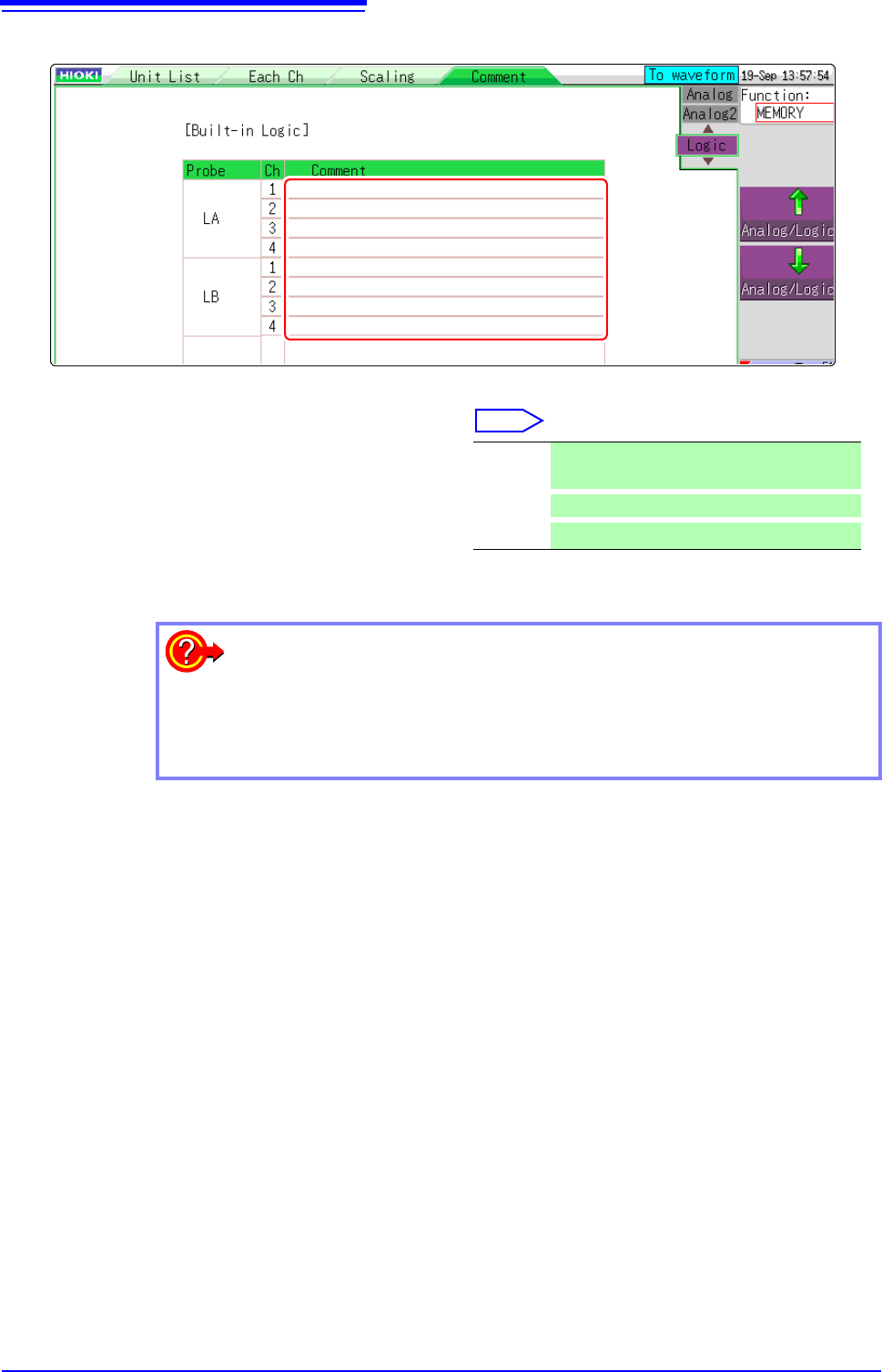
Enter the comment for each logic channel.
Select
Move the flashing cursor to the [Comment]
item, and then click.
Input Enter comment text.
See: "Entering Text" (p.141)
Clear Clear entered information
Undo
Return to condition of preceding step
2
3
To select from preset terms
Clicking [PRESET] after activating text input brings up a list of preset terms.
It is also possible to select words from previously entered titles (History func-
tion).
See: "Entering Text From a Term List Or History List" (p.142)