MR8740、MR8741_user_manual_eng_20191016H.pdf - 第137页
6.3 Moving the Waveform Display Posit ion 125 5 Chapter 6 W aveform Screen Monitoring and Analysis 6 This applies to the Memory function and Recorder Fun ction. From the scroll bar you can verify the relative pos ition a…
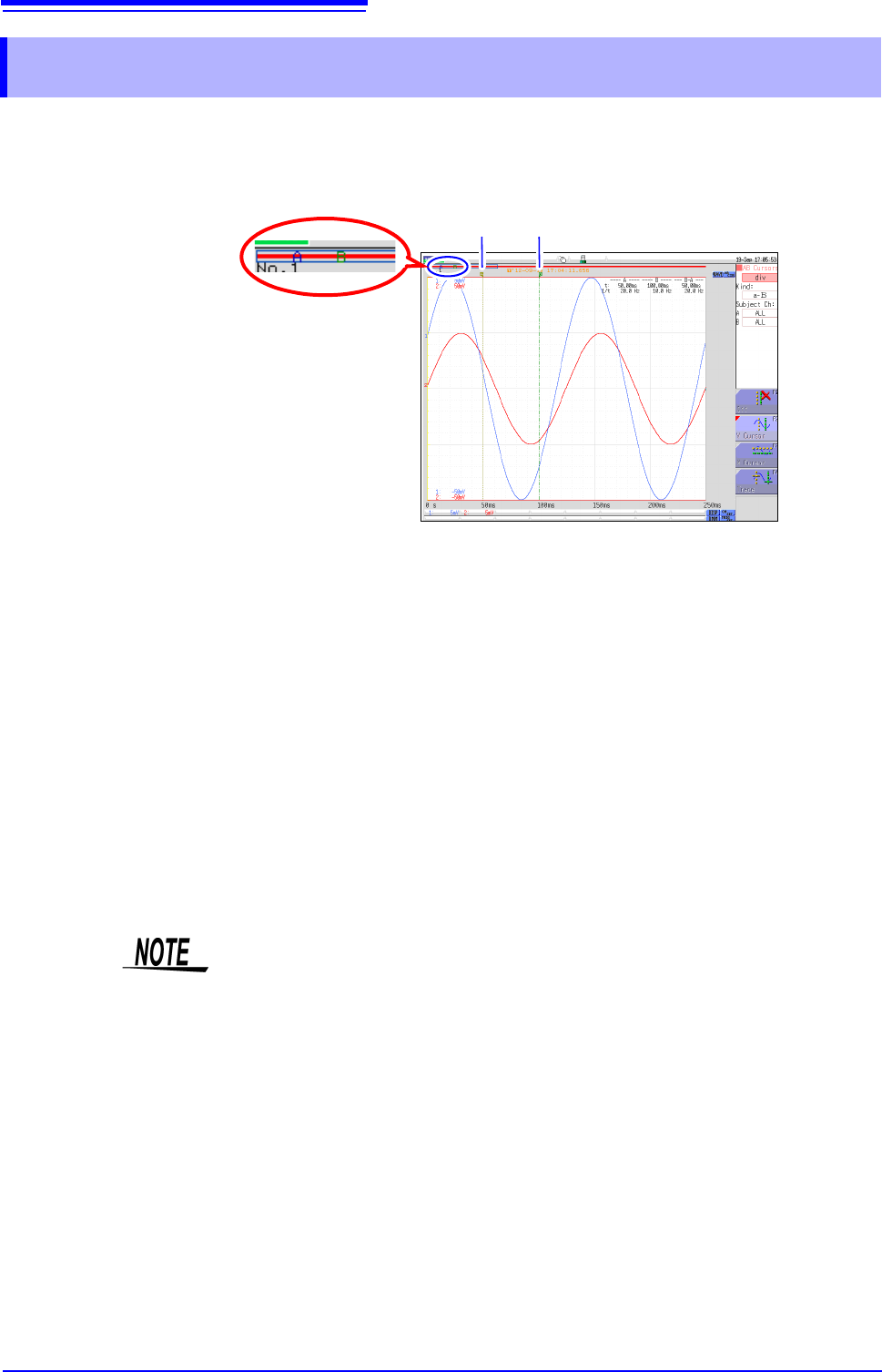
6.2 Specifying a Waveform Range (A/B Cursor)
124
When the waveform is shown as a time display, the range can be specified with the div cursor or
Trace cursor.
The specified range will be used for file saving, X-Y synthesis, and numerical calculation. The range
selection will be retained also when the waveform display format is changed.
The general procedure is as follows.
1. Set A/B cursors
See: "A/B Cursor Settings" (p. 120)
2. Specify a range
• For file saving:
System screen - [File Save] sheet - [Save Area] item: Select [A-B Wave].
See:"4.2.2 Automatically Saving Waveforms" (p.88)
"4.2.3 Saving Data Selectively (SAVE)" (p.93)
• For X-Y synthesis:
Status screen - [Status] sheet - [Combo Area] item: Select [A-B Wave].
See:"6.4 Performing Waveform X-Y Synthesis" (p.127)
• For numerical calculation:
Status screen - [Num Calc] sheet - [Calc Area] item: Select [A-B Wave].
See:"9.2 Settings for Numerical Value Calculation" (p.214)
6.2 Specifying a Waveform Range (A/B Cursor)
Cursor position can be
verified.
A Cursor B Cursor
About reading measurement values and cursor types:
See: "6.1 Reading Measurement Values (Using the A/B Cursors)" (p.120)
Available range for A/B cursor
The available range depends on the function.
• Memory function: Recorded measurement data for one measurement
• Recorder function: Up to the range of measurement data recorded during one mea-
surement, or up to the range of measurement data that can be recorded internally,
starting at the point at which measurement ended and going backwards in time.
The following measurement data can be recorded internally: max. 80,000div
When the MR8990 Digital Voltmeter Unit is installed
There may be one data item more than the range (number of data items) speci-
fied with the A/B cursors.
6.3 Moving the Waveform Display Position
125
5
Chapter 6 Waveform Screen Monitoring and Analysis
6
This applies to the Memory function and Recorder Function.
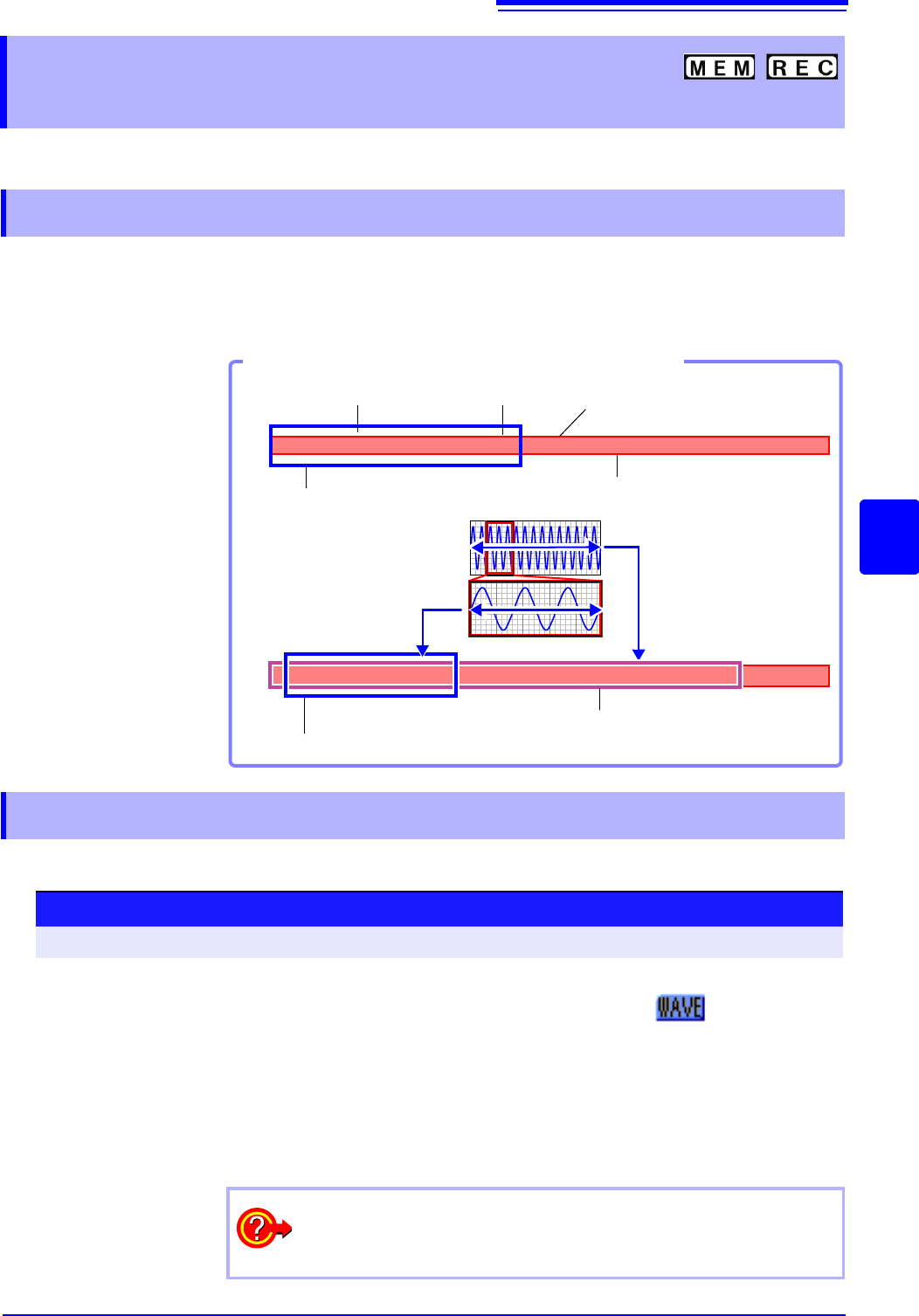
From the scroll bar you can verify the relative position and size of the displayed portion of a wave-
form within the overall recorded waveform.
Trigger time, trigger position and A/B cursor positions (when using voltage axis cursor or trace cur-
sors) are also displayed.
When measuring or displaying an existing waveform, use the mouse to scroll.
6.3 Moving the Waveform Display
Position
6.3.1 About Display Position
Verifying the Display Range on the Scroll Bar
Trigger Point
A Cursor
B Cursor
T
A
B
Blue frame: Screen display range (25 div)
With zoomed display
(p.130)
Blue frame: Zoomed display range (lower waveform)
Pink frame: Display range (upper waveform)
Red bar: Recorded waveform
(Gray bar if waveform
is within recording
length)
6.3.2 Scrolling the Measurement Waveform
Scrolling measured waveforms left or right
To open the screen: Left-click the [WAVE] icon.
1
Left-click the [WAVE] icon.
Left-click the [WAVE] icon on the top right of the Waveform screen.
2
Move the mouse left or right while holding down the left mouse button
(dragging) when the mouse cursor is in the Waveform screen.
The waveform is scrolled.
You can rotate the wheel button forward or backward to make fine scrolling adjustments.
To see past waveforms in Roll Mode
You can view past waveforms during measurement by scrolling the
waveforms with the mouse. To redisplay a waveform, select [Scroll].
6.3 Moving the Waveform Display Position
126
You can display the waveform position you wish to view immediately by specifying it with the
mouse.
6.3.3 Moving the Position
Procedure
To open the screen: Right-click and select [DISP] Waveform screen Left-click the [WAVE] icon WAVE
settings GUI display
1
Left-click the [WAVE] icon.
Left-click the [WAVE] icon on the top right of the Waveform screen.
2
Use the mouse to specify a position on the scroll bar of the
screen.
3
Left-click the mouse.
The selected display position appears on the screen.
Moving the position when [Memory Div: On] with the Memory
function:
Click the [WAVE] icon. With no block displayed in the upper part of
the screen, move the position.
(When a block is displayed in the upper part of the screen, the
desired block can be selected and the recorded waveform can be
displayed. (p.136)