MR8740、MR8741_user_manual_eng_20191016H.pdf - 第340页
15.3 Accessing the Files on the Instrument F rom a Computer (Using FTP) 328 15.3.1 Making FTP Settings at the Instrument 1 2 3 3 Procedure To open th e screen : Right-clic k and select [SYSTEM] [Interface] sheet 1 Set…
15.3 Accessing the Files on the Instrument From a Computer (Using FTP)
327
12
Chapter 15 Connection to a Computer
14
15
By using a PC FTP client, you can transfer files from the instrument's media to the PC and perform
other file operations.
• This instrument is equipped with an FTP (File-Transfer-Protocol, RFC959
compliant) server.
• You can use Internet Explorer
or other popular FTP clients.
To use FTP, the instrument must be properly set up and connected via LAN cable to
the PC.
See: "15.1.1 Making LAN Settings at the Instrument" (p.314)
"15.1.2 Connecting Instrument and PC With LAN Cable" (p.318)
Relationship Between
Storage Media and
Directories
Each of the various types of storage media appears as a directory on the FTP
server.
/RAM ............... Internal memory
/USB1.............. USB memory stick
/STORAGE ....... Storage memory
Limitations • During measurement, file access is not possible.
• Storage data can be forwarded directly to the PC.
The STORAGE folder will be displayed when there is a storage waveform.
After storage, the following files can be stored in the STORAGE folder:
• Setting file
• Waveform binary file (data.xxx extension, based on the function, are mem,
rec, xyc, and fft)
• Waveform text file(data.csv)
15.3 Accessing the Files on the Instrument From
a Computer (Using FTP)
• The FTP server of the instrument allows only one connection at a time. More
than one PC cannot access the server simultaneously.
• If no command is sent from a PC for more than one minute after connecting to
the FTP server, the FTP may disconnect the PC. Reconnect the FTP.
• FTP operation will be interrupted when measurement is started.
• Before inserting or removing a USB memory stick, terminate the FTP connection.
• Do not perform file operations while FTP is being used.
• With Internet Explorer
, the refresh date of files may not match those of the
main instrument.
• With Internet Explorer
, temporary internet files may retain data from their previ-
ous access, so the previous data may be obtained instead of the newest data.
Be careful when moving files by FTP, as some FTP client/browser programs may
delete all selected files or folders from the source if you cancel a transfer before
completion. Rather than moving files in one step, we recommend copying
(downloading) and then manually deleting from the source.
Things to Check Before Using FTP
About the Storage Folder
• lData between the AB cursors will be saved when the time axis/trace cursor is
displayed.
• lData for the channel which is ON will be saved.
• lWaveform for the block which is displayed during memory division will be displayed.
• lThinning setting will not be considered during text saving. All data is saved at
all times.
15.3 Accessing the Files on the Instrument From a Computer (Using FTP)
328
15.3.1 Making FTP Settings at the Instrument
1
2
3
3
Procedure
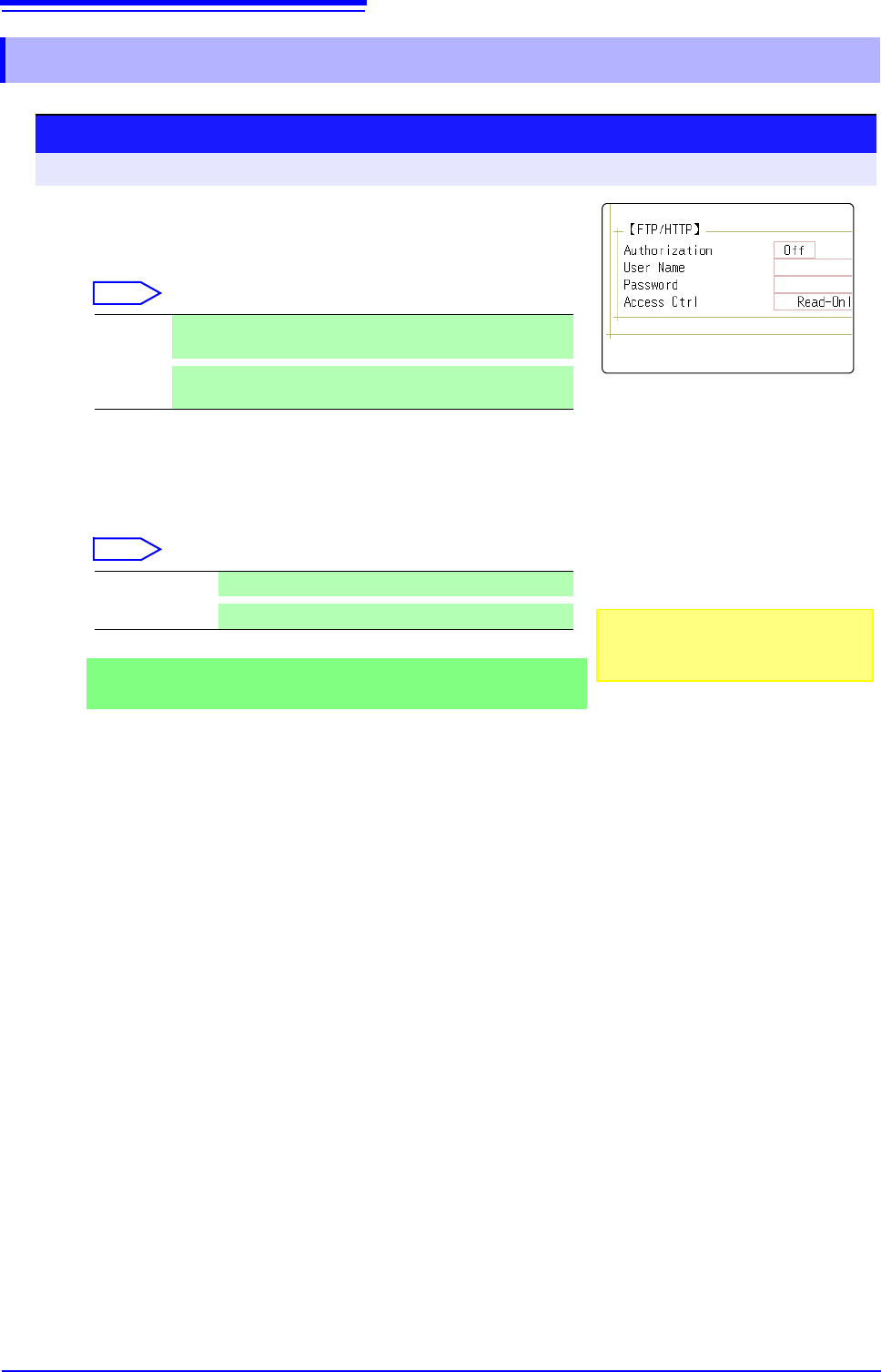
To open the screen: Right-click and select [SYSTEM] [Interface] sheet
1
Set the access restrictions.
Move the flashing cursor to the [Access Ctrl] item.
Select
2
Make authorization settings.
Move the flashing cursor to the [Authorization] item.
Select
3
When [On] is selected
Set up a user name and password.
Move the flashing cursor to the [User Name] and [Pass-
word] items and enter suitable information.
See: "7.1.3 Alphanumeric Input" (p.141)
"Authorization User Name and Password" (p.315)
4
Apply the settings.
Move the flashing cursor to the [Reset] item.
Select [Reflect Set].
The indication "LAN was reconnected" appears at the bottom of the screen.
Read/
Write
File deletion and renaming are permitted.
Read-
Only
File reading only is permitted. This prevents files from being
deleted or changed from outside the instrument.
Off Web server authentication is not used. (default setting)
On Web server authentication is used.
The user name and password for au-
thentication are the same for the Internet
browser and for FTP.
15.3 Accessing the Files on the Instrument From a Computer (Using FTP)
329
12
Chapter 15 Connection to a Computer
14
15
The following example shows how to use the Internet Explorer
browser on Windows 7.
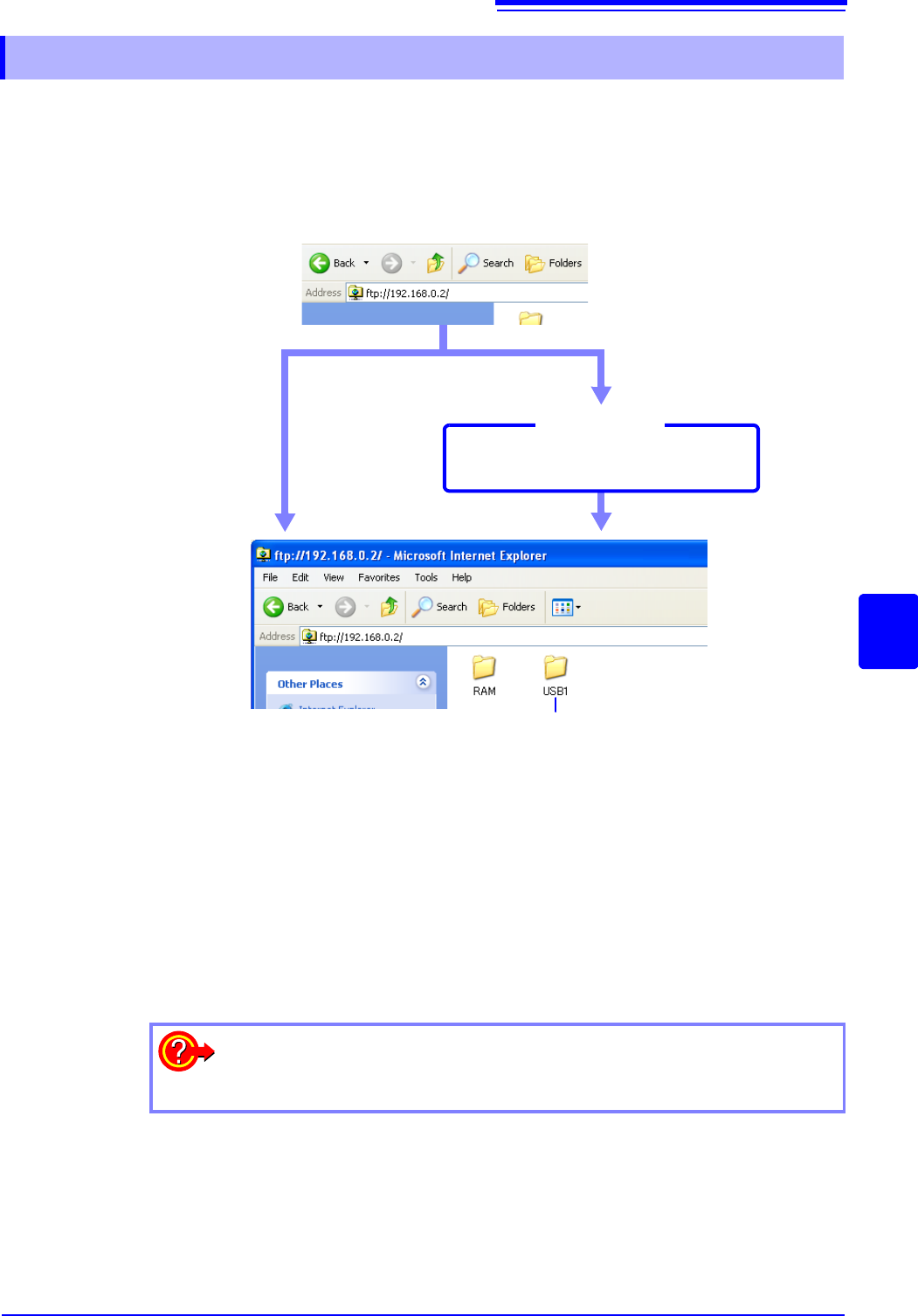
Launch Internet Explorer
on the PC and enter "ftp://" plus the IP address of the
instrument in the address bar.
If the IP address of the instrument is "192.168.0.2":
* An authorization user name and password have been set in the System screen
- [Interface] sheet.
See:"15.3.1 Making FTP Settings at the Instrument" (p.328)
You can also enter the user name and password, delimited by ':' and '@', in front
of the normal IP address.
[ftp:// Username:Password@ instrument IP address]
Example: When the user name is "hioki" and the password is "1234":
Enter [ftp://hioki:1234@192.168.0.2].
15.3.2 Using FTP to Connect to the Instrument
USB memory stick
Click to display the file stored on the media.
Authorization
required*
Login by entering a user name and
password.
Connect
Login screen
The storage media of the instrument
appear.
authorization
setting
If the connection fails
Check the communications settings of the instrument.
See: " LAN Setup Workflow" (p.317)