MR8740、MR8741_user_manual_eng_20191016H.pdf - 第88页
3.5 Input Channel Setting 76 Set the analog cha nnel. For information about specific settings for e ach module, see "7.9"(p.161). 1. W aveform Display Color Specifies the color in which the waveform of the s el…
3.5 Input Channel Setting
75
3
Chapter 3 Measurement Procedure
The setting workflow for logic channels (standard LOGIC terminals LA - LB (MR8740), LA -LD
(MR8741), expansion LOGIC terminals L1A - L8D) is explained below.
• When input coupling is set to GND, the waveform will have no amplitude and
range setting is not possible.
• Due to the influence of filter attenuation, correct range setting may sometimes
not be possible.
• When making trigger settings, set the vertical axis (voltage axis) range first. If
the range is changed after specifying the trigger, the trigger setting may
change.
• When using the Variable function, set the vertical axis (voltage axis) range first.
If the range is changed after specifying the Variable setting, observation with
sufficient precision may not be possible.
• When using the Variable and Scaling functions together, make the Scaling set-
tings first. If Scaling settings are made after selecting the Variable function, the
intended display result may not be achieved.
1 Make screen display related settings
Setting logic recording width
See:
"1. Logic Width" (p.79)
2 Make display color and display position settings
Set waveform display position
Set waveform display color
See:
"2. Waveform Display Position" (p.79)
"3. Waveform Display Color" (p.79)
• Waveform display position can be specified in 1% increments.
• Not displayed for X-Y1 and X-Y4 screens.
• With MR8740, install the logic units on unit 1 to unit 8. Any logic units installed
on units 9 and after will be invalid.
3.5 Input Channel Setting
76
Set the analog channel.
For information about specific settings for each module, see "7.9"(p.161).
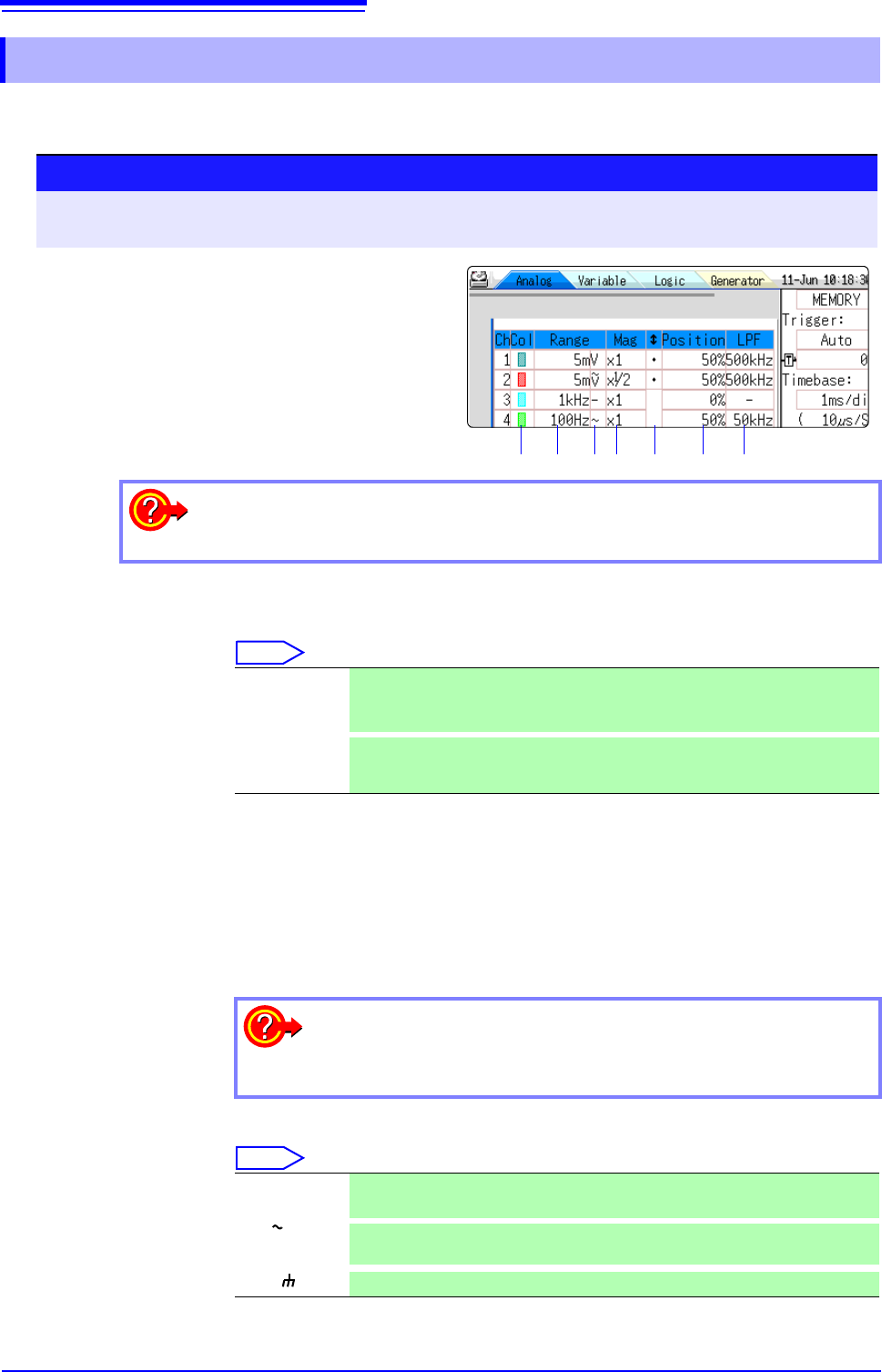
1. Waveform
Display Color
Specifies the color in which the waveform of the selected channel is displayed.
You can also select the same color as another channel.
Select
2. Vertical axis
(Voltage axis)
Range
Sets the vertical axis (voltage axis) range for each channel. The value set here is
the voltage of one increment on the vertical axis.
For information on the full-scale value for the respective modules, see the table
in the section "6. Zero Position" (p.77).
When the Variable function is on but Variable Auto Adjustment is off, the size of
the waveform on the screen will not change even if the vertical axis (voltage)
range is changed.
3. Coupling Set the input signal coupling method. Normally, DC coupling should be selected.
Select
3.5.2 Analog Channel
Procedure
To open the screen: Right-click and select [DISP] Waveform screen Right-click and select [CH.SET]
Channel settings window ([Analog] sheet)
1. 2. 3. 4. 5. 6. 7.
1
Move the flashing cursor to the channel for
which to make settings.
2
Select the settings by clicking the mouse.
To copy the settings of one channel to another
See: "7.8 Copying settings to other channels (calculation No.) (Copy function)" (p.160)
Off The waveform is not displayed. If the Auto Save setting for [Save Channel] is
[Disp Ch], data for the channel will also not be saved.
See: "Select the channel to save." (p.90)
On
The waveform is displayed. Set the display color by clicking [ ] or [ ].
All On-Off
Switches the waveform display of all channels to all ON or all OFF
An over-range condition has occurred
Change the vertical axis (voltage axis) range to a lower sensitivity set-
ting.
DC (V,– ) Both DC components and AC components of the input signal will be measured.
(default setting)
AC ( , ~)
Only AC components of the input signal will be measured. DC components are
blocked.
GND ( )
Input is shorted to ground. (Allows checking the zero position.)
V
3.5 Input Channel Setting
77
3
Chapter 3 Measurement Procedure
4. Vertical axis
(Voltage axis)
Zoom
Vertical axis (voltage axis) zoom-up or zoom-down settings can be made sepa-
rately for each channel. The settings will be used for display.
Zooming is carried out using the zero position as reference. The measurement
resolution does not change.
See: "6.5.3 Magnifying and Compressing Vertical Axis (Voltage Axis)" (p.131)
To achieve a user-specified zoom setting, the Variable function is used. By
reversing plus/minus, the waveform can be inverted.
See: "7.5 Variable Function (Setting the Waveform Display Freely)" (p.155)
"7.7 Inverting the Waveform (Invert Function)" (p.159)
5. Vernier Fine adjustment of input voltage can be performed arbitrarily on the Waveform
screen (display only). When recording physical values such as noise, temperature
and acceleration using sensors, amplitude can be adjusted to facilitate calibration.
See: "7.6 Fine Adjustment of Input Values (Vernier Function)" (p.158)
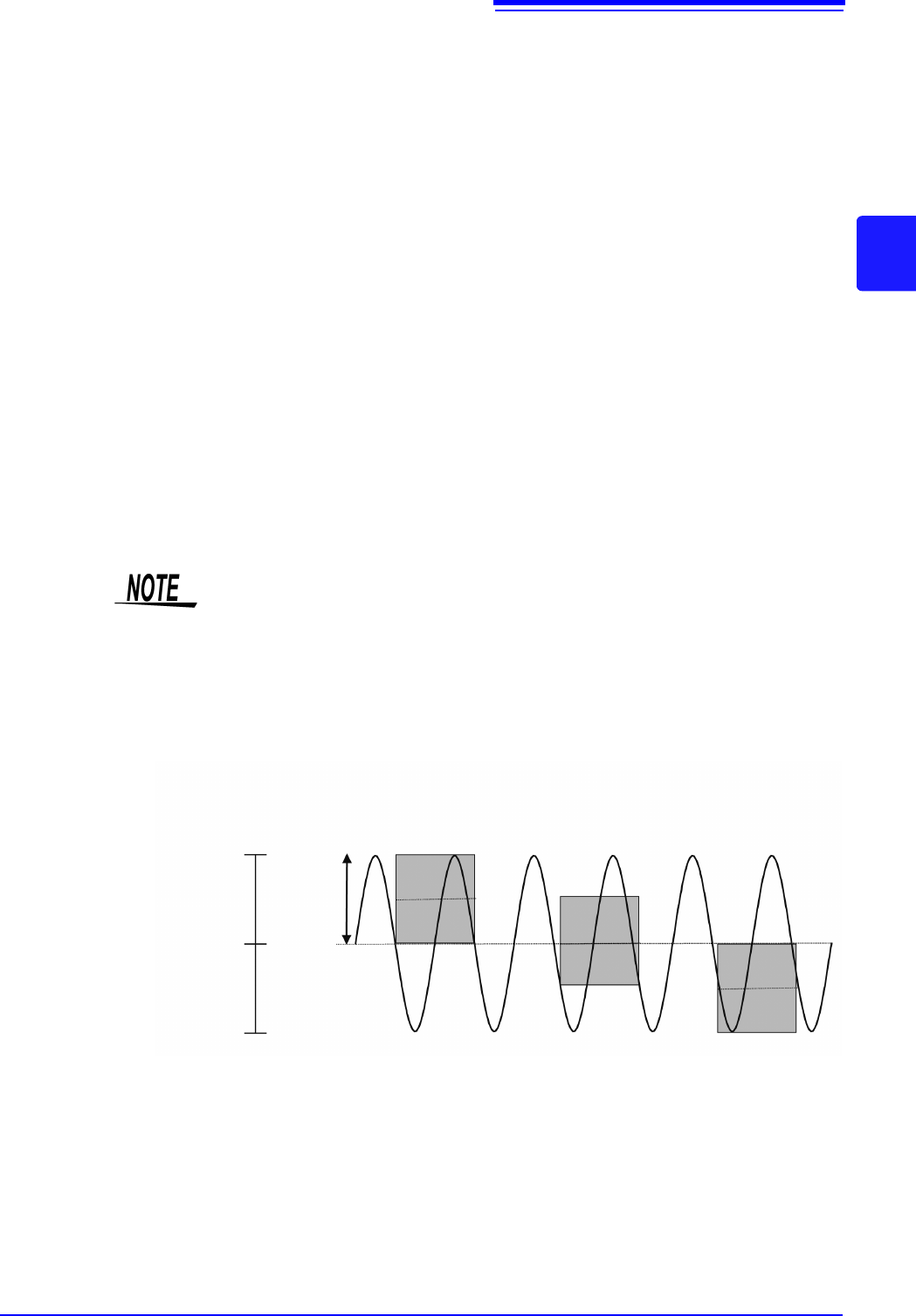
6. Zero Position Sets the 0 V level display position. If the 0 V input level has shifted, perform
zero-adjust.
See: "2.6 Adjusting the Zero Position (Zero-Adjust)" (p.58)
See: "2.7 Performing Calibration (When Mounting MR8990)" (p.59)
If the zero position of the 8969 and U8969 Strain Unit is out of alignment, perform
auto balance.
See: "7.9.4 Setting Model 8969 and U8969 Strain Unit" (p.165)
The zero position is as shown in the illustration below.
(Example: 8966 Analog Unit)
• Simply moving the display position will not apply an offset to the input.
• Zoom of the vertical axis direction (voltage axis) is based on the zero position.
• The voltage range displayed in the waveform screen changes with zero posi-
tion and zoom of the vertical axis (voltage axis) but the measurable range does
not change.
A/D Data
2047
0
-2047
A/D Data
0 V
2000 LSB
0 %
50 %
100 %
Display screen
(Zero position: 0%)
Display screen
(Zero position: 50%)
Display screen
(Zero position:100%)
<Zoom factor ×1>