MR8740、MR8741_user_manual_eng_20191016H.pdf - 第266页
12.3 Setting FFT Analysis Conditio ns 254 The window function defines the segment of the input signal to b e analyzed. Use the window function to minimize leakag e errors. There are thre e general types of window functio…
12.3 Setting FFT Analysis Conditions
253
11
Chapter 12 FFT Function
12
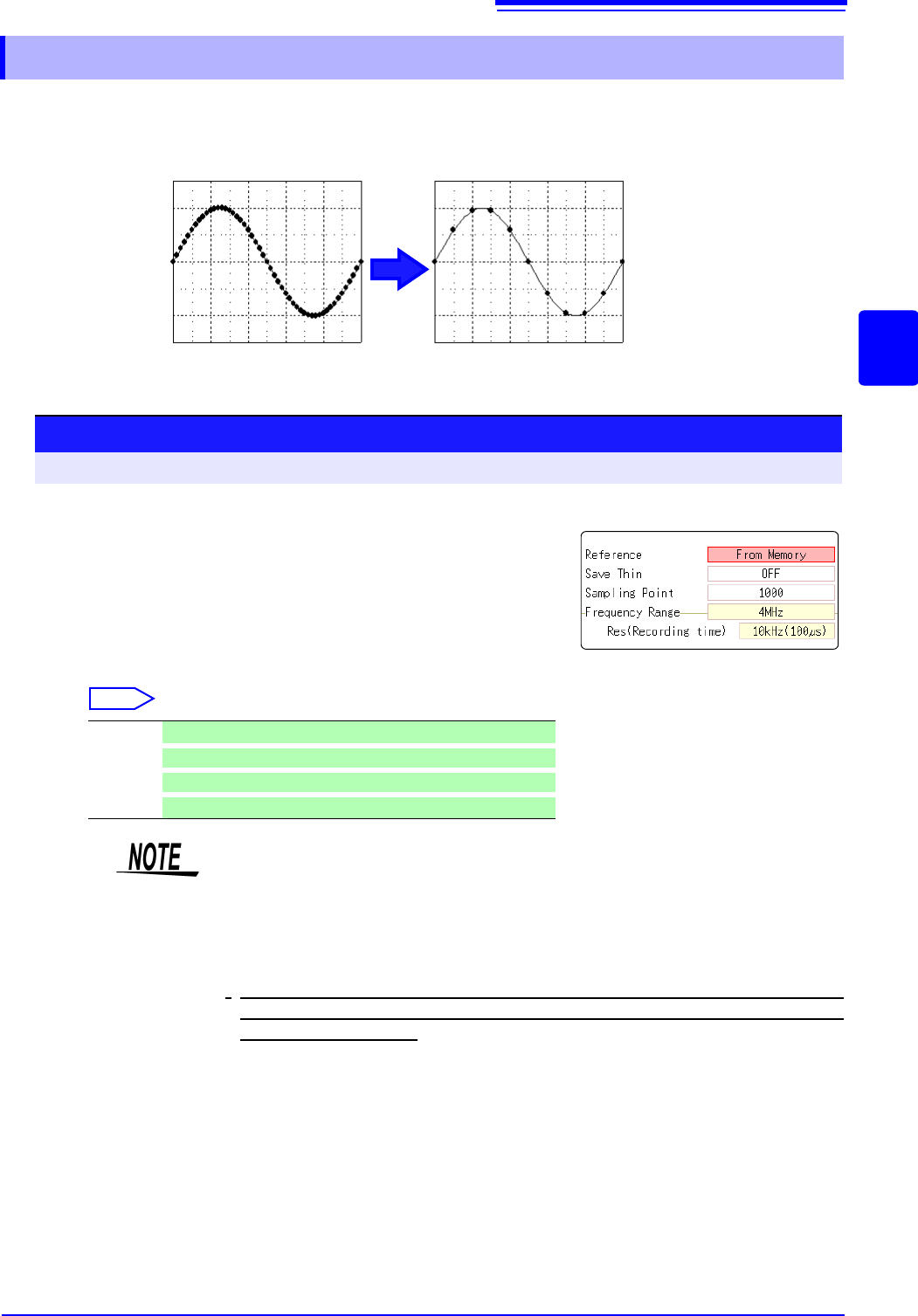
When performing FFT analysis of data measured using the memory function, the measurement
data can be thinned before calculation. If the sampling frequency is too high and the expected
results are not obtained, thin the data before calculation to increase the frequency resolution.
12.3.4 Thinning Out and Calculating Data
Original waveform Thinned waveform
1
Select the reference data.
Move the flashing cursor to the [Reference] item, and select
[From Memory].
2
Select the thinning amount.
Move the flashing cursor to the [Save Thin] item.
Select
Off Do not thin out.. (default setting)
1/10
Skip every 10 data points.
1/100
Skip every 100 data points.
1/1000
Skip every 1000 data points.
Procedure
To open the screen: Right-click and select [STATUS] [Status] sheet
1
2
• The [Save Thin] setting can only be set when the [Reference] is set to [From
Memory].
• The range that can be set for thinning changes depending on the time axis
range measured by the memory function.
• The frequency range is automatically determined. This setting cannot be
changed.
•
When thinning, aliasing occurs and waveforms that did not originally exist may
be observed. Make settings after sufficient consideration of the frequencies
included in waveforms.
12.3 Setting FFT Analysis Conditions
254
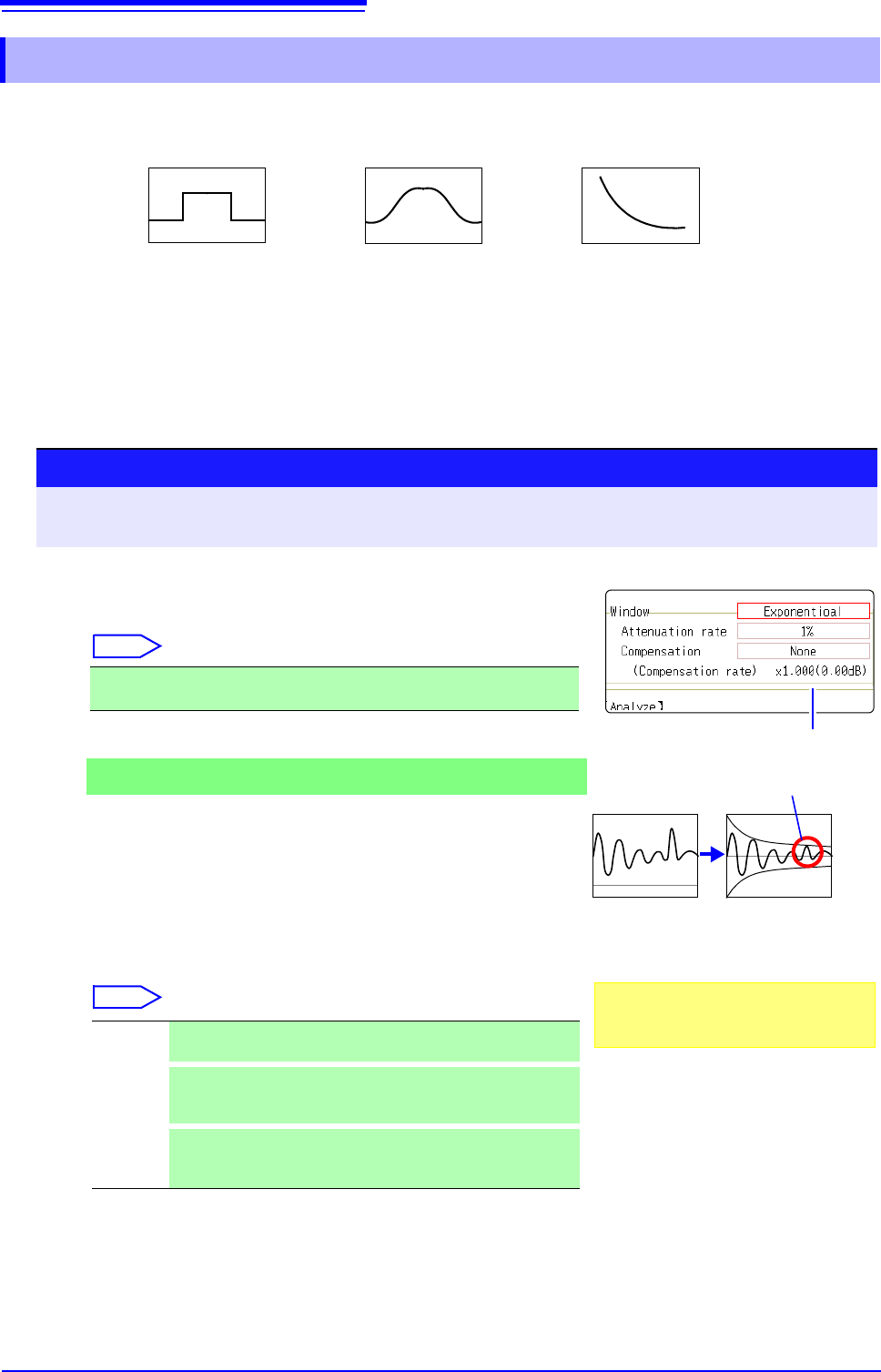
The window function defines the segment of the input signal to be analyzed.
Use the window function to minimize leakage errors. There are three general types of window functions:
The non-rectangular window functions generally produce lower-level analysis results. By applying attenu-
ation correction, the attenuation introduced by the non-rectangular window functions can be corrected to
bring analysis results back to similar levels.
12.3.5 Setting the Window Function
• Rectangular Window
• Hann window
• Hamming window
• Blackman window
• Blackman-Harris window
• Flat top window
• Exponential window
1
Select the window function.
Move the flashing cursor to the [Window] item.
Select
See: "Window Function" (p.A21)
2
If [Exponential] is the selected type
Set the attenuation coefficient (percentage).
Move the flashing cursor to the [Attenuation rate] item.
Set the attenuation coefficient as a percentage.
3
Set attenuation correction.
Move the flashing cursor to the [Compensation] item.
Select
Rectangular (default setting), Hanning, Hamming, Blackman, Black-
man Harris, Flat-top, Exponential
None Attenuated window function values are not corrected.
(default setting)
Power
The window function multiplies the power levels of the time-do-
main waveform so that output levels are comparable to those
of a rectangular window.
Average
The window function multiplies the average value of the time-
domain waveform so that output levels are comparable to
those of a rectangular window.
Procedure
To open the screen: Right-click and select [STATUS] [Status] sheet
See: To set from the Waveform screen (p.265)
Correction value
For the rectangular window function:
The correction value is always 1 (0 dB).
When the attenuation rate is 10%
10%
100%
Noise is suppressed in the attenuated wave-
form.
2
1
3
12.3 Setting FFT Analysis Conditions
255
11
Chapter 12 FFT Function
12
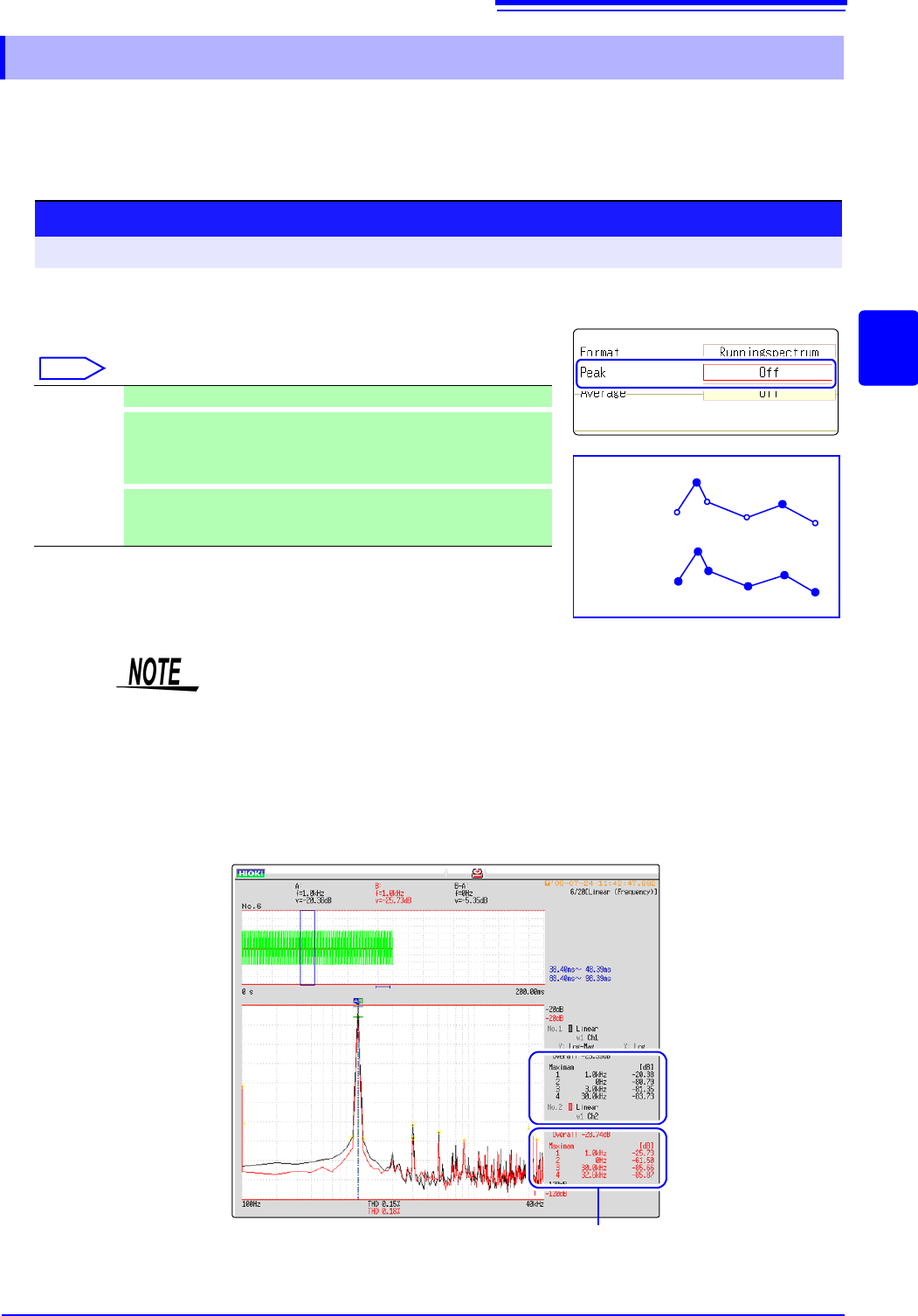
Either local or global maxima ([maximal]/ [maximum]) of the input signal and analysis results can
be displayed on the Waveform screen. However, if Nyquist display is selected on the Status screen-
[Status] sheet, no peak values are displayed.
12.3.6 Setting Peak Values of Analysis Results
Selecting peak value display.
Move the flashing cursor to the [Peak] item.
Select
Off Not displayed. (default setting)
Maximal
(local maxima)
When the value of data at a point is greater than that of the adjacent
points, that data is considered a local maxima. The ten largest local
maxima are displayed.
Maximam
(global maxima)
Among all data values, the ten points with the greatest values are
displayed.
Procedure
To open the screen: Right-click and select [STATUS] [Status] sheet
Maximal
Maximam
2
3
2
4
5
6
1
1
• No display occurs if peak values cannot be detected.
• Peak values on the Waveform screen can be displayed, but cannot be saved
as peak values in text files.
• Depending on the split screen status, display ten peak values may not be pos-
sible. In such cases, only the displayable number is displayed, starting from
large items.
Example: When the reference data setting is [From Memory]
Peak value display
From 1 to 4