MR8740、MR8741_user_manual_eng_20191016H.pdf - 第35页
1.5 Basic Operations 23 1 Chapter 1 Overview Right-clicking with the mouse displays a list of screens. This section describes the menu and the screens that can b e displayed. 1.5.2 Mouse Right-click Menu DISP 1 W aveform…
1.5 Basic Operations
22
You can use a mouse to make various settings on the instrument. This section explains how to per-
form mouse operations.
Use a commercially available USB mouse to operate the instrument.
The following describes how to operate the instrument with a mouse:
1.5 Basic Operations
1.5.1 Mouse Operations
• There are a variety of mice available, and not all mice will work with the instru-
ment.
• The instrument's USB ports are designed exclusively for use with mice and
USB memory sticks. Do not connect any other type of device.
• With some USB devices, the instrument may not start up if the power is turned
on while the USB device is connected to a USB connector. If that happens,
connect the USB device after turning on the power.
• When the instrument is operated with a mouse, some screens may not display
properly.
• External interference may cause the mouse to malfunction. Keep the mouse
and mouse cable as far away as possible from sources of interference.
• Do not use a USB hub because mouse operation may not be possible. Also,
do not connect two mice.
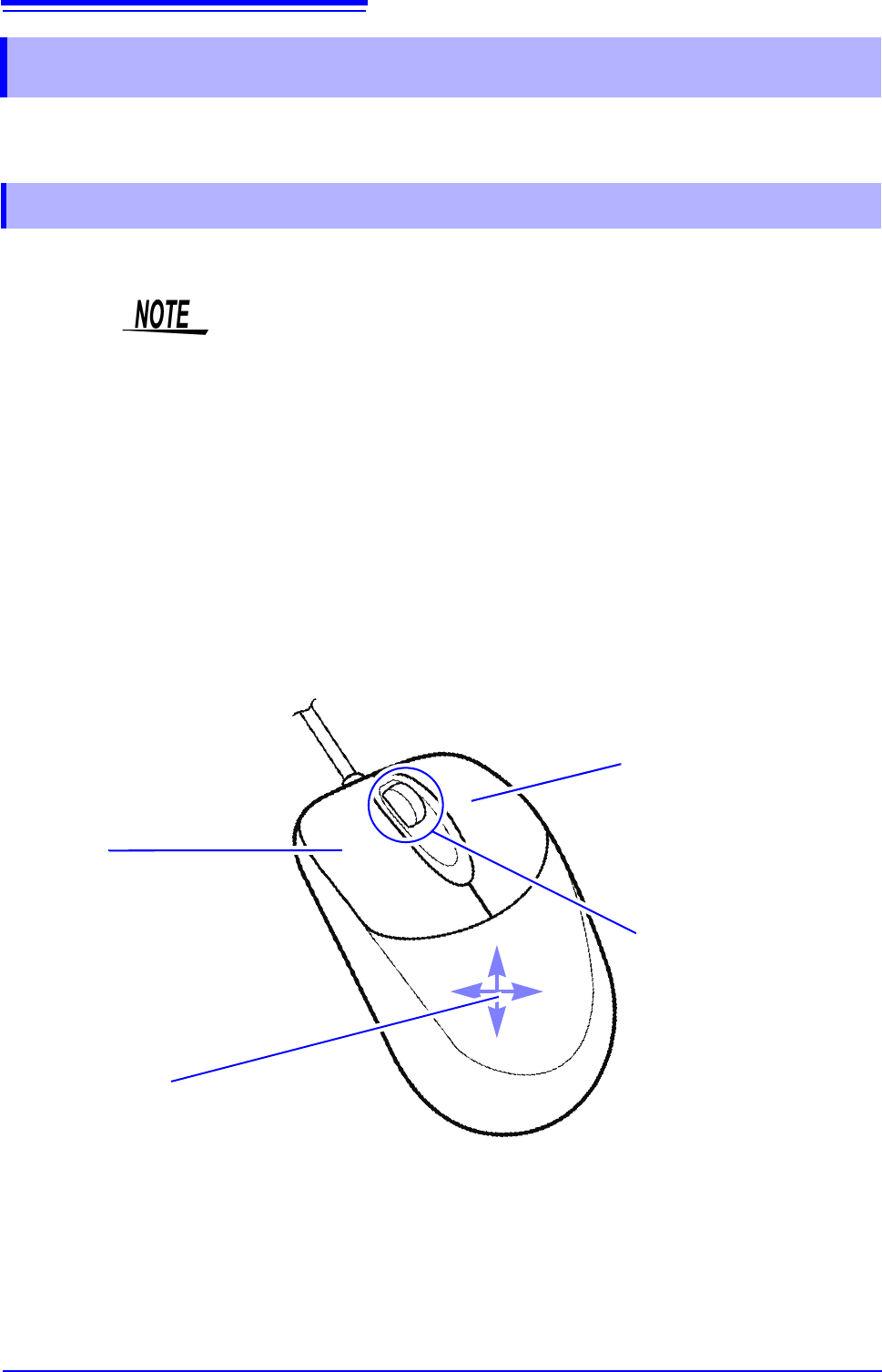
Right-click
Displays a menu with a list of screens.
Grayed-out screens cannot be dis-
played.
Center wheel
Changes the selected item.
On the File screen, you can use the
center wheel to change the selected
file. When measuring with memory
division, you can use the center
wheel to change the displayed
block.
On the Waveform screen, you can
use the center wheel to scroll the
waveform or move the A/B cursors.
Left-click
Left-click to select menus and to select items
on menus. When measuring with memory di-
vision, you can change the displayed block by
double-clicking.
Click the current path shown on the File
screen to move one level up in the folder hier-
archy.
Up/down/left/right
Moves the mouse cursor up, down, left, and
right on the screen.
Convenient features: Shortcut operations
Drag the mouse in any of the following directions while the right mouse button is held down to perform the corre-
sponding shortcut operation.
Drag right: START operation
Drag left: STOP operation
Drag up: ESC operation
1.5 Basic Operations
23
1
Chapter 1 Overview
Right-clicking with the mouse displays a list of screens.
This section describes the menu and the screens that can be displayed.
1.5.2 Mouse Right-click Menu
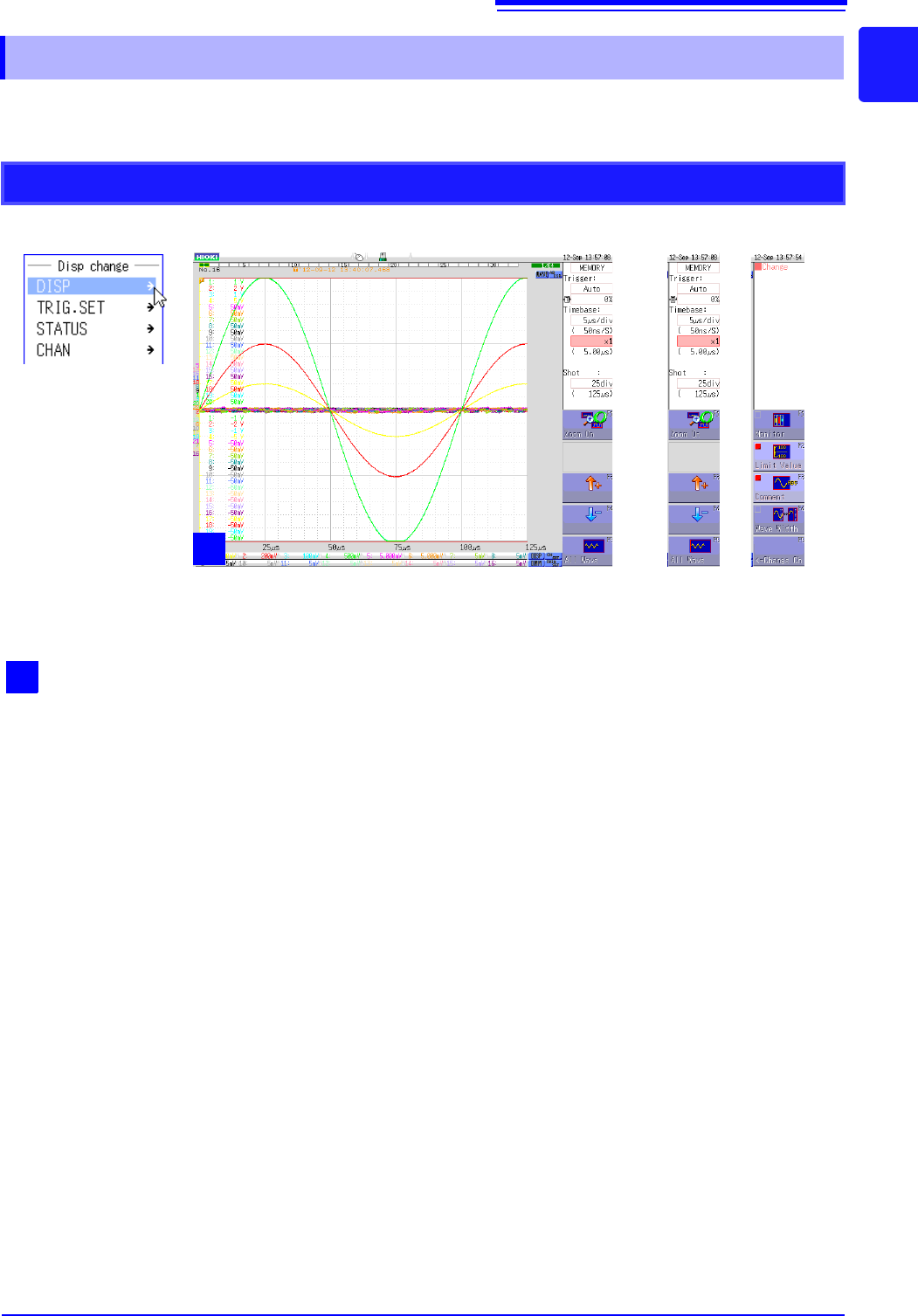
DISP
1
Waveform screen
Click [DISP] to display the Waveform screen.
If the Waveform screen is already displayed, the
GUI menu on the right of the screen changes each
time you click this item. Alternatively, you can
change the GUI menu on the right of the screen
when the Waveform screen is displayed by click-
ing the [DISP] icon on the bottom right.
1
1.5 Basic Operations
24
CH.SET
1
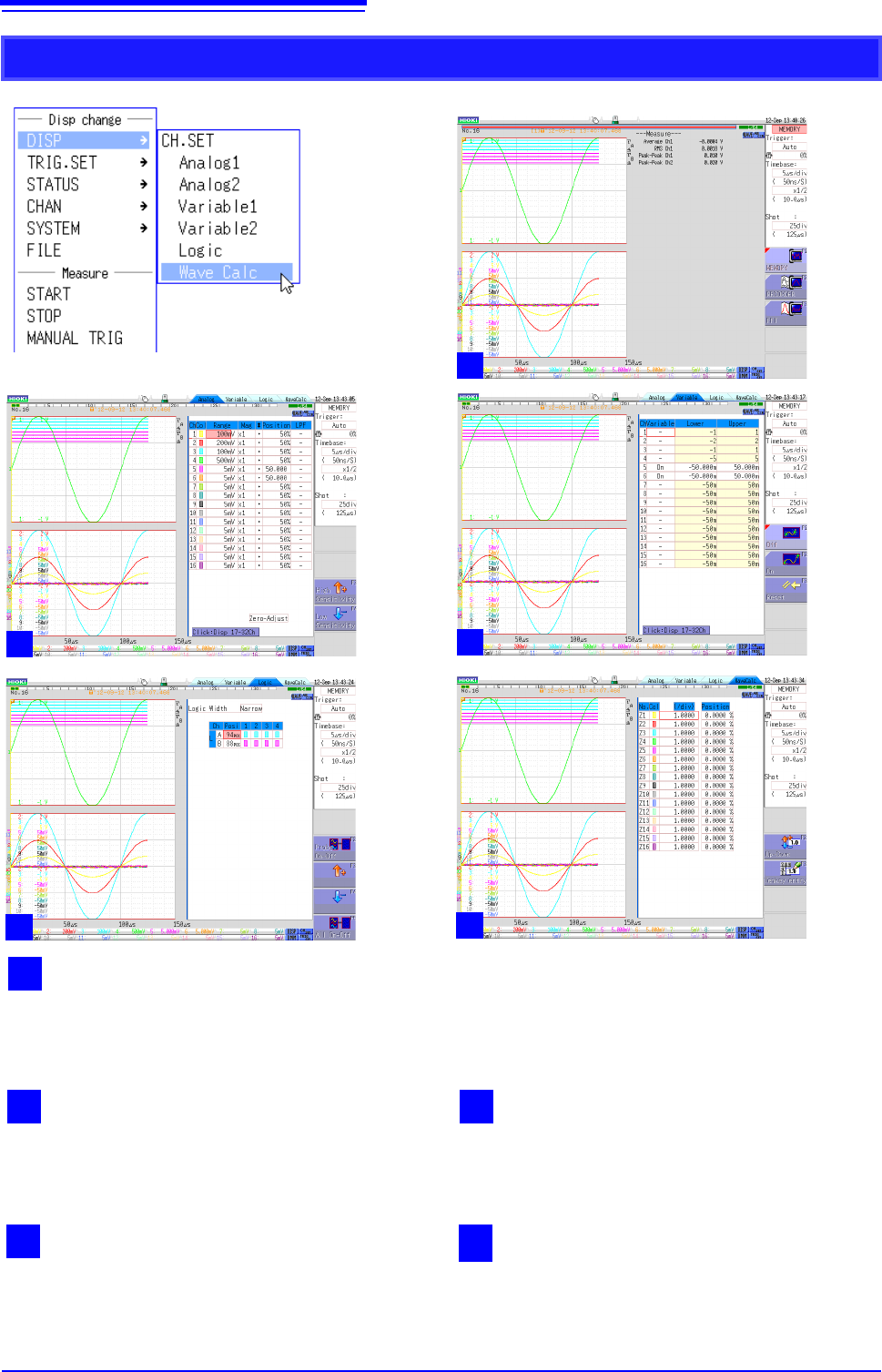
Waveform display
This is the normal waveform display state. Move the cursor to [DISP] and then click any of the menu items
under [CH.SET] to switch to one of the screens 2 to 5. Alternatively, you can click the [CH.SET] icon on
the bottom right of the Waveform display screen to switch screens.
3
Display range 1/2
Displays the screen for setting the waveform dis-
play range of the analog unit.
2
Analog channel 1/2
Displays the screen for setting the display position,
etc. by setting the range for the analog unit.
5
Waveform calculation
Displays the screen for changing the display posi-
tion or color of the calculation waveform when
waveform calculation is set to ON.
4
Logic
Displays the screen for changing the display posi-
tion or color of the logic waveform.
1
2
3
4
5