MR8740、MR8741_user_manual_eng_20191016H.pdf - 第330页
15.1 LAN Settings and Connection (Before Usin g FTP/Internet Browser/Command Communications) 318 Connect the instrument to a PC with a LAN cab le as follows. 1. Plug the LAN cable (100 BASE-TX compliant) into th e 100BAS…
15.1 LAN Settings and Connection (Before Using FTP/Internet Browser/Command Communications)
317
12
Chapter 15 Connection to a Computer
14
15
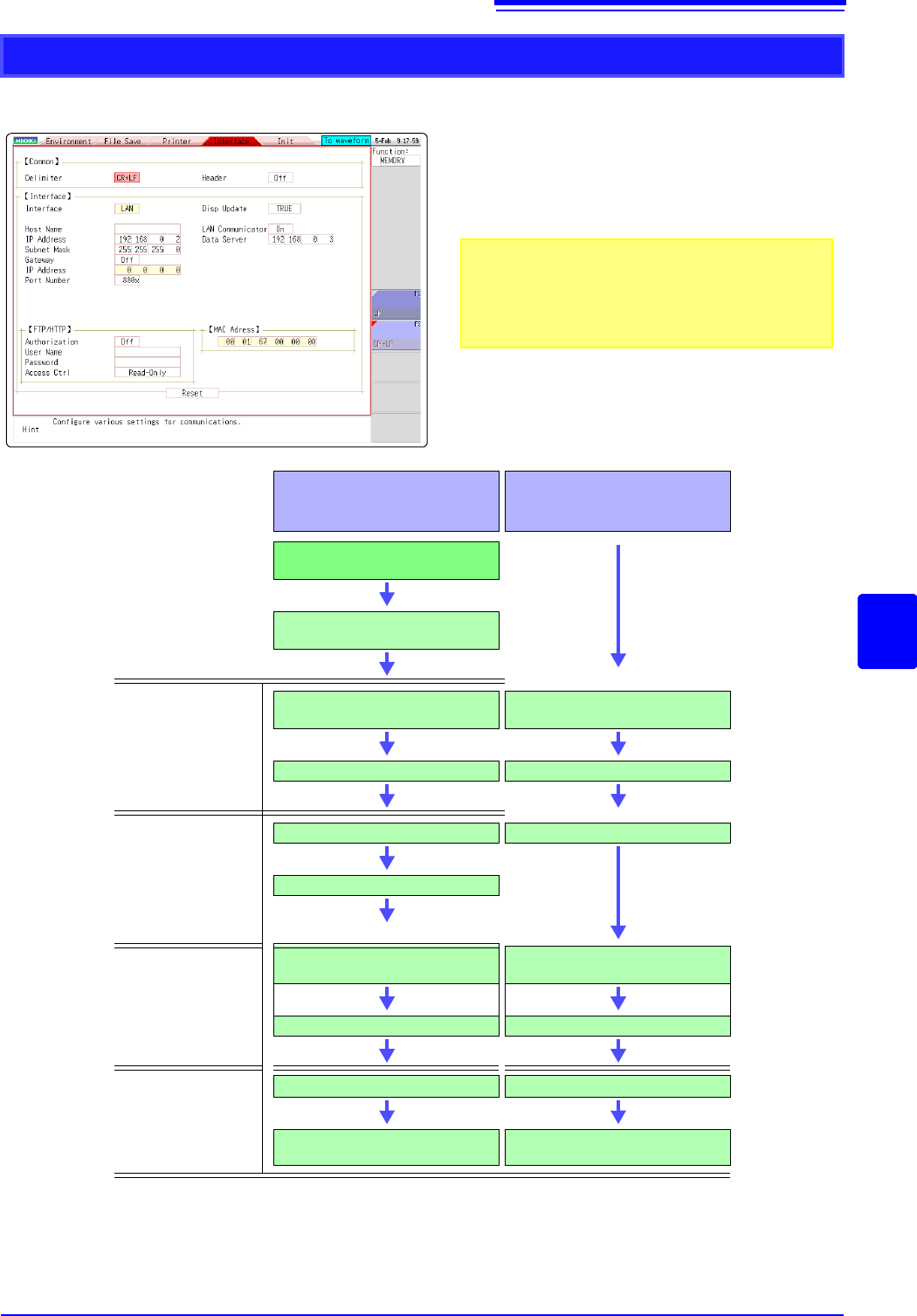
Click [SYSTEM] in the right-click menu to display the Communications sheet. According to the intended use,
make settings as outlined below.
LAN Setup Workflow
Use the mouse to move the flashing cursor
and select a setting item.
See: "7.1.3 Alphanumeric Input" (p.141)
For details on each setting, see "Setting Items" (p.315).
About the network
For IP address information and other details about the net-
work you are using, contact your network administrator.
(8)
(1)
(2)
(3)
(4)
(5)
(6)
(7)
Purpose
When Connecting to an
Existing Network
When Configuring a New
Network with a PC and
This Instrument
Use specified IP address and
connect to network
To assign a name to the instrument,
make a setting for (1) [Host Name]
Settings within same
network
(2) Set [IP Address] for this
instrument
(2) Set [IP Address] for this
instrument
(3) Set [Subnet Mask] (3) Set [Subnet Mask]
Settings for connecting
to other network
(Using gateway)
(4) [Gateway]: On
(4) Set [Gateway]: Off
(5) Set gateway [IP Address]
Settings for remote
operation and data
acquisition by using
Model 9333 LAN
Communicator
(6) Set [LAN Communicator]
to ON.
(6) Set [LAN Communicator]
to ON.
(7) Set IP address for [Data srvr] (7) Set IP address for [Data srvr]
Connect
(8) Execute [Reset] (8) Execute [Reset]
Connect with straight-through cable
See: "15.1.2"(p.318)
Connect with crossover cable
See:"15.1.2"(p.318)
15.1 LAN Settings and Connection (Before Using FTP/Internet Browser/Command Communications)
318
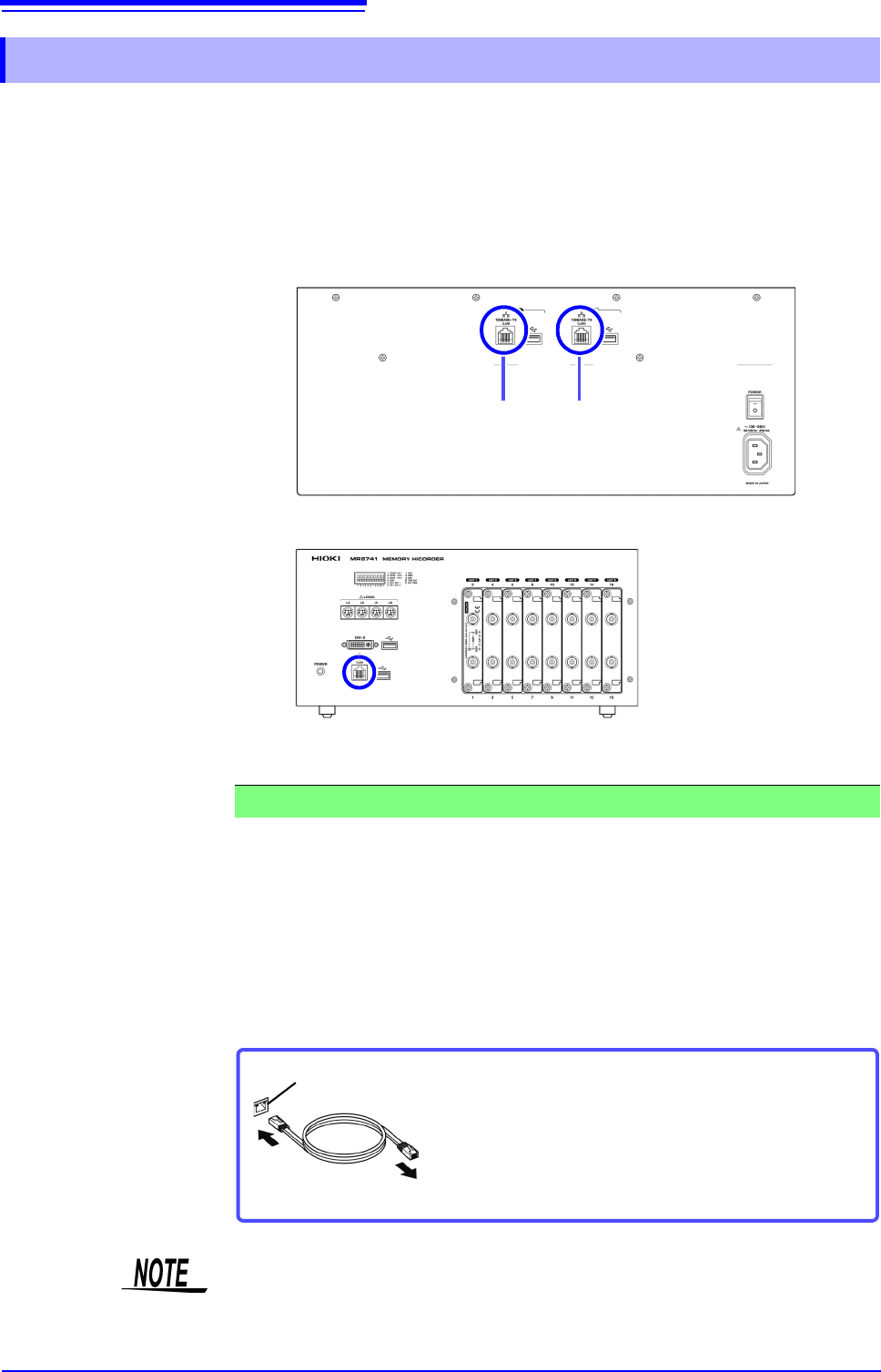
Connect the instrument to a PC with a LAN cable as follows.
1. Plug the LAN cable (100BASE-TX compliant) into the 100BASE-TX connector
on the rear of the instrument in the case of the MR8740 and on the front of the
instrument in the case of the MR8741.
2. Connect the above LAN cable to the PC. There are two ways to do this.
You can monitor and control the instrument from a PC by connecting the instru-
ment to a hub with LAN cable (100BASE-TX cable).
15.1.2 Connecting Instrument and PC With LAN Cable
MR8740: Rear
MR8741: Front
LAN connec-
tor of block II
LAN connec-
tor of block I
1. Connecting the Instrument to a Network (Connecting the Instrument to a Hub)
Connection cable: Use one of the following.
• 100BASE-TX straight-through cable (maximum length 100 m, commercially
available)
(10BASE-T cable may also be used for 10BASE communications)
• 9642 LAN Cable (option)
100BASE-TX connector
Connect to hub
Connect the crossover adapter to the
100BASE-TX connector on the instrument.
In the case of MR8740, control is required for each block.
15.1 LAN Settings and Connection (Before Using FTP/Internet Browser/Command Communications)
319
12
Chapter 15 Connection to a Computer
14
15
You can monitor and control the instrument from a PC by connecting the instru-
ment to the PC with LAN cable (100BASE-TX cable)
This completes the connection procedure.
Files on the instrument can now be accessed from the PC.
See: "15.2 Performing Remote Operations on the Instrument (Use an Internet Browser)"
(p.320)
"15.3 Accessing the Files on the Instrument From a Computer (Using FTP)" (p.327)
"15.5 Controlling the Instrument with Command Communications (LAN)" (p.332)
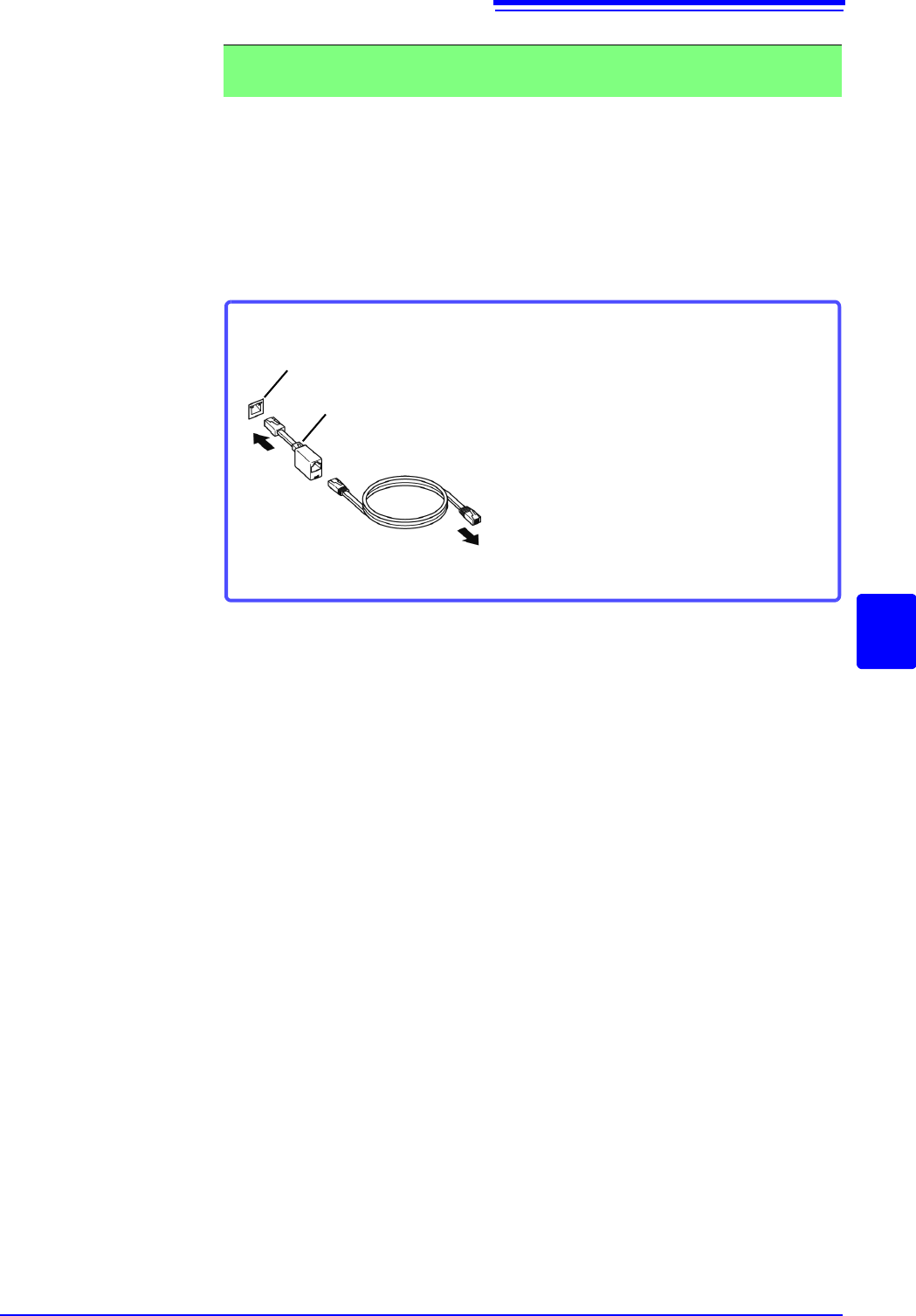
2. Making 1:1 Connections Between the Instrument and a PC (Connecting the
Instrument to a PC)
Connection cable: Use one of the following.
• 100BASE-TX crossover cable (maximum length 100 m)
• 100BASE-TX straight-through cable with crossover adapter (maximum length
100 m)
• 9642 LAN Cable (option, supplied with crossover adapter)
Connect to PC
100BASE-TX connector
Crossover adapter
Connecting with the 9642 LAN Cable and crossover adapter (supplied)
1 Connect the 9642 LAN Cable to the
supplied crossover adapter.
2 Connect the crossover adapter to the
100BASE-TX connector on the instru-
ment.
3 Connect the 9642 LAN Cable to the
100BASE-TX connector on the PC.
1
3
2