MR8740、MR8741_user_manual_eng_20191016H.pdf - 第155页
7.1 Adding Comments 143 6 Chapter 7 Utility Functions 7 1. Move the flashing cursor to the numeric inpu t field and select [Up-Down] . A virtual keyboard fo r digit input appears. 2. • Click △▽ in the displayed up-down i…
7.1 Adding Comments
142
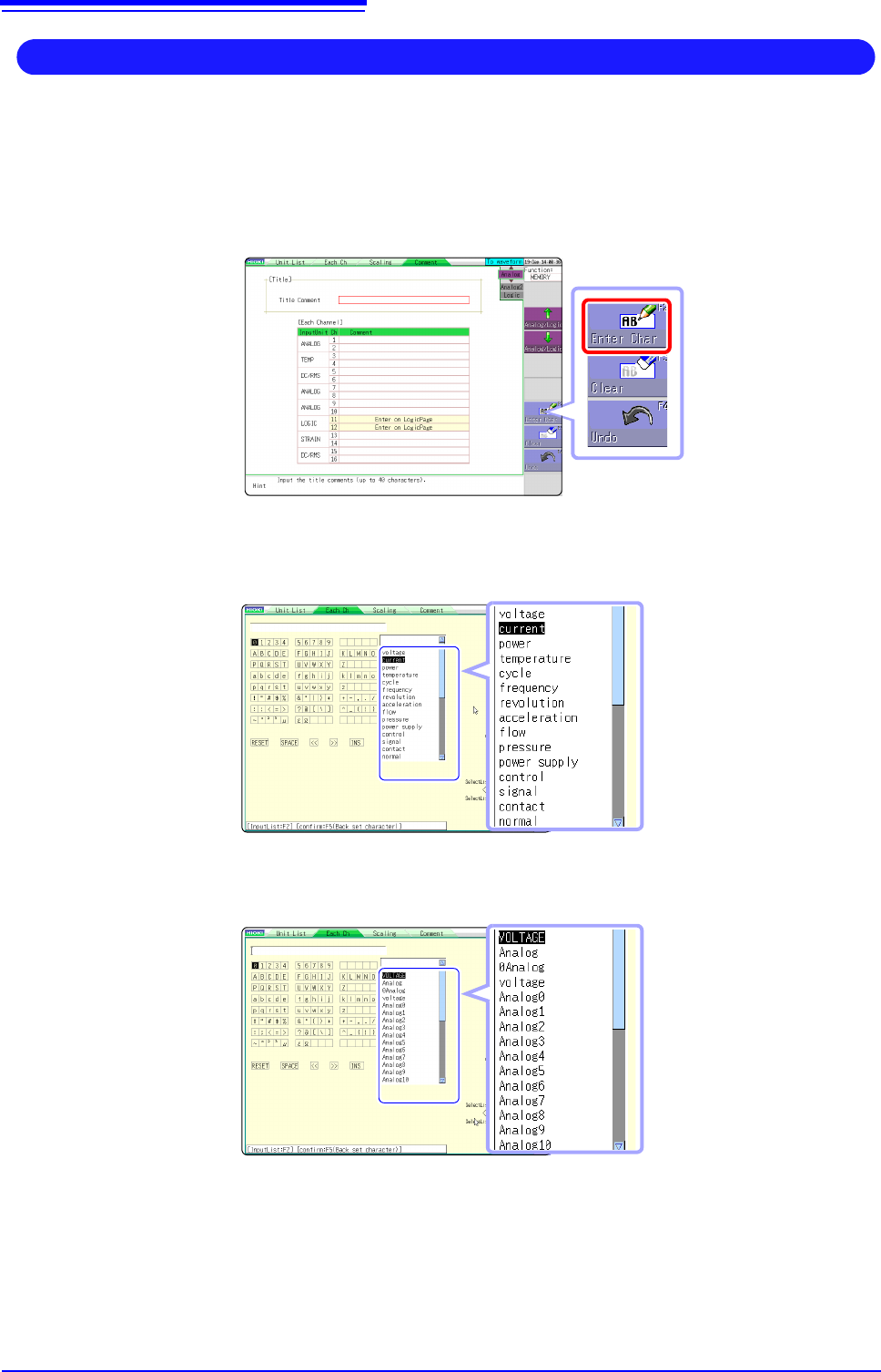
While the virtual keyboard is displayed, clicking [Term List] displays preregis-
tered words.
Also, clicking [History List] displays words entered in the past.
1. Move the flashing cursor to the comment field and select [Enter Char].
The virtual keyboard appears.
2. (To select from preset terms)
Click [Term List ].
A list of preset terms appears.
(To select from past input)
Click [History List].
A History list appears.
Click [ESC] to cancel selection from the history list.
3. Select the word to enter from the list. You can also select the word to enter by
double-clicking it.
4. Select [Confirm] to accept the entry. The virtual keyboard disappears.
To return the edited field to the original condition, select [Undo].
Entering Text From a Term List Or History List
7.1 Adding Comments
143
6
Chapter 7 Utility Functions
7
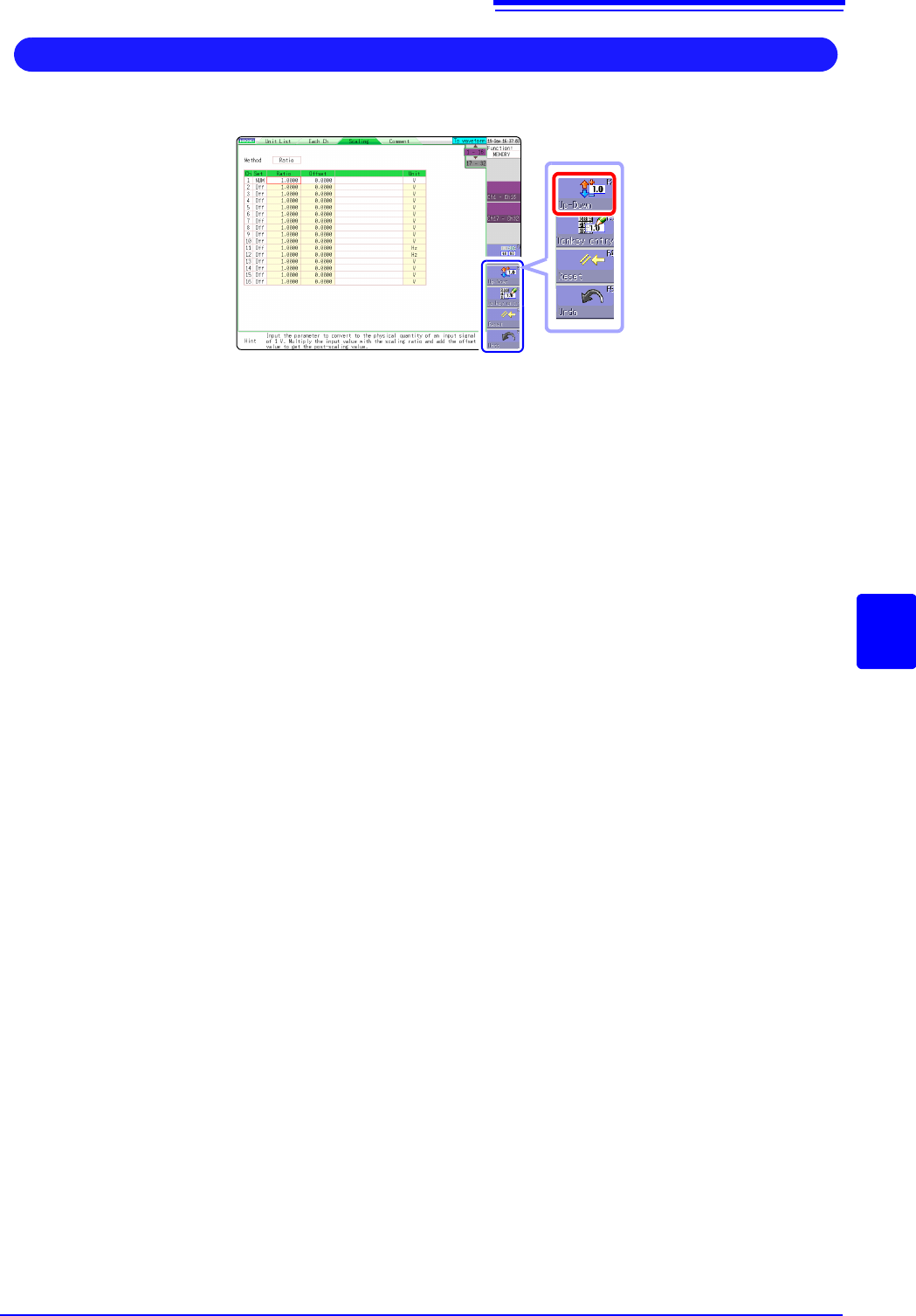
1. Move the flashing cursor to the numeric input field and select [Up-Down].
A virtual keyboard for digit input appears.
2. • Click △▽ in the displayed up-down input window.
This allows you to change the value of the corresponding digit.
• Click a digit that can be changed.
The selection cursor moves to that location.
• Rotate the mouse wheel.
This allows you to increase or decrease the value of the digit where the selection cursor is
located.
If the value is changed in the △ (up) direction, the current numeral itself
increases.
(If there is a minus sign at the beginning, the numerical value of the digit
decreases [the set value increases].)
3. Click [Confirm].
The currently set value is entered.
Click [ESC] to cancel the input.
Entering Numerals By Up/Down Action
7.1 Adding Comments
144
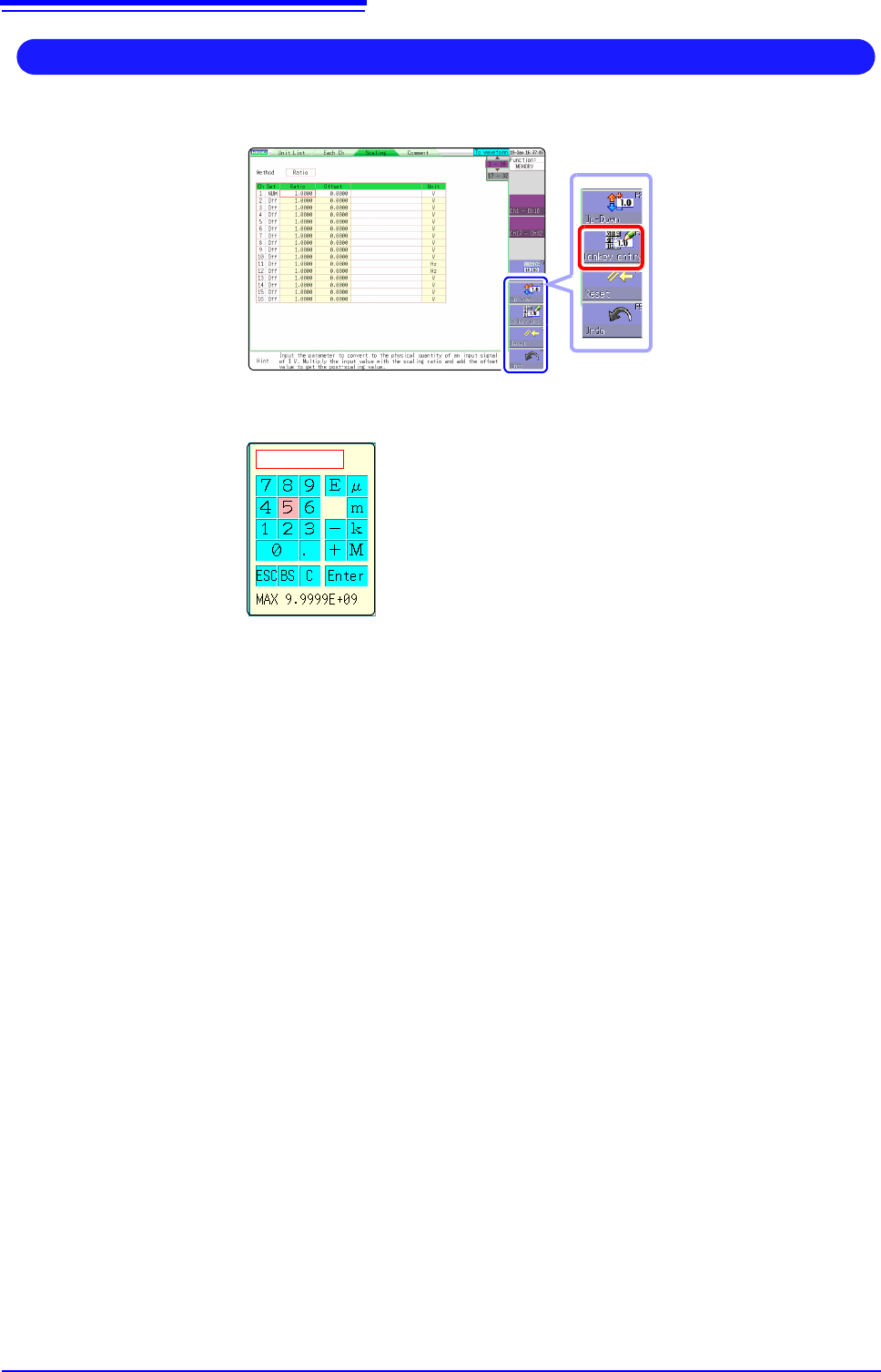
1. Move the flashing cursor to the numeric input field and select [Tenkey Entry].
A virtual keyboard for numeric keypad input appears.
2. Use the virtual keyboard for numeric keypad input.
3. Click [Enter].
The entered value is confirmed.
Click [ESC] to cancel the input.
Entering Numerals With a Numeric Keypad
BS: Delete 1 character
C: Delete all characters
E: Exponent entry
µ, m, k, M: Unit prefix