MR8740、MR8741_user_manual_eng_20191016H.pdf - 第30页
1.3 Display 18 This instrument allows you to use a commercially available LCD monitor fo r displaying waveforms and various settings. 1.3 Display • The instrument’s DVI connectors are designed exclusively for digit al. T…
1.2 Names and Functions of Parts
17
1
Chapter 1 Overview
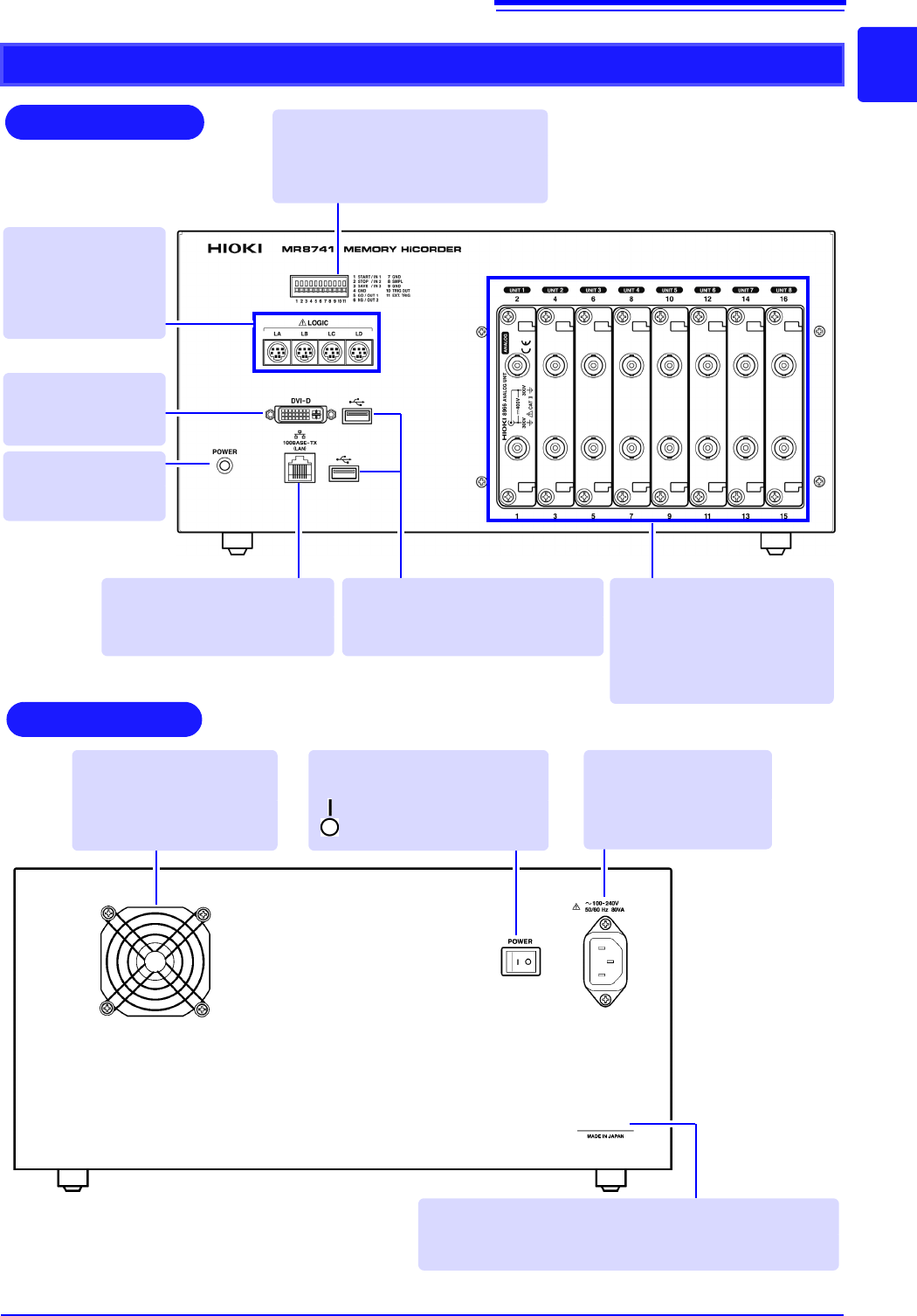
MR8741
Rear
Various Modules
(p.36), (p.39)
(For details, see the instruc-
tion manual of the respective
module.)
100BASE-TX Connector
Connect a LAN cable here.
(p.313)
Standard LOGIC
Terminals
Input connectors for
optional logic probes.
(p.39)
Power Indicator
Lit when the instru-
ment is on.
DVI-D Connector
Connect an LCD
monitor here.
USB Connector (Type A)
Connect USB memory sticks here.
(p.53)
Manufacturer's Serial No.
*
Shows the serial number.
Required for production control. Do not peel off the label.
POWER Switch
Turns the instrument on and off.
: Power On
: Power Off (p.56)
Power Inlet
Connect the supplied
power cord here.
(p.55)
Ventilation Holes (Fan)
Make sure the ventilation
holes are not obstructed.
Front
External control terminals
Input any external sampling signal
here. (p.336)
Allows control of the instrument.
*: The serial number consists of 9 digits. The first two
(from the left) indicate the year of manufacture, and
the next two indicate the month of manufacture.
1.3 Display
18
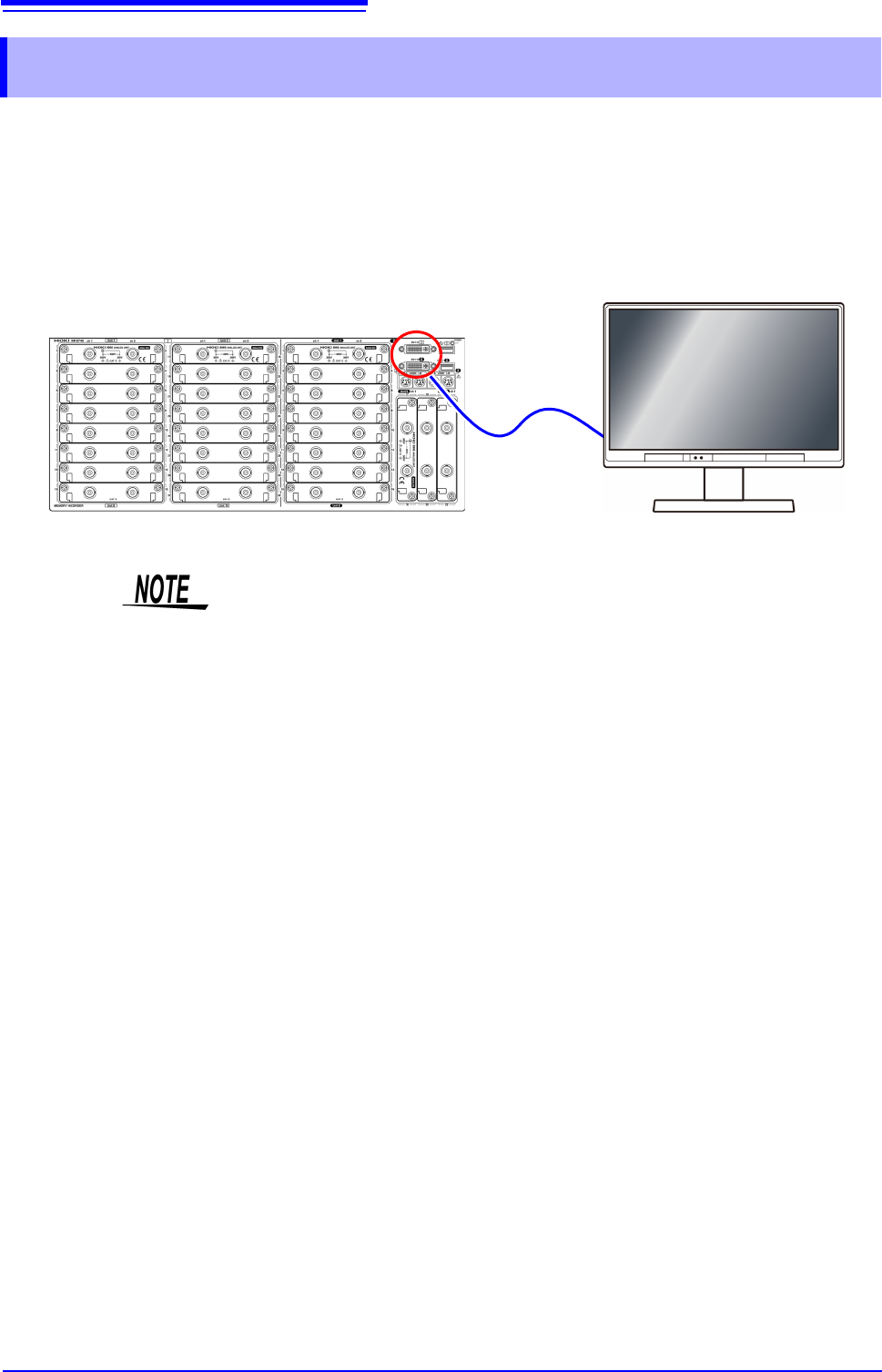
This instrument allows you to use a commercially available LCD monitor for displaying waveforms
and various settings.
1.3 Display
• The instrument’s DVI connectors are designed exclusively for digital. They
cannot be used for analog.
A VGA-DVI adapter also cannot be used.
• There are a variety of LCD monitors available, and not all LCD monitors will
work with the instrument.
• The display aspect ratio for DVI output with this instrument is 4:3. If you use a
wide LCD (16:9), display will be stretched in the horizontal direction.
• External interference may cause display to be distorted. Keep the LCD and
LCD cable as far away as possible from sources of interference.
• MR8740 displays the waveforms of the block I side (32 analog channels + 8
logic channels) with DVI-I, and the waveforms of the block II side (22 analog
channels + 8 logic channels) with DVI-II. The waveforms of block I and block II
cannot be displayed at the same time.
Connect the LCD monitor to a DVI-D connector on the front of the instrument.
1.4 Screen Configuration
19
1
Chapter 1 Overview
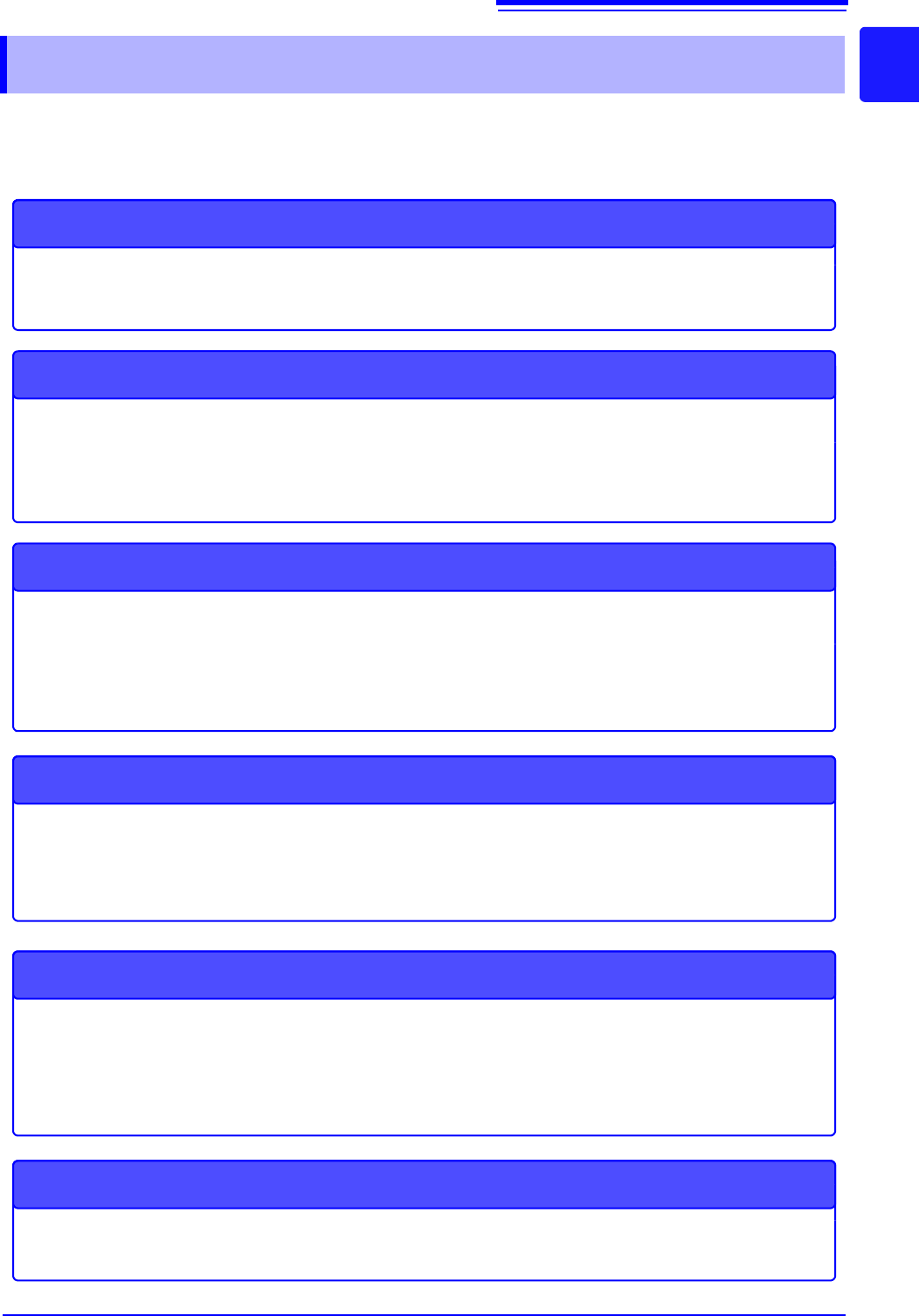
The screen configuration is shown below. Click an item with the mouse to display the corresponding
screen.
On the Waveform screen, the trigger settings window and channel settings window can be displayed.
1.4 Screen Configuration
Status Screen
This screen is for making settings for the measurement method and numerical calcula-
tion of waveform data.
There are the following sheets: [Status] sheet, [Num Calc] sheet, [Memory Div] sheet,
[Wave Calc] sheet
STATUS
Waveform Screen
This screen is for observing waveforms.
The settings window on the right shows the measurement parameters.
Trigger Settings Window/Channel Settings Window
This window is for making the advanced settings for triggers.
This window is for making the advanced settings for analog channels and logic channels.
Channel Screen
This screen is for making channel settings, scaling settings, and comment settings.
There are the following sheets: [Unit List] sheet, [Each Ch] sheet, [Scaling] sheet,
[Comment] sheet
System Screen
This screen is for making settings for the environment, file saving, and communication,
and for performing data initialization.
There are the following sheets: [Environment] sheet, [File Save] sheet, [Printer] sheet,
[Interface] sheet, [Init] sheet
File Screen
This screen is for viewing the data files on media (USB memory stick and internal
memory).
DISP
TRIG.SET
CH.SET
CHAN
SYSTEM
FILE