MR8740、MR8741_user_manual_eng_20191016H.pdf - 第323页
311 11 Chapter 14 System Environme nt Settings 13 14 Language Selects the display langua ge. Auto Scale Variable values are automatically changed according to chang es in scaling and voltage range. See: "7.5 V ariab…
310
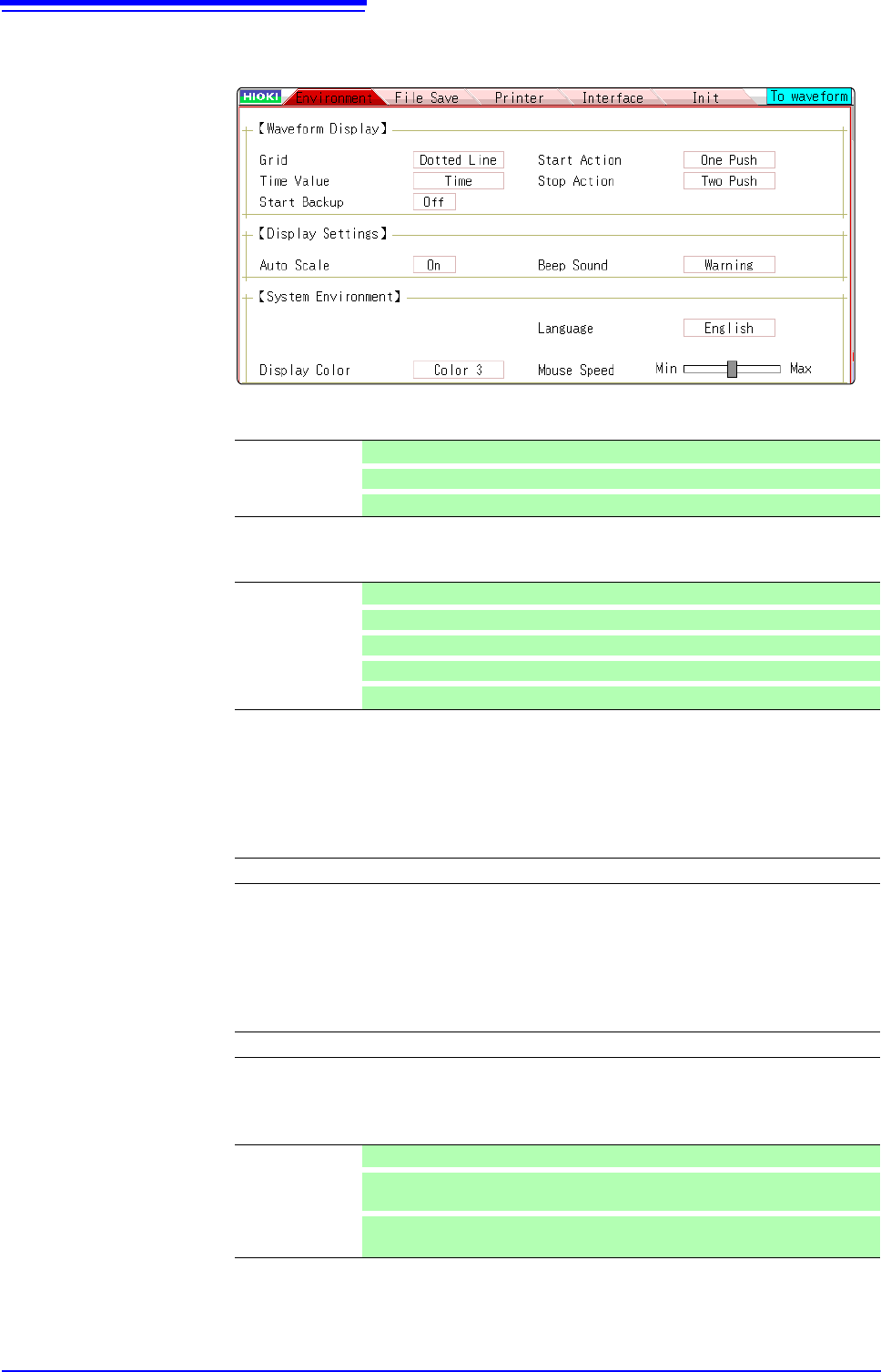
Setting Descriptions____________________________________________
Grid Select the grid (graticule) type for the waveform screen.
Time Value Display the time from the trigger point on the display.
• During external sampling, the number of points is fixed.
• These settings affect the values read at the A/B cursors.
Start Backup Preserves measurement condition settings. If a power outage occurs while
recording, it resumes automatically when power is restored. When triggering is
enabled, the awaiting-trigger state is activated.
• Valid only during recording.
• This function does not start automatically when the instrument is turned on.
Display Color Screen background and character colors on the Waveform screen can be set as
desired. Select [Color Edit] change the [R] (red), [G] (green) and [B] (blue) values
of each item to change its color.
( p.312)
Beep Sound This function audibly indicates warnings and operating conditions by beep
sounds.
Off No grid displayed.
Dotted Line
Display a dotted-line grid. (default setting)
Solid Line
Display a solid-line grid.
Time Display the time from the trigger point (fixed units). (default setting)
Time (60)
Display the time from the trigger point (sexagesimal (base-60) system).
div
Display the number of divisions (div) from the trigger point.
Date
Display time of waveform acquisition.
Sample Num
Display the number of data points from the trigger point.
Off (default setting) / On
Color 1 / Color 2 / Color 3 / Color Edit
Off Beep sounds are disabled.
Warning
Beeps sound for error messages (warning displays) and upon NG (fail) judg-
ments. (default setting)
Warn+Act
In addition to the warning beeps above, beeps sound to indicate start, trigger,
stop and auto-save-finish.
311
11
Chapter 14 System Environment Settings
13
14
Language Selects the display language.
Auto Scale Variable values are automatically changed according to changes in scaling and
voltage range.
See: "7.5 Variable Function (Setting the Waveform Display Freely)" (p.155)
Start Action To prevent operating mistakes from unintentionally starting measurement, the
[START] operation method can be changed. This setting does not affect external
control terminal functions.
Stop Action Normally, clicking [STOP] once causes measurment to stop after the specified
recording length is completed, and clicking it twice stops measurement immedi-
ately. However, this setting is provided to allow a single click of [STOP] to stop
measurement.
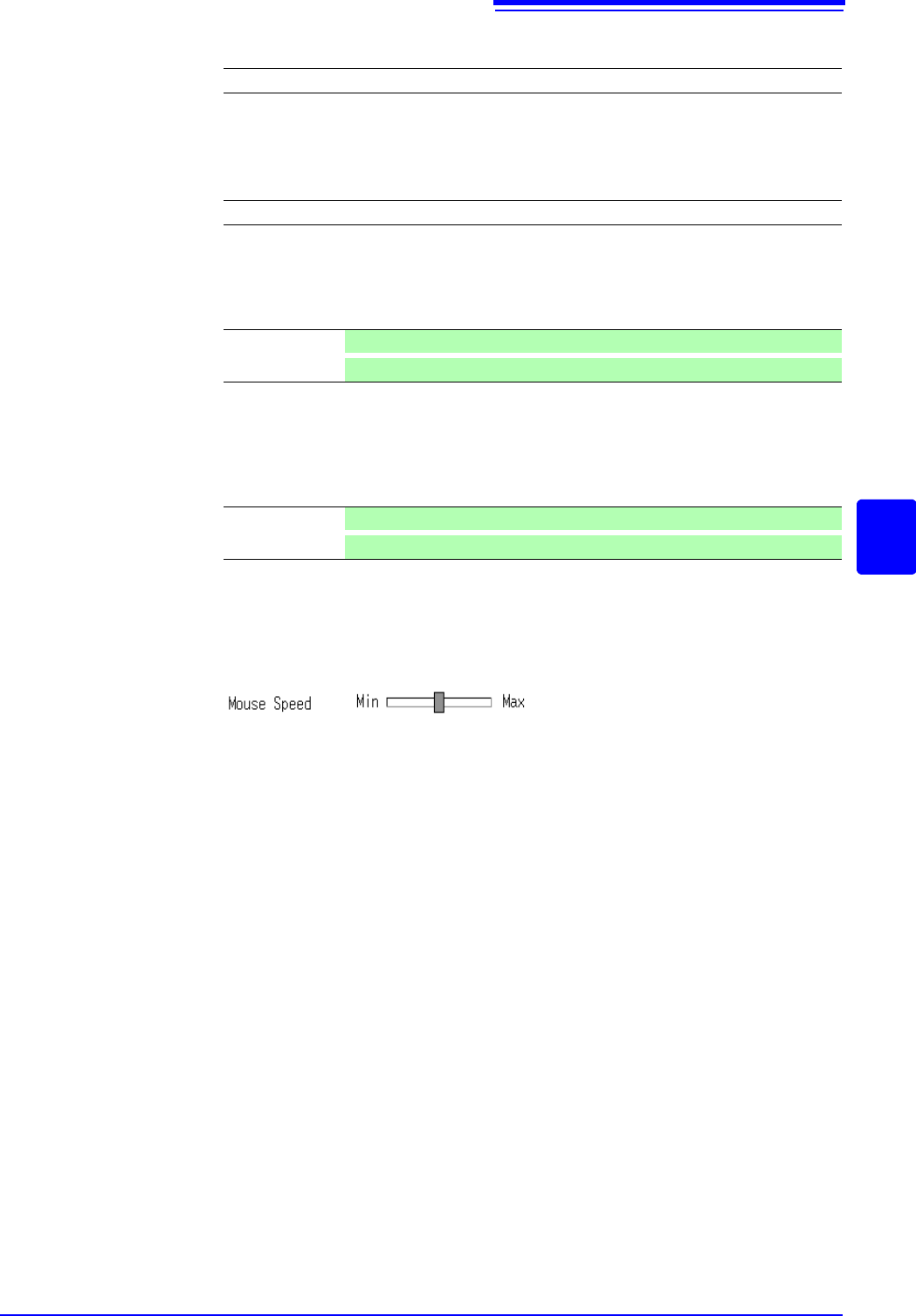
Mouse Speed Sets the mouse movement speed. Use the mouse to move the square while
holding down the left button. Moving it towards "Min" makes the mouse pointer
move more slowly, while moving it towards "Max" makes the pointer move more
quickly.
English (default setting)/ Japanese / Korean/ Chinese
Off / On (default setting)
Click Once Click once with the mouse to start measurement. (default setting)
Click Twice
Click twice with the mouse to start measurement.
Click Twice Click twice with the mouse to stop measurement. (default setting)
Click Once
Click once with the mouse to stop measurement.
312
Additional Description __________________________________________
Selecting a
Screen Color
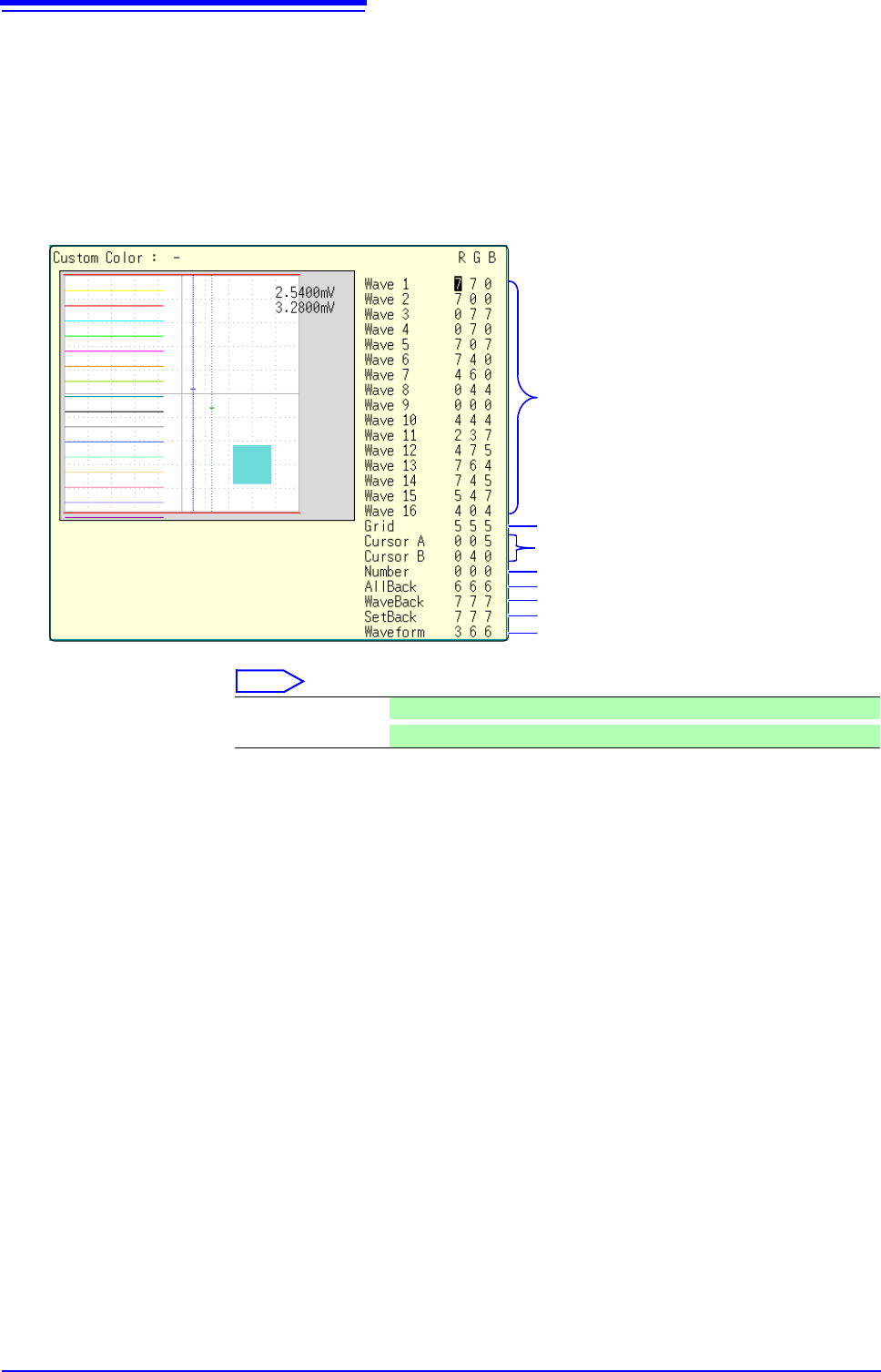
Select [Color Edit] to display the [Custom Color] screen.
Change the [R] (red), [G] (green) and [B] (blue) values of each item to change
its color.
See: "7.1.3 Alphanumeric Input" (p.141)
[Custom Color] screen
Select
Color setting for each waveform
Grid (graticule) color
Colors of cursor A and B lines
Color of numerical values
Background color
Background color of the Waveform screen
Background color of the setting screen
Evaluation area color
Done Applies the settings.
Reset
Reverts to the default settings.