MR8740、MR8741_user_manual_eng_20191016H.pdf - 第113页
4.3 Loading Data 101 4 Chapter 4 Saving/Loading Dat a & Managing Files When the following index files ar e loaded, waveform da ta ca n be loaded as a batch. With the following settings, index files are crea ted alo n…
4.3 Loading Data
100
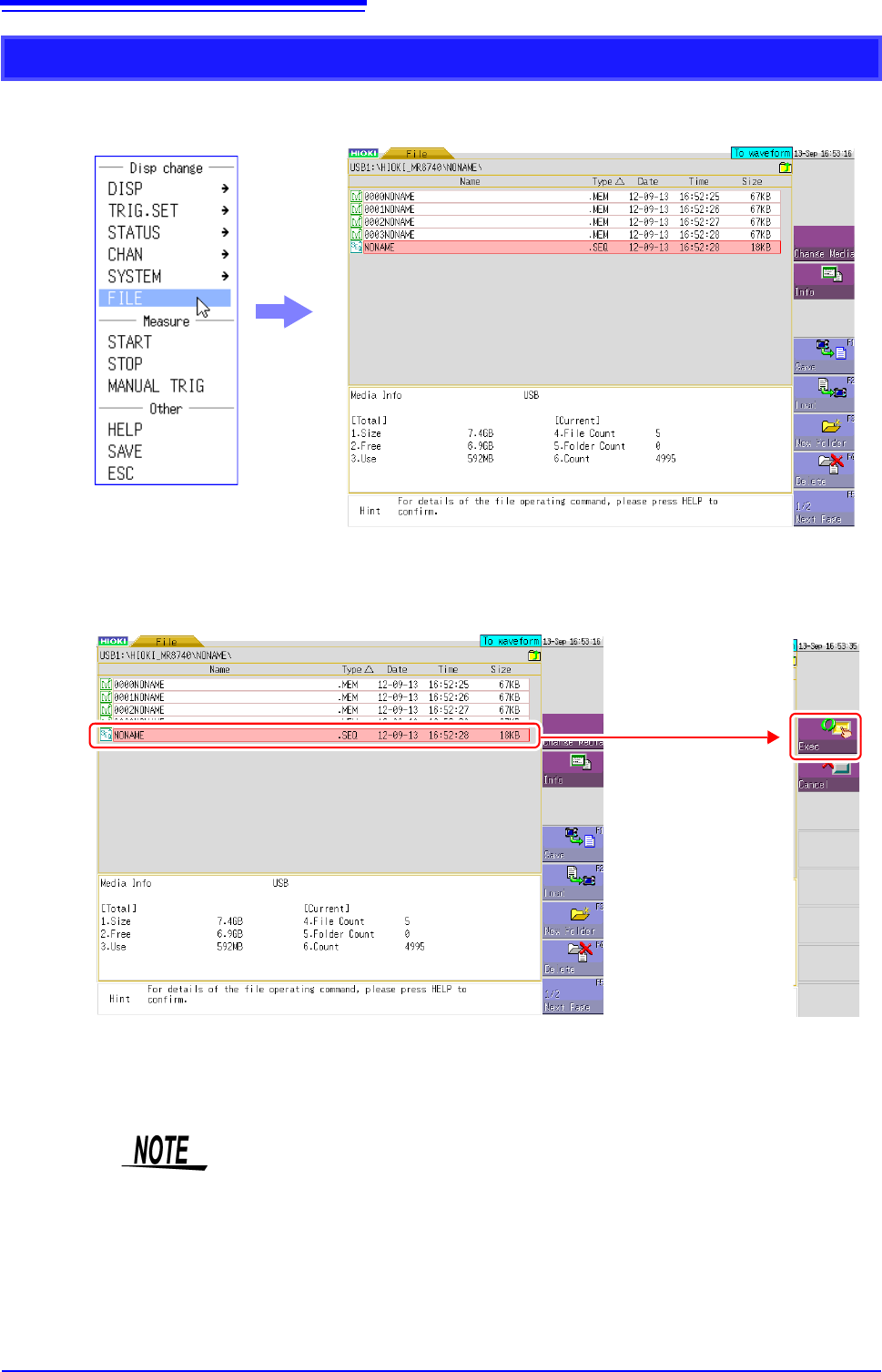
Loading Example (Loading a Memory Division File)
1
Right-click to display the list menu, and then click [FILE].
2
Double-click the SEQ file in the folder created in step 8 of "Saving a Memory Division
Waveform File", and then click [Exec] to load the waveform data on the instrument so that
it becomes the same as when each memory block was saved.
3
Double-click a MEM file in the folder created in step 8 of "Saving a Memory Division Waveform
File", and then click [Exec] to load only the waveform data of that block to the instrument.
Double-click this,
and then click
[Exec] on the right
of the screen.
When loading from a source other than the internal memory
Insert the storage media before making the media selection.
Other limitations
• Data saved with Memory HiCorders other than the MR8740/MR8741,
MR8847s and MR8827 cannot be loaded.
• When loading waveform data, the settings for the instrument are the same set-
tings as when the data is saved. To reset to the instrument settings, carry out
[Clear Wave Data] (p.374) or start the measurement.
4.3 Loading Data
101
4
Chapter 4 Saving/Loading Data & Managing Files
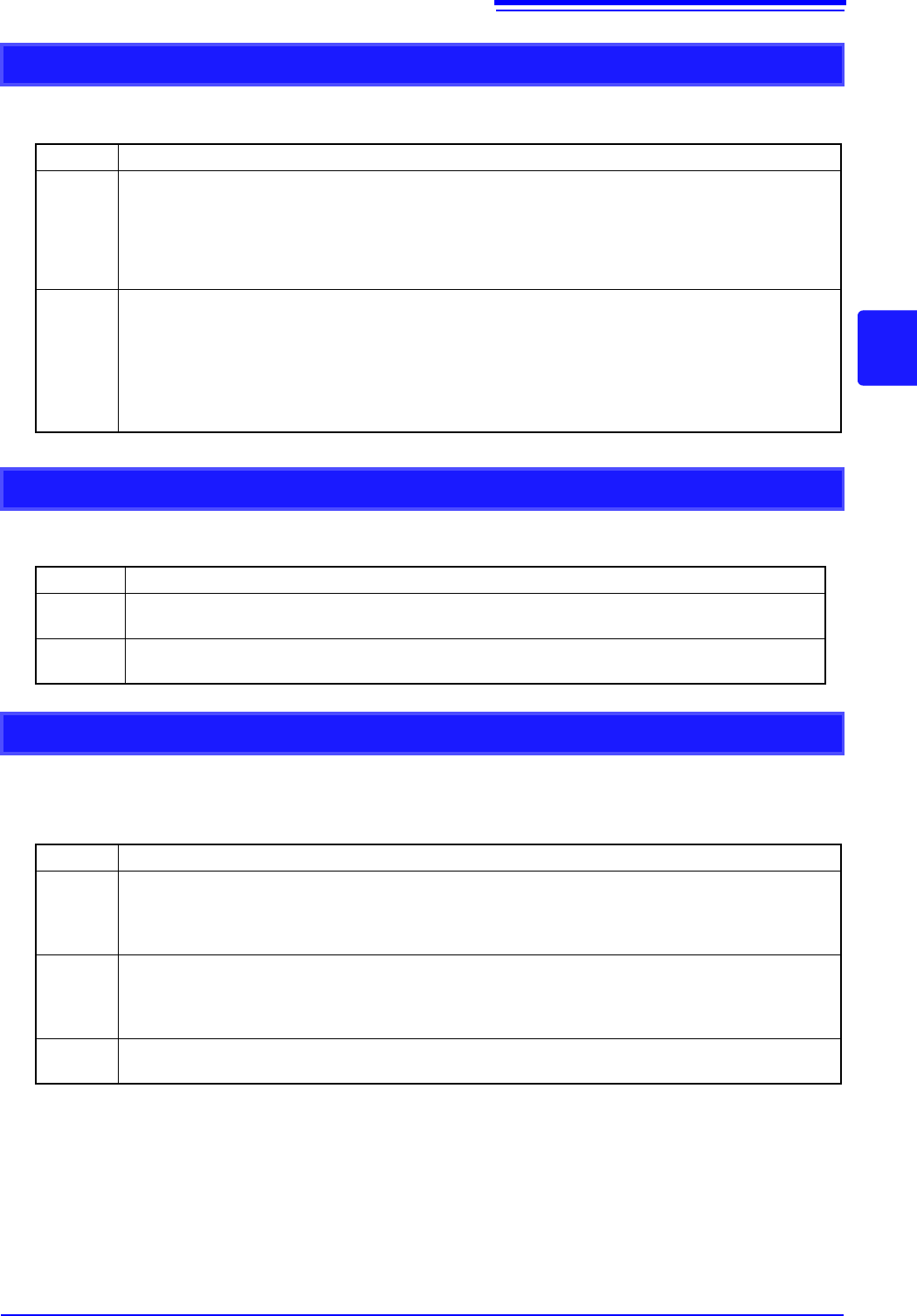
When the following index files are loaded, waveform data can be loaded as a batch. With the following
settings, index files are created along with waveform files.
Files with the following two extensions can be loaded:
You can load data for generated modules.
Data loading is performed on Signal generator sheet of Channel screen (
CHAN key) or FILE screen (FILE key).
For details, see the instruction manual of Models U8793, MR8790, and MR8791.
Batch load of waveform data
Extension Explanation
IDX
Divided files are loaded together.
(To create index files: Use [Division] at the [File Save] sheet of the System screen to set the dividing
size and then save. Note: If [Save type] is not [Wave Binary], index files are not created)
See: "4.2.2 Automatically Saving Waveforms" (p.88)
"4.2.3 Saving Data Selectively (SAVE)" (p.93)
SEQ
(When using the memory division function of the memory function)
Waveform data of all blocks is loaded together.
(To create index files: At the [Memory Div] sheet of the Status Screen, set [Memory Div] to [On].
At the [File Save] sheet of the System Screen, set [Save Type] to [ALL-Wave Bin].)
See: "11.1 Recording Settings" (p.243)
"4.2.3 Saving Data Selectively (SAVE)" (p.93)
Loading a waveform evaluation area (MR8741 only)
Extension Explanation
ARE
Loads waveform evaluation areas and settings data (files saved by selecting "Area settings"
when saving the data).
BMP
Loads waveform evaluation areas. (Files saved by selecting "Area image" when saving the
data can be edited on a computer and then loaded back into the instrument.)
Data Loading for Waveform Generation (Registration)
Extension Explanation
WFG,
TFG
The data for waveform generation is loaded in channels of a specified arbitrary waveform gener-
ator module. The waveform data loaded (registered) is output from Model U8793 Arbitrary Wave-
form Generator Unit.
Refer to"7.10 Register the Waveform in the U8793 Arbitrary Waveform Generator Unit" (p.184)
PLS
The data for pulse pattern generation is loaded in channels of a specified arbitrary wave gener-
ator module.
The pulse pattern waveform loaded (registered) is output from Model MR8791 Pulse Generator
Unit.
FGP
The waveform generation program file is loaded in channels of a specified arbitrary waveform
generator module.
4.4 Managing Files
102
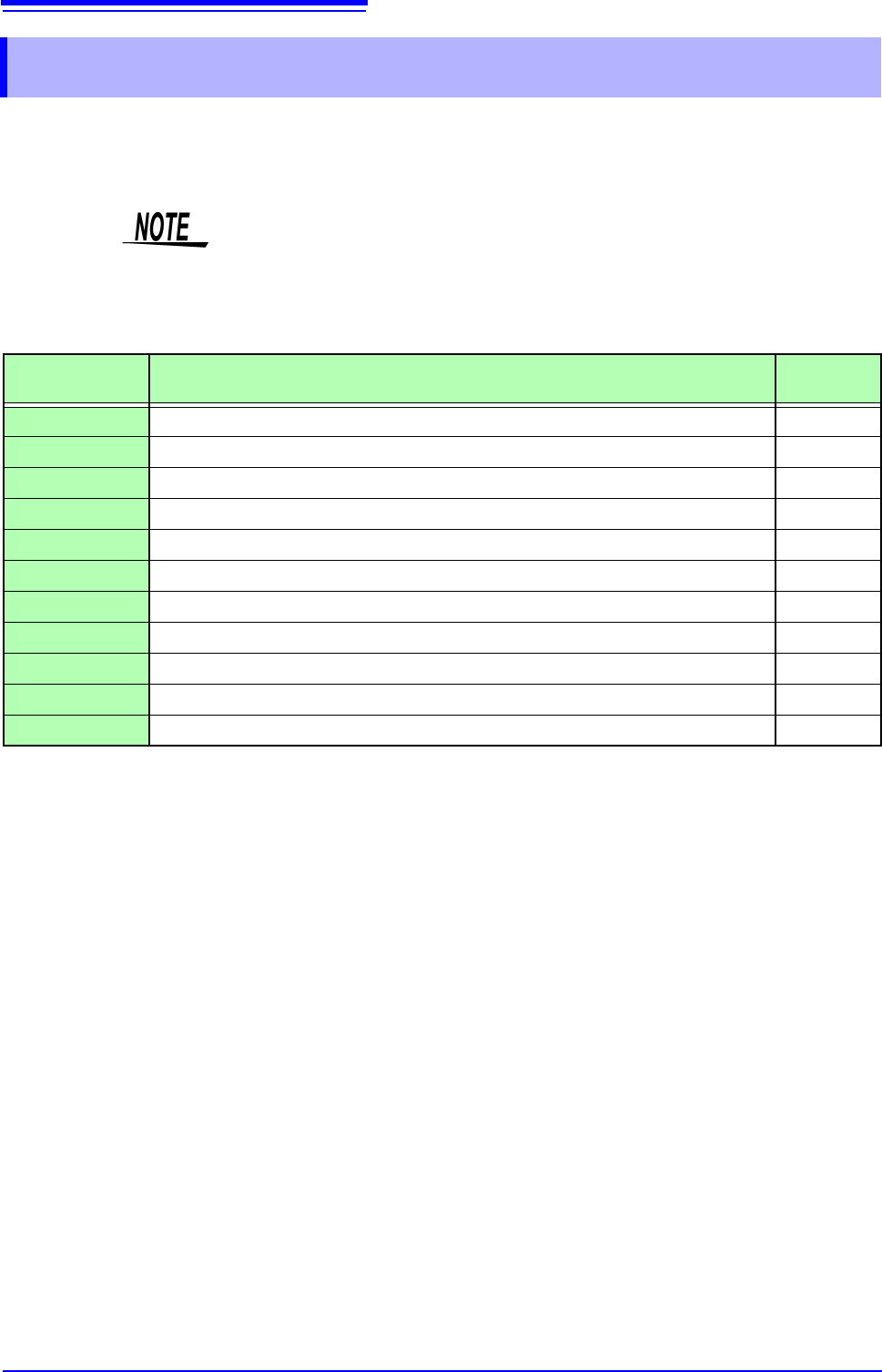
Click [FILE] to display the File screen. Data saved to storage media can be managed on the File
screen.
Select a file from the file list.
4.4 Managing Files
Before performing an operation, insert the storage media. When no storage
media is inserted, "NO FILE" appears in the file list of the File screen.
List of File Operations
Function indication
(GUI)
Description Reference
page
Media Change
Change media. (p.84)
Save
Select channels and save settings data and waveform data as files. (p.103)
Sort
Sort files on file list in selected order. (p.107)
Open Folder
Open the selected folder. (p.105)
Load
Load settings data or waveform data from a file. (p.99)
Copy
Copy a file to a specified folder. If selected item is a folder, move to that folder. (p.108)
New Folder
Create a new folder. (p.105)
Rename
Change a file name or folder name. (p.107)
Delete
Delete a file or folder. (p.106)
Format
Format selected storage media. (p.54)
Next Page
Switch operation indication (GUI).