MR8740、MR8741_user_manual_eng_20191016H.pdf - 第315页
13.5 Creating the Evaluation Area 303 11 Chapter 13 W aveform Evaluation Function (MR8741 Only) 12 13 13.5 Creating the Evaluation Area Setting method Procedure Screen: Wavefo rm display 1 Move the flashing cursor to the…
13.4 Setting the GO/NG Stop Mode
302
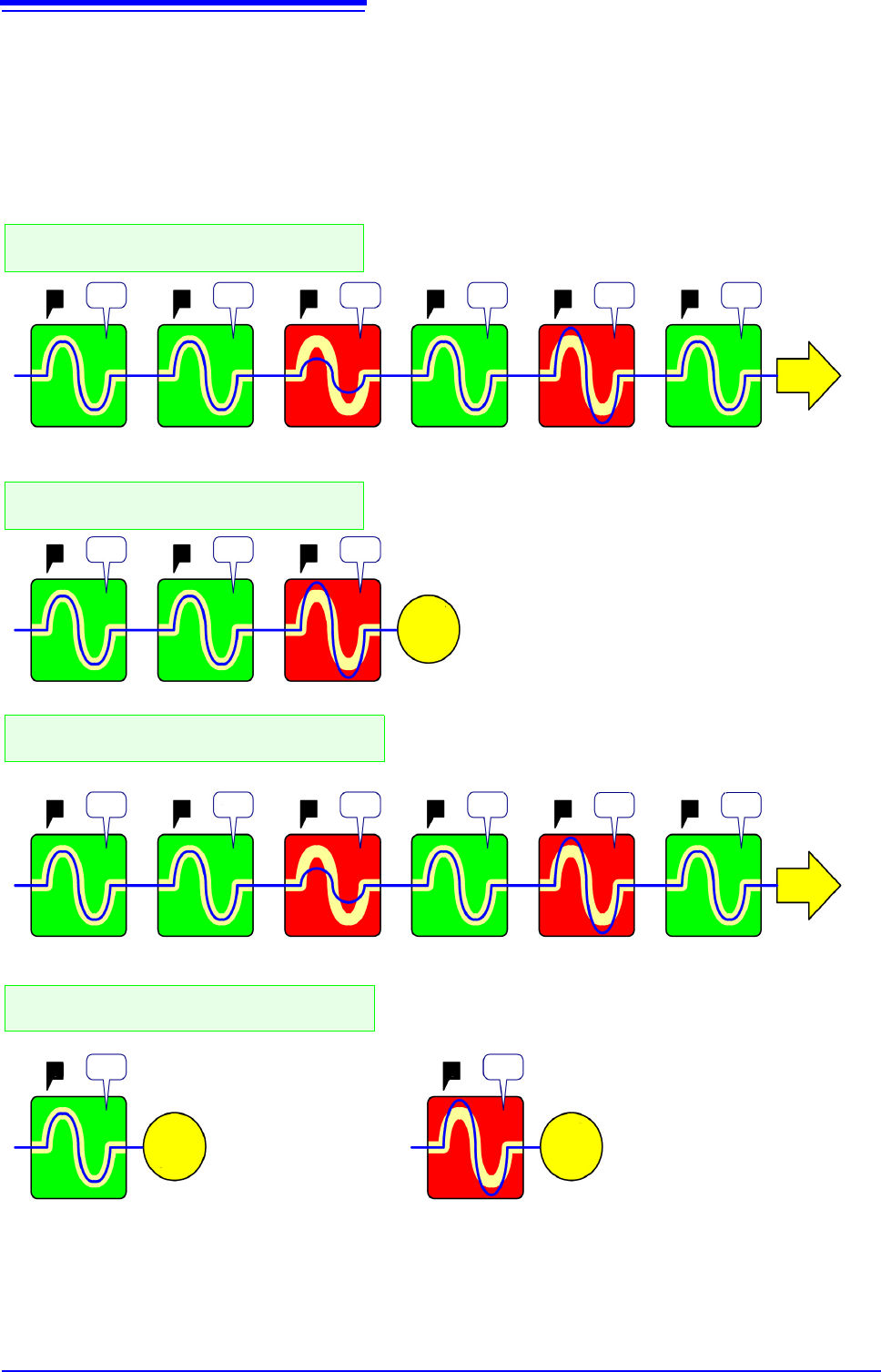
Relationship between stop conditions and the trigger mode
• There are three trigger modes: Single, Repeat, and Auto.
See:"8.2 Setting the Trigger Mode" (p.191)
• There are three stop conditions: PASS, FAIL, and PASS & FAIL.
• By combining a trigger mode and a stop condition, you can halt measurement when a desired comparison
result is achieved. You can also automatically save, or superimpose the waveform for the desired evalua-
tion results. Automatic saving, and superimposition are performed when the stop conditions are met.
• When the "Single" trigger mode is set, measurement is stopped if the stop conditions are met. Measure-
ment continues until the stop conditions are met.
• When the "Repeat" or "Auto" trigger mode is set, measurement continues until [STOP] is clicked (or a
STOP signal is input), whether or not the stop conditions are met.
TTTT
TTT
T
T
T
T
T
TTT
T
T
PASS PASS FAIL
PASS
PASS FAIL PASS FAIL PASS
PASS PASS FAIL PASS FAIL PASS
PASS
FAIL
Measure-
ment
halted
Measure-
ment
halted
Continue
Continue
Measure-
ment
halted
Through
Through
Through
Through
ThroughSave Save
Through
Save
Save Save Save Save Save Save
Save
Save
In case of "Single" trigger mode and "FAIL"
stop condition.
In case of "Repeat" trigger mode and "PASS “
& FAIL" stop condition.
In case of "Single" trigger mode and "PASS “
& FAIL" stop condition.
Measurement continues until the user clicks [STOP].
Auto Save is initiated only when the stop conditions are met.
Measurement halts when a "FAIL" comparison result is returned.
Auto Save is initiated only when the stop conditions are met.
Measurement halted because
stop conditions are met.
Measurement continues until the user clicks [STOP].
Auto Save is initiated each time, regardless of the comparison
result
Measurement halts after a single operation, regardless of compari-
son result.
Auto Save is initiated regardless of comparison result.
Measurement halted be-
cause stop conditions
are met.
Measurement halted because
stop conditions are met.
In case of "Repeat" trigger mode and "FAIL"
stop condition.
TTTTTT
TT
13.5 Creating the Evaluation Area
303
11
Chapter 13 Waveform Evaluation Function (MR8741 Only)
12
13
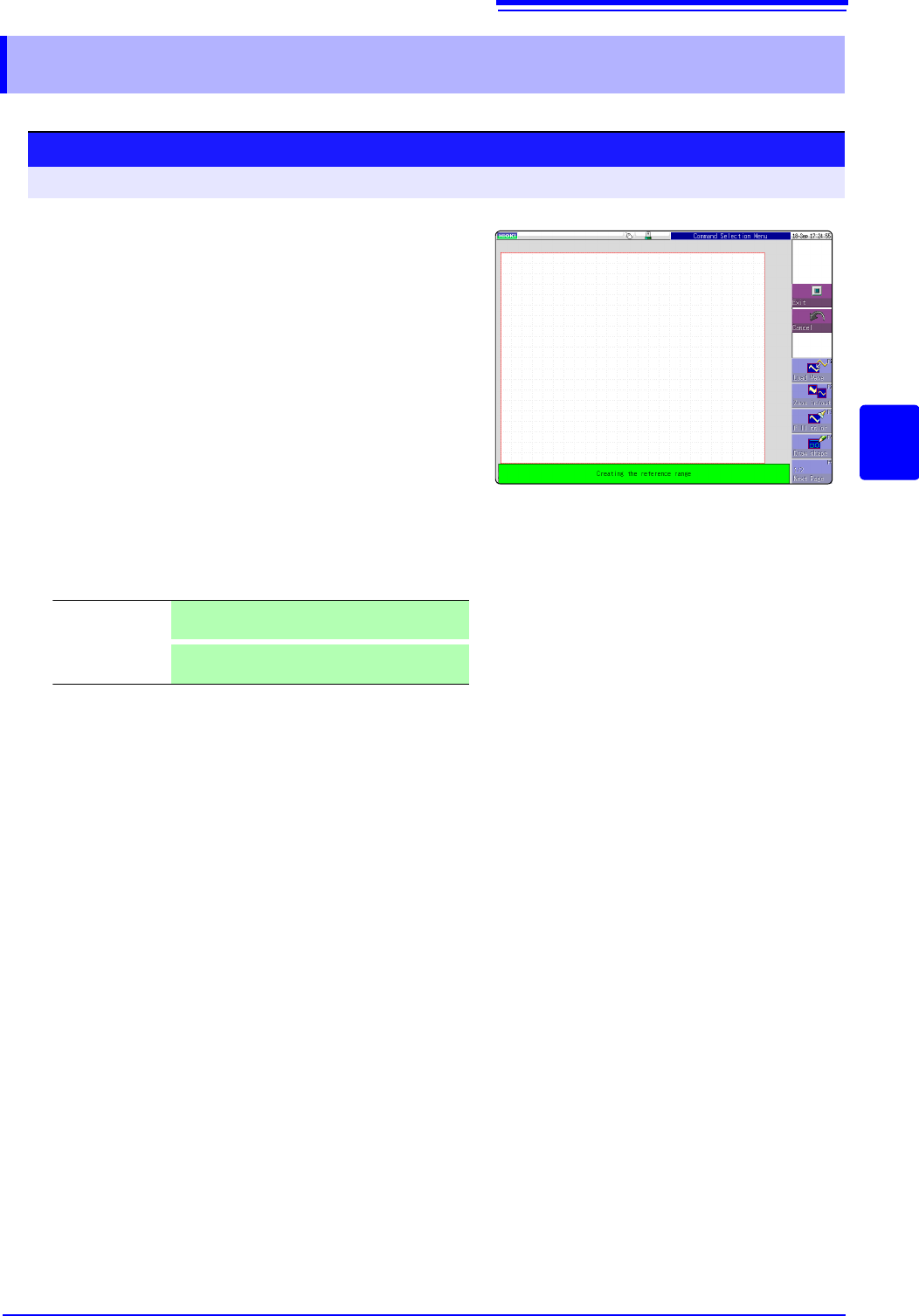
13.5 Creating the Evaluation Area
Setting method
Procedure Screen: Waveform display
1
Move the flashing cursor to the [Waveform
Judge]
item and select [Edit] from the GUI dis-
played on the screen.
2
Select an editor from the GUI displayed on the
screen, and create the area that will be the ref-
erence for waveform judgment. You can also
use the mouse to create an area.
See:"1.5.1 Mouse Operations" (p.22)
3
Click [Exit] to terminate the editor.
4
Serves to store the created area in memory.
5
Save the evaluation area through the File
screen or [SAVE], if necessary.
See:"4.2 Saving Data" (p.87)
Save and End Saves the created evaluation area in the instru-
ment's internal memory and exits.
Discard Chang-
es and End
Discards the created evaluation area and exits.
13.6 Editor Command Details
304
13.6 Editor Command Details
Load Wave
The waveform shown on the Waveform screen is loaded into the editor and displayed.
Instructions
1
Select [Load Wave].
2
Select the type of waveform capture to perform. The waveform displayed on the
Waveform screen will be loaded into the editor.
3
Select [Load Wave] to exit waveform capture mode.
Zoom in/out
Magnifies or compresses the waveform shown on the screen in the horizontal and ver-
tical directions.
Instructions
1
Select [Zoom in/out].
2
Select whether to magnify or compress the waveform.
3
Set the amount of magnification or compression.
• You can set values with the mouse.
• The amount of movement can be set in 0.04/div steps.
Select
Waveform
capture
Captures the storage waveform displayed on the Waveform screen.
Overlay capture
Captures overlay waveforms shown on the Waveform screen after connecting the uppermost
and lowermost positions with the same display color and filling in the resulting enclosed space.
When the waveforms are overlapping, undisplayed portions of the waveforms cannot be rec-
ognized. This option can be selected when an overlay has been drawn on the screen.
Memory seg-
mentation refer-
ence waveform
Captures the memory segmentation reference waveform shown on the Waveform screen after
connecting the uppermost and lowermost positions with the same display color and filling in
the resulting enclosed space. When the waveforms are overlapping, undisplayed portions of
the waveforms cannot be recognized. This option can be selected when an overlay has been
drawn on the screen.
Execute Performs magnification or compression processing based on the settings and creates an eval-
uation area.
Exit magnifica-
tion/compression
Exits magnification/compression mode.