MR8740、MR8741_user_manual_eng_20191016H.pdf - 第156页
7.1 Adding Comments 144 1. Move the flashing cursor to the numeric inp ut field and select [T enkey Entry] . A virtual keyboard for numeric keypad input appears. 2. Use the virtual keyboard for numeric keypad input. 3. C…
7.1 Adding Comments
143
6
Chapter 7 Utility Functions
7
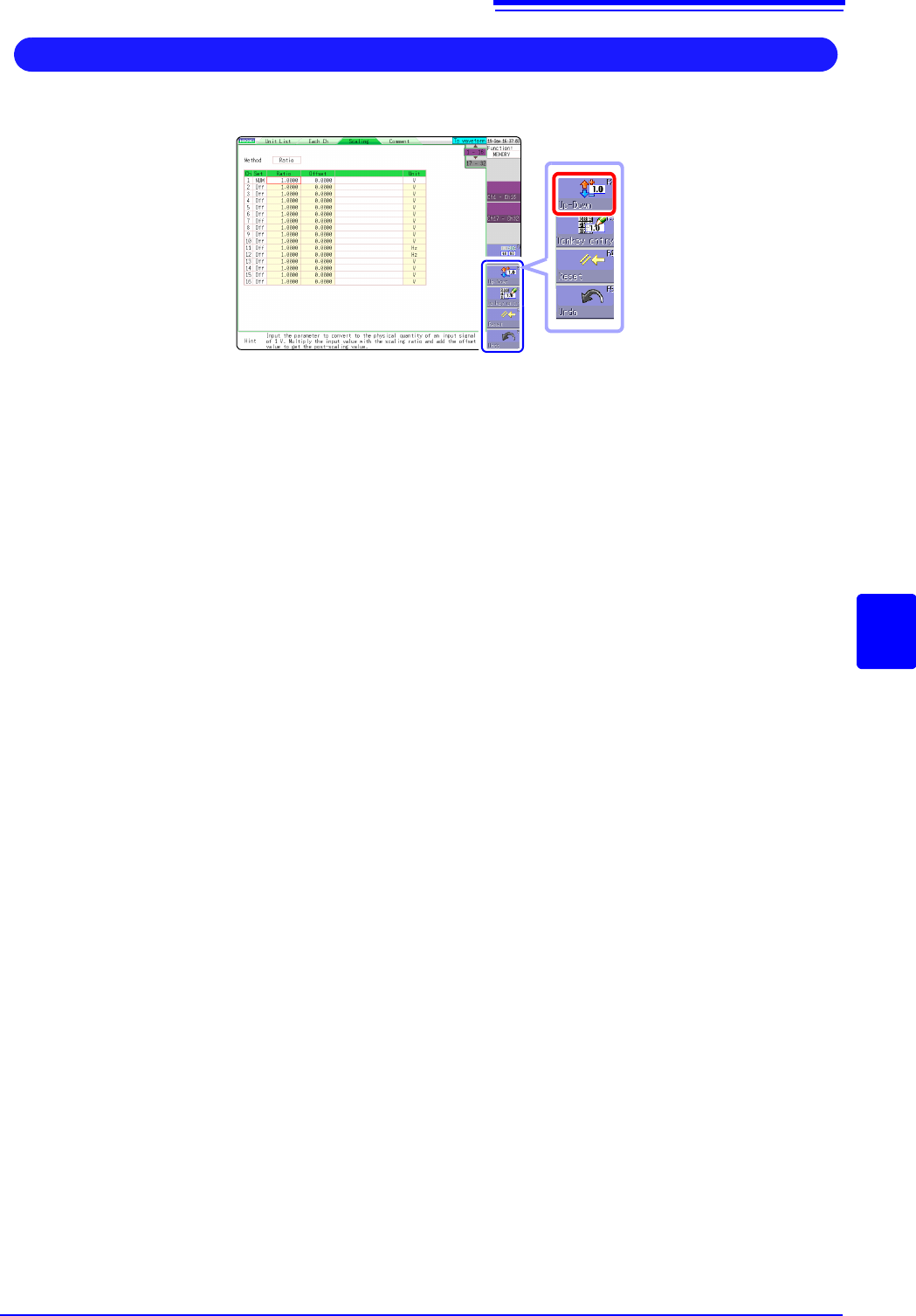
1. Move the flashing cursor to the numeric input field and select [Up-Down].
A virtual keyboard for digit input appears.
2. • Click △▽ in the displayed up-down input window.
This allows you to change the value of the corresponding digit.
• Click a digit that can be changed.
The selection cursor moves to that location.
• Rotate the mouse wheel.
This allows you to increase or decrease the value of the digit where the selection cursor is
located.
If the value is changed in the △ (up) direction, the current numeral itself
increases.
(If there is a minus sign at the beginning, the numerical value of the digit
decreases [the set value increases].)
3. Click [Confirm].
The currently set value is entered.
Click [ESC] to cancel the input.
Entering Numerals By Up/Down Action
7.1 Adding Comments
144
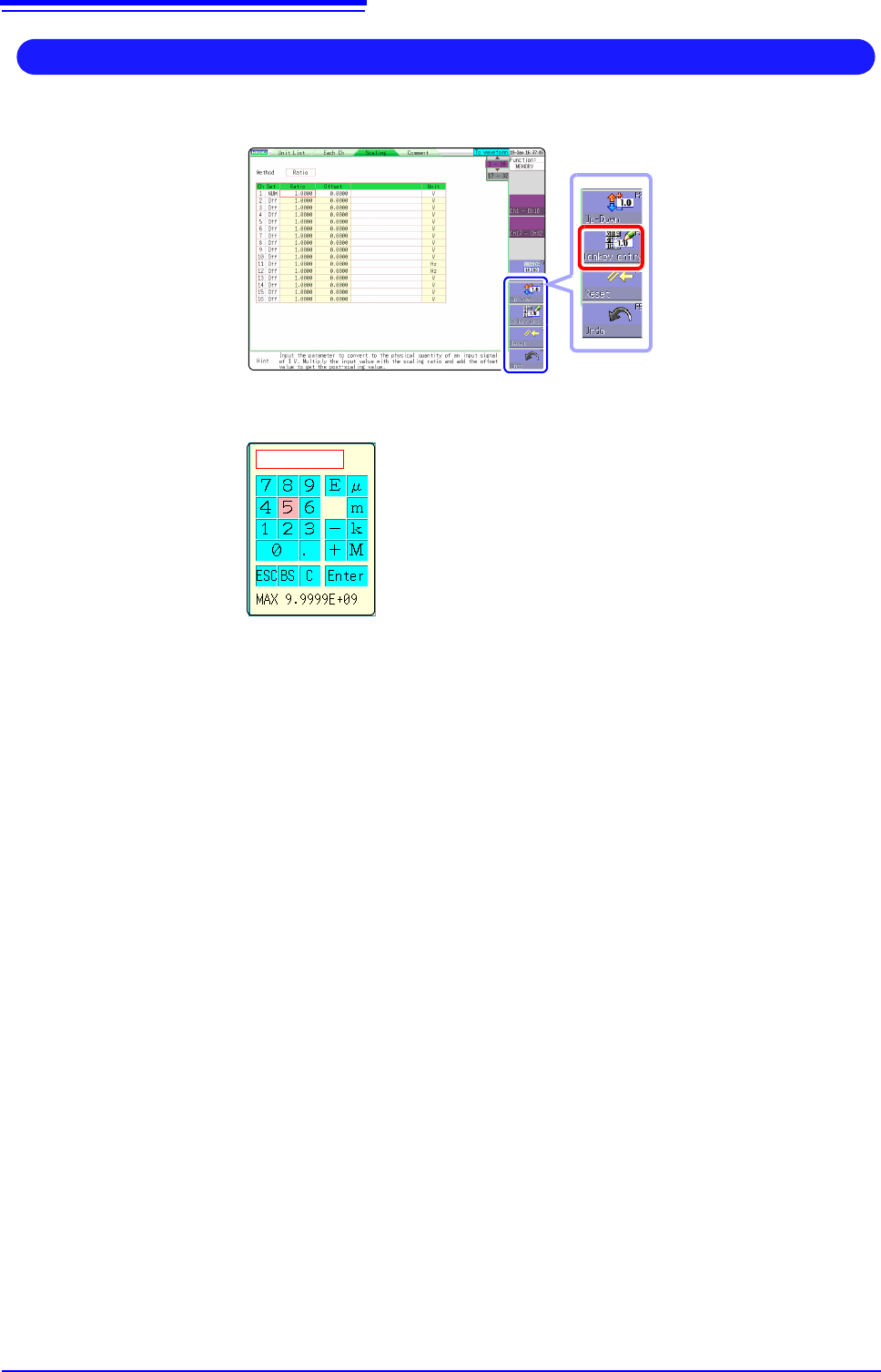
1. Move the flashing cursor to the numeric input field and select [Tenkey Entry].
A virtual keyboard for numeric keypad input appears.
2. Use the virtual keyboard for numeric keypad input.
3. Click [Enter].
The entered value is confirmed.
Click [ESC] to cancel the input.
Entering Numerals With a Numeric Keypad
BS: Delete 1 character
C: Delete all characters
E: Exponent entry
µ, m, k, M: Unit prefix
7.2 Displaying Waveforms During Recording (Roll Mode)
145
6
Chapter 7 Utility Functions
7
This applies to the Memory function only.
You can display the waveform at the same time as the data are acquired.
• If measurement is carried out at low sampling speed settings using the Memory
function, a long time will be required until data for the entire recording length have
been collected. In such cases, the Roll Mode function is convenient.
• The new waveform scrolls automatically.
Description When the Roll mode function is [On]
The roll mode cannot be used simultaneously with the following functions.
• Overlay (p.146)
• Memory division (p.241)
• Waveform calculation (p.227)
When the functions above are set to [On], the roll mode function is automatically
set to [Auto].
When the Roll Mode function is Off
Waveforms are displayed after the data has been acquired for the entire record-
ing length, so with slow sampling there may be a long wait after starting mea-
surement before the waveform is displayed.
7.2 Displaying Waveforms During
Recording (Roll Mode)
Procedure
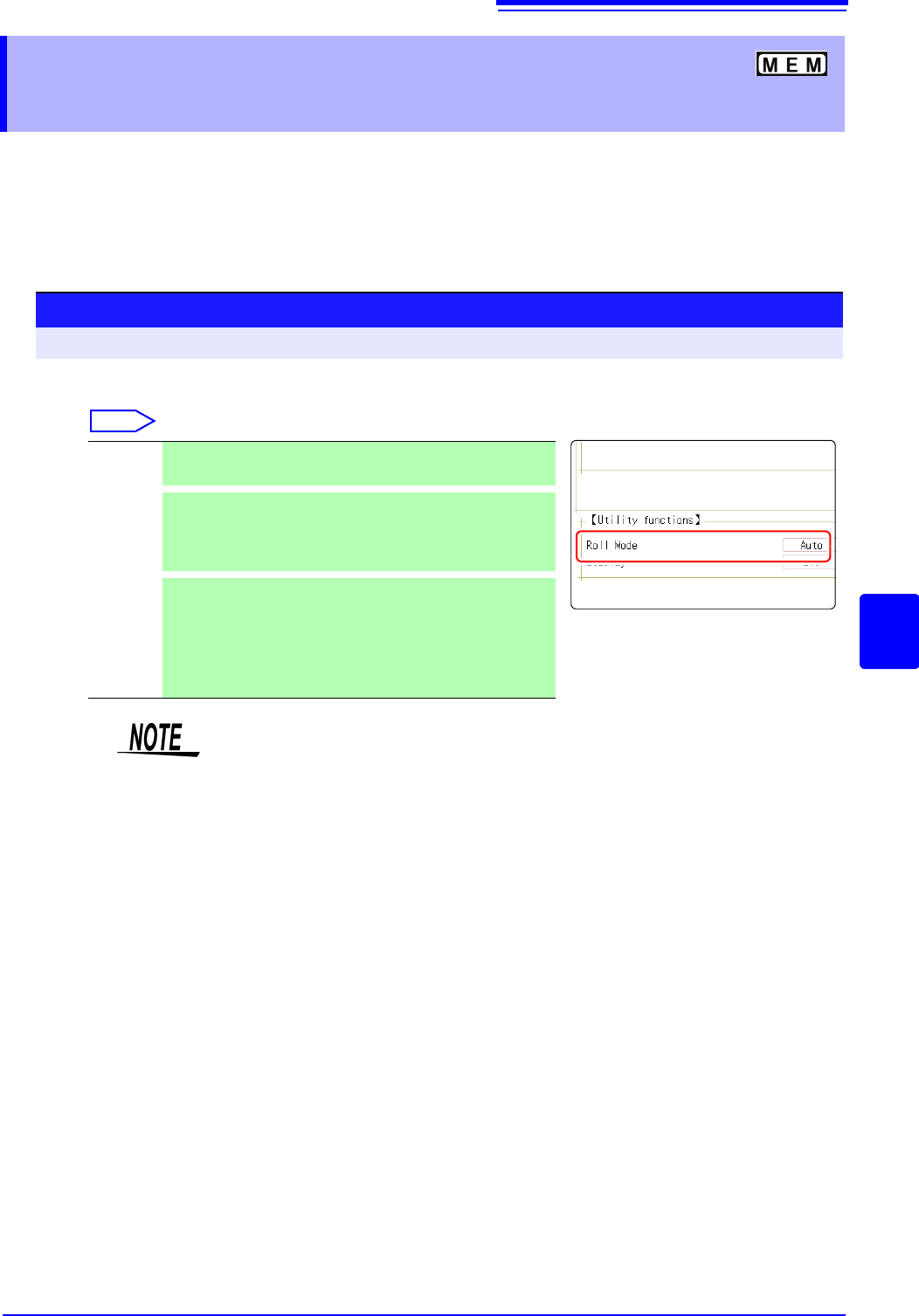
To open the screen: Right-click and select [STATUS] [Status] sheet
Move the flashing cursor to the [Roll Mode] item.
Select
Off Normal recording. Data is displayed only after acquiring the
specified recording length.
On
Waveforms are displayed while recording (with 10 ms and
slower settings). When the timebase is set to 5 ms/div or faster,
waveforms are not displayed until after acquisition has fin-
ished.
Auto
Regardless of the timebase setting, whether or not the wave-
form is displayed depends on the waveform display magnifica-
tion settings while the data is being recorded. However, when
the waveform is displayed using a time axis slower than 100
ms per division, or when the time axis range is 5 s/div , the
waveform will be displayed after it has been captured.
During longer recording operations, the waveform will scroll, so that you can
always observe the latest signal.