MR8740、MR8741_user_manual_eng_20191016H.pdf - 第111页
4.3 Loading Data 99 4 Chapter 4 Saving/Loading Dat a & Managing Files Data saved on media or in the internal memory of the instrument can be reloaded. Before attempting to load data, make sure that the storage media …
4.2 Saving Data
98
The pulse pattern data registered in Model MR8791, arbitrary waveform data registered in Model U8793,or
program data is saved in the media.
Before attempting to save the data, make sure that the storage media is inserted and the loading target is cor-
rectly specified.
Procedure:
To open the screen: press the FILE key to display the [File] sheet.
Refer to the instruction manual of Models U8793, MR8790, and MR8791 regarding each detailed save set-
tings.
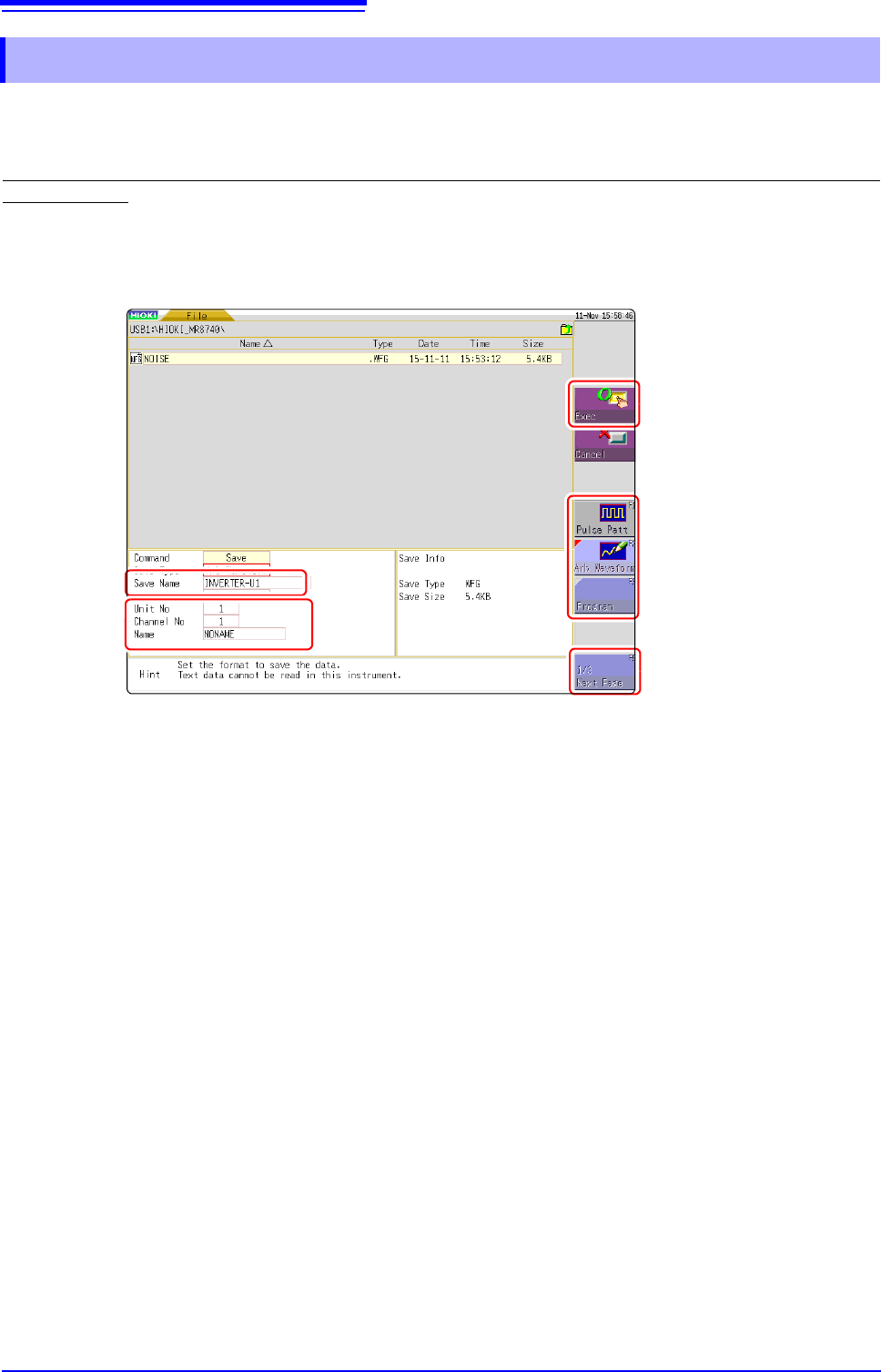
4.2.5 Save Waveform Output Data to the Media
1
Press [Next Page].
2
Select [Pulse Patt], [Arb Waveform], or [Program].
3
Enter a [Save Name].
4
Register a [Unit No], a [Channel No], and a [Name] of the MR8791 or the U8793.
5
Press [Exec].
The data registered in the module is saved to the media.
1
5
3
2
4
4.3 Loading Data
99
4
Chapter 4 Saving/Loading Data & Managing Files
Data saved on media or in the internal memory of the instrument can be reloaded.
Before attempting to load data, make sure that the storage media is inserted and the loading target
is correctly specified.
Only settings and measurement data saved in binary format can be loaded into the instrument.
Refer to "7.10 Register the Waveform in the U8793 Arbitrary Waveform Generator Unit" (p.184), or the
instruction manual of Models U8793, MR8790, and MR8791 regarding the detailed settings for loading (regis-
tration) of pulse pattern data, arbitrary waveform data, program data.
When loading settings data, you can select whether to load communication settings such as the IP
address of the LAN.
No: Does not load the communi-
cation settings.
(Default setting)
Yes: Loads the communication set-
tings.
4.3 Loading Data
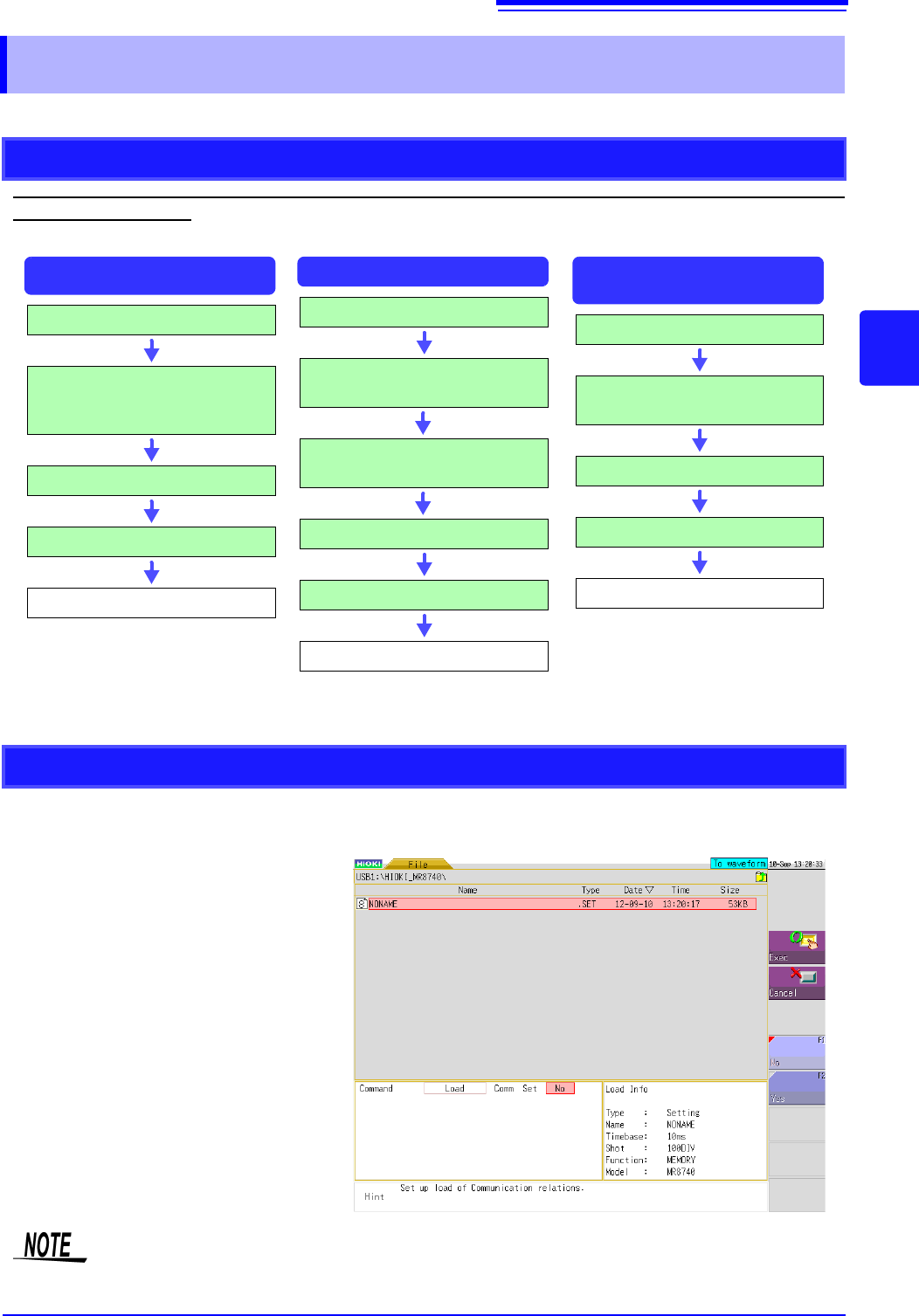
Data Loading Workflow
Insert media
Select a loading data.
(Extension: .SET)
Select whether to load the commu-
nication settings
Select [Load]
Select [Exec]
Loading
Settings Data
Waveform Data
Insert media
Select a loading data.
(Extension: .MEM, .FFT, .IDX,
.SEQ)
Select [Load]
Select [Exec]
Loading
Waveform evaluation
area
Insert media
Select a loading data.
(Extension: .ARE, .BMP)
Select [Load]
Select [Exec]
Loading
Loading the Communication Settings
Please note that the currently set IP address and other communication settings will be over-
written if the loading of the communication settings is set to [Yes] and a setting file is loaded.
4.3 Loading Data
100
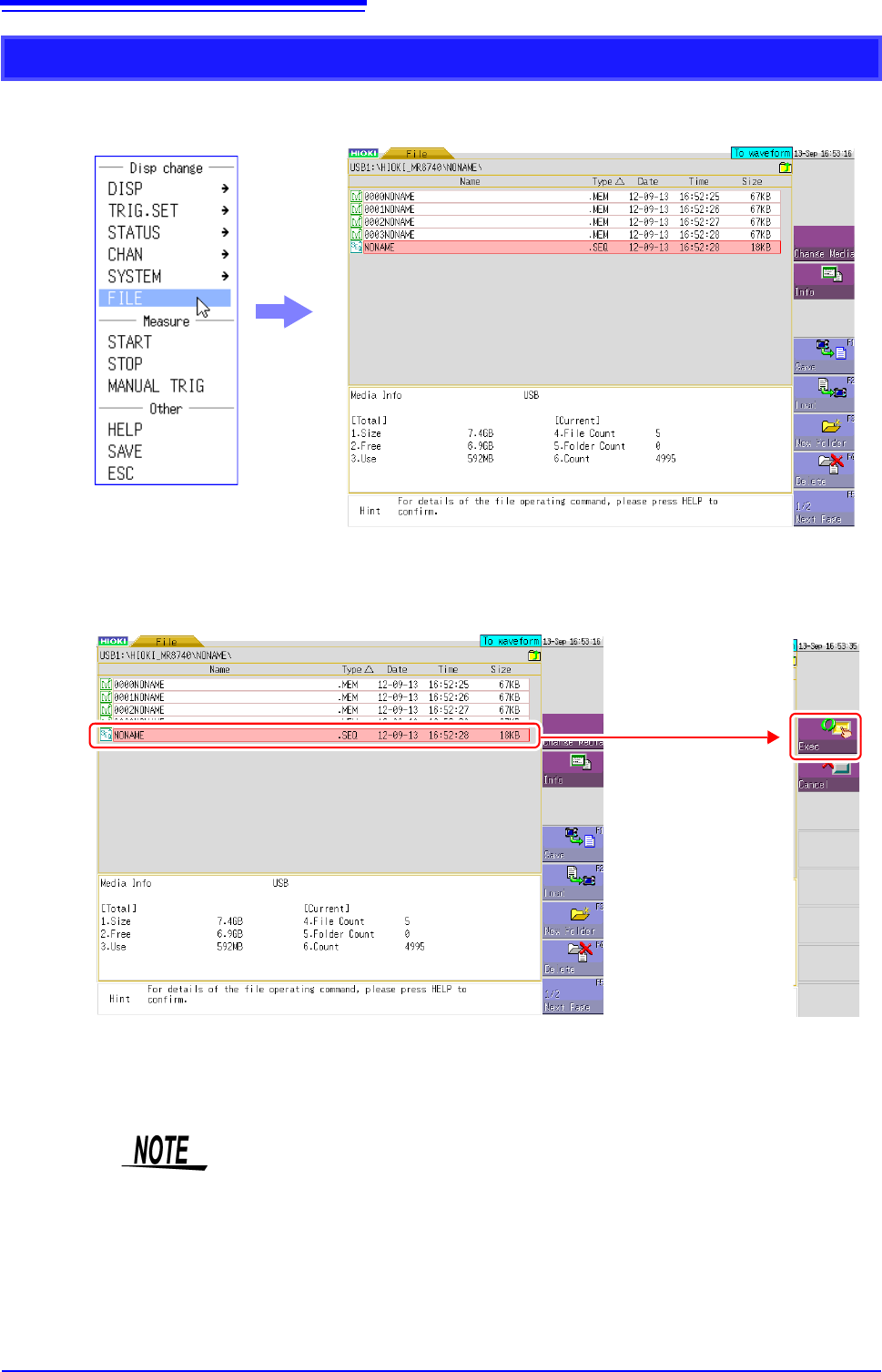
Loading Example (Loading a Memory Division File)
1
Right-click to display the list menu, and then click [FILE].
2
Double-click the SEQ file in the folder created in step 8 of "Saving a Memory Division
Waveform File", and then click [Exec] to load the waveform data on the instrument so that
it becomes the same as when each memory block was saved.
3
Double-click a MEM file in the folder created in step 8 of "Saving a Memory Division Waveform
File", and then click [Exec] to load only the waveform data of that block to the instrument.
Double-click this,
and then click
[Exec] on the right
of the screen.
When loading from a source other than the internal memory
Insert the storage media before making the media selection.
Other limitations
• Data saved with Memory HiCorders other than the MR8740/MR8741,
MR8847s and MR8827 cannot be loaded.
• When loading waveform data, the settings for the instrument are the same set-
tings as when the data is saved. To reset to the instrument settings, carry out
[Clear Wave Data] (p.374) or start the measurement.