MR8740、MR8741_user_manual_eng_20191016H.pdf - 第171页
7.7 Inverting the Waveform (In vert Function) 159 6 Chapter 7 Utility Functions 7 This applies to the analog chan nels only. You can invert the plus and minus sides of the waveform. Example: • When a current sensor is cl…
7.6 Fine Adjustment of Input Values (Vernier Function)
158
Fine adjustment of input voltage can be performed arbitrarily on the Waveform screen. When
recording physical values such as noise, temperature and acceleration using sensors, amplitude
can be adjusted to facilitate calibration.
7.6 Fine Adjustment of Input Values (Vernier
Function)
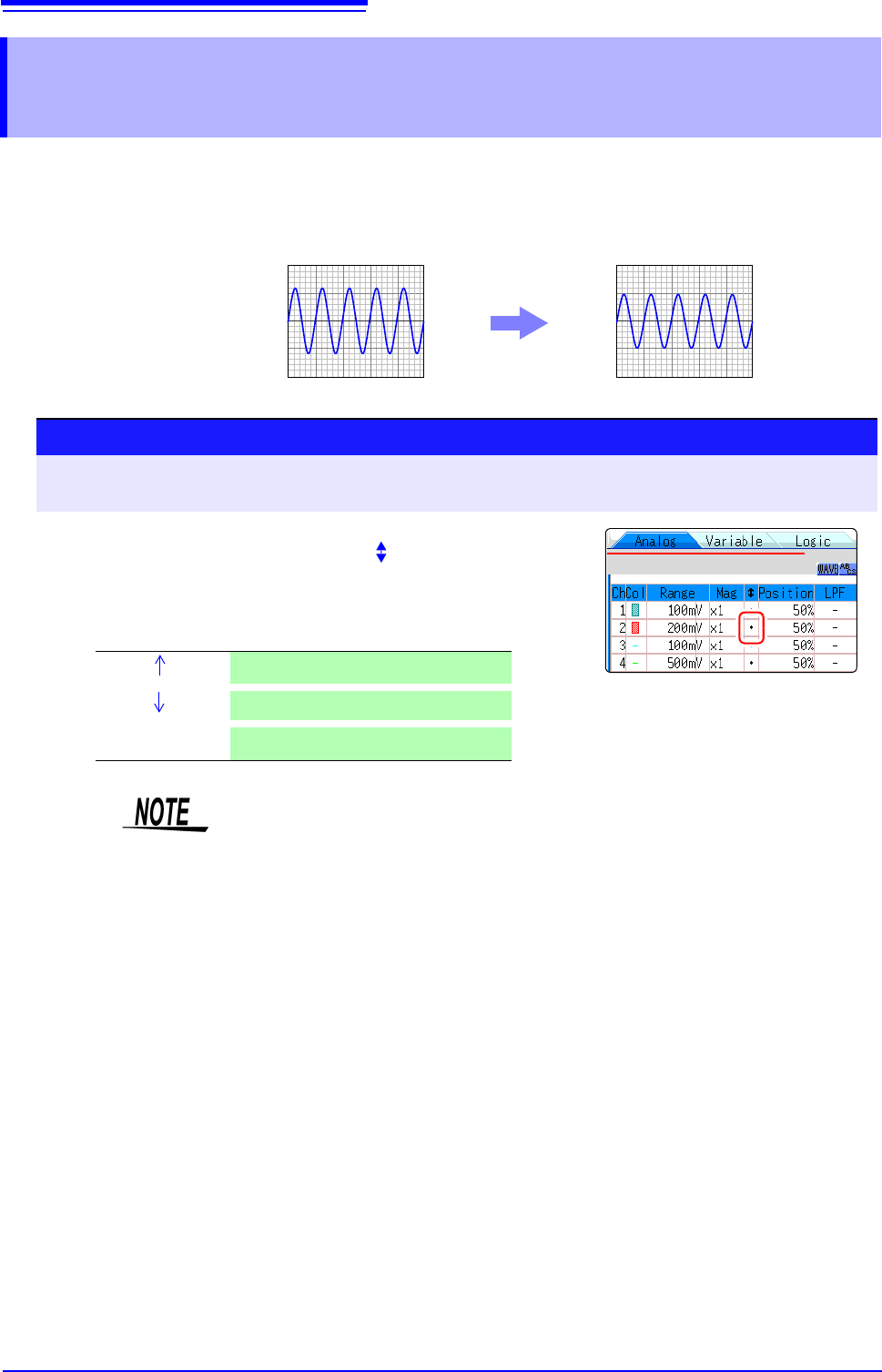
Normal Display Vernier Function Enabled
1.2 V input is displayed as 1.0 V
1.2 V
1.0 V
Procedure
To open the screen: Right-click and select [DISP] Waveform screen Right-click and select [CH.SET]
Channel settings window ([Analog] sheet)
1
Move the flashing cursor to the [] vernier setting item of
the channel to adjust.
2
Make the adjustment while watching the waveform.
Vernier Magnify waveform
Vernier
Compress waveform
Vernier Reset
Return waveform to original position
• The adjustment range is 50 - 200% of the original waveform. The magnifica-
tion/compression ratio is not displayed.
• Vernier adjustments cannot be verified on waveforms.
• The waveform data (saved file data) is adjusted by the Vernier function.
7.7 Inverting the Waveform (Invert Function)
159
6
Chapter 7 Utility Functions
7
This applies to the analog channels only. You can invert the plus and minus sides of the waveform.
Example: • When a current sensor is clamped around a wire with its current direction
mark mistakenly in the direction opposite to the current flow
• When a signal is inputted with spring-pulling force negative and spring-com-
pressing force positive; however, you would like to display the results with
spring-pulling force positive and spring-compressing force negative
7.7 Inverting the Waveform (Invert Function)
Procedure
To open the screen: Right-click and select [DISP] Waveform screen Right-click and select [CH.SET]
Channel settings window ([Analog] sheet)
1
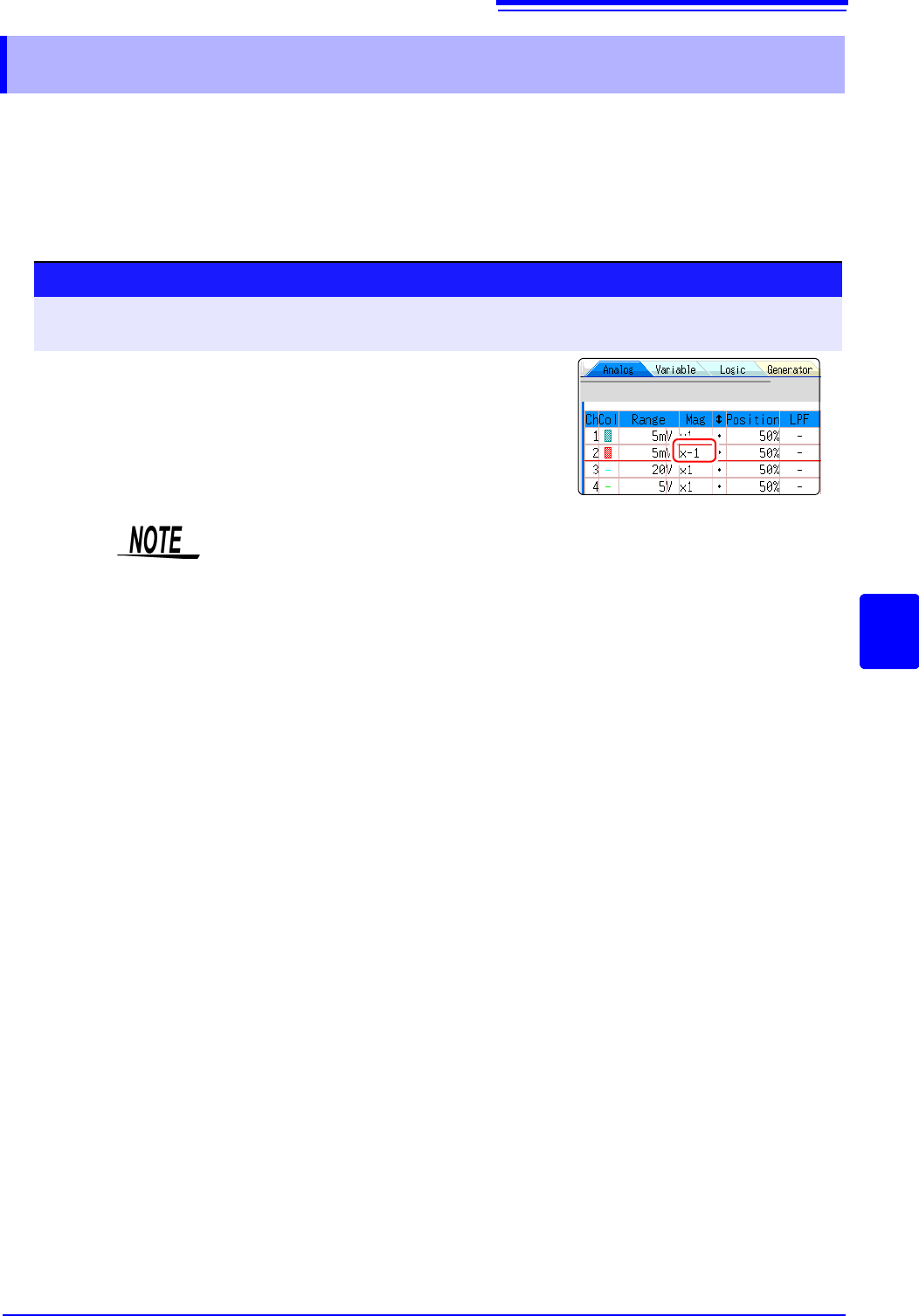
Move the flashing cursor to the [Mag] item for the channel
whose waveform you want to invert.
2
Select [Invert].
The waveform data (saved file data) is adjusted by the Invert function.
7.8 Copying settings to other channels (calculation No.) (Copy function)
160
At the following screens, settings can be copied to other channels and calculation No. (When the
FFT function is used).
• Channel settings window
• Display range window
• Trigger settings window
• Status screen-[Status] sheet- [Analysis] list and [Scale] list (with FFT func-
tion only)
• Status screen - [Num Calc] sheet
• Status screen-[Wave Calc] sheet
• Channel screen - [Unit List] sheet
• Channel screen - [Scaling] sheet
• Channel screen - [Comment] sheet
The procedure is explained for the Display range window.
7.8 Copying settings to other channels (calcula-
tion No.) (Copy function)
Procedure
To open the screen: Right-click and select [DISP] Waveform screenRight-click and select
[CH.SET]
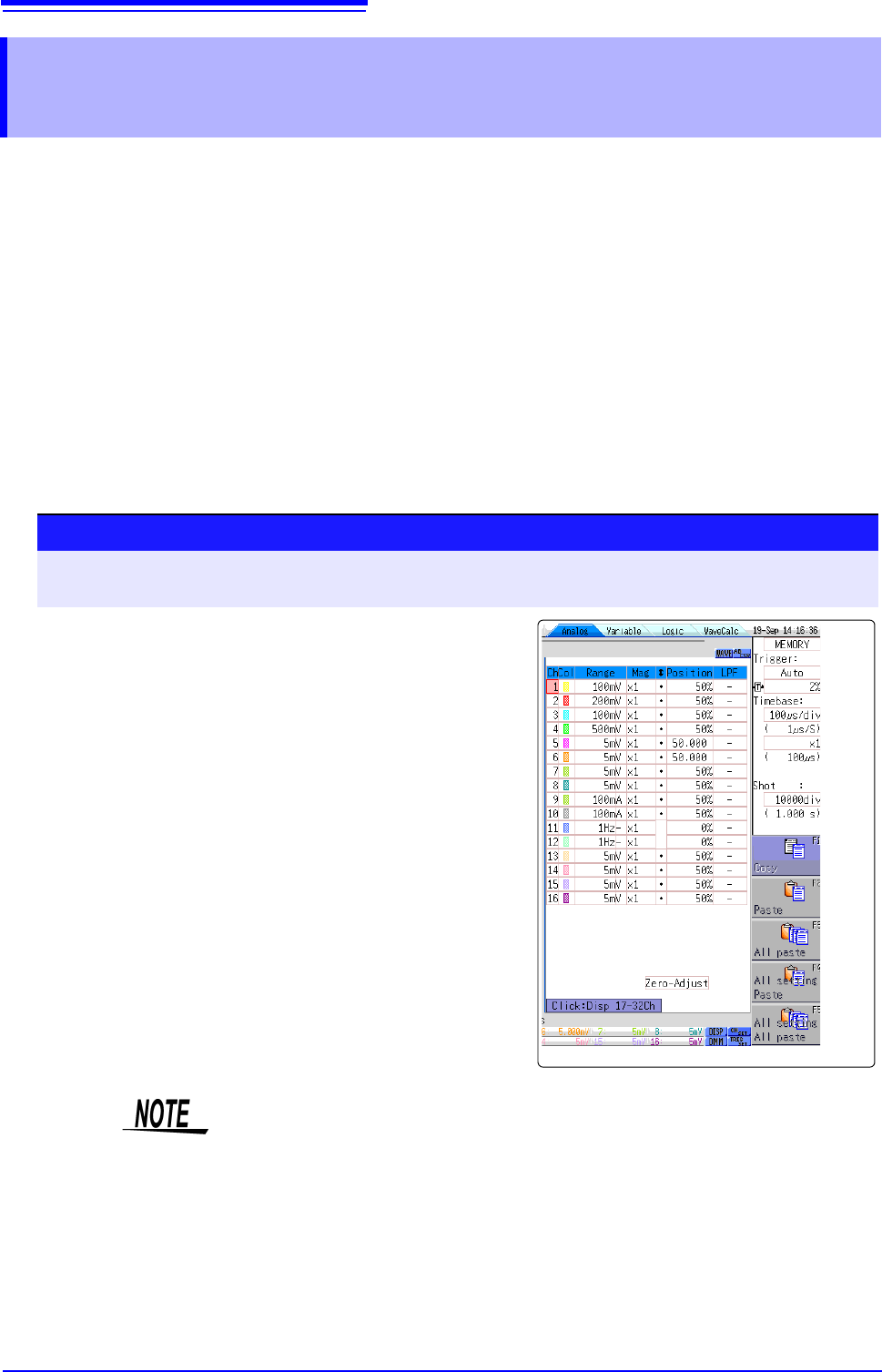
Display range window
1
Click the copy source channel number (calculation
No.).
2
Select [Copy].
3
Click the channel number (calculation No.) where you
want to paste the settings.
4
Select [Paste].
To copy to all channels (calculations), select a chan-
nel number (calculation No.) other than the copy
source and select [All Paste].
When you want to copy all the settings on the Unit list/
Scaling/Variable sheets, select the [All setting
Paste] button or [All setting All paste] button.
When channel settings are copied among different model units, the settings
other than scaling cannot be performed. (Scaling copy is available.)