MR8740、MR8741_user_manual_eng_20191016H.pdf - 第146页
6.7 Switching the Waveform Scr een Display (Display Menu) 134 The display menu allows you to bring up additional in formation such as upper/l ower limit value indi- cation and comment display. It also allows you to set t…
6.6 Monitoring Input Levels (Level Monitor)
133
5
Chapter 6 Waveform Screen Monitoring and Analysis
6
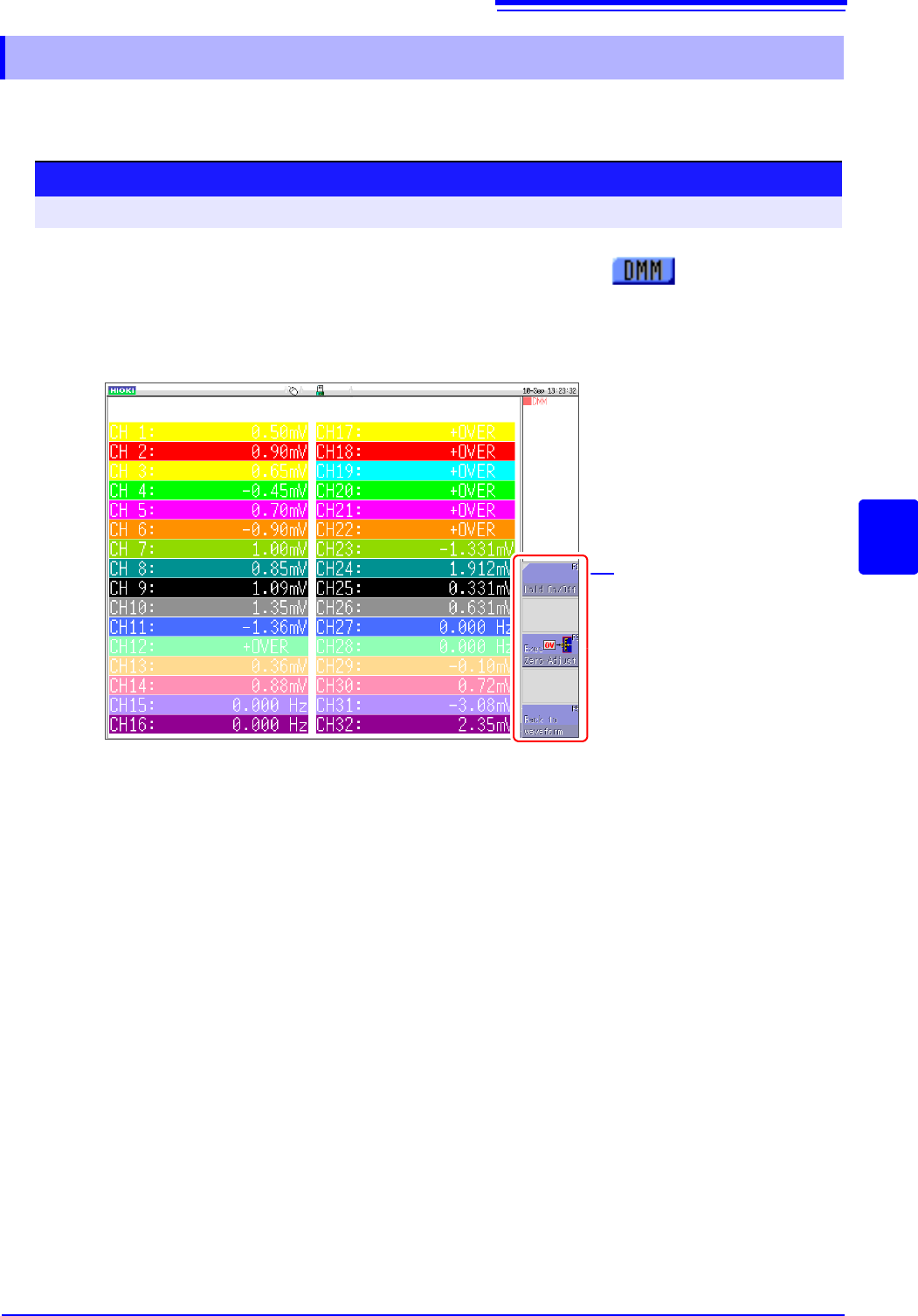
Input values can be monitored as numerical values in the same way as with a DMM (digital multim-
eter).
6.6.2 Numerical Value Monitoring (DMM Display)
Procedure
To open the screen: Right-click and select [DISP] Left-click the [DMM] icon
Left-click the [DMM] icon.
Left-click the [DMM] icon on the top right of the Waveform
screen.
The display changes to numerical value (DMM) display.
To return to the Waveform screen
Left-click [Back to waveform] in the display menu on the right of the
screen.
To pause (hold) display
Left-click [HOLD ON/OFF] in the display menu on the right of the screen.
The HOLD mark appears at the top of the screen to indicate that the
screen is in the HOLD state.
Click [HOLD ON/OFF] in the HOLD state to cancel hold.
Zero adjust
Zero adjustment (calibration for MR8990) can also be performed in the
numerical value (DMM) display screen. Left-click [Exec Zero-Adjust] in
the display menu on the right of the screen.
Display menu
6.7 Switching the Waveform Screen Display (Display Menu)
134
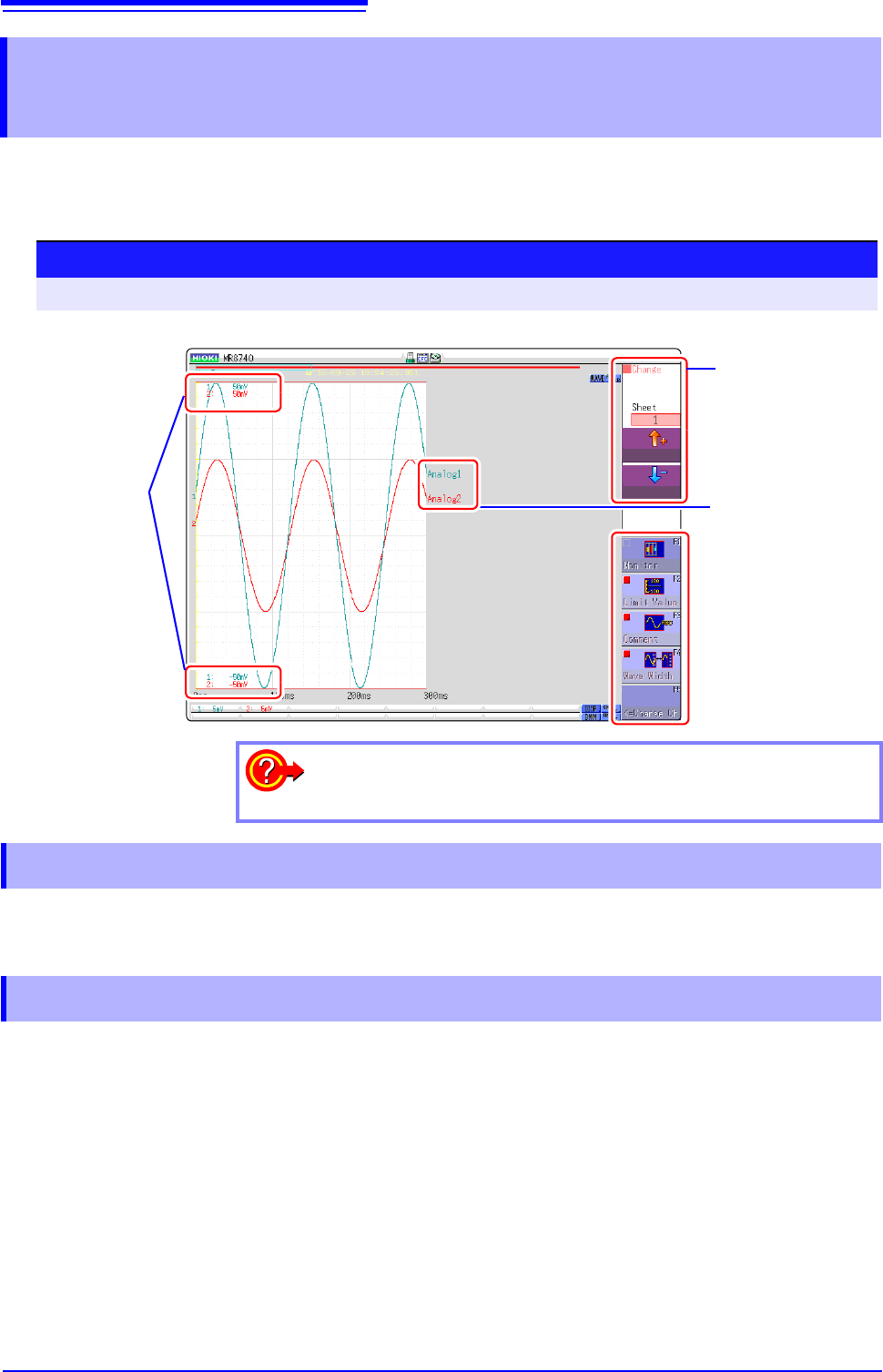
The display menu allows you to bring up additional information such as upper/lower limit value indi-
cation and comment display. It also allows you to set the waveform display width.
See: About level monitor (p.132)
Select [Limit Value] to show the upper/lower limit value indication on the Waveform screen.
Select [Comment] to show the comment indication on the Waveform screen.
• Comment information must have been entered via the [Comment] sheet on the Channel screen.
See:"7.1 Adding Comments" (p.138)
• When overlapped with other displayed elements, the comments may not display properly. Hide the Chan-
nel Settings Window, Trigger Settings Window, Level Monitor, etc., or decrease the [Wave Width].
6.7 Switching the Waveform Screen Display
(Display Menu)
Procedure
To open the menu: Right-click and select [DISP] Display Menu
Upper and Lower
Limit Value
Display Menu
Comment
Displayed sheet
switching
To hide the menu:
Select the same menu again.
6.7.1 Showing Upper/Lower Limit On Waveform Screen
6.7.2 Showing Comments On Waveform Screen
6.7 Switching the Waveform Screen Display (Display Menu)
135
5
Chapter 6 Waveform Screen Monitoring and Analysis
6
Select [Wave Width] to change the display width of the Waveform screen.
If a waveform is hard to see because of numeric value and settings information, this function can be
used to separate the waveform and other information.
The function is also active for the Channel settings window and Trigger settings window.
The screen changes each time you click [Format].
Click [Change Ch] to change the channels displayed at the bottom of the screen (CH1 to CH16 and
CH17 to CH32).
When level monitoring is ON: The channel displayed for analog monitoring changes.
When level monitoring is OFF: The channel displayed for the range setting changes.
Select [
]/[] to switch the displayed sheet.
The settings of each displayed sheet can be specified on the Unit List tab of the Channel settings
window.
See: Refer to "3.5.4 Display Sheet" (p.80)
6.7.3 Switching the Waveform Display Width
6.7.4 Switching the Format (MR8741 Only)
6.7.5 Changing the Monitor Values (MR8740 Only)
6.7.6 Switch the Displayed Sheet