MR8740、MR8741_user_manual_eng_20191016H.pdf - 第124页
5.3 Send PRINT key 112 If the "Send Print Key" is executed by using Model 9333, the data are printed after the print rang e and types are selected. This is also useful to prevent inadver tent printing due to op…
5.2 Making Auto Print Settings
111
6
Chapter 5 Printing
5
This applies to the Memory function, Recorder function, and FFT function.
Make these settings before measurement.
Measurement data is printed automatically when you press the
START key to start measurement.
Make sure that the PC connected via LAN is prepared.
When performing waveform evaluation, the evaluation area will be printed
at the same time. To disable printing of the evaluation area, set waveform
evaluation to
[OFF]. ( p.300)
5.2 Making Auto Print Settings
Procedure
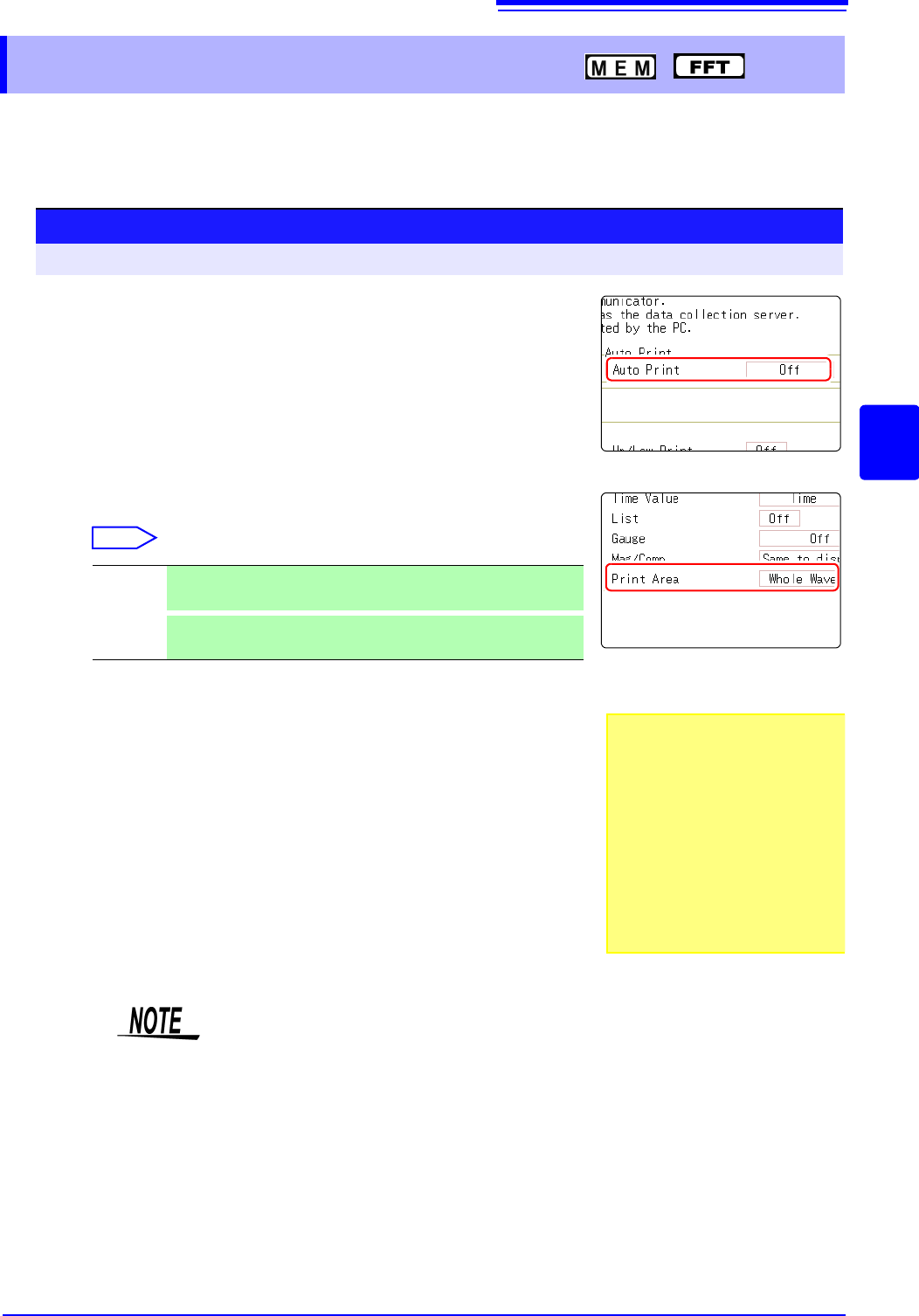
To open the screen: Press the SYSTEM key [Printer] sheet
1
Enable Auto Print.
(Memory Function, FFT Function case:)
Move the cursor to the [Auto Print] item.
Select [On].
Default setting: Off (Auto Print is not carried out)
2
(Memory Function case:)
Make print area settings as required.
Move the cursor to the [Print Area] item.
Select
3
Check the measurement conditions and start the measure-
ment. (Press the START key.)
Memory Function case:
Data are acquired for the recording length and then printed auto-
matically.
FFT Function case:
Data is printed automatically after FFT analysis is exited.
When printing is carried out again after stopping, the range selec-
tion will be used.
Whole
Wave
Print all waveform data in internal memory of instrument. (default
setting)
A-B
Wave
Print only A/B cursor defined range of waveform data in internal
memory of instrument.
• To output the waveform
data to the PC con-
nected via LAN
Model 9333 LAN Communicator
is required to be installed on the
PC to which the data is to be out-
put. For more information about
how to operate and configure
Model 9333 LAN Communicator,
in addition to install it on the PC,
see the instruction manual of
Model 9333 LAN Communicator.
• When both Auto Print and Auto Save are enabled, Auto Save is executed first.
• However, when the Roll Mode function (default setting: Auto) is used with the
Memory function, Auto Print has priority.
• If A/B cursor is On during manual printing after acquiring waveform data, the
range will be printed.
5.3 Send PRINT key
112
If the "Send Print Key" is executed by using Model 9333, the data are printed after the print range
and types are selected.
This is also useful to prevent inadvertent printing due to operation errors.
When performing waveform evaluation, the evaluation area will be printed at the same time.
To disable printing of the evaluation area, set waveform evaluation to [OFF]. ( p.300)
5.3 Send PRINT key
Procedure
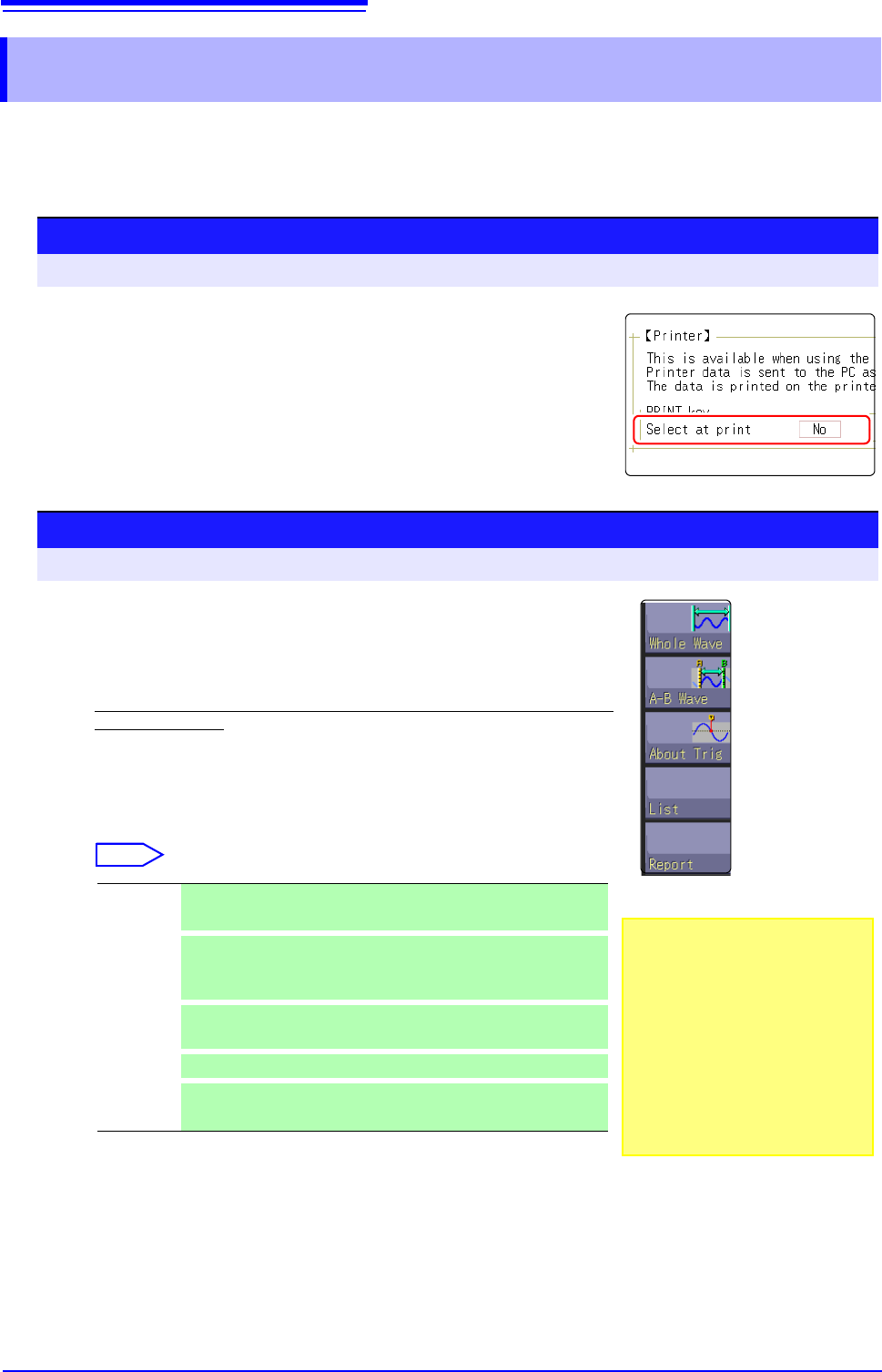
To open the screen: Press the SYSTEM key [Printer] sheet
1
Enable data selection at time of printing
Move the cursor to the [Select at print] item.
Select [Yes].
Procedure
To open the screen: Press the DISP key File screen
2
Start and stop the measurement.
Press the START key to start the measurement.
Press the STOP key to finish the measurement.
During measurement, printing is not possible. Measurement must be stopped be-
fore starting to print.
3
Select print contents and execute printing
If the "Send Print Key" is executed by using Model 9333, the GUI
[Select at print] is displayed at the right on the screen.
Select
When the selection (except for [Cancel]) has been made, printing starts.
Whole
Wave
Print all waveform data in internal memory of instrument. (default
setting)
A-B Wave
Print only A/B cursor defined range of waveform data in internal
memory of instrument. (Memory Function and Recorder Function
only)
About Trig
Print waveform data for 10 divisions before and after trigger posi-
tion. (Memory Function only)
List
Print main settings.
Report
Print the report.
See: "5.5.2 Report Print (A4 Size Print)" ( p.116)
• To output the waveform
data to the PC con-
nected via LAN
Model 9333 LAN Communicator
is required to be installed on the
PC to which the data is to be out-
put. For more information about
how to operate and configure
Model 9333 LAN Communicator,
in addition to install it on the PC,
see the instruction manual of
Model 9333 LAN Communicator.
5.4 Set the print contents
113
6
Chapter 5 Printing
5
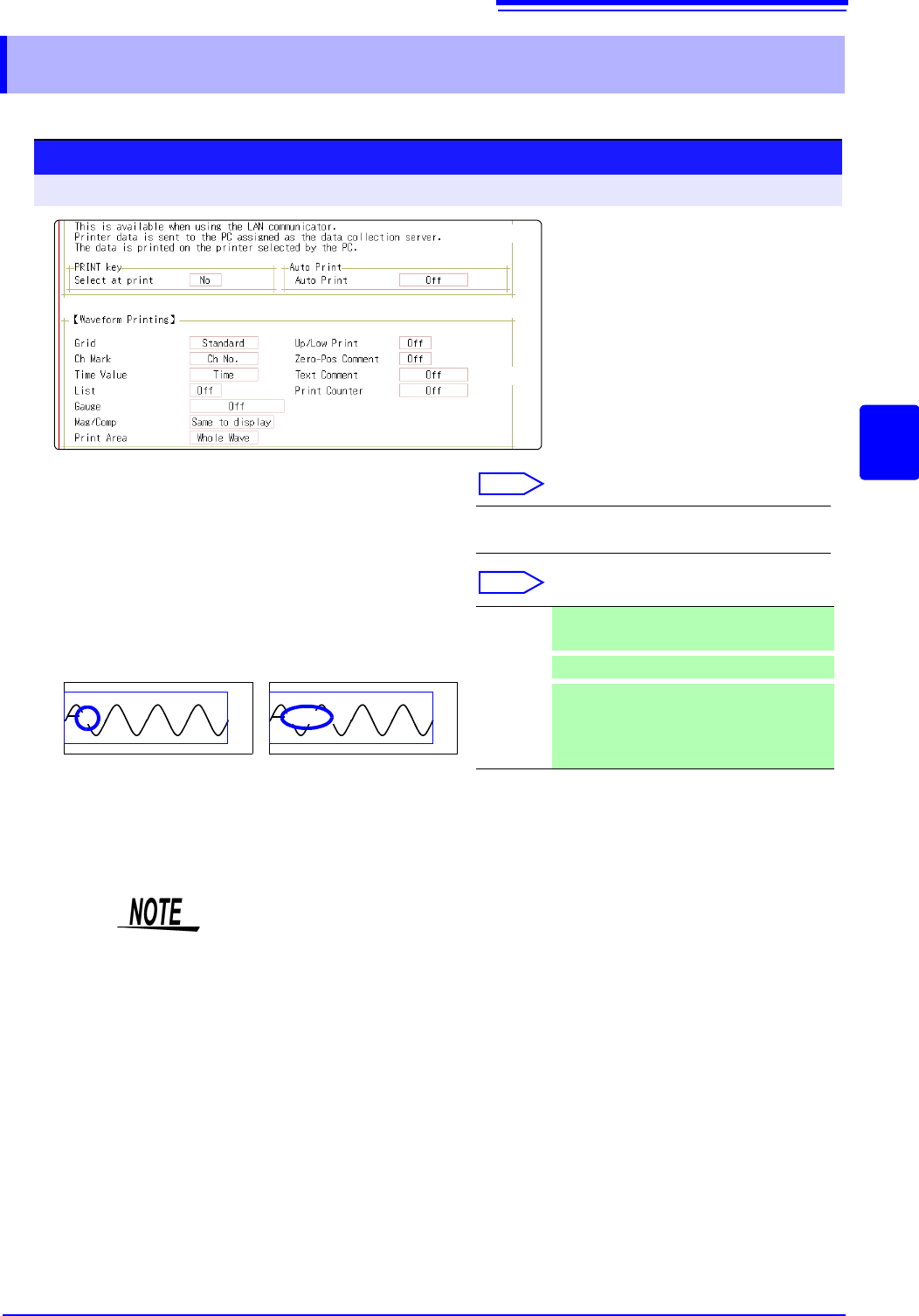
Set the print contents on the [Printer] sheet of the System screen.
5.4 Set the print contents
Print contents setting
To open the screen: Press the SYSTEM key [Printer] sheet
1
Select the grid type.
Move the cursor to the [Grid] item.
Select
2
Select the channel marker type.
Move the cursor to the [Ch Mark] item.
Select
Off, Standard (default setting), Fine, Std Dark,
Fine Dark
Channel number. Comment
<Print Example>
1
Voltage
Off Do not print the channel number or com-
ments.
Ch No.
Print the channel number . (default setting)
Comment
Print the comments entered in the Channel
Settings screen over the waveform.
A comment setting must have been made.
See: "7.1 Adding Comments" ( p.138)
1
2
( p.117)
( p.116)
Grid Type
Grids displayed on the screen are not reflected in the printout.