MR8740、MR8741_user_manual_eng_20191016H.pdf - 第245页
10.2 Settings for Waveform Calculation 233 9 Chapter 10 W aveform Calculation Functions 10 About calculation equations _____________________ ________________ Operators See: "10.3 Waveform Calculation Operators and R…
10.2 Settings for Waveform Calculation
232
Waveform calculation results are displayed on the Waveform screen.
5
When finished entry, select [Confirm].
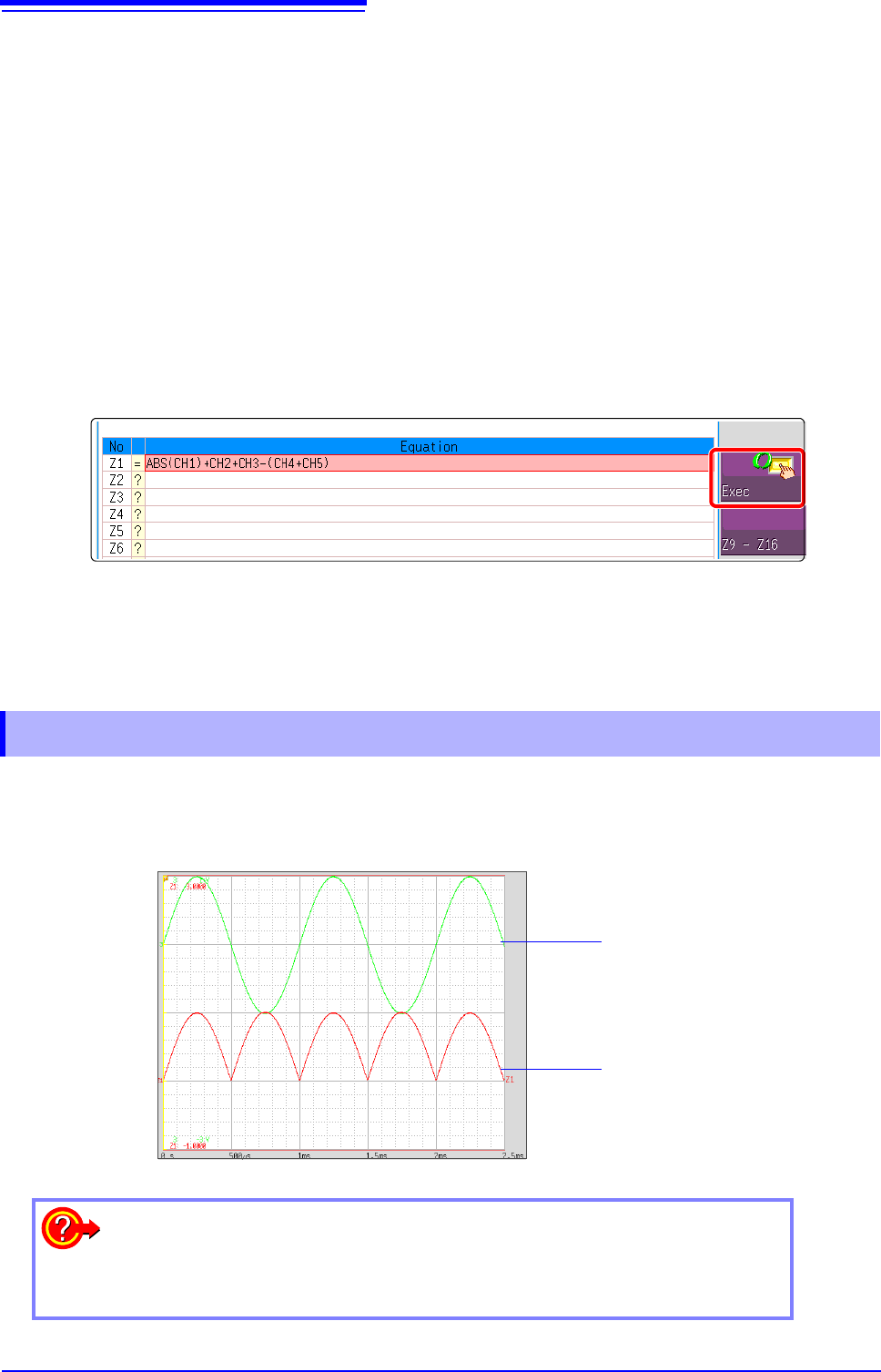
The entered equation is displayed in the [Equation] field.
The scale (maximum and minimum vales) of the calculation results
has a default setting of [Auto]. If you want to scale the results, set
the maximum and minimum values under [Manual].
See: "Changing the display method for calculated waveforms" (p.235)
6
(As occasion demands)
Set auto saving (p.88).
7
Execute the calculations.
Applying Calculations to Existing Data
At the [Wave Calc] sheet, select [Exec].
To calculate while measuring
Click [START] to start measurement.
Calculation waveforms are displayed after loading waveforms.
7
10.2.1 Displaying the waveform calculation results
Example: Waveform of the calculated absolute value of the waveform of CH1. Calcu-
lation equation = ABS(CH1)
CH1 Waveform
Absolute Value
Waveform
To copy settings from one calculation to another:
Settings can be copied at the [Wave Calc] sheet.
See: "7.8 Copying settings to other channels (calculation No.) (Copy function)" (p.160)
10.2 Settings for Waveform Calculation
233
9
Chapter 10 Waveform Calculation Functions
10
About calculation equations _____________________________________
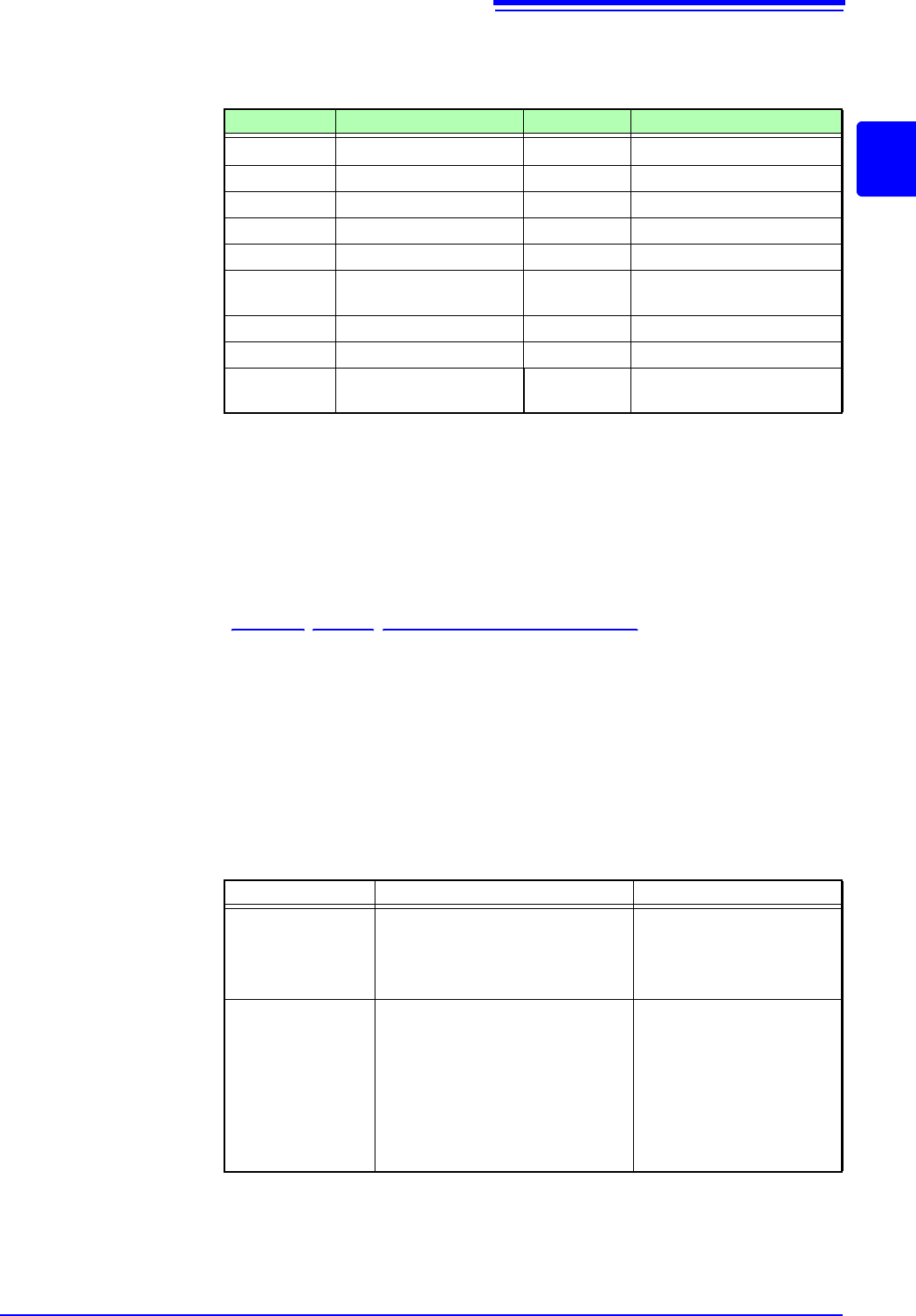
Operators
See: "10.3 Waveform Calculation Operators and Results" (p.237)
Entering Calculation Equations
• Each entered calculation equation may contain up to 80 characters.
• Each constant in a calculation equation may contain up to 30 digits.
• For multiplication, use [*]. For division, use [/].
• Entering a long, complex formula such as that shown below will cause "?" to
be displayed. Separate the formula into two shorter formulas.
• When dividing by 0, an overflow value is output.
(For positive values, +9.9999E+29. For negative values, -9.9999E+29.)
• The result of calculation Z
i
can be used in other calculation equations. How-
ever, the Z
n
th equation can only refer to the results of equations up to Z
n-1
.
(Example: Equation Z
4
can include the results of equations Z
1
through Z
3
.)
Using the MOV, SLI, DIF and DIF2 operators in an equation
The number # after a comma within parenthesis (_,#) for each operation is set to
the calculation operator.
When calculation results overflow (OVER)
• The value that indicated by the A/B cursor is not a correct value.
• When [Scale] is set to [Auto], waveforms appear at the top or bottom edge of
the screen. This makes calculation result overflow obvious.
Operator Name Operator Name
ABS Absolute Value DIF2 2
nd
Derivative
EXP Exponent INT2 2
nd
Integral
LOG Common Logarithm SIN Sine
SQR Square Root COS Cosine
MOV Moving Average TAN Tangent
SLI Movement parallel to the
time axis
ASIN Inverse Sine
DIF 1
st
Derivative ACOS Inverse Cosine
INT 1
st
Integral ATAN Inverse Tangent
PLCS Digital Voltmeter Unit PLC de-
lay time shift
ABS(CH1)+CH2*CH3-(CH4+CH5)*ABS(CH4)/DIF(CH1, 1)
12 3
Operator Setting Choice Setting Examples
MOV
(Moving Average)
SLI
(Parallel Movement)
Set the number of points to move.
Setting Range
MOV (Moving Average): 1 to 5000
SLI: -5000 to 5000
Calculate the 10-point mov-
ing average of CH1:
MOV(CH1,10)
DIF
(Derivative)
DIF2
(2nd Derivative)
Specify the sampling interval for dif-
ferentiation.
"1" is normally acceptable, but this
should be set larger to capture fluc-
tuation values of slowly changing
waveforms.
DIF and DIF2 Setting Range: 1 to
5000
Differentiate CH2 using a 20-
point sampling interval:
DIF(CH2,20)
10.2 Settings for Waveform Calculation
234
10.2.2 Setting constants
Procedure
To open the screen: Right-click and select [STATUS] [Wave Calc] sheet
1
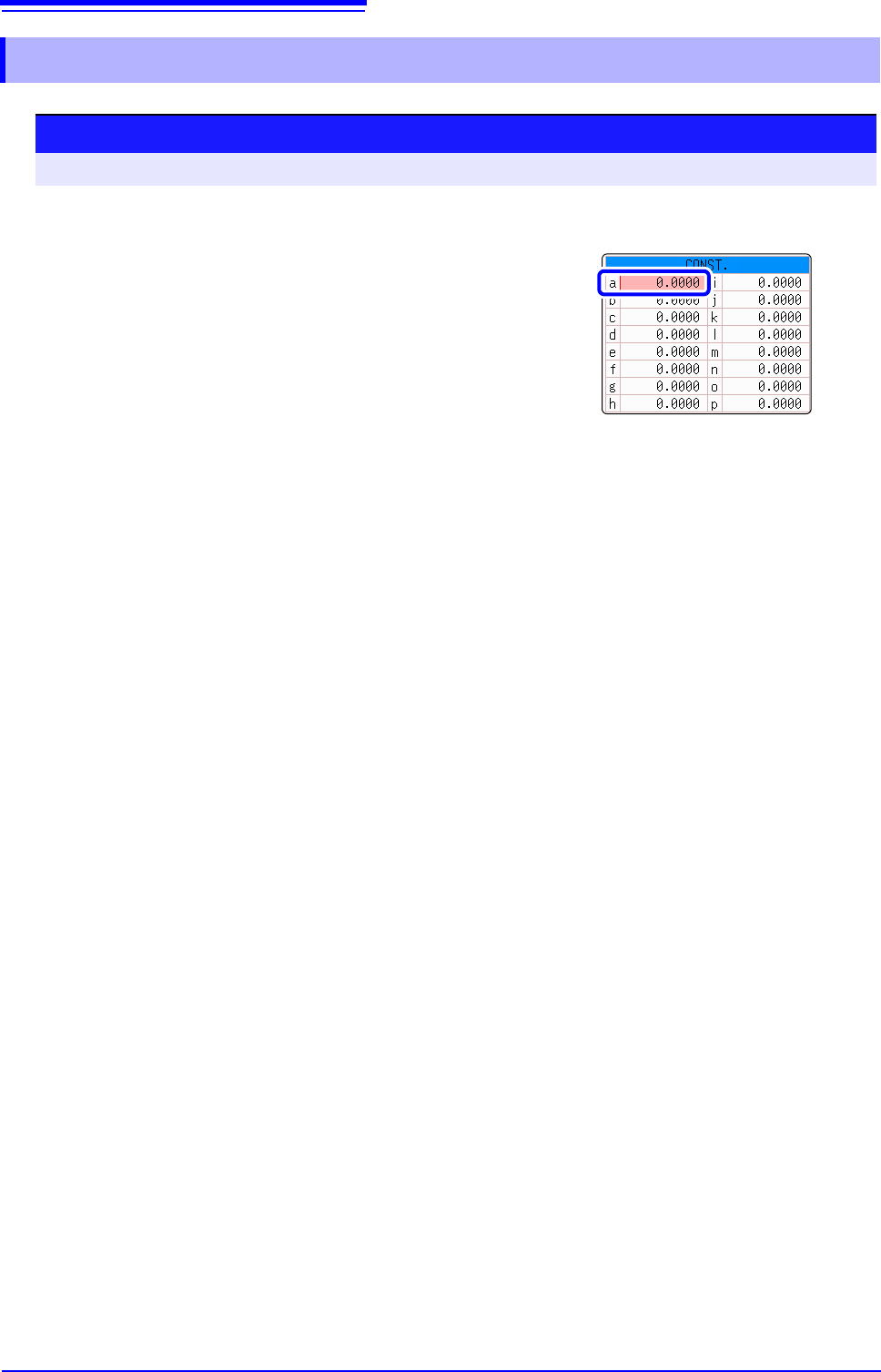
Move the flashing cursor to the No. to be set as
[CONST.].
2
Select an entry method, and enter the constant.
Setting range: -9.9999E+29 to +9.9999E+29
See: "7.1.3 Alphanumeric Input" (p.141)
Defined constants are shown in the constant display of the calcula-
tion equation setting dialog.
1