MR8740、MR8741_user_manual_eng_20191016H.pdf - 第325页
313 12 Chapter 15 Connection to a Computer 14 15 This instrument is equipped with an Ethernet 100BASE-TX interface for LAN communications. You can control the instrument from PCs and other d evices by connecting it to a …
312
Additional Description __________________________________________
Selecting a
Screen Color
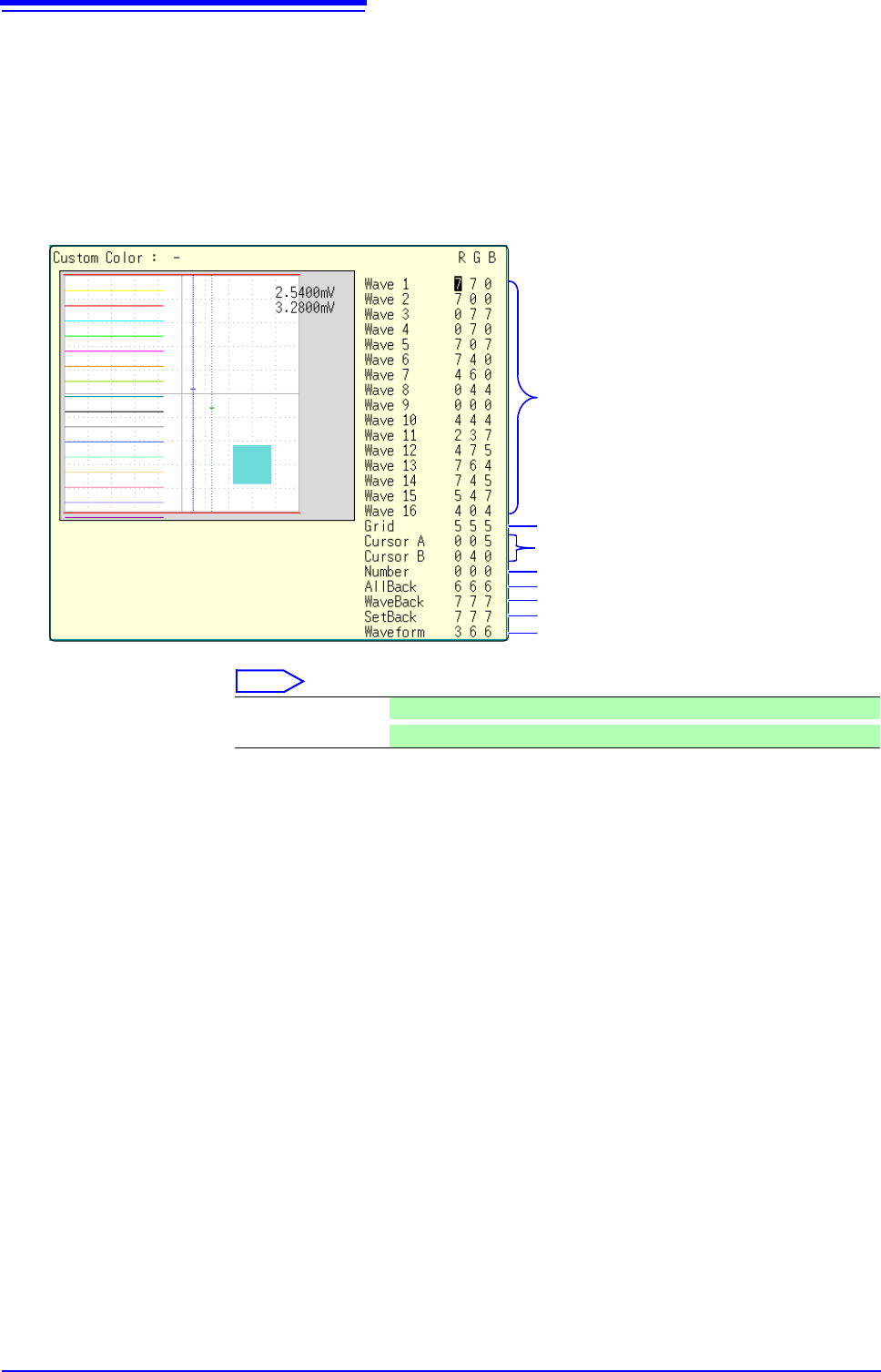
Select [Color Edit] to display the [Custom Color] screen.
Change the [R] (red), [G] (green) and [B] (blue) values of each item to change
its color.
See: "7.1.3 Alphanumeric Input" (p.141)
[Custom Color] screen
Select
Color setting for each waveform
Grid (graticule) color
Colors of cursor A and B lines
Color of numerical values
Background color
Background color of the Waveform screen
Background color of the setting screen
Evaluation area color
Done Applies the settings.
Reset
Reverts to the default settings.
313
12
Chapter 15 Connection to a Computer
14
15
This instrument is equipped with an Ethernet 100BASE-TX interface for LAN communications. You
can control the instrument from PCs and other devices by connecting it to a network with 10BASE-T
or 100BASE-TX cable (maximum length 100 m).
Connection to a
Computer Chapter 15
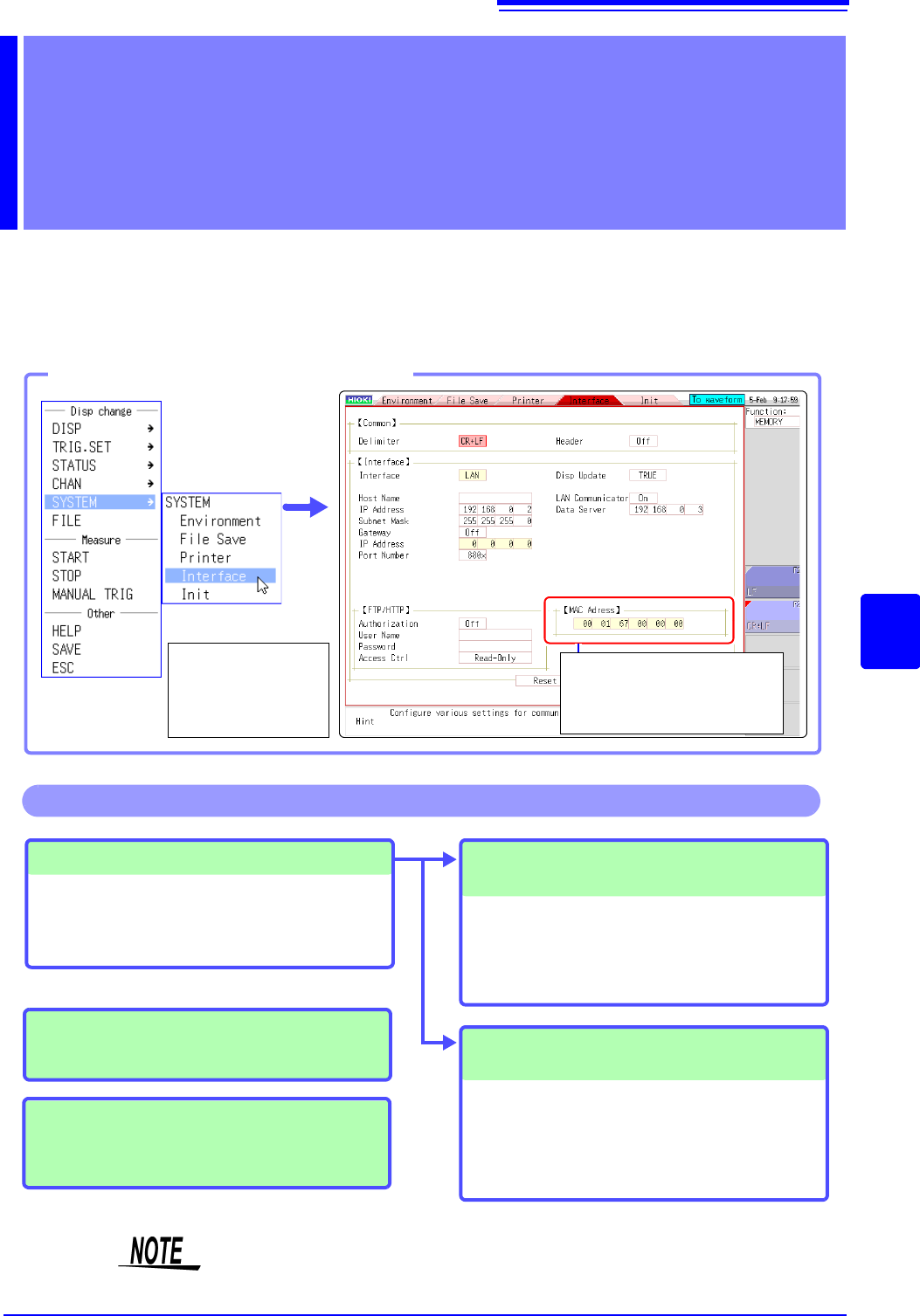
Opening the [Interface] sheet
MAC Address
This is a unique number that is
used to identify devices in a net-
work.
Select [SYSTEM]
and then [Inter-
face] from the right-
click menu.
LAN connections and settings (p.314)
• Connecting the instrument and a PC over a
network
• Making 1:1 Connections between the instru-
ment and a PC
Accessing files on the instrument via
FTP (p.327)
The instrument is equipped with an FTP (File
Transfer Protocol, compliant with RFC959) serv-
er. You can use a PC FTP client to transfer files to
instrument media and perform other file opera-
tions.
Controlling the instrument by command
communications (p.332)
You can control the instrument by creating pro-
grams and connecting to the command communi-
cations port by TCP.
For more information about commands, refer to
the communications operation manual on the sup-
plied application disk.
Operations available from the [Interface] sheet
Remote control of the instrument using
an Internet browser (p.320)
Operating the instrument remotely and
acquiring data by using Model 9333 LAN
Communicator (p.334)
The settings of both block I and block II need to be made for MR8740.
15.1 LAN Settings and Connection (Before Using FTP/Internet Browser/Command Communications)
314
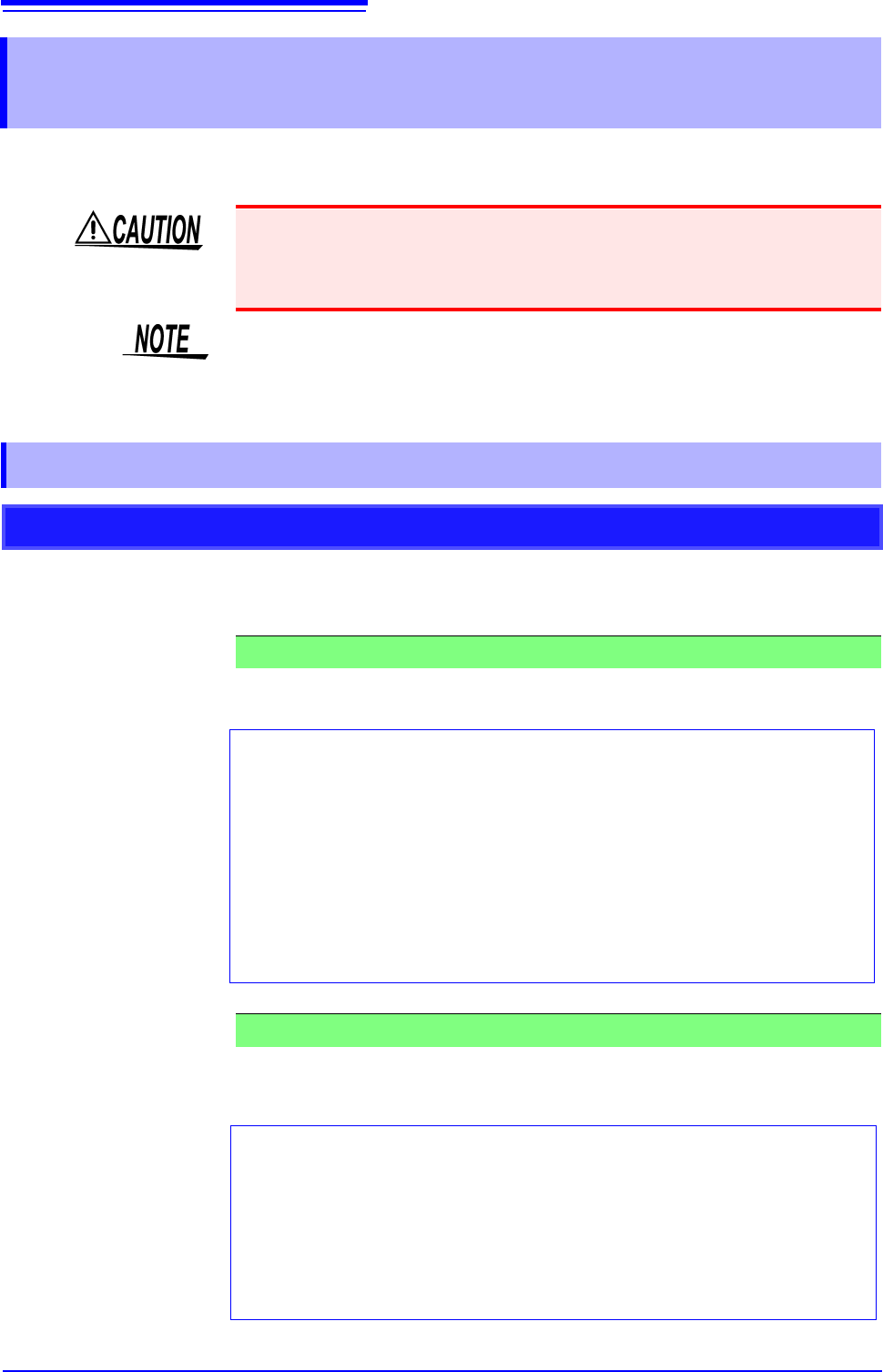
The required settings are different, depending on whether the instrument is to be connected to an
existing network or directly to a PC.
The required settings are different, depending on whether the instrument is to be
connected to an existing network or whether a new network consisting only of
the instrument and one computer is to be configured.
The following items must be assigned in advance by your network administrator.
Be sure that there is no conflict with other devices.
(Using as Local Network Without External Connections)
If there is not administrator for your network, or if you have been entrusted with
settings, the following addresses are recommended.
15.1 LAN Settings and Connection (Before Using FTP/
Internet Browser/Command Communications)
When connecting the instrument to your LAN using a LAN cable of more than
30 m or with a cable laid outdoors, take appropriate countermeasures that
include installing a surge protector for LANs. Such signal wiring is susceptible to
induced lighting, which can cause damage to the instrument.
Always configure the LAN settings before connecting the instrument to the net-
work. When you change the settings while connected to the network, the IP
addresses may not be unique or invalid address data may be transmitted over
the network.
15.1.1 Making LAN Settings at the Instrument
Things to Check Before Making Settings
When Connecting the instrument to an Existing Network
• The host name and address of the instrument
Host name (up to 12 characters): ____________
IP address: ................................. ___.___.___.___
Subnet mask: ............................. ___.___.___.___
• Gateway
Whether to use a gateway: Yes/No
IP address (when used): ___.___.___.___
• The TCP/IP port number to use: ___X (default 880x)
(Specify the most significant 3 digits of the 4-digit number. The least significant digit
(0 to 9) is reserved for use by the instrument. Specify when the default 8800 to 8809
cannot be used.)
When Configuring a New Network with a PC and This Instrument
IP address
PC: 192.168.0.1
First recorder: 192.168.0.2
Second recorder: 192.168.0.3 and so on, in sequence.
Host name .......................... Any name (However, must be unique)
Subnet mask....................... 255.255.255.0
Gateway.............................. Off
Port number ........................ 880X
(Settings example)