MR8740、MR8741_user_manual_eng_20191016H.pdf - 第95页
83 4 Chapter 4 Saving/Loading Dat a & Managing Files Data can be saved and loaded and files can be managed. Before saving data, configure the save settings o n the [File Save] sheet. Load data and manage files from t…
3.6 Starting and Stopping Measurement
82
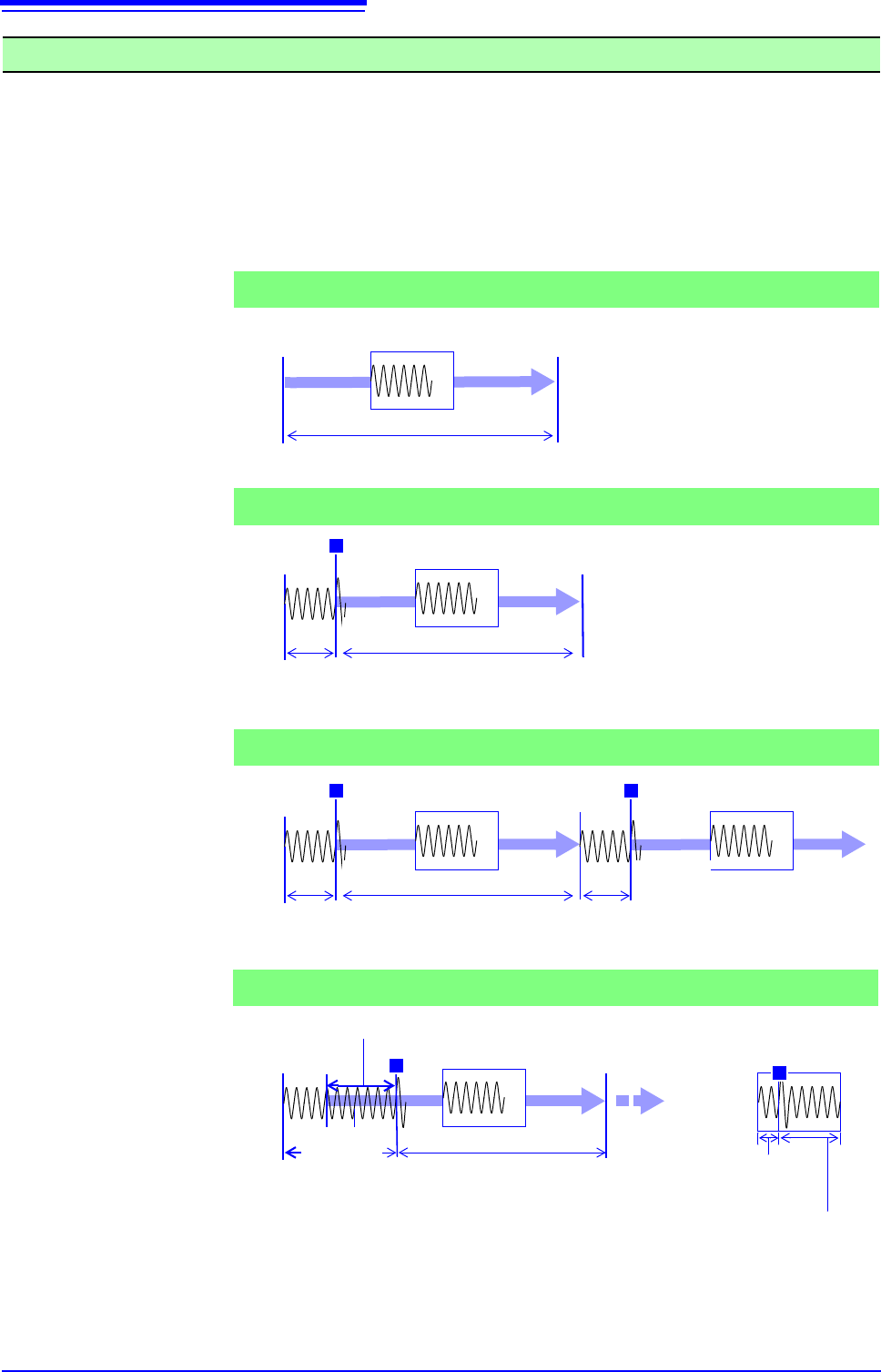
Measurement methods are normal measurement (start recording when measurement starts) and trigger
measurement (start recording when trigger criteria are satisfied). In this manual, "Measurement start"
means the instant when you click
[START], and "Recording start" means the instant when recording begins
on the waveform screen.
• Select the Trigger mode to record upon either single or repeating trigger
events.(p.191)
• Enable pre-triggering if you want to capture data measured prior to trigger
events.(p.204)
When the trigger mode is set to [Repeat] or [Auto] (Memory function only), the
number of trigger events is shown in the top part of the screen (Storage Counter).
See: "Explanation of Screen Contents" (p.20)
Measurement and Internal Operations
Start Measurement
[START]
End of Measurement
Recording
Starts
Recording
Stops
[Now Storing]
[Storing Finished]
[ ]: Status Bar Display
Recording
Normal
Measurement
Without triggering
Terminates when recording length has been recorded.
End of Measurement
[Trigger Wait]
Recording
Starts
T
Recording
Stops
[Now Storing]
Recording starts when a trigger event occurs and continues for the specified recording
length.
Start Measurement
[START]
[Storing Finished]
Recording
Trigger
Measurement
Trigger mode: [Single]
Pre-triggering not enabled
Single triggering
Recording starts when a trigger event occurs, continues for the specified recording length,
and returns to the Trigger Wait state.
Stop Measurement
[STOP]
[Trigger Wait]
Recording
Starts
T
Recording
Stops
[Now Storing]
Start Measurement
[START]
Recording
[Trigger Wait]
T
Recording
Starts
Repeated triggering
Trigger mode: [Repeat]
Pre-triggering not enabled
[Pre-Trigger Wait]
End of Measurement
[Trigger Wait]
Start Measurement
[START]
T
Recording
Stops
[Now Storing]
After starting measurement and internally acquiring data for the specified
pre-trigger period, the Trigger Wait state is activated.
Recording
Starts
The specified pre-trigger wait period is recorded before each trigger event
The data before a trigger event (for the pre-trigger period) is recorded.
Recording
[Storing Finished]
T
Post-trigger waveform
Waveform dur-
ing specified pre-
trigger period
Repeated triggering and recording of phenomena before each event
Trigger mode: [Repeat]
Pre-triggering enabled
Operation is
repeated
from pre-trig-
gering stage.
83
4
Chapter 4 Saving/Loading Data & Managing Files
Data can be saved and loaded and files can be managed.
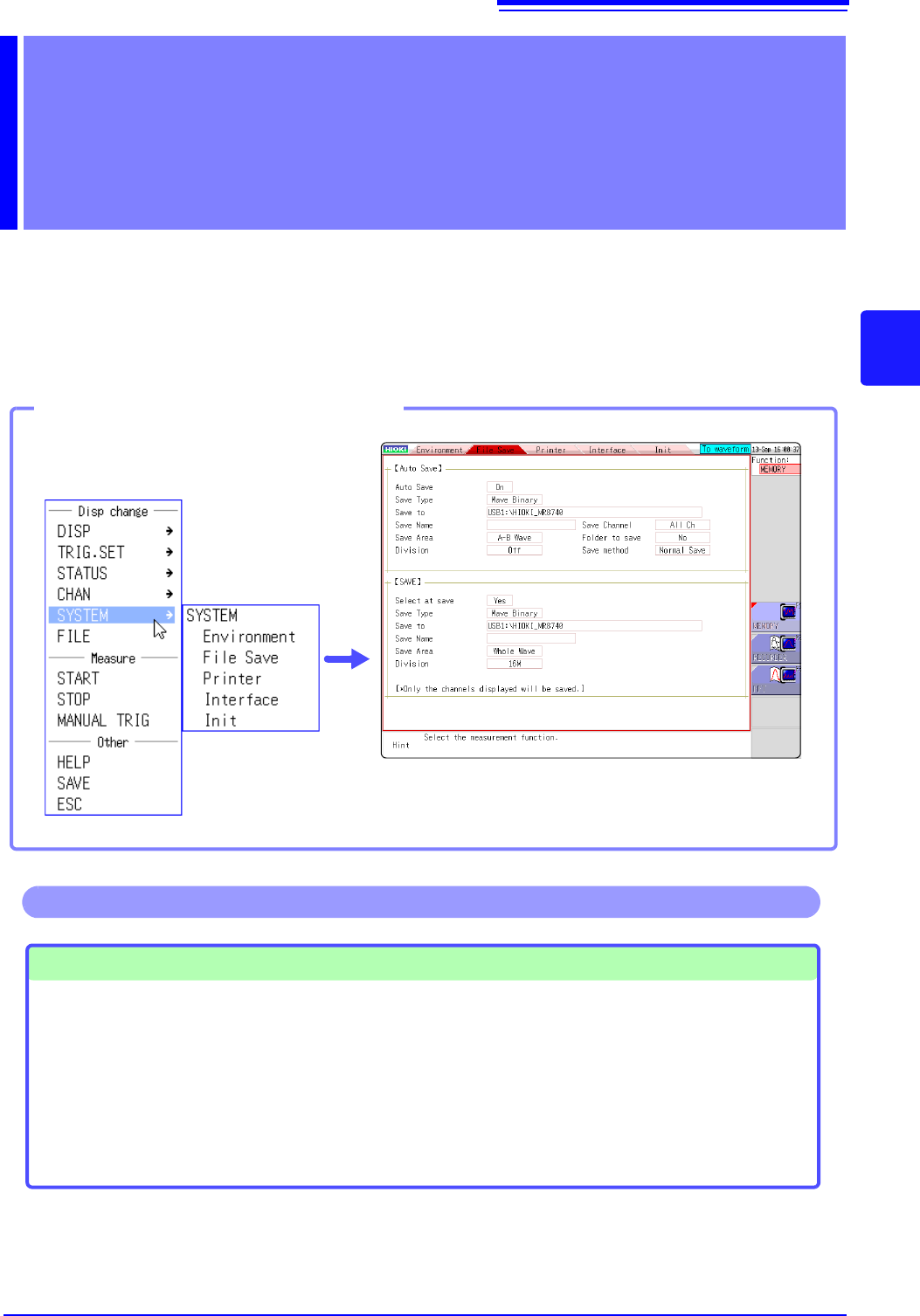
Before saving data, configure the save settings on the [File Save] sheet.
Load data and manage files from the File screen.
Saving/Loading Data
& Managing Files Chapter 4
Opening the [File Save] sheet
You can switch setting
screens by clicking a tab.
Click [SYSTEM] in the right-click
menu.
Saving Data (p.87)
Save Method
• Auto save
• Manual save by clicking [SAVE]
(Selection save, Quick save)
Operations available from the [File Save] sheet
Save Types
(Auto Save)
• Waveform data
(Manual save by clicking [SAVE])
• Settings data
• Waveform data
• Display screens
• Waveform screen
• Numerical calculation results
(p.221)
• Waveform evaluation area
84
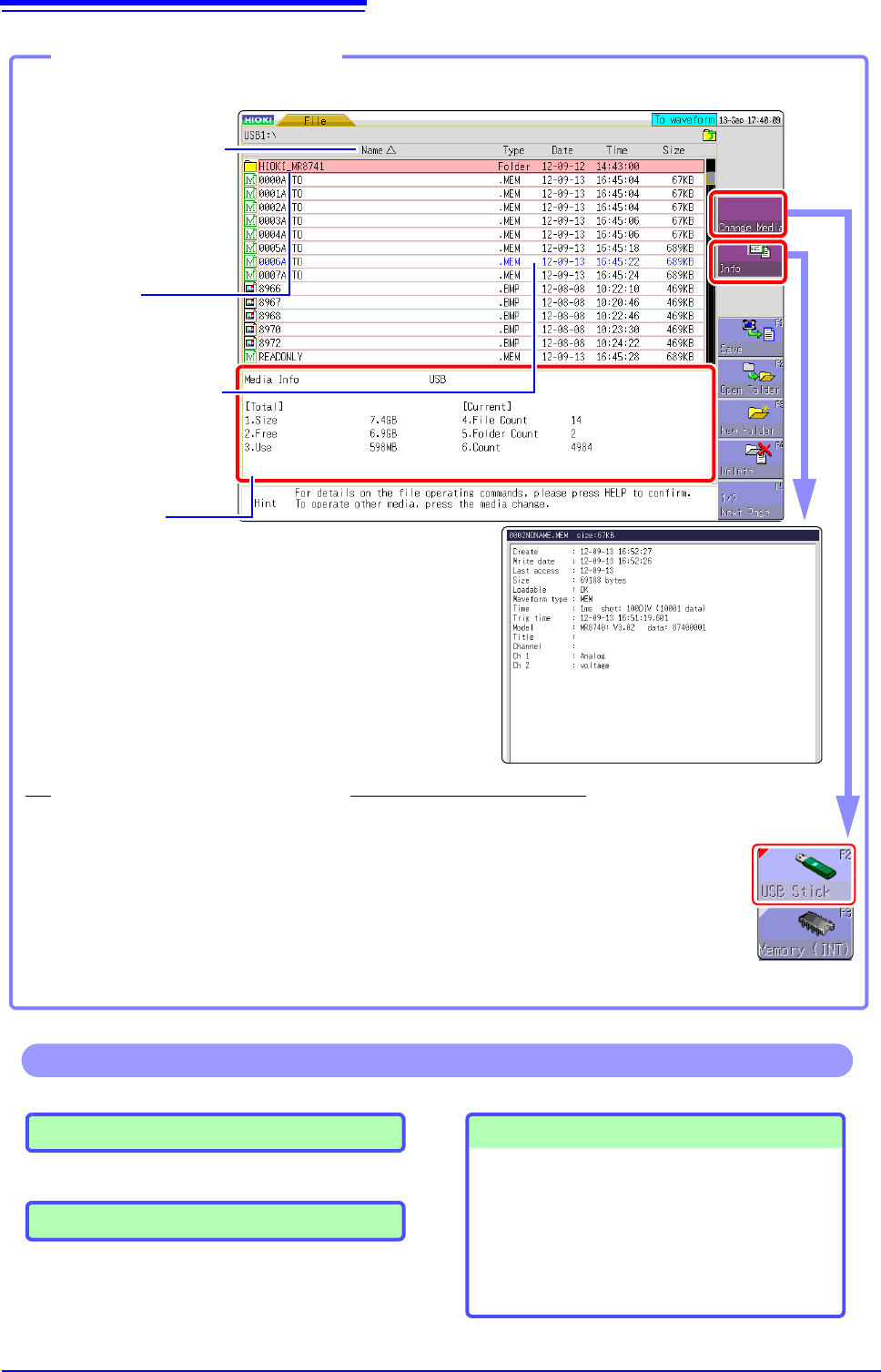
Media information
Shows information about the selected media.
File Count : Shows the number of saved files in the selected folder level.
Folder Count: Shows the number of folders in the selected folder level.
Count : Shows the number of files and folders that can be created in
the selected folder level.
The selected file is indicated by
a flashing cursor.
Opening the File screen
1
Verify that a storage media is inserted.
See: "2.3 Recording Media Preparation" (p.53)
2
Select [Change Media] and select a storage media.
The files on the selected storage media are shown in the file list.
The information about the
selected file is displayed.
To change the media
Read-only files and folders are
shown in blue. Deleting or re-
naming such files is not possi-
ble.
The file order will be
displayed.
: Ascending order
: Descending order
Click
[FILE] in the right-click
menu.
Loading Data (p.99)
Managing Files (p.87)
• Saving data(p.103)
• Creating new folders (p.105)
• Copying files (p.108)
• Sorting files (p.107)
• Deleting files (p.106)
• Renaming files (p.107)
Operations available from the File screen
Formatting Storage Media (p.54)