KJ-01.02.Instruction Manual.REV.02.pdf - 第115页
5 − 19 a) Commands available on the “Cir cuit position” window . By selecting “ 1/ Edit” , the edit window appears. W hen selecting “1/ Blank line input”, a blank line is creat ed in the line just above the current curs …
5 − 18
(3) Non-matrix multiple patterns
1) Hole Reference
Set the distance from the home position of a board to the board positioning
point (reference pin position for “Hole reference,” or shape clamp reference
position for “Shape reference”).
2) BOC mark position
Specify the coordinates of the center point of a BOC mark. Be sure to
specify coordinates of at least two BOC marks here.
If you use a PWB mark, enter coordinates viewed from the home position of
a PWB. If you use a circuit mark, enter coordinates viewed from the home
position f a circuit.
3) Vision data
The parentheses ( ) at the right edge of the BOC mark position shows the
completeness of the vision data. When the vision data is complete, an
asterisk * appears in the parentheses ( ). For teaching of the vision data, see
6.3 “Teaching Recognition”.
4) Bad mark position
Set the distance between the origin of the circuit and the center of the bad
mark.
5) PWB height
Set the height of the top side of a board. Normally the height of the top
side of a fixed board is regarded as “0.”
Note that you have to specify the height of the side on which components
are placed if the board is placed on a jig board or like.
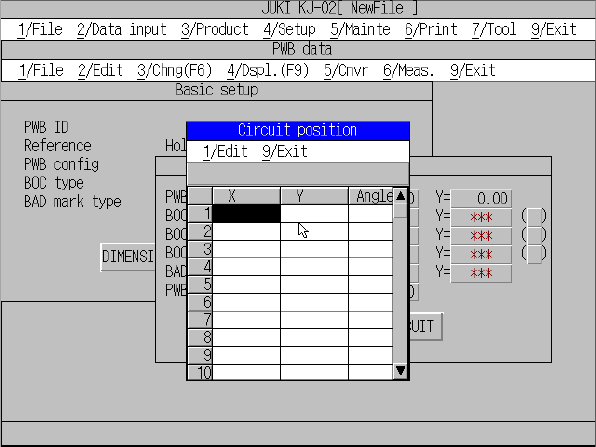
6) Circuit position
When you click the <CIRCUIT> button, the “Circuit position” window appears
on the screen (see Figure 5.3.2.7).
Use the up, down, left and/or right arrow key to enter the position. Specify
the distance from the home position of a PWB to that of each circuit as the
home position (X, Y) of a circuit. Set the angle of each circuit to the “Angle”
column.
Figure 5.3.2.7 Pattern layout
5 − 19
a) Commands available on the “Circuit position” window.
By selecting “1/ Edit”, the edit window appears.
When selecting “1/ Blank line input”, a blank line is created in the line just
above the current cursor position.
When selecting “2/ Delete”, the data on the line of the current cursor position
is deleted and the data that follows appears there.
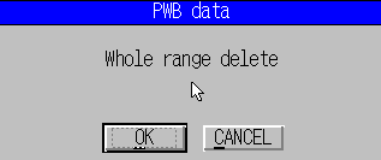
When selecting “3/ Delete all”, a dialog box which asks whether to delete all
data appears (see Figure .5.3.2.8). When the OK button is selected, all the
data of circuit position is deleted and the cursor moves to the first line.
Figure 5.3.2.8 Delete all dialog box
* 1 You can use the HOD to enter the home position of a PWB, BOC mark
position, Bad mark position, PWB height and the home position (X, Y)
of a circuit on the “Circuit position” window. See Section 6.2 “Teaching
Coordinates” for details.
* 2 Total of 100 circuits can be specified here.
* 3 When you change the PWB configuration from “Matrix PWB matrix” to
“Matrix PWB non-matrix”, the circuit settings are changed so that the
circuit angle is set to “0.”
5 − 20
5.3.4 Menu commands
The following table lists the menu commands available from the PWB data editing
Table 5.3.4.1 PWB data menu commands
1/File
2/Edit 3/Chng 4/Dspl 5/Cnvr 6/Meas. 9/Exit
1/Open...
2/Save
3/New...
4/Save as...
9/Exit
○
○
○
○
○
1/Copy 2/Delete
3/Move
4/Insert
5/Duplicate
6/Jump
7/Find
8/Vision copy
9/Nozzle sort
A/Component name
B/Pick point recalc
C/Mark database
×
△
×
×
×
△
△
×
×
×
○
1/PWB data
2/Placement data
3/Component data
4/Pickup data
6/Data compl. state
×
△
△
△
○
1/Component form
2/Component list
3/Pick input
4/Feeder order
×
×
×
×
1/PWB load
2/PWB eject
3/BOC align
○
○
○
1/Single
measurement
× 9/Exit ○
○: Available △: Available dependent on conditions ×: Unavailable
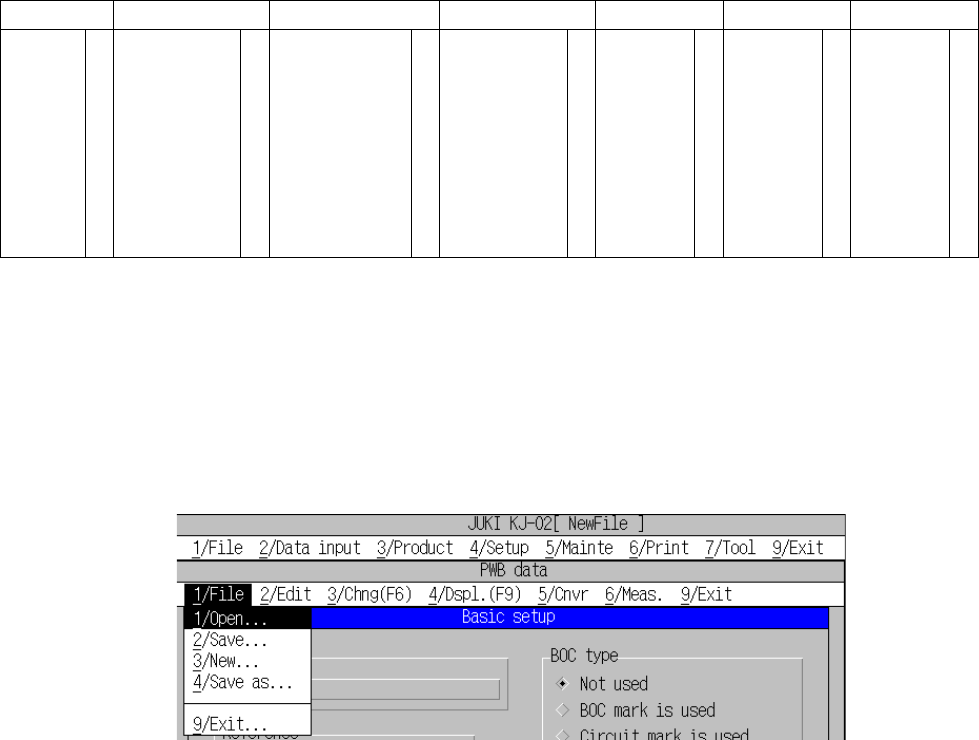
(1) File menu
The commands that can be selected are [Open], [Save], [New], and [Save as].
The operation and its processing are the same as those described in 5.1 “File
Operation Procedure”.
Figure 5.3.4.1 [1/File] command pull-down menu
1) Open
Loads a file into the machine. The PWB data of the loaded data is
displayed
2) Save
Saves a file.
3) New
Clears all data, and displays the PWB data editing screen.
4) Save as
Saves a file that is being edited with another name.