KJ-01.02.Instruction Manual.REV.02.pdf - 第182页
5 − 86 − Order for picking up a component f rom a t ray holder Figure 5.6. 5.3 Order for pi cking up a component from a tray hol der − Trays are arranged inside a tray holder as shown below . Up to f ive trays can be set…
5 − 85
5.6.5 Tray component data entry
(1) Type
Since only a tray holder can be installed on the machine, you cannot select its
type.
(2) Side and No
Since a tray holder is fixed on the rear side, you cannot enter any type or
number.
(3) Angle
See the description of a tape feeder also.
When you enter a value to this item, the machine checks to see if the position of
a tray holder is not overlapped with another device: the already set tape feeder,
stick feeder and/or bulk feeder. If it is overlapped, an error message appears
on the screen, and the machine rejects your setting of the item “Angle.”
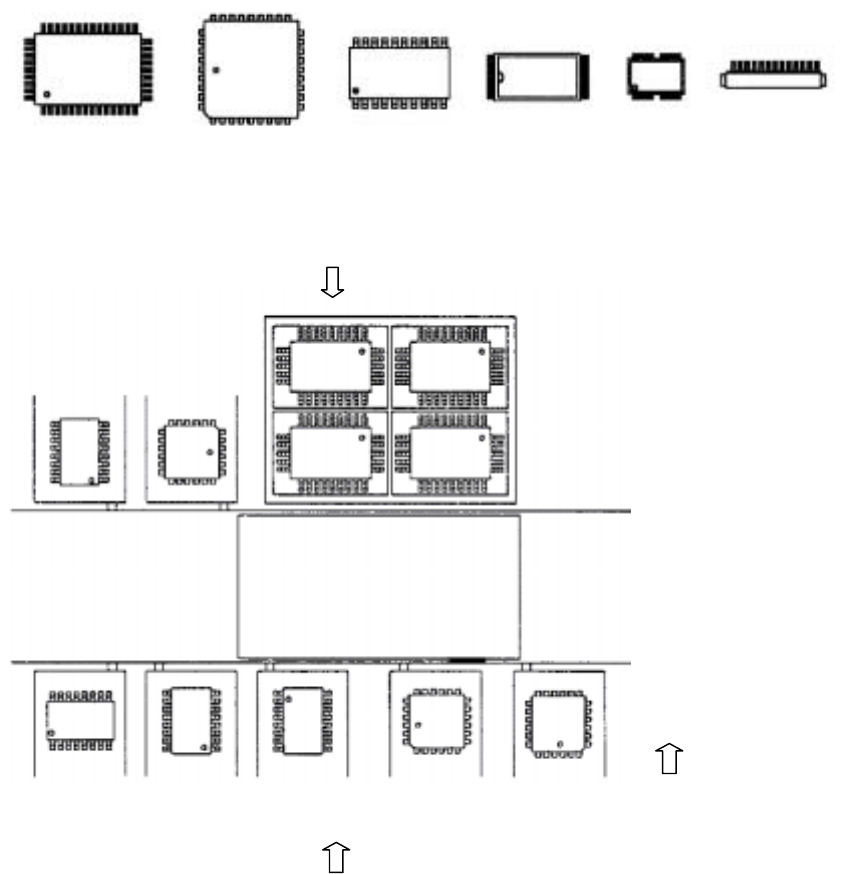
− Placement angle 0°
QFP QFP (PLCC) SOP TSOP-1 TSOP-2 Connector
Figure 5.6.5.1 Placement angle
0
00
0°
°°
°
− Setting example of supply angle
Figure 5.6.5.2 Supply angle of components
Tray holder
QFP
0°
Stick feeder
QFP
0°
SOP
270°
SOP
0°
SOP
90°
SOP
270°
QFJ
0°
QFJ
90°
Figure of stick feeder
at the front side of the machine
: Direction of the view which
is used for determining the
"Supply angle"
5 − 86
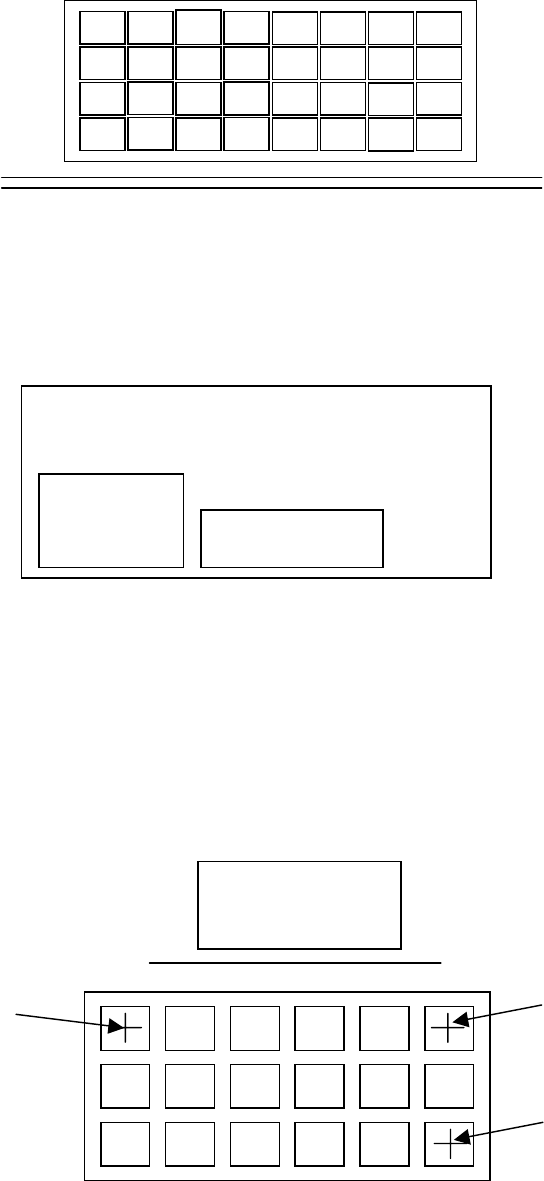
− Order for picking up a component from a tray holder
Figure 5.6.5.3 Order for picking up a component from a tray holder
− Trays are arranged inside a tray holder as shown below.
Up to five trays can be set in a tray holder.
(4) X1, Y1, Z, X2, Y2, X3, Y3
Enter component-picking-up positions at three corners of a tray.
When you enter (X1, Y1) first, (X2, Y2) and (X3, Y3) are entered (or taught)
automatically based on the tray information specified on the Component data
screen.
Once a value is entered, you can change (or teach) each point.
Rear
Figure 5.6.5.2 Coordinates indicating component pick-up positions on a tray holder
1
2
3
4
5
6
7
8
9
Transport path
Tray holder
Tray 1
Tray 2
PWB
(X1,Y1)
(X2,Y2)
(X3,Y3)
5 − 87
When teaching
When a cursor is located on either of the cells X1 and Y1, you can enter a value
to X1 and Y1.
When a cursor is located on either of the cells X2 and Y2, you can enter a value
to X2 and Y2.
When a cursor is located on either of the cells X3 and Y3, you can enter a value
to X3 and Y3.
When a cursor is located on either of the Z cells, you can enter a value to X.
(7) Use
The same as the tape.