KJ-01.02.Instruction Manual.REV.02.pdf - 第283页
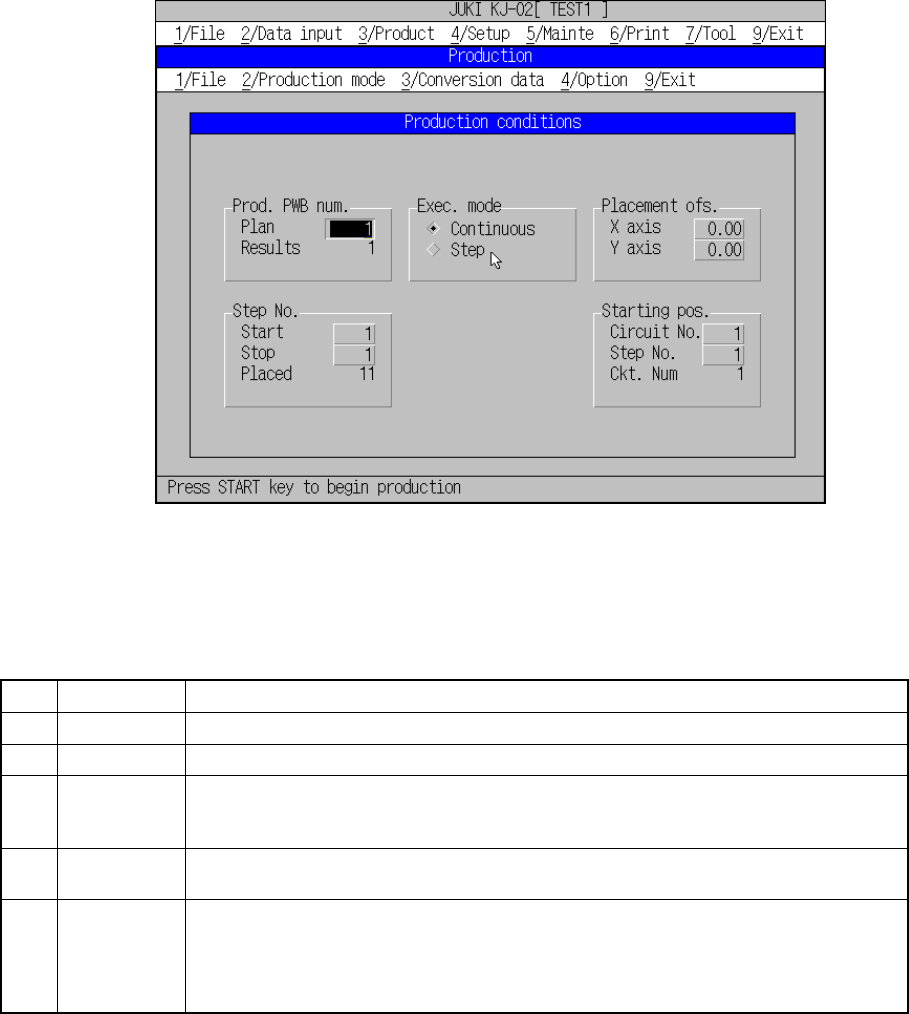
8 − 16 (2) Oper ation Figur e 8.2.1. 2 shows the initial screen to set condit ions for production. Figure 8.2. 1.2 Production condit ion initia l screen ① Pr od. PW B Enter the number of PC boards on which components ar …
8 − 15
8.2.1 PC board production
Select [3/ Prod.] in the menu bar. The screen appears and the Producing condition
setting dialog box is displayed. Figure 8.2.1.1 shows the Production starting screen
("Production conditions" setting dialog box.).
Figure 8.2.1.1 Production starting screen
8.2.1.1 Production conditions
(1) Setting items
No. Item Description
1 Prod. PWB Set the number of boards to be produced.
3 Exec. mode Select either "Continuous" or "Step" execution mode.
4 Step No. Specify a range of placement data with the placement start line and the placement end
line.
Specify the data in the order of "Input order".
5 Placement
ofs.
Specify total offsets for all placement positions. This adds the set offset to the placement
data for actual placement.
6 Starting pos. For the first production board only, specify the circuit and placement number where the
first placement is performed. If, for some reason, board production on the machine is put
in a halt, this setting continues the production.
This is effective to place the remaining components on the board to which placement
was put in a halt.
8 − 16
(2) Operation
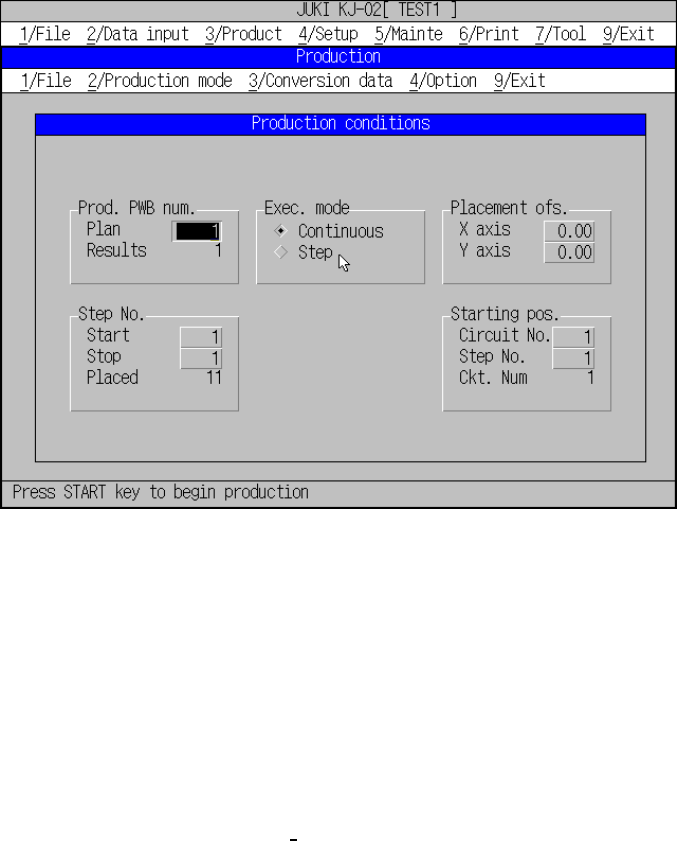
Figure 8.2.1.2 shows the initial screen to set conditions for production.
Figure 8.2.1.2 Production condition initial screen
① Prod. PWB
Enter the number of PC boards on which components are to be placed in
the “Plan” field.
The number of boards already processed is reset to 0 when the Production
screen is displayed.
Normally, the preset number of PC boards for “Plan” and “Results” are set
in their initial statuses. When the item “Accumulated the number of boards
produced” is checked on the
“Operation option (Production (Display))”
screen, those number of “Plan” and that of “Results” are those of the
previous production. If, in this status, production is started, counting of the
board starts from the previous result number and the production continues
until the number of production boards reaches the number set as “Rerults”.
If a new number of boards is set for the Plan, and the number of boards is
cleared to zero for the “Results”, the board production can be started
newly.
② Exec. mode
Select either “Continuous” or “Step” execution mode and press the radio
button for it.
③ Step No.
Enter the placement start line and the placement end line in the “Start” and
“Stop” fields to set a range of placement. The “Placed” field displays the
number of components to be placed. These fields display initial values.

8 − 17
④ Placement ofs.
In case a certain production lot has a specific offset (in printing process or
in reference holing process), enter the X and Y offsets in this field. The
position of placement that has been entered can be offset.
⑤ Starting pos.
This setting is effective for the board under production but which is put in
production halt with some components already be placed.
When production is put in halt, the position to be continued is indicated and
the production can be continued immediately from that last status. Or, if
necessary, a new number can be entered to start newly the production at
aspecific sequence. This setting is effective, however, only for the first
boardif multiple production boards are used. For the “Ckt. No” field, the
number of circuits of the production board is displayed.
For a single pattern board, the “Ckt. No” field be displayed is 1, and any
circuit number other than 1 cannot be set in the “Circuit” field.
8.2.1.2 Setting the number of components
When you set a component on a tray holder, which is set as a component feeder
unit (tape feeder, stick feeder, bulk feeder, or tray holder) on the Pick data screen,
set the number of components of a tray holder to the machine.
For a tape, stick or bulk feeder, you cannot set the number of components.
The machine has a function for using the signal light to announce that the stocked
components run out during production when the number of components set on a
tray holder becomes below the certain value. When you set the number of
components, you can activate this function.
If a component pick-up retry over error occurs at a tape feeder, stick feeder, bulk
feeder or tray holder, the machine handles the feeder or tray holder as a faulty
device.
After adjusting the machine so that the feeder/tray holder can pick up a component,
you have to clear the error to continue the suspended production. Replenish the
feeder/tray holder with components. The error is cleared.
(1) Setting items
① Items being displayed when called
No. Item Description
1 No. Displays the component supply number (position).
2 Pkg (Package) Displays the package of the components. (Tape, stick, tray, bulk, etc.)
3 Component name Displays the name of components.