KJ-01.02.Instruction Manual.REV.02.pdf - 第184页
5 − 88 5.6.6 Menu commands The f ollowing table lists t he menu commands available f rom t he Pickup dat a editing T able 5.3.4.1 Pickup data menu comm ands 1/File 2/Edit 3/C hng 4/Dspl 5/Cnvr 6/M eas. 9/Exit 1/Open... 2…
5 − 87
When teaching
When a cursor is located on either of the cells X1 and Y1, you can enter a value
to X1 and Y1.
When a cursor is located on either of the cells X2 and Y2, you can enter a value
to X2 and Y2.
When a cursor is located on either of the cells X3 and Y3, you can enter a value
to X3 and Y3.
When a cursor is located on either of the Z cells, you can enter a value to X.
(7) Use
The same as the tape.
5 − 88
5.6.6 Menu commands
The following table lists the menu commands available from the Pickup data editing
Table 5.3.4.1
Pickup
data menu commands
1/File
2/Edit 3/Chng 4/Dspl 5/Cnvr 6/Meas. 9/Exit
1/Open...
2/Save
3/New...
4/Save as...
9/Exit
○
○
○
○
○
1/Copy 2/Delete
2/Delate
3/Move
4/Insert
5/Duplicate
6/Jump
7/Find
8/Vision copy
9/Nozzle sort
A/Component name
B/Pick point recalc
C/Mark database
○
○
×
×
○
×
○
×
×
×
○
○
1/PWB data
2/Placement data
3/Component data
4/Pickup data
5/Vision data
6/Data compl. state
○
○
○
×
○
○
1/Component form
2/Component list
3/Pick input
4/Feeder order
5/ Vision List
6/ Vision Form
×
×
×
○
×
×
1/PWB load
2/PWB eject
3/BOC align
○
○
○
1/Single
measurement
×
9/Exit
○
○: Available △: Available dependent on conditions ×: Unavailable
(1) File menu
All commands provided on this “File” menu can be executed. See Section 5.1
“File Operation Procedure” for details.
(2) Edit menu
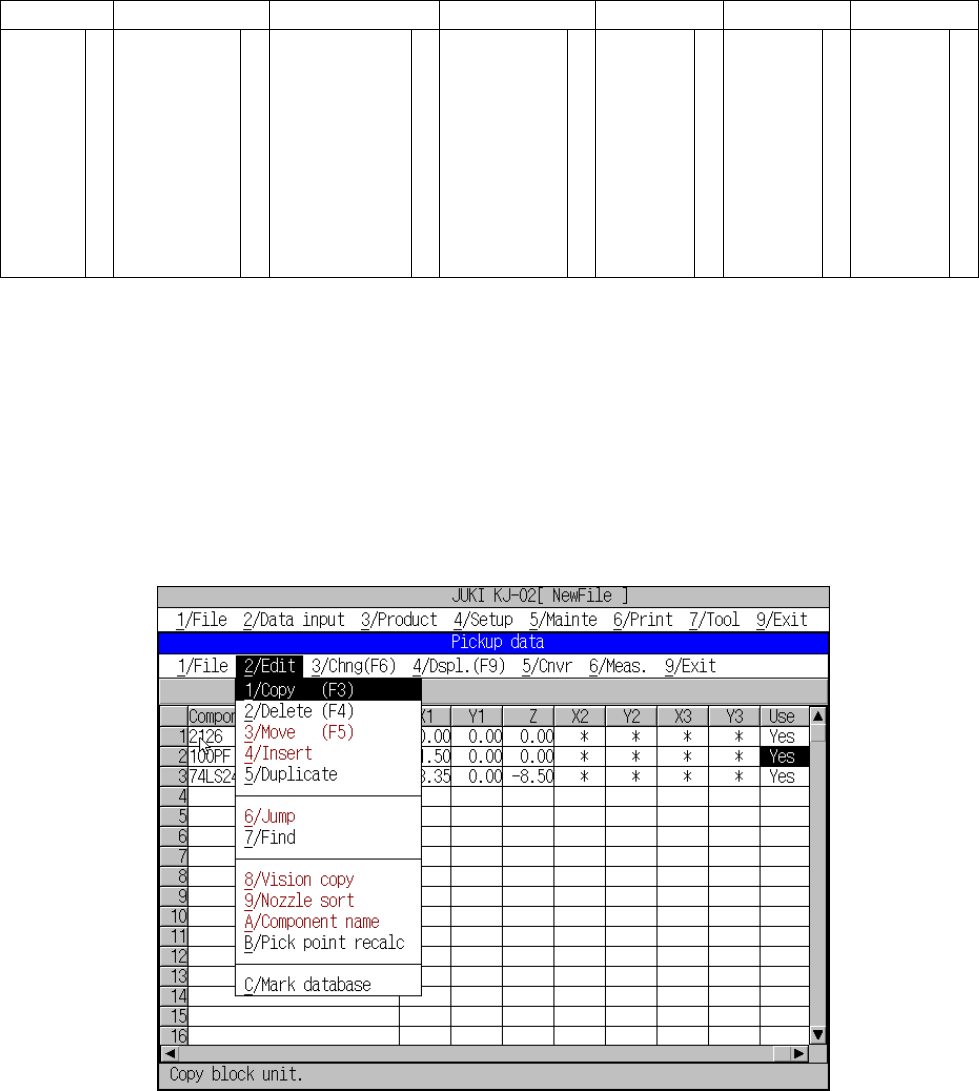
After [2/ Edit] has been selected, Figure 5.6.6.1 screen appears.
Figure 5.6.6.1 [2/Edit] command pull-down menu
5 − 89
1) Copy
Use [1/ Copy] and [5/ Duplicate] when one type of component is supplied
from two or more feeders or trays.
The line on which the cursor is located is inserted (copied) to the line next to
the cursor line as many times as specified. The “component name” and
“package” on the cursor line are copied, while other parameters are
initialized.
The ESC key can be used to cancel the command any time. After the copy
operation, the cursor moves to the beginning of the copied line.
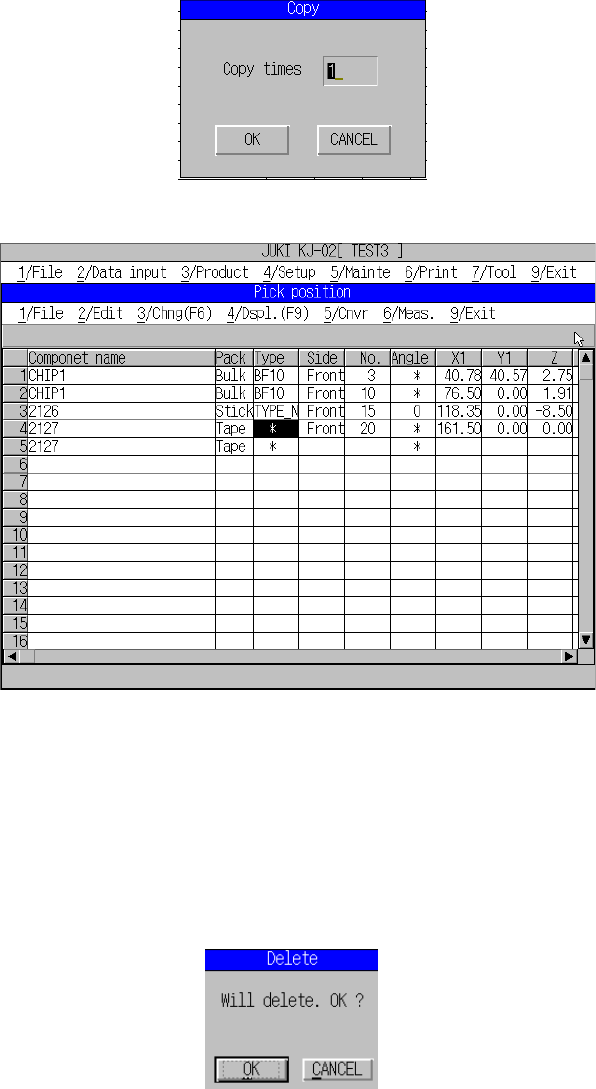
After [1/ Copy] has been selected, a dialog box appears to prompt you to
specify the number of copies.
Figure 5.6.6.2 Dialog box prompting entry of no. of copies
Figure 5.6.6.3 Result of copy operation
2) Delete
This command deletes the line on which the cursor is located.
The line cannot be deleted if only a set of pick data (line) is available with a
component type. The entire line on the cursor is deleted if multiple sets of
pick data (lines) are available with a component type.
When you select the [2/Delete] command, the “Delete” confirmation dialog
box appears.
Figure 5.6.6.4 Dialog box confirming deletion