KJ-01.02.Instruction Manual.REV.02.pdf - 第117页
5 − 21 5) Exit Quit s editing operat ion of a production prog ram, and r eturns t o the deskt op screen. If you have changed a production progr am data, t he dialog box shown in Figure 5.3.4.2 appear s on the screen. Fig…
5 − 20
5.3.4 Menu commands
The following table lists the menu commands available from the PWB data editing
Table 5.3.4.1 PWB data menu commands
1/File
2/Edit 3/Chng 4/Dspl 5/Cnvr 6/Meas. 9/Exit
1/Open...
2/Save
3/New...
4/Save as...
9/Exit
○
○
○
○
○
1/Copy 2/Delete
3/Move
4/Insert
5/Duplicate
6/Jump
7/Find
8/Vision copy
9/Nozzle sort
A/Component name
B/Pick point recalc
C/Mark database
×
△
×
×
×
△
△
×
×
×
○
1/PWB data
2/Placement data
3/Component data
4/Pickup data
6/Data compl. state
×
△
△
△
○
1/Component form
2/Component list
3/Pick input
4/Feeder order
×
×
×
×
1/PWB load
2/PWB eject
3/BOC align
○
○
○
1/Single
measurement
× 9/Exit ○
○: Available △: Available dependent on conditions ×: Unavailable
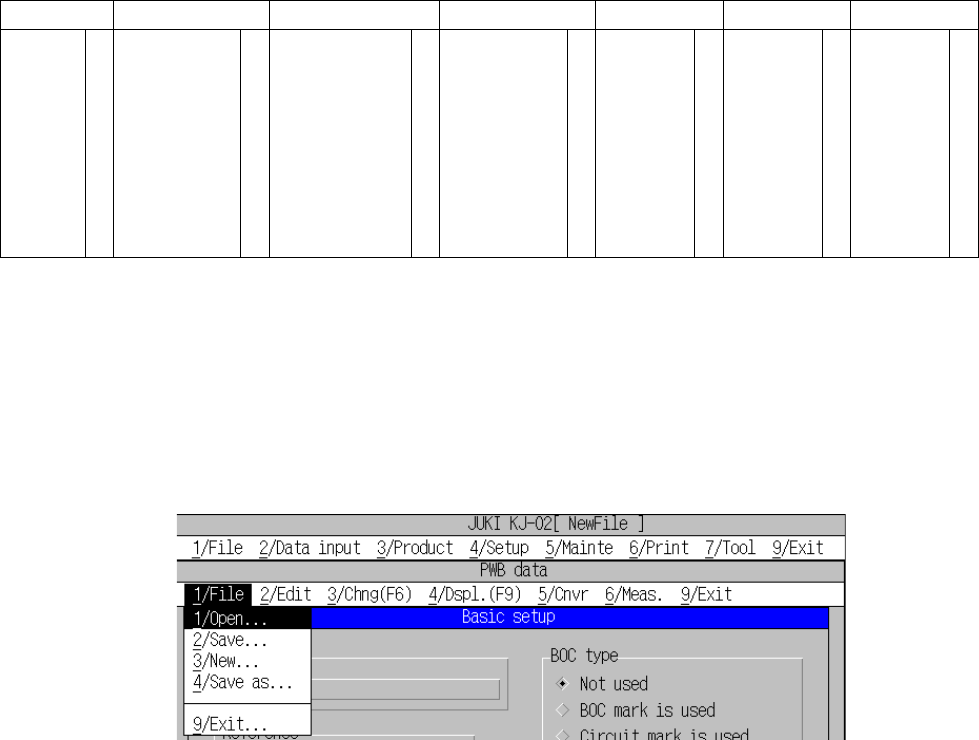
(1) File menu
The commands that can be selected are [Open], [Save], [New], and [Save as].
The operation and its processing are the same as those described in 5.1 “File
Operation Procedure”.
Figure 5.3.4.1 [1/File] command pull-down menu
1) Open
Loads a file into the machine. The PWB data of the loaded data is
displayed
2) Save
Saves a file.
3) New
Clears all data, and displays the PWB data editing screen.
4) Save as
Saves a file that is being edited with another name.
5 − 21
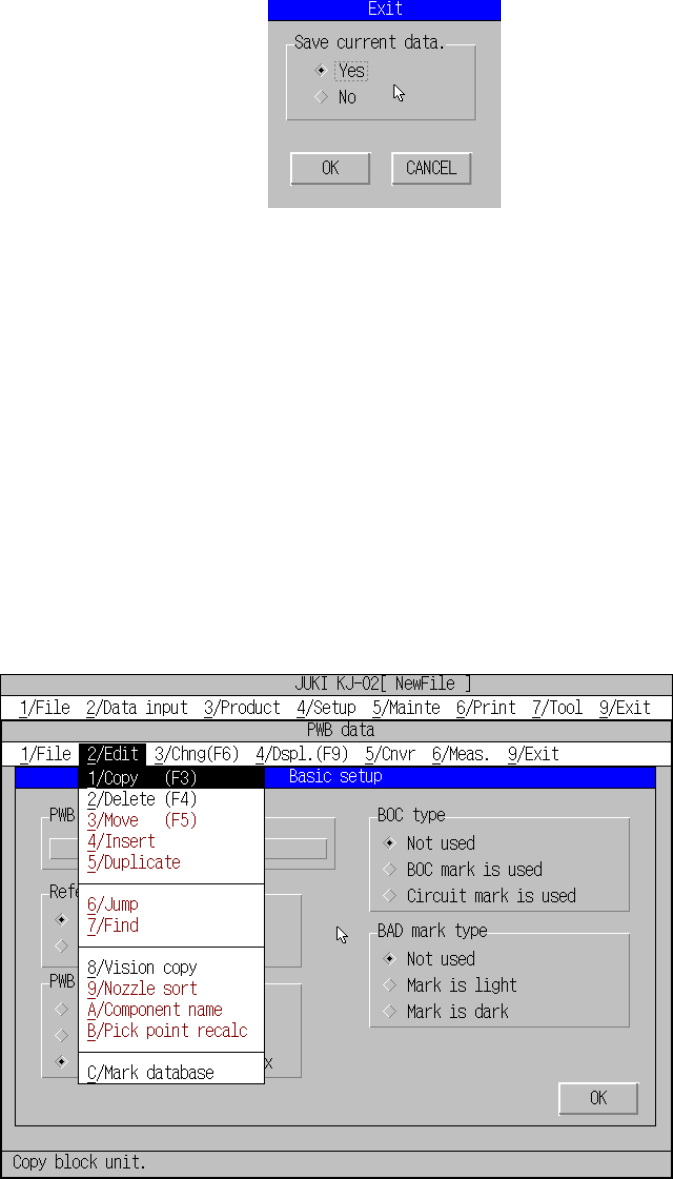
5) Exit
Quits editing operation of a production program, and returns to the desktop
screen. If you have changed a production program data, the dialog box
shown in Figure 5.3.4.2 appears on the screen.
Figure 5.3.4.2 Exit dialog box
When you check the “Yes” radio button of the “Save current data.”, and then click
the <OK> button, the “Save” dialog box shown in Figure 5.1.2.1 or “Save as”
dialog box shown in Figure 5.1.4.1 appears on the screen (see Sections 5.1.2
and 5.1.4).
When you check the “No” radio button and click the <OK> button, the machine
does not save a file and quits the data editing operation.
When you click the <CANCEL> button, the machine cancels the “Exit” operation,
and returns to the desktop screen.
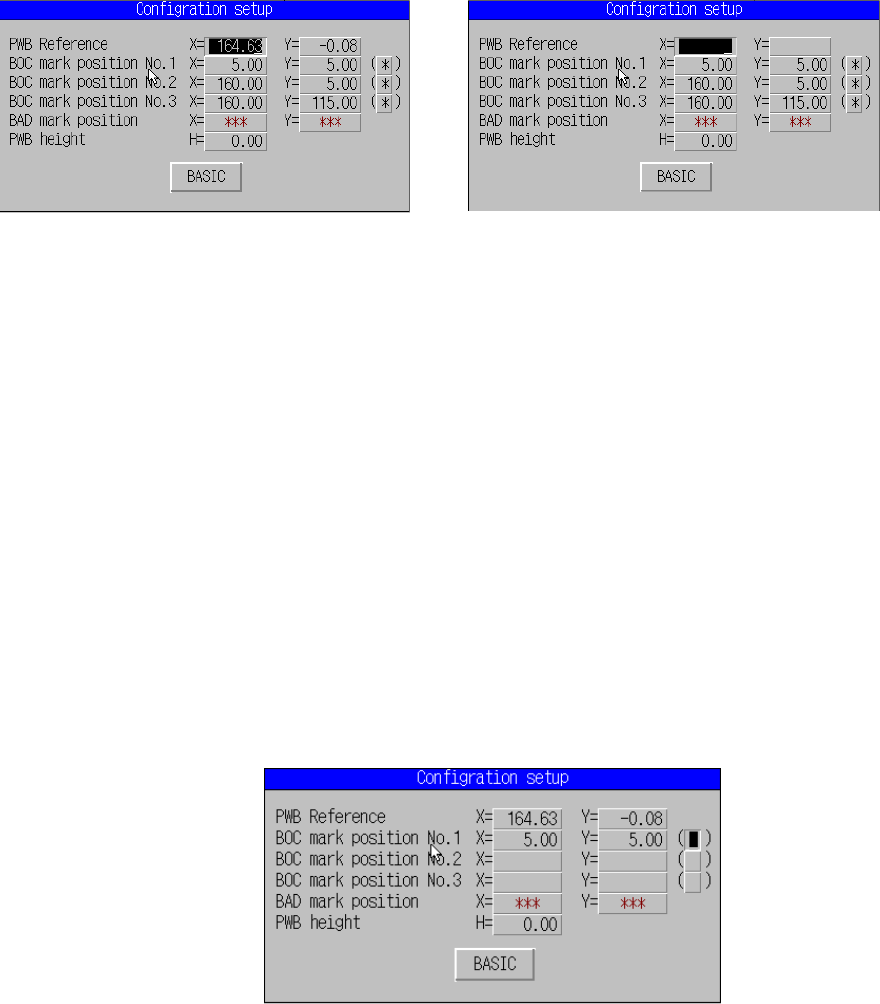
(2) Editing menu
On the PWB data screen, you can select the [2/Delete], [8/Vision copy] or
[C/Mark database] command depending on the position of the cursor.
Figure 5.3.4.3 [2/Edit] command pull-down menu
5 − 22
(1) Delete
You can use this command when the input focus is located on any of the
setting item.
When you select this command, the machine deletes the data displayed on
the line on which the input focus is located. For the item having two input
fields, X and Y, the machine deletes both values. This command functions
immediately after you select it. No confirmation message appears on the
screen.
Before deleting After deleting
Figure 5.3.4.4 [Delete] dialog box
(2) Vision copy
Up to 10 pieces of data can be stored in the mark database as the condition
data for mark recognition.
As the conditions data, the mark shape, mark dimensions and the size of the
inspection window are obtained during the mark teaching process.
Those conditions data can be registered to the data base at the final phase
of teaching operation.
This command uses the condition data copied from the mark database
instead of using the one obtained by teaching.
① This command becomes effective when the cursor is located at the vision
data teaching position.
Figure 5.3.4.5 [
Vision copy]
dialog box