KJ-01.02.Instruction Manual.REV.02.pdf - 第175页
5 − 79 5.6.2 Operation screen (1) Screen display T he component data is shown in a listing and divided into the lef t-hand half and right- hand half as shown in Figur es 5.6.2.1 and 5. 6.2.2. Figure 5.6.2.1 Pick data: Le…

5 − 78
5.6 Pick Data
The pick data establishes the types of component feeders used - whether they are the
tape feeders, stick feeders, or tray holder.
It also defines the position of the component feeders.
It also establishes the layout of these feeders, and the position at which components
are picked up.
For the component angle, it is the angle viewed from the supply side.
5.6.1 Setting range
(1) Layout range
The tape feeders, stick feeders, or tray holders are to be mounted onto the
machine by inserting each feeder pin into the feeder mount holes. The following
table shows the possible locations for the feeders to be installed.
Feeder type Bank F Bank R
8 mm 1 ~ 39 1 ~ 39
12 mm 1 ~ 38 2 ~ 39
16 mm 1 ~ 38 2 ~ 39
24 mm 1 ~ 37 3 ~ 39
32 mm 1 ~ 36 4 ~ 39
44 mm 1 ~ 33 7 ~ 39
Tape feeder
56 mm 1 ~ 33 7 ~ 39
TYPE-N 1 ~ 38 2 ~ 39 Stick feeder
TYPE-W 1 ~ 35 5 ~ 39
BF10 1 ~ 39 1 ~ 39
BF11 1 ~ 39 1 ~ 39
BF12 1 ~ 39 1 ~ 39
BF25 1 ~ 39 1 ~ 39
Bulk feeder
BF28 1 ~ 39 1 ~ 39
Tray holder Installation is impossible All the lanes used
on the rear.
5 − 79
5.6.2 Operation screen
(1) Screen display
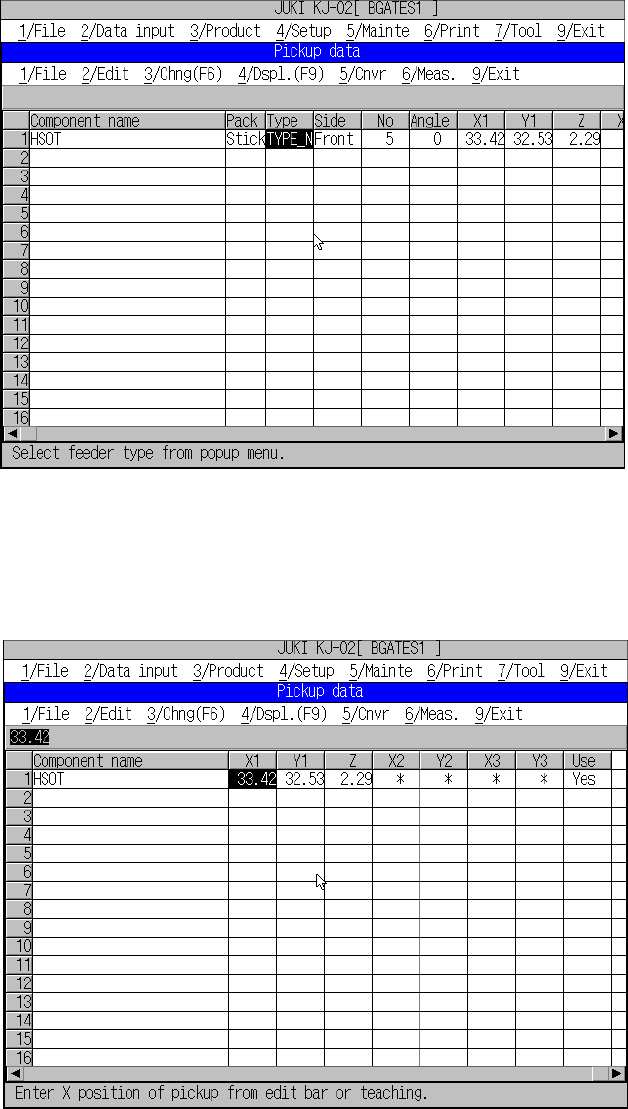
The component data is shown in a listing and divided into the left-hand half and
right-hand half as shown in Figures 5.6.2.1 and 5.6.2.2.
Figure 5.6.2.1 Pick data: Left-hand half
Figure 5.6.2.2 Pick data: Right-hand half
5 − 80
1) Cursor movement range
Column direction: the column on which a component name is displayed.
Row direction: row from the “Type” to “Use.”
2) The cursor moves to the item which requires no entry
You can move the cursor to the menu item on which “*” is displayed, but
cannot enter any value to it.
3) Moving to the beginning and end of the line
The HOME key accesses the left-hand half screen of the listing and
moves the input field to the “Type” cell.
The END key accesses the right-hand half screen of the listing and
moves the input field to the “Use” cell.
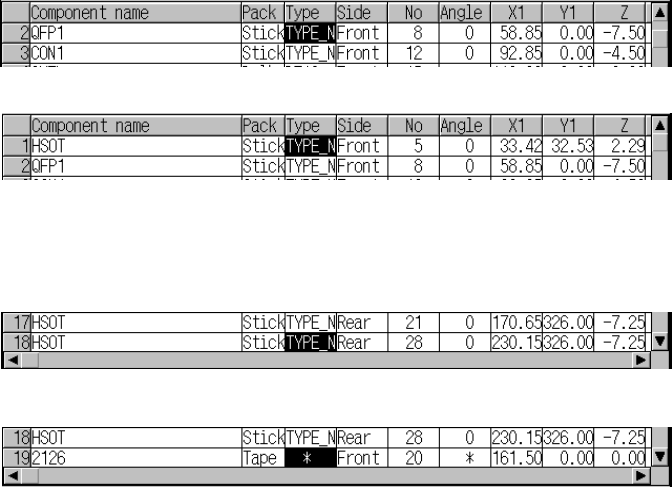
4) Up-down scroll
If the ↑ key is pressed when the cursor is located on the bottom line within
the data display area of a window. the screen scrolls up one line.
Press the ↑ key.
If the ↓ key is pressed when the cursor is located on the top line within the
data display area of a window, the component ID has been entered on the
next line, but not the first line, the screen scrolls down one line.
Press the ↓ key..
5) Mutually exclusive entry
If a value is not be set for a mutually exclusive entry item, a pop-up menu
appears automatically allowing you to select an option from among the
menu items.
After the selection is made, the cursor stays at the cursor position. If you
wish to make a change, press the Edit key (F2), which pops up a menu,
allowing you to select an item again. If a settings have previously been
made, the dialog box does not appear until the Edit key (F2) is pressed,
even if the cursor is located at this entry.