KJ-01.02.Instruction Manual.REV.02.pdf - 第128页
5 − 32 1) Copy This com mand copies a line of Placement dat a. Y ou can also specif y the block of lines to be copied. W hen you press the ESC key , the m achine cancels the copy operation. – Copy start line Mov e the cu…
5 − 31
5.4.3 Menu commands
The menu commands that can be called on the Placement data editing screen are
shown below.
Table 5.4.3.1 Menu commands displayed on the Placement data screen.
1/File
2/Edit 3/Chng 4/Dspl 5/Cnvr 6/Meas. 9/Exit
1/Open...
2/Save
3/New...
4/Save as...
9/Exit
○
○
○
○
○
1/Copy 2/Delete
3/Move
4/Insert
5/Duplicate
6/Jump
7/Find
8/Vision copy
9/Nozzle sort
A/Component name
B/Pick point recalc
C/Mark database
×
△
×
×
×
△
△
×
×
×
○
1/PWB data
2/Placement data
3/Component data
4/Pickup data
5/Vision data
6/Data compl. state
×
△
△
△
○
1/Component form
2/Component list
3/Pick input
4/Feeder order
5/ Vision List
6/ Vision Form
×
×
×
×
×
×
1/PWB load
2/PWB eject
3/BOC align
○
○
○
1/Single
measurement
× 9/Exit ○
○: Available △: Available dependent on conditions ×: Unavailable
(1) File menu
You can select all of the commands displayed on the “File” menu. See Section
5.1 “File Operation Procedure” for details.
(2) Edit menu
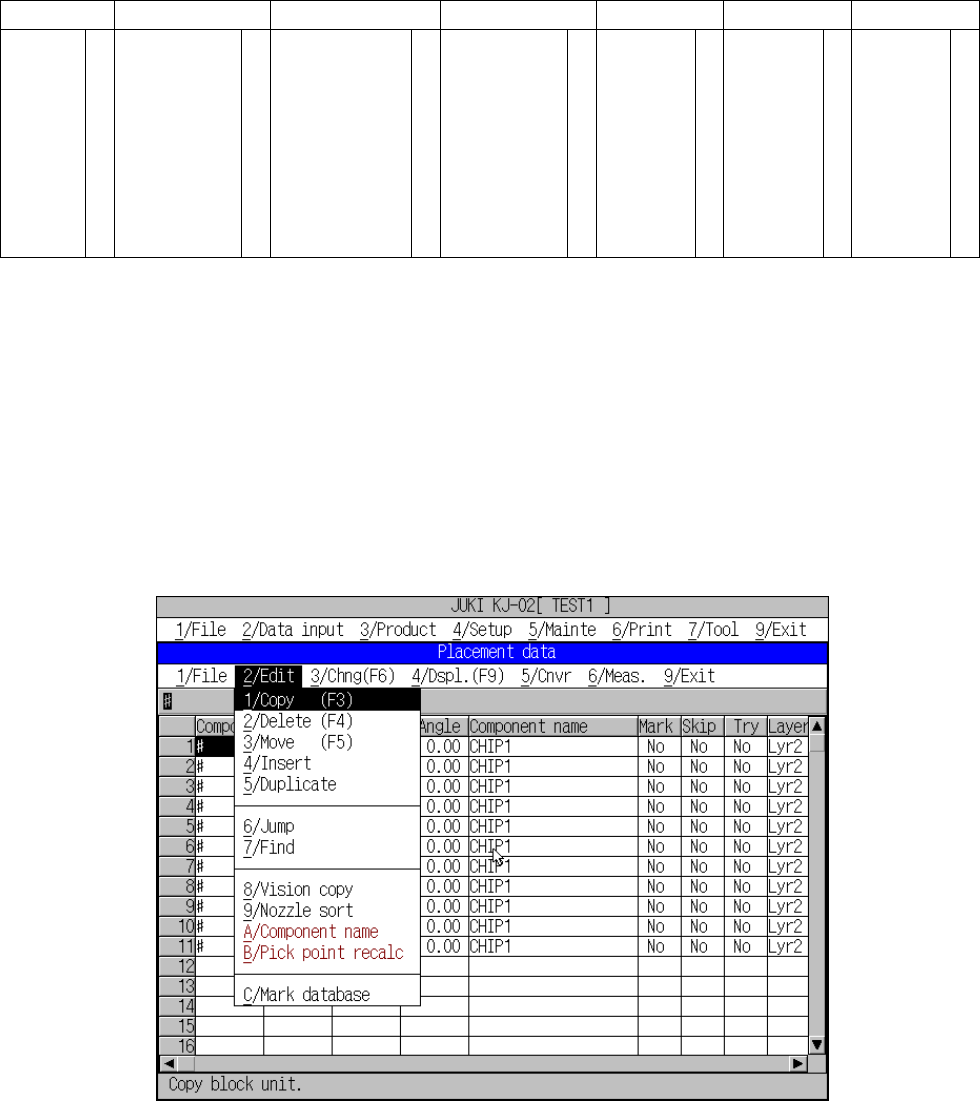
A screen as shown in Figure 5.4.3.1 appears when [2/ Edit] is selected.
Figure 5.4.3.1 [2/ Edit] commands
5 − 32
1) Copy
This command copies a line of Placement data. You can also specify the
block of lines to be copied. When you press the ESC key, the machine
cancels the copy operation.
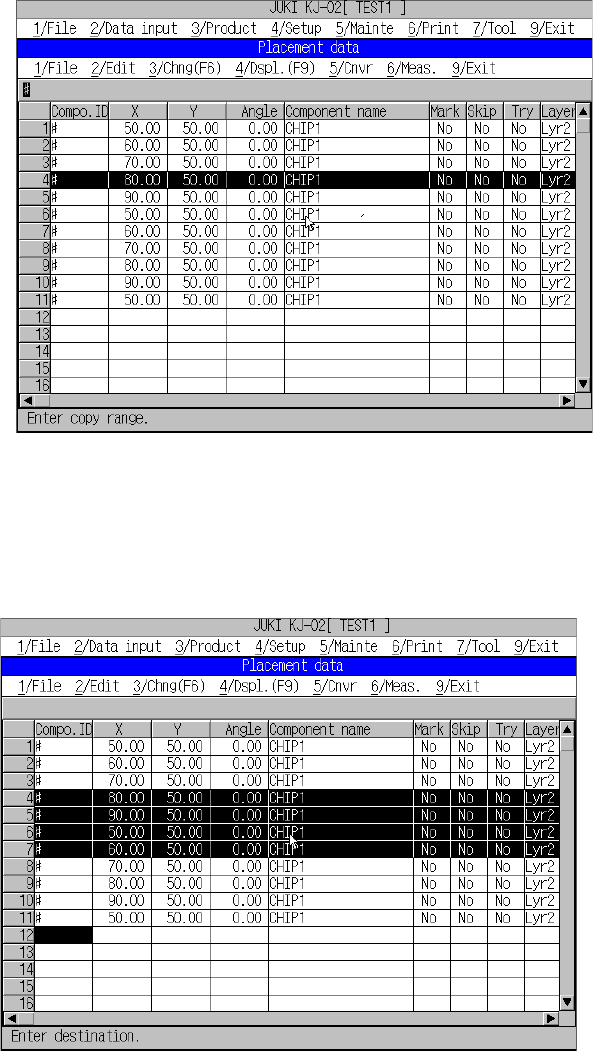
– Copy start line
Move the cursor to the first line of the range to be copied, and select the
[1/Copy] command on the menu or press the F3 key. The machine
enters Copy range selection mode. The line on which the cursor is
located is regarded as the copy start line. Press the cursor moving keys,
Page Up key or Page Down key to highlight the range to be copied, and
press the Enter key to confirm this selected (highlighted) range.
Figure 5.4.3.2 Marking copy block screen
– Specifying the copy destination
Figure 5.4.3.3 shows a screen on which the copy destination is specified.
Figure 5.4.3.3 Specifying the copy destination
The line on which
cursor was located
before the
command was
selected.
Copy source block
Destination: The
block is inserted
above this line.
5 − 33
– Specifying the number of copies
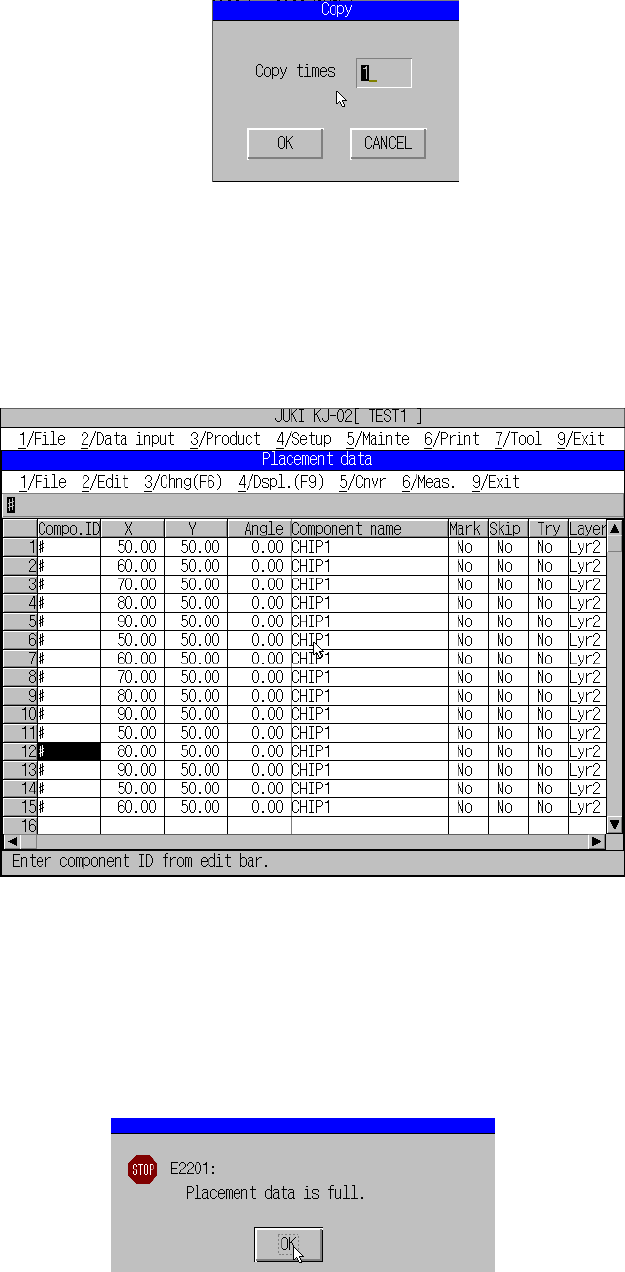
After you enter the copy destination, specify how many times the machine
should perform a copy operation. The following dialog box appears on the
screen, and “1” is specified by default.
Figure 5.4.3.4 Figure of copy times specifying dialog box
When you click the <OK> button, the machine copies data of the specified line(s).
When you click the <CANCEL> button, the machine cancels the coy operation,
and returns to the conditions the machine entered before you invoked the copy
command. The specified data is inserted above the line entered as the copy
destination. Figure 5.3.3.5 shows the example of the copied data.
Figure 5.4.3.5 Result of copy operation
* If you copy Placement data with setting “Mark” to “Yes”, this “Mark” setting is
disabled, and set to “No” at the copied data. To use a mark, be sure to select
“Yes” on the pop-up menu.
If the number of records exceeds the maximum number of Placement data
records as the result of your copy operation, the following message appears on
the screen.
Figure 5.4.3.6 Placement data over error dialog box