KJ-01.02.Instruction Manual.REV.02.pdf - 第65页
3 − 8 (1) Push but ton W hen a push button is selected, it imm ediately carries out the com mand. Most dialog boxes contain the OK and Cancel but tons. Figure 3.3.3. 1 Push buttons (2) Check box Used to let you choose to…
3 − 7
(2) Defining the starting character
① Press the Alt key to activate the menu bar.
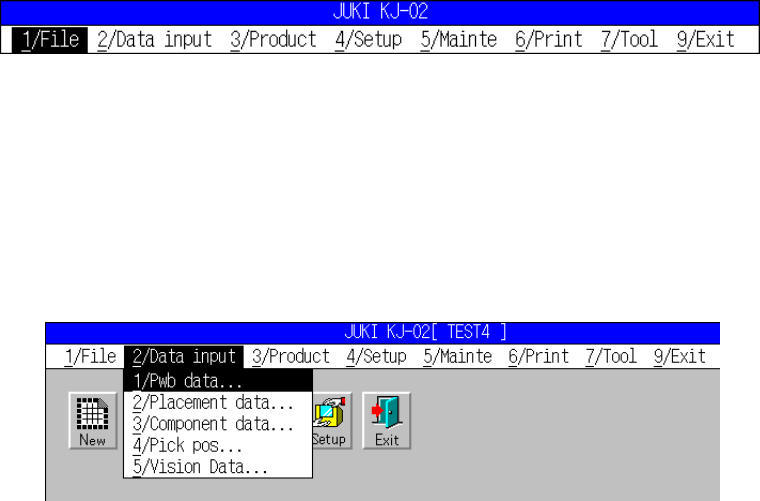
[1/ File] menu is highlighted.
Figure 3.3.2.3 Active File menu bar
② Press the numeric key corresponding to the starting character of the desired
menu item.
To select [2/ Data input], press the character before / (the number 2 in this
case). This will drop down the pull-down menu.
Figure 3.3.2.4 Active Data input menu bar
③ Press the starting character of the desired command. This immediately
executes the command.
3.3.3 Dialog
If additional information is necessary for the machine to execute a command, a dialog
box appears as soon as the command is selected.
A dialog box may contain the following elements.
(1) Push button
(2) Check box
(3) Radio button
(4) List box
(5) Scroll bar
(6) Edit box
(7) Static
3 − 8
(1) Push button
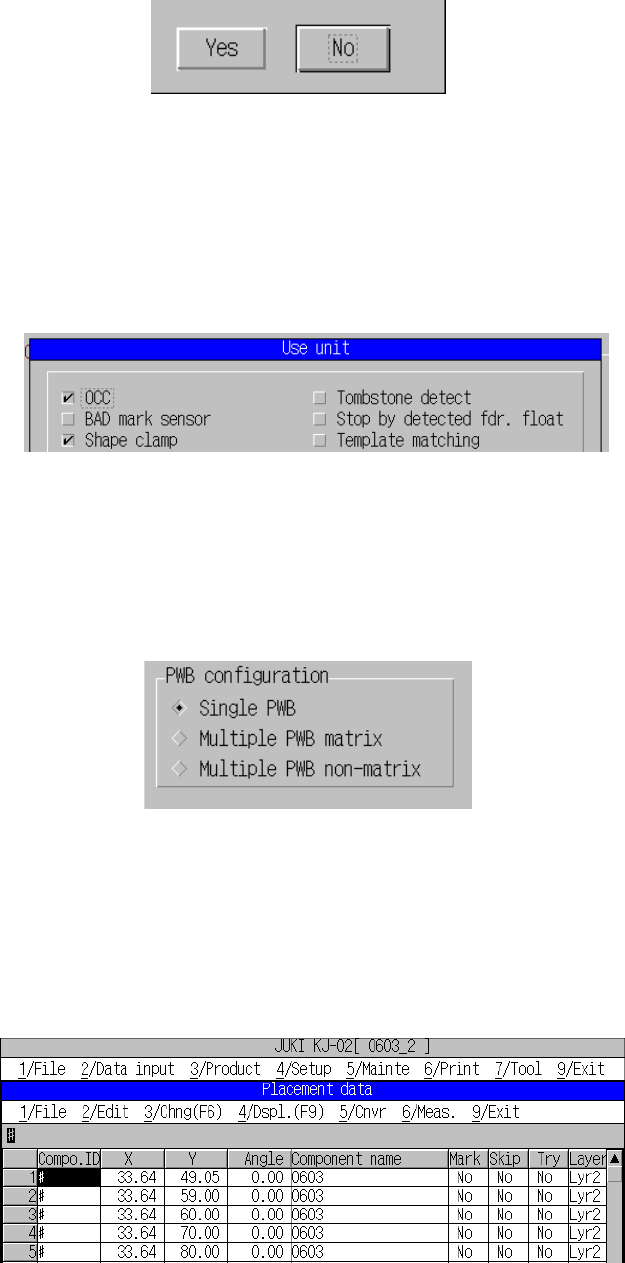
When a push button is selected, it immediately carries out the command. Most
dialog boxes contain the OK and Cancel buttons.
Figure 3.3.3.1 Push buttons
(2) Check box
Used to let you choose to toggle an option on or off. You can select as many
check boxes as you want. When the option is turned on, an asterisk (X) appears
in the check box.
To change on or off of the option, highlight the option with the cursor, and press
an alphanumeric key.
Figure 3.3.3.2 Check boxes
(3) Radio button
Unlike check boxes, radio buttons are mutually exclusive of one another and you
can select only one at a time. The asterisk (X) moves with the highlighted cursor.
Go to the desired option to exit the box.
Figure 3.3.3.3 Radio buttons
(4) List box
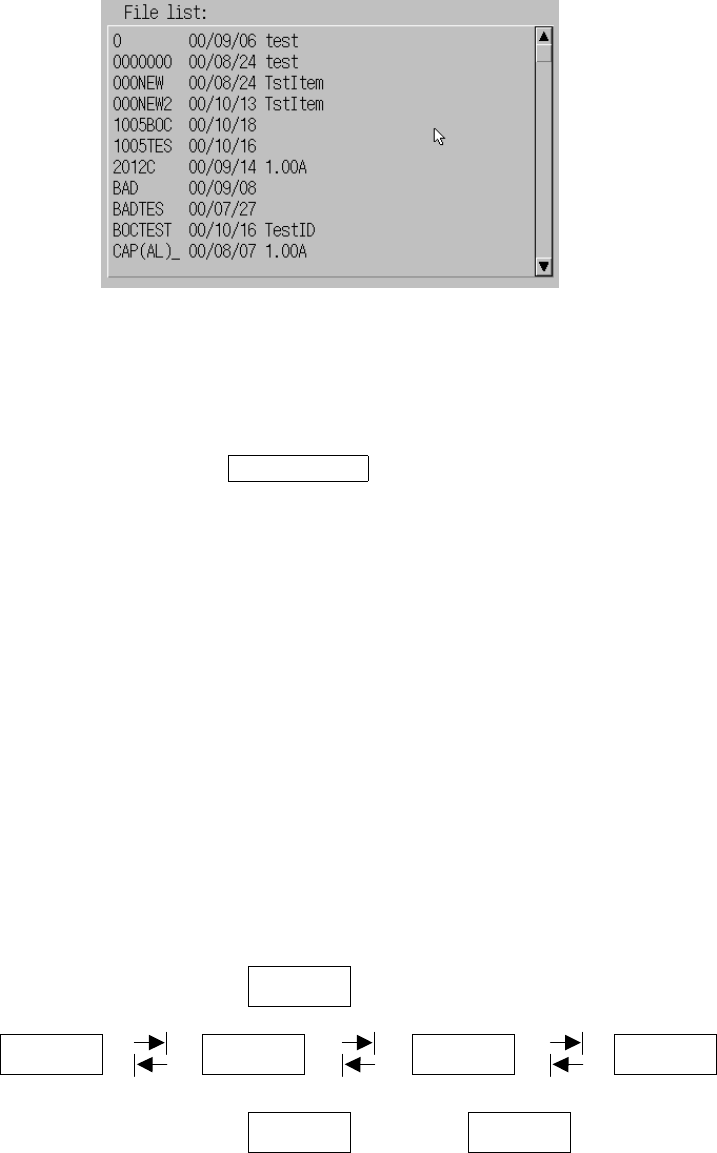
Gives a listing of options to choose from, mainly used for the selection of file
names.
The selected option is highlighted. If a listing contains too many options to show
at a time, it can be scrolled.
Figure 3.3.3.4 List box
3 − 9
(5) Scroll bar
Appears on the right border of the window when the options in the list box are too
many to show at a time, allowing you to scroll up or down using cursor keys.
Figure 3.3.3.5 Scroll bar
(6) Edit box
Allows you to enter new information or edit existing information through the
keyboard.
File name TESTPRO1 ← Edit box
Figure of edit box
(7) Static
Appears in the dialog box but no entry can be made in this box.
(8) Box border
On the dialog box, the box on which the input focus is located is displayed with
pushed in.
(9) Moving the input focus
To move among different boxes contained in a dialog box to a new data-entry
field, use the right direction key ([TAB]) of the field selection keys.
Use the left direction key ([SHIFT]+[TAB]) to go back the previous data-entry field.
After moving to the last box or the first box, the box selected wraps around.
Figure of input focus to be moved
(10) OK, Cancel
If a dialog box has only one option to choose, use the ENTER key to choose OK
or Cancel. The ESC key can also be used to choose Cancel.
TAB
TAB
SHIFT