KJ-01.02.Instruction Manual.REV.02.pdf - 第143页
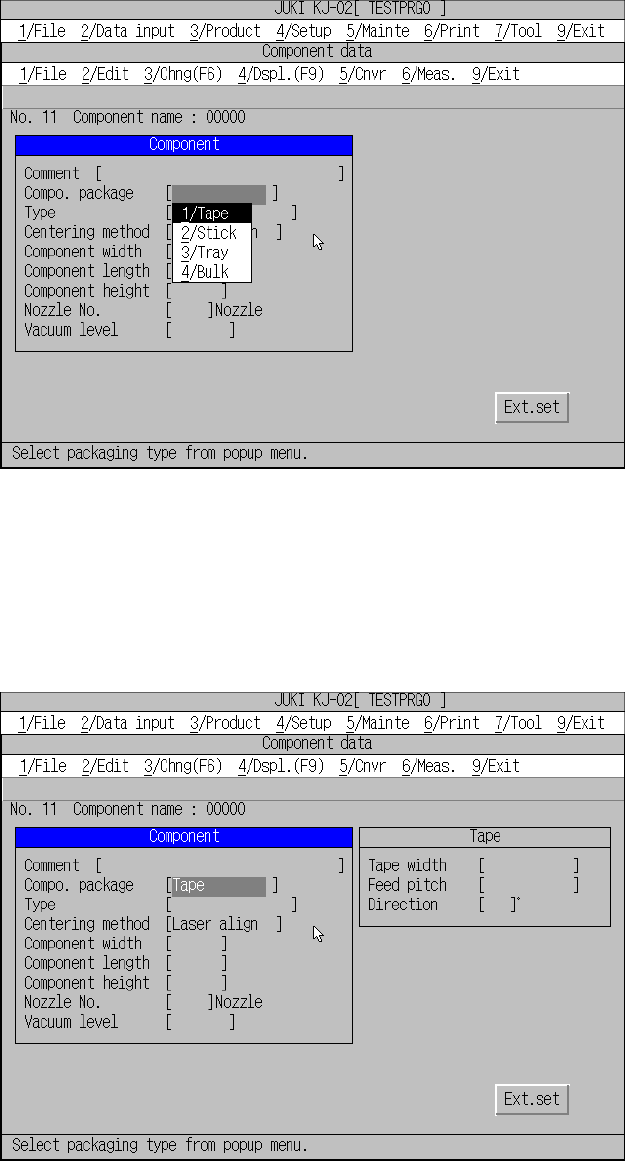
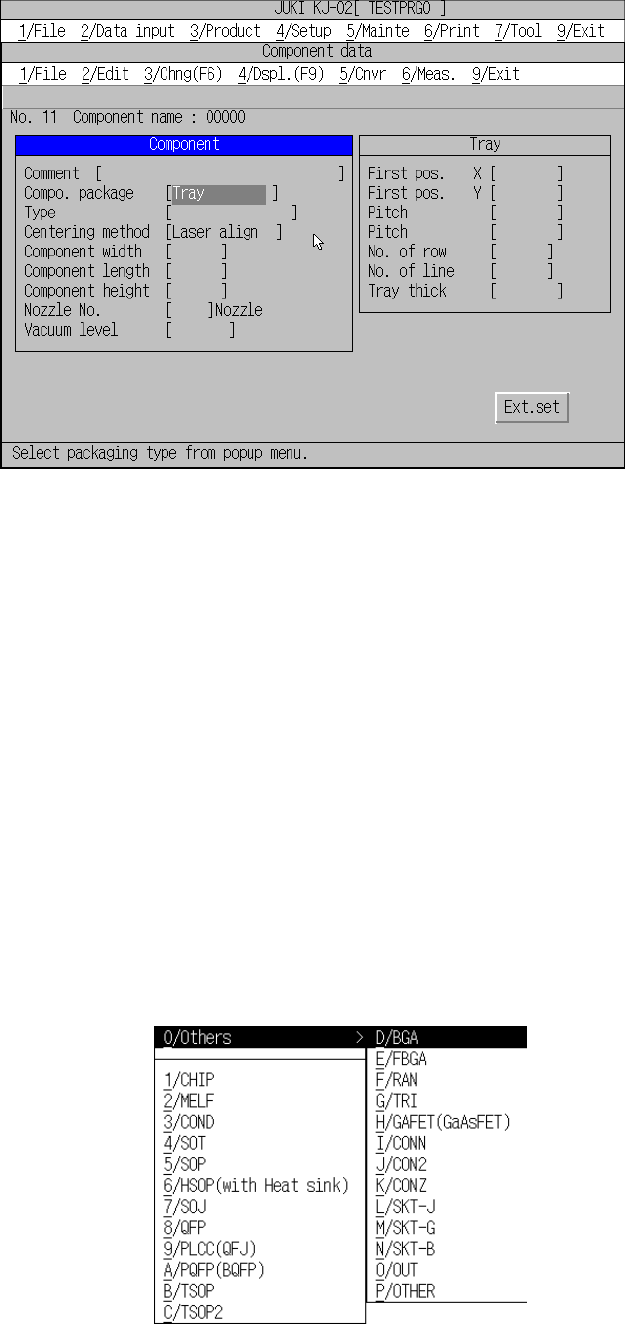
5 − 47 Figure 5.5.1. 3 Component package setting screen − W hen [1/ T ape] is selected Figure 5.5.1.4 Screen after [1/ T ape] has been selected
5 − 46
(2) Basic operations
① Window display
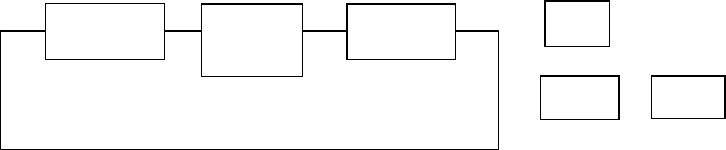
When no data has been entered, only the “Component” window is open. As
entries are made for the component items, the associated “Package” window
is open.
The “Expanded” window appears when the centering system is determined.
Each window once displayed are available next time and after when the
component data input screen appears.
② Moving through windows
The field selection keys are used to move through the opened windows.
③ Moving through items
To move to the desired item within the window, use the <↑> key or the
<↓> key.
④ Entry of mutually exclusive items
If no entry has been made for a mutually exclusive item, a pop-up menu
automatically appears: you select an item from the dialog box. After the
selection has been made, the cursor stays put. To make change, press the
Edit key (F2) to open a pop-up menu so that you can reselect an item. If a
setting has previously been made, the pop-up menu does not appear even
when the cursor is located at the item unless the Edit key (F2) is pressed.
⑤ Moving to previous or next component data
In the form screen, the PAGE UP and PAGE DOWN keys are used to move
to previous or next component data. In the list screen, the PAGE UP and
PAGE DOWN keys are used to display a total of 18 sets of previous or next
data, respectively. This function is not effective when the last data is being
displayed.
<1> Working on the component window
① Comment
As a comment, up to 30 alphanumeric characters or symbols can be entered
from the keyboard. (Comment entry can be omitted.)
② Comp. package
When the cursor is placed at this item, a dialog box for component package
setting as shown in Figure 5.5.1.3 appears. Select the desired item.
Since the machine is equipped with only one tray, you can set up to five pick
data records on which a tray is selected as the component package if you
select “Tray” as the “Compo. package.”
Component
Tape
Tray
Expansion
TAB
SHIFT
TAB
+
: Counter clockwise
: Clockwise Key
Key
5 − 47
Figure 5.5.1.3 Component package setting screen
− When [1/ Tape] is selected
Figure 5.5.1.4 Screen after [1/ Tape] has been selected
5 − 48
− When [3/ Tray] is selected
Figure 5.5.1.5 Screen after [3/ Tray] has been selected
* If you select “Stick” or “Bulk,” this window does not open.
③ Type
When you move the cursor to this item, the component type list box appears on
the screen as shown in Figure 5.5.1.6. Select an appropriate one from this list
box.
− When you select CHIP, MELF, SOT, RAN or TRI, the item “Centering
method” is set to “Laser align” since those components are to be centered
with laser only.
− When you select FBGA or GaAsFET, the item “Centering method” is set to
“VCS” since those components are to be centered with a VCS only.
* KJ-01 does not allow you to select “VCS” as the centering method, or
select a component centered with the VCS as a component type.
− When you select “OTHER”, the following sub-list box appears on the screen.
“Others” sub-list box
The “Tray”
window opens
when [3/Tray]
is selected.