KJ-01.02.Instruction Manual.REV.02.pdf - 第63页
3 − 6 3.3.2 Selecting a menu There are t wo possible way s to select a pull- down menu from among t hose contained in the menu bar . (1) Using the cur sor k eys ① Pr ess the Alt k ey to activate the menu bar . [1/ File] …
3 − 5
① Title bar:
Shows at its center the name of the job (i.e., the window name) displayed in that
window.
② Pull-down menu:
A menu of command options that appear after you have selected the command
name on the menu bar. The command options that can be selected are shown
separated from those that cannot.
③ Menu bar:
Lists the names of pull-down menus to select from among. The names vary
depending on the function currently selected.
④ Work area:
Area to which data is entered for generating a program data.
⑤ Message line:
Shows the summary of the function of the command to be executed and the
production program name.
⑥ Formula bar:
Shows the contents of the function of the cell at the cursor, it is where you edit
formulas.
⑦ Scroll arrow:
Indicates that you can scroll the screen in the direction of the arrow to access
more data that are not currently visible on the display.
⑧ Scroll box:
Indicates where you are in the contents of a window.
3 − 6
3.3.2 Selecting a menu
There are two possible ways to select a pull-down menu from among those contained
in the menu bar.
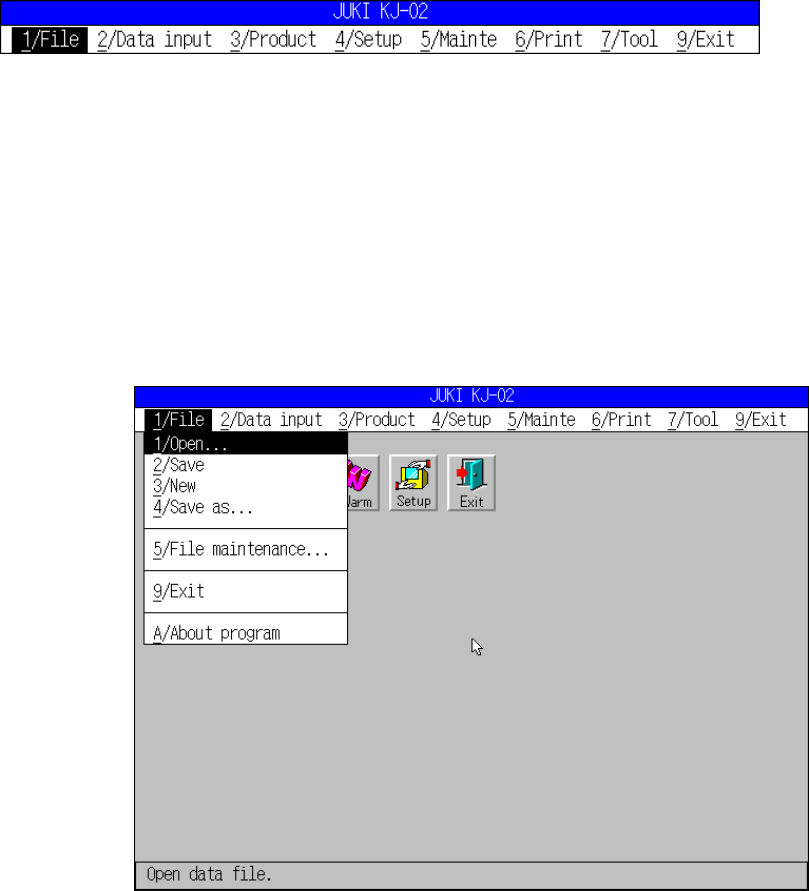
(1) Using the cursor keys
① Press the Alt key to activate the menu bar.
[1/ File] menu is highlighted.
Figure 3.3.2.1 File menu bar
② Press the cursor keys.
Press or to go among the menu items in the menu bar.
Press or to drop down a pull-down menu. Then, press or to move
among the commands in the pull-down menu.
To activate the command you want to select, press the ENTER key.
During these operations, the message line shows the summary of the
highlighted command. Press the ESC key to close the menu.
Figure 3.3.2.2 File pull-down menu
Highlighted
→
3 − 7
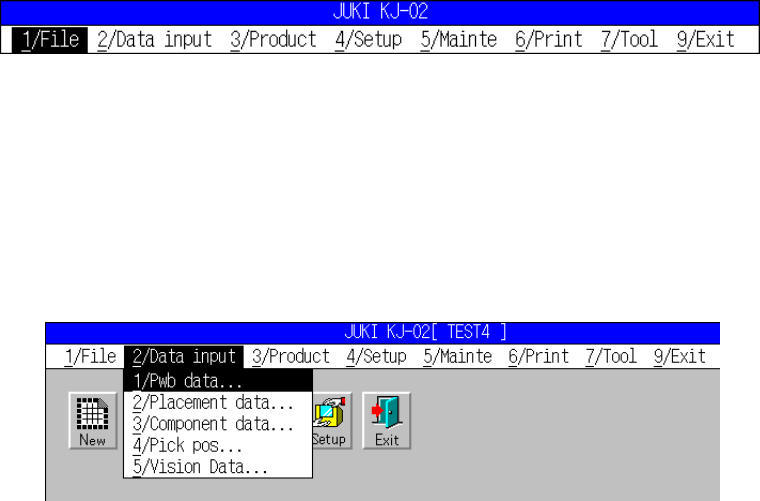
(2) Defining the starting character
① Press the Alt key to activate the menu bar.
[1/ File] menu is highlighted.
Figure 3.3.2.3 Active File menu bar
② Press the numeric key corresponding to the starting character of the desired
menu item.
To select [2/ Data input], press the character before / (the number 2 in this
case). This will drop down the pull-down menu.
Figure 3.3.2.4 Active Data input menu bar
③ Press the starting character of the desired command. This immediately
executes the command.
3.3.3 Dialog
If additional information is necessary for the machine to execute a command, a dialog
box appears as soon as the command is selected.
A dialog box may contain the following elements.
(1) Push button
(2) Check box
(3) Radio button
(4) List box
(5) Scroll bar
(6) Edit box
(7) Static