KJ-01.02.Instruction Manual.REV.02.pdf - 第183页
5 − 87 W hen teaching W hen a cursor is located on eit her of the cells X1 and Y1, you can enter a value to X1 and Y1. W hen a cursor is located on either of the cells X 2 and Y2, you can enter a value to X2 and Y2. W he…
5 − 86
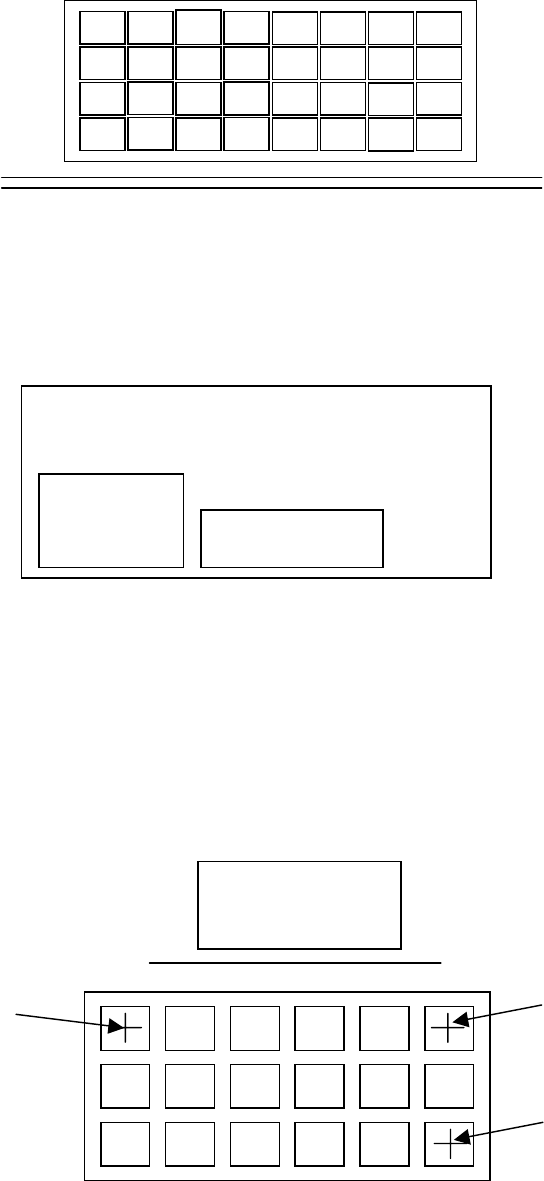
− Order for picking up a component from a tray holder
Figure 5.6.5.3 Order for picking up a component from a tray holder
− Trays are arranged inside a tray holder as shown below.
Up to five trays can be set in a tray holder.
(4) X1, Y1, Z, X2, Y2, X3, Y3
Enter component-picking-up positions at three corners of a tray.
When you enter (X1, Y1) first, (X2, Y2) and (X3, Y3) are entered (or taught)
automatically based on the tray information specified on the Component data
screen.
Once a value is entered, you can change (or teach) each point.
Rear
Figure 5.6.5.2 Coordinates indicating component pick-up positions on a tray holder
1
2
3
4
5
6
7
8
9
Transport path
Tray holder
Tray 1
Tray 2
PWB
(X1,Y1)
(X2,Y2)
(X3,Y3)
5 − 87
When teaching
When a cursor is located on either of the cells X1 and Y1, you can enter a value
to X1 and Y1.
When a cursor is located on either of the cells X2 and Y2, you can enter a value
to X2 and Y2.
When a cursor is located on either of the cells X3 and Y3, you can enter a value
to X3 and Y3.
When a cursor is located on either of the Z cells, you can enter a value to X.
(7) Use
The same as the tape.
5 − 88
5.6.6 Menu commands
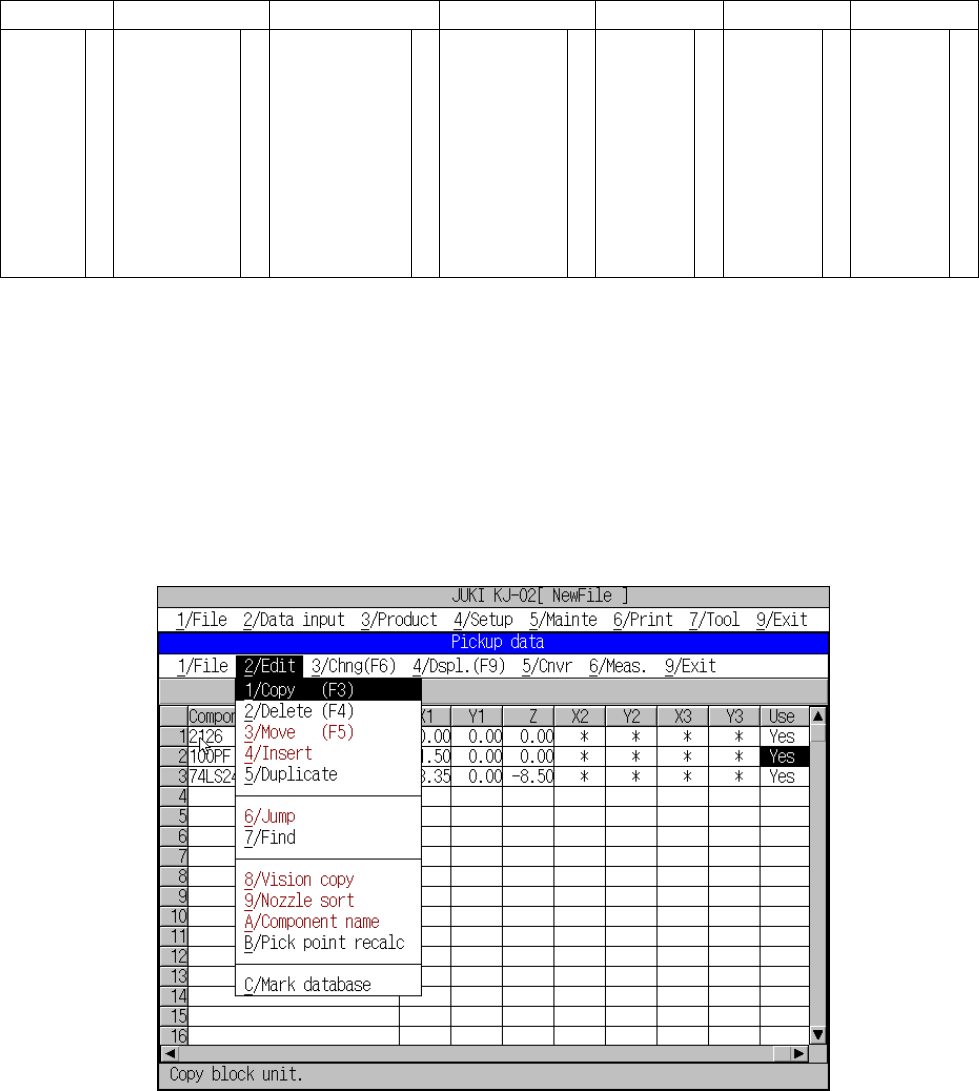
The following table lists the menu commands available from the Pickup data editing
Table 5.3.4.1
Pickup
data menu commands
1/File
2/Edit 3/Chng 4/Dspl 5/Cnvr 6/Meas. 9/Exit
1/Open...
2/Save
3/New...
4/Save as...
9/Exit
○
○
○
○
○
1/Copy 2/Delete
2/Delate
3/Move
4/Insert
5/Duplicate
6/Jump
7/Find
8/Vision copy
9/Nozzle sort
A/Component name
B/Pick point recalc
C/Mark database
○
○
×
×
○
×
○
×
×
×
○
○
1/PWB data
2/Placement data
3/Component data
4/Pickup data
5/Vision data
6/Data compl. state
○
○
○
×
○
○
1/Component form
2/Component list
3/Pick input
4/Feeder order
5/ Vision List
6/ Vision Form
×
×
×
○
×
×
1/PWB load
2/PWB eject
3/BOC align
○
○
○
1/Single
measurement
×
9/Exit
○
○: Available △: Available dependent on conditions ×: Unavailable
(1) File menu
All commands provided on this “File” menu can be executed. See Section 5.1
“File Operation Procedure” for details.
(2) Edit menu
After [2/ Edit] has been selected, Figure 5.6.6.1 screen appears.
Figure 5.6.6.1 [2/Edit] command pull-down menu