KJ-01.02.Instruction Manual.REV.02.pdf - 第67页
3 − 10 3.3.4 Editing (1) Basic edit ing Dat a entered f rom the operat or panel is typed into the f orm ula bar or edit box. The data ent ered in the f ormula bar is validated at the cur sor position by pressing the ENTE…
3 − 9
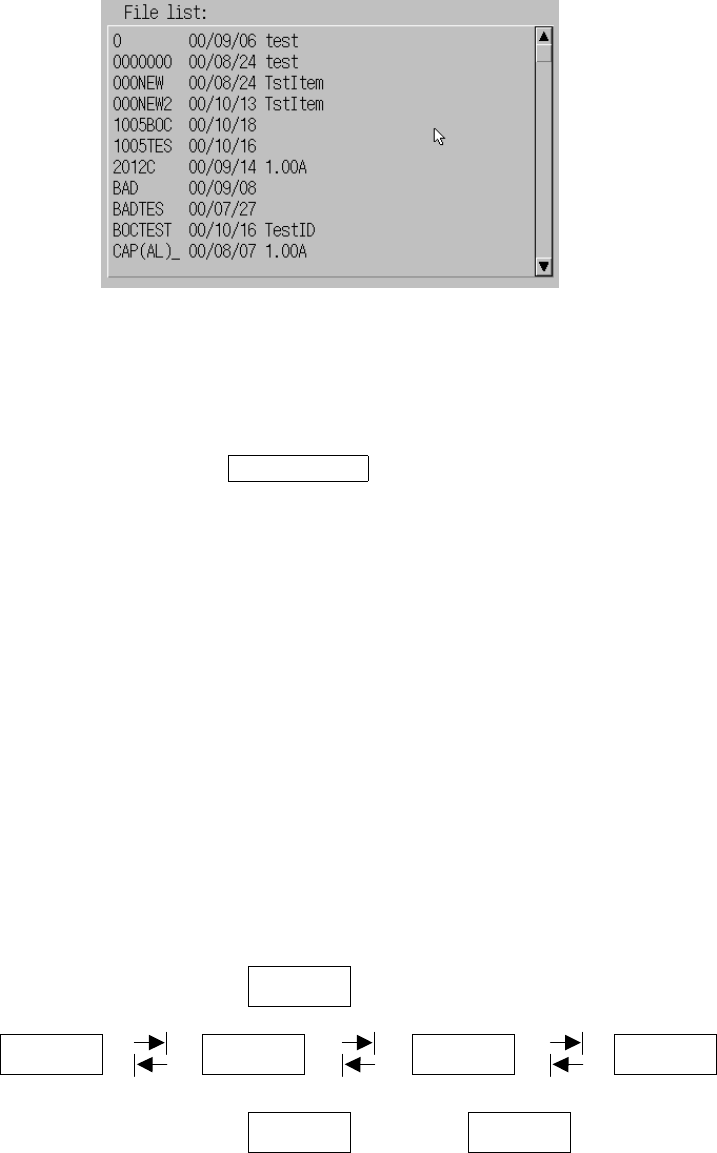
(5) Scroll bar
Appears on the right border of the window when the options in the list box are too
many to show at a time, allowing you to scroll up or down using cursor keys.
Figure 3.3.3.5 Scroll bar
(6) Edit box
Allows you to enter new information or edit existing information through the
keyboard.
File name TESTPRO1 ← Edit box
Figure of edit box
(7) Static
Appears in the dialog box but no entry can be made in this box.
(8) Box border
On the dialog box, the box on which the input focus is located is displayed with
pushed in.
(9) Moving the input focus
To move among different boxes contained in a dialog box to a new data-entry
field, use the right direction key ([TAB]) of the field selection keys.
Use the left direction key ([SHIFT]+[TAB]) to go back the previous data-entry field.
After moving to the last box or the first box, the box selected wraps around.
Figure of input focus to be moved
(10) OK, Cancel
If a dialog box has only one option to choose, use the ENTER key to choose OK
or Cancel. The ESC key can also be used to choose Cancel.
TAB
TAB
SHIFT
3 − 10
3.3.4 Editing
(1) Basic editing
Data entered from the operator panel is typed into the formula bar or edit box.
The data entered in the formula bar is validated at the cursor position by pressing
the ENTER key or moving the cursor.
In the edit box, the data is validated by pressing the field selection key, or
ENTER key.
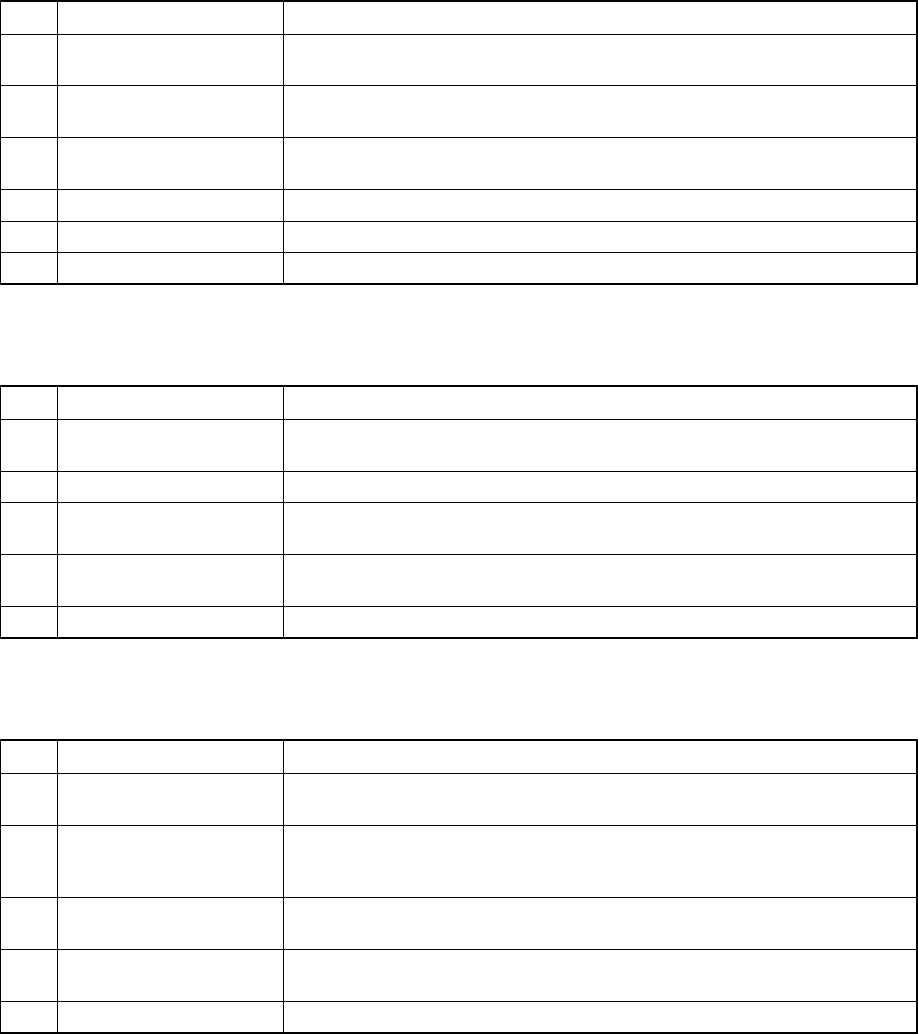
① Dialog
No. Key Action
1 BS Deletes the character to the left of the cursor’s position, shifting the
character string following the cursor one character space each to the left.
2 DELETE Erases the character at the cursor, shifting the character string following
the cursor one character space each to the left.
3 Cursor keys (Left,
Right)
Moves through the characters entered in the edit box.
4 ENTER Carries out the command, just as when the OK button is pressed.
5 ESC Closes the dialog box.
6 Field selection keys Moves through different boxes.
② Rewriting data entered in the edit field
(one or more characters have been entered)
No. Key Action
1 BS Deletes the character to the left of the cursor’s position, shifting the
character string following the cursor one character space each to the left.
2 Cursor keys Moves the cursor in the formula bar.
3 ENTER Fetch es the characters shown in the formula bar into the cell.
The input cell is not moved.
4 ESC Interrupts the data entry procedure.
Empties the data entered so far if pressed during data entry.
5 Field selection keys Fetches the data in the formula bar into the field and advances the field.
③ Editing the data entered in the edit field using the formula bar
(after the EDIT function key has been pressed)
No. Key Action
1 BS Deletes the character to the left of the cursor’s position, shifting the
character string following the cursor one character space each to the left.
2 Cursor keys Moves the cursor in the formula bar in the direction of the cursor arrow.
The cursor stops moving ahead when it reaches the starting or ending
character string.
3 ENTER Fetches the characters shown in the formula bar into the cell. The input
cell is not moved.
4 ESC Interrupts the data entry procedure.
Empties the data entered so far if pressed during data entry.
5 Field selection keys Fetches the data in the formula bar into the field and advances the field.
3 − 11
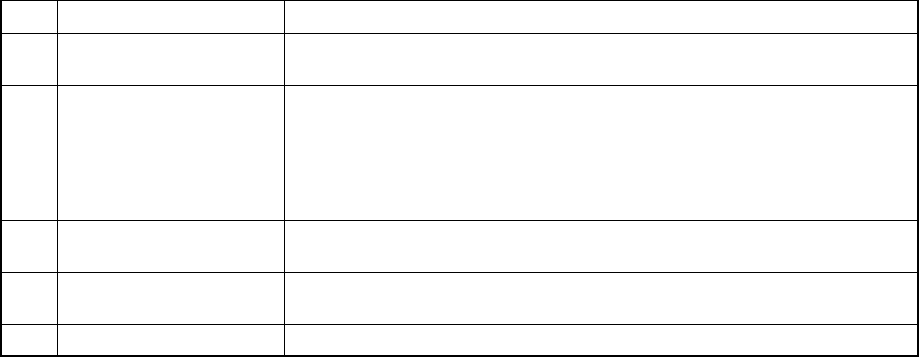
④ Entering the data into a cell of the spread sheet.
No. Key Action
1 BS Deletes the character to the left of the cursor’s position, shifting the
character string following the cursor one character space each to the left.
2 Cursor keys Fetches the characters shown in the formula bar into the cell, and moves
to the next cell in the cursor direction.
When the current cell is the first or last cell on a line, laps round to the
previous or next line. The current cell stays still when you are at the first
cell on the top line or at the last cell on the bottom line.
NEXT of HOD is equivalent to and PREVIOUS of that is equivalent to .
3 ENTER Fetch es the characters shown in the formula bar into the cell.
The input cell is not moved.
4 ESC Interrupts the data entry procedure.
Empties the data entered so far if pressed during data entry.
5 Field selection keys The same as the cursor keys.
(2) PAGE UP, PAGE DOWN
When the information covers two or more screen pages, the PAGE DOWN key
accesses the following page and the PAGE UP key does the preceding page.
There is a scroll bar appearing on the right side of the window when information
covers two or more screen pages. It indicates that there is more information up
or down the screen than the one currently shown on the display. The scroll box
inside the scroll bar tells you the approximate location you are currently viewing
in the entire body of information.
(3) HOME, END
When the information covers two or more screen pages in the horizontal
direction, the HOME key moves the cursor to the beginning of the line and END
key does to the end of the line.
(4) Scroll
– If is pressed when you are on the top line of a screen page and if there is
more information vertically before it, the key scrolls the information down one
line.
– If is pressed when you are on the bottom line of a screen page and if there
is more information vertically after it, the key scrolls the information up one
line.
– If is pressed when you are at the beginning of the line and if there is more
information to the left, the key scrolls the information one screen page to the
left.
– If is pressed when you are at the end of the line and if there is more
informa-tion to the right, the key scrolls the information one screen page to
the right.