KJ-01.02.Instruction Manual.REV.02.pdf - 第344页
10 − 19 10.4.6.3 Feeder knock pin control W hen you select the [6/Others] command on the menu bar , and then the [3/Feeder knock pin control] command on the displayed menu, the dialog box f or contr olling the feeder kno…
10 − 18
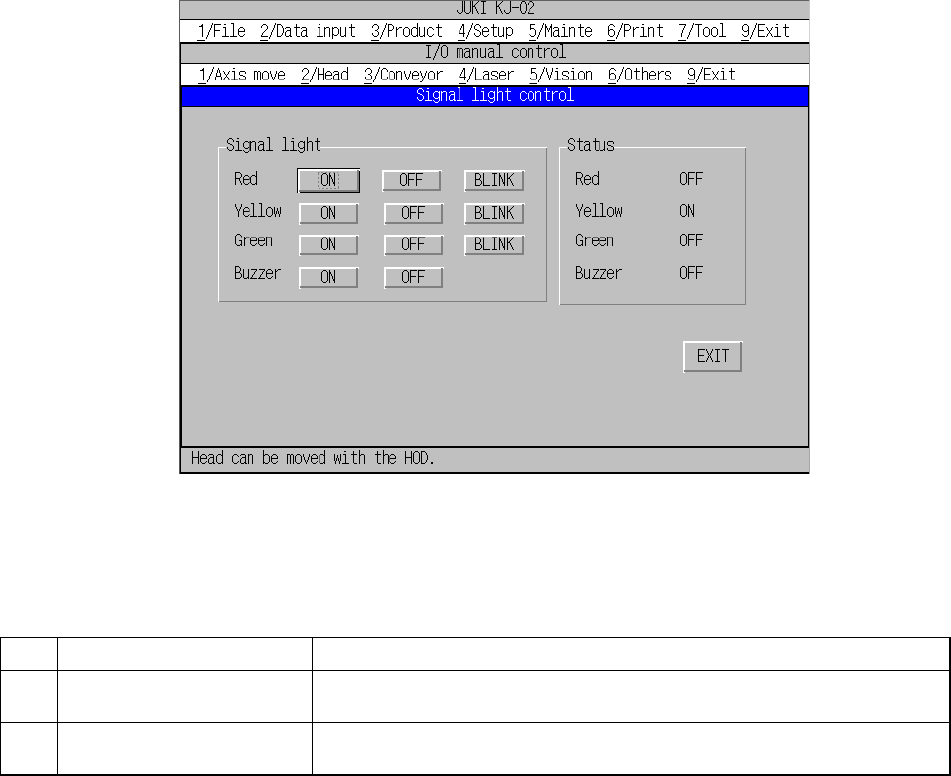
10.4.6.2 Signal light control
When you select the [6/Others] command on the menu bar, and then the [2/Signal
light control] command on the displayed menu, the dialog box for controlling the
signal lights appears on the screen as shown in Figure 10.4.6.2.1.
Each command is described on Table 10.4.6.2.1.
Figure 10.4.6.2.1 “Signal light control” dialog box
Table 10.4.6.2.1 Description of each command
No. Command Description
1 Signal light Controls the signal lights (red, yellow and green) (ON/OFF/BLINK), and
controls the signal buzzer (ON/OFF).
2 Status Displays the conditions of the signal lights (red, yellow and green).
Displays the condition of the signal buzzer (ON/OFF).
When you select a command on the dialog box above, the signal light lights up/goes
off/flashes according to the command you selected, or the signal buzzer turns on/off.
10 − 19
10.4.6.3 Feeder knock pin control
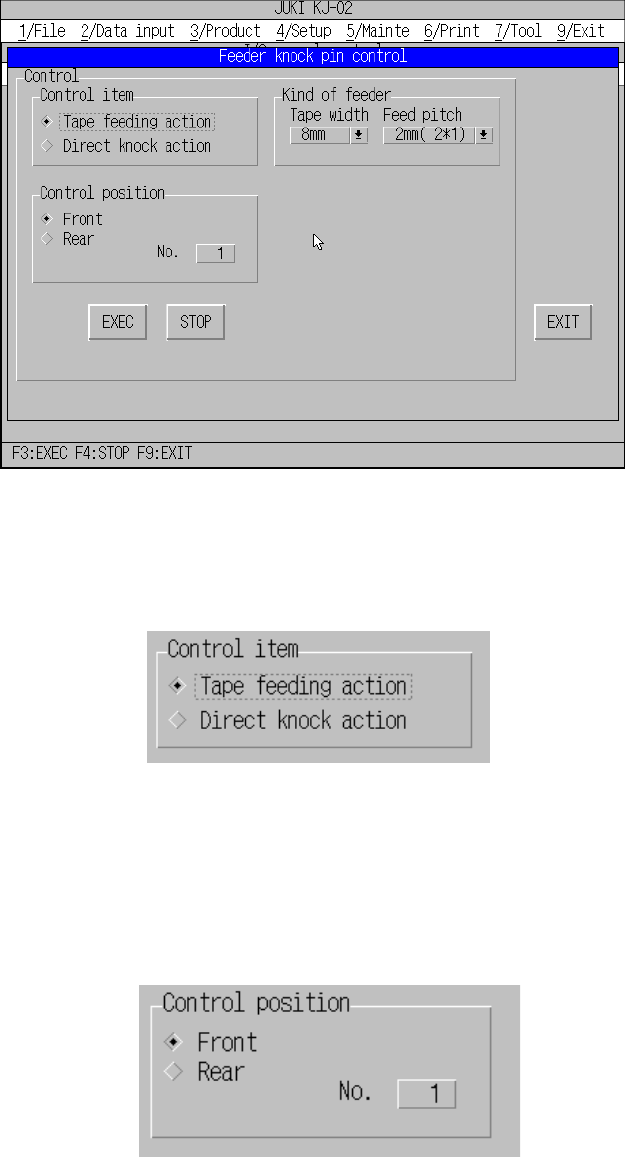
When you select the [6/Others] command on the menu bar, and then the [3/Feeder
knock pin control] command on the displayed menu, the dialog box for controlling the
feeder knock pin appears on the screen as shown in Figure 10.4.6.3.1.
Figure 10.4.6.3.1 “Feeder knock pin control” dialog box
− Control item
Select the desired control item with checking the corresponding radio button.
“Control item” dialog
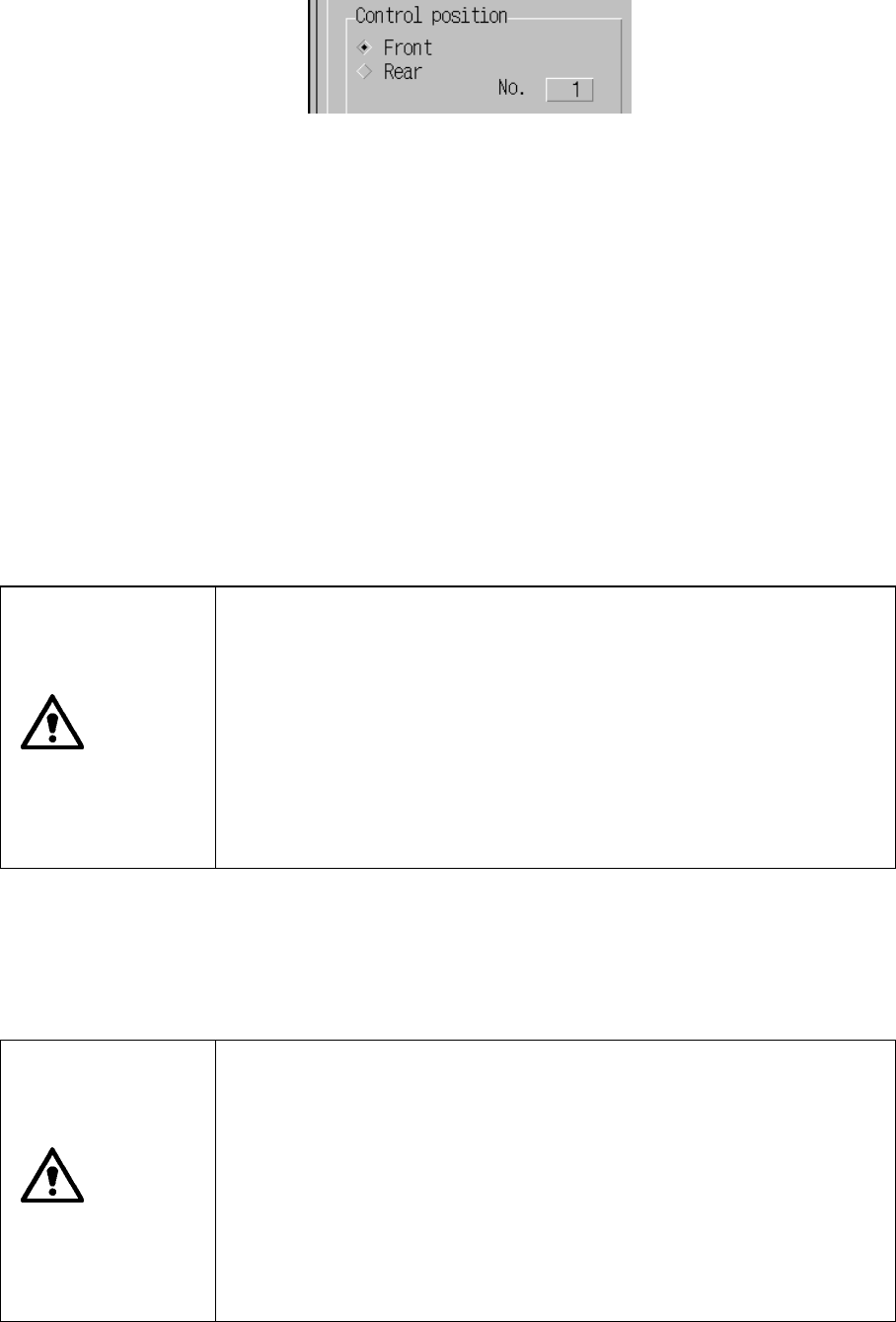
− Control position
When you select the control item “Tape feeding action”, select the pin position to
be controller by checking the radio button displayed next to the side to be
controlled and selecting the number from Edit box.
“Control position” dialog
10 − 20
When you select the control item “Direct knock action”, select the pin position
(group) to be controlled by checking the radio button displayed next to the side to
be controlled.
− Kind of feeder
When you select the control item “Tape feeding action”, select the tape width and
pitch from the combo box.
When you select the control item “Direct knock action”, you cannot set the feeder
type here.
− Control button
When you click the control button <EXEC>, the machine performs the control
operation as specified.
(1) Tape feeding action control
The machine feeds a tape.
When you select the control item “Tape feeding action”, click the <EXEC>
button or press the F3 key.
CAUTION
The machine starts feeder knocking operation immediately after you
select an item.
To avoid risk of injury, do not place your hand in the machine, nor
move your face or head close to the machine during operation.
Before selecting an item, check to see if there is no one who is
working the internal parts of the machine.
Before selecting an item, check to see if there is no one who is near
the machine and can be injured when the machine warms up.
Before selecting an item, check to see there is no obstacle (tools and
jigs) attached or left in the machine that may prevent any part inside
the machine from operating.
(2) Direct knock action control
The machine performs knocking operation per feeder bank.
When you check the control item “Direct knock action”, click the <EXEC>
button or <STOP> button, or press the F3 or F4 key.
CAUTION
The machine starts feeder knocking operation immediately after you
select an item.
To avoid risk of injury, do not place your hand in the machine, nor
move your face or head close to the machine during operation.
Before selecting an item, check to see if there is no one who is
working the internal parts of the machine.
Before selecting an item, check to see if there is no one who is near
the machine and can be injured when the machine warms up.
Before selecting an item, check to see there is no obstacle (tools and
jigs) attached or left in the machine that may prevent any part inside
the machine from operating.