KJ-01.02.Instruction Manual.REV.02.pdf - 第281页
8 − 14 (2) Product ion mode There are t hree types of production modes. T able 8.2.1 Producti on modes No. Production mode Description 1 Board production mode Determines the number of PC boards on w hich components are p…
8 − 13
8.2 Production (for the Standard Machine)
In Production mode, the machine allows you to set various production conditions, or
displays production information as well as produces PWBs.
The allowable production conditions setting items vary depending on Production mode
(Actual production mode, Trial mode, or Dry run mode).
The machine displays the production information: production management
information and number of components also.
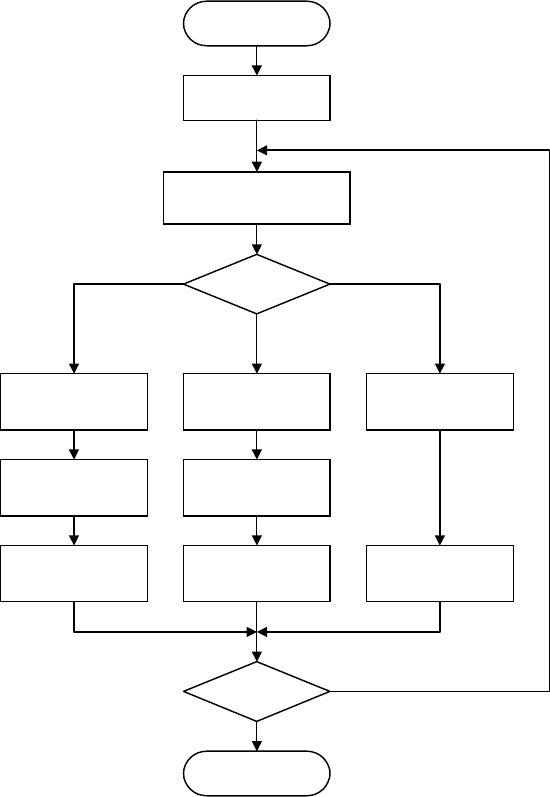
(1) Flowchart of operation to be performed before start of production
The flowchart of operation the machine performs is shown below.
Figure 8.2.1 Production flow
START
Select [3/ Prod.]
Specify the
p
roduction mode
Setting of actual
producing
Setting of the
number
Board
production
Production mode?
End?
END
Setting of
test-run
Setting of the
number
Trial run
Setting of
blank-run
Blank run
Trial run
Board production
Blank run
NO
YES
8 − 14
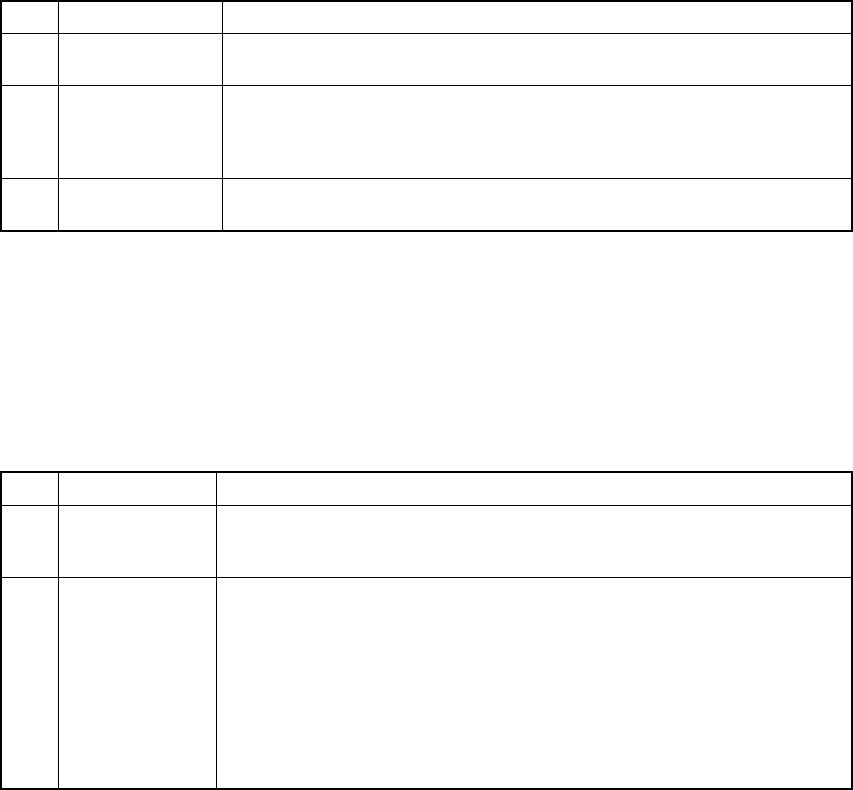
(2) Production mode
There are three types of production modes.
Table 8.2.1 Production modes
No. Production mode Description
1 Board production
mode
Determines the number of PC boards on which components are placed, and
actually places components on the PC board.
2 Trial run mode Test-places a preset number of components on a PC board, check the status
of placement of components on the PC board. In case the placement is
found not satisfactory by the camera tracking function, teaching can be
performed.
3 Blank run mode Test-runs the machine without using component. This mode is used to check
the pickup and placing operations of the machine
Each of the above operations can have its operating conditions (production
condition, test-run condition, or blank-run condition).
(3) Execution modes
Each production mode has two kinds of execution modes.
Table 8.2.2 Execution modes
No. Execution mode Description
1 Continuous Keep on placing components on PC boards until the specified production
ends or the production is terminated by pressing the STOP button in Pause
mode.
2 Step Pauses production at the end of every production step.
The pause positions are as follows:
1) After reaching the pickup position
2) After reaching the placing position
3) After reaching the bad-mark position
4) After reaching the fiducial position
5) After reaching to the VCS recognition position
To restart the production, press the START key.
Note: The STOP key is also available in the CONTINUOUS mode. When the STOP
key pressed, the machine pauses at the end of the current production step (at
the pause position).
8 − 15
8.2.1 PC board production
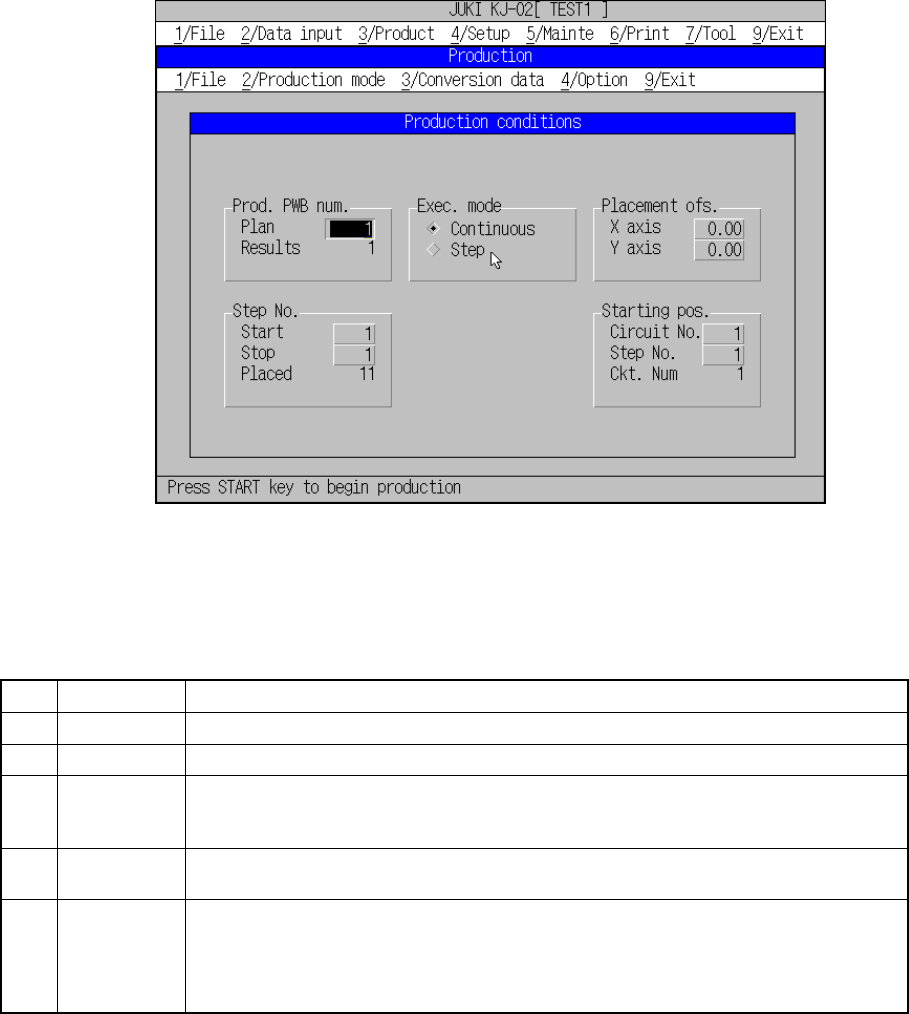
Select [3/ Prod.] in the menu bar. The screen appears and the Producing condition
setting dialog box is displayed. Figure 8.2.1.1 shows the Production starting screen
("Production conditions" setting dialog box.).
Figure 8.2.1.1 Production starting screen
8.2.1.1 Production conditions
(1) Setting items
No. Item Description
1 Prod. PWB Set the number of boards to be produced.
3 Exec. mode Select either "Continuous" or "Step" execution mode.
4 Step No. Specify a range of placement data with the placement start line and the placement end
line.
Specify the data in the order of "Input order".
5 Placement
ofs.
Specify total offsets for all placement positions. This adds the set offset to the placement
data for actual placement.
6 Starting pos. For the first production board only, specify the circuit and placement number where the
first placement is performed. If, for some reason, board production on the machine is put
in a halt, this setting continues the production.
This is effective to place the remaining components on the board to which placement
was put in a halt.