KJ-01.02.Instruction Manual.REV.02.pdf - 第171页
5 − 75 (2) Del ete ① O peration If the com ponent at t he cursor line is not list ed in the placement data, delete that dat a. Aft er the data has been delet ed, either of t he f ollowing dialog boxes appears depending o…
5 − 74
5.5.2 Commands
The local commands that can be called from the Component data are shown below.
<1> File menu
The operation is the same as that for the PWB data.
<2> Edit menu
Table 5.5.2.1 lists the selectable commands and the characters displayed on the
message line.
Table 5.5.2.1 Messages displayed on the message line when you select the edit command
No. Command Characters displayed on the message line
1 Copy Copy block unit.
2 Delete Delete block unit.
3 Component name Change component name with dialog.
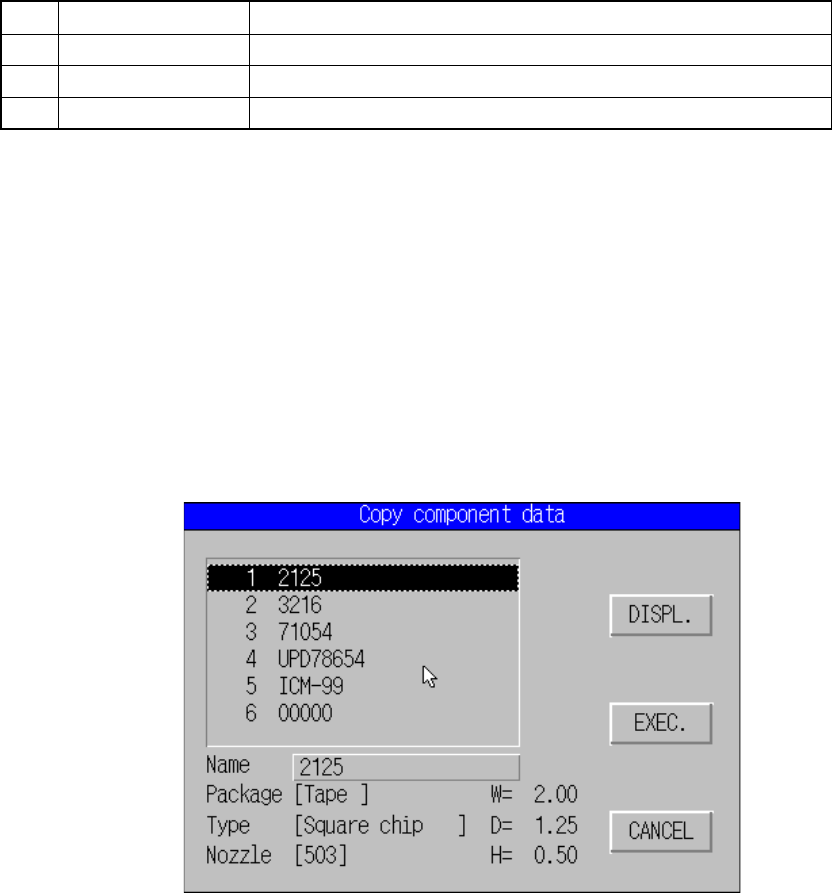
(1) Copy
This command can be executed on the Component data form screen only.
① Operation
This command copies data excluding a component name and comment
you selected on the “Copy component data” dialog box to data of a
component displayed on the Component data form screen.
Select a component you wan to copy from the list box, and click the
<EXEC> button. The machine copies the selected data.
Move the cursor to the component name column, select the desired
component name, and click the <DISPL.> button to select a component.
Figure 5.5.2.1 Copy component data dialog box
5 − 75
(2) Delete
① Operation
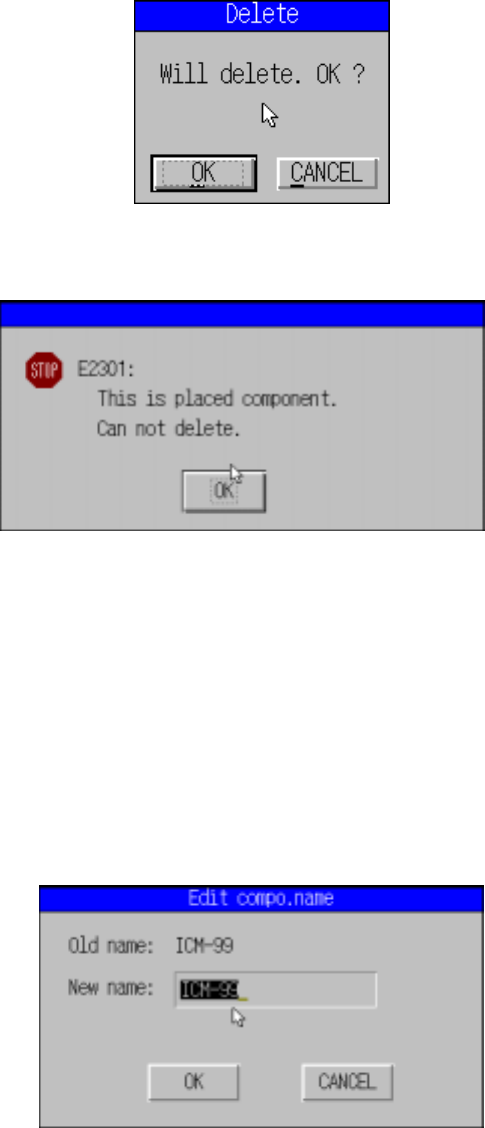
If the component at the cursor line is not listed in the placement data,
delete that data.
After the data has been deleted, either of the following dialog boxes
appears depending on the situation.
Figure 5.5.2.2 Dialog box confirming deletion
Figure 5.5.2.3 Dialog box informing deletion is not possible
The cursor stays at the same position after “delete” has been executed. The
data below the deleted line moves up by one line.
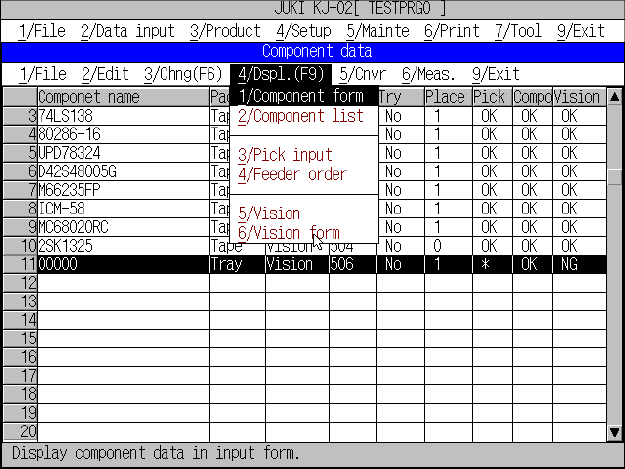
(3) Component name
① Operation
This operation changes the component name registered in the
Component data currently displayed on the Component data screen.
Figure 5.5.2.4 Edit compo. name dialog box
5 − 76
<3> Chng (Change) menu (F6)
The operation is the same as that for the PWB data.
<4> Dspl. (Display) menu
This command is used to change the order of display of the component data
from form to list format and vice versa.
In the list display, only the contents of data can be referred and no data can be
edited.
Figure 5.5.2.5 Component data list screen
(1) Operation
When the display is changed from form to list, the data shown in the form
display will be located at the center of the list display.
The list data scrolls upward or downward with the up and down cursor keys.
The screen scrolls up and down when the cursor is on the top and bottom
line, respectively.
The display changes to “form” showing the line at the cursor when the
ENTER key is pressed.