KJ-01.02.Instruction Manual.REV.02.pdf - 第97页
5 − 1 CHA PTER 5 DA TA ENTRY PROCEDURE 5.1 File Operation Procedure T able 5.1. 1 lists the m aximum number of production prog ram f iles t hat can be stored in each of t he storag e media available with the machine. T a…
4 − 25
4.3.11 PWB conveyor
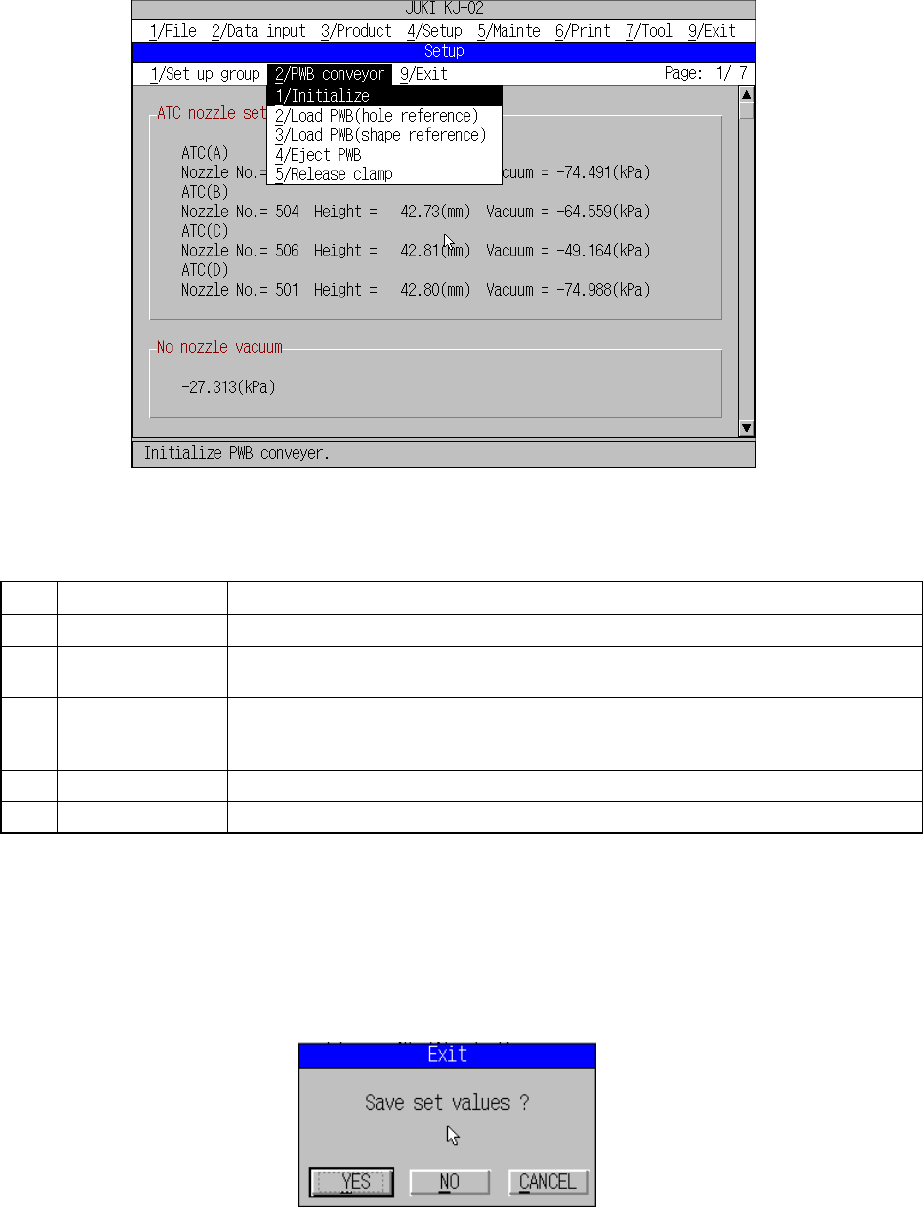
When you want to transport a board, select the [2/PWB conveyor] command on the
menu bar (see Figure 4.3.11.1).
Figure 4.3.11.1 “PWB conveyor” dialog box
(1) PWB conveyor commands
No. Command Description
1 Initialize Initializes the PWB conveyor.
2 Load PWB
(hole reference)
Loads a board with regarding the pin as the reference position.
If any board is clamped already, the machine ejects it before loading a new board.
3 Load PWB
(shape reference)
Loads a board with regarding the board edges as the reference positions.
If any board is clamped already, the machine ejects it before loading a new board.
(The machine will not function if it is not equipped with any shape reference option.)
4 Eject PWB Ejects a board.
5 Release clamp Releases the clamped board only.
If the item “Conveyor connect” is not checked on the “Use unit” screen, these
commands are disabled.
4.3.12 Exit
Select [9/ Exit] from the menu bar, and complete the machine setup sequence.
Figure 4.3.12.1 Machine setup exit screen
For operations after this, see 4.3 (3) “Saving the settings”.
5 − 1
CHAPTER 5 DATA ENTRY PROCEDURE
5.1 File Operation Procedure
Table 5.1.1 lists the maximum number of production program files that can be stored in
each of the storage media available with the machine.
Table 5.1.1 Number of production program files to be stored
No. Storage Drive No. No. of files (Storage capacity)
1 Hard disk C Approx.150 (16 Mbyte)
2 Current memory
1
3 Floppy disk A Depends on disk capacity (1.44 Mbyte)
The machine handles only files whose extension is “J1” (created with a KJ-01), “J2”
(created with a KJ-02), “G3C” (created with a KE-750), or “G3G” (created with a
KE-760).
The machine can read component names of PWB data, Placement data or
Component data created with KE-series machines also. Note that the machine may
not read a component name of some production programs created with a KE series
machine correctly.
(1) Immdediately after starting
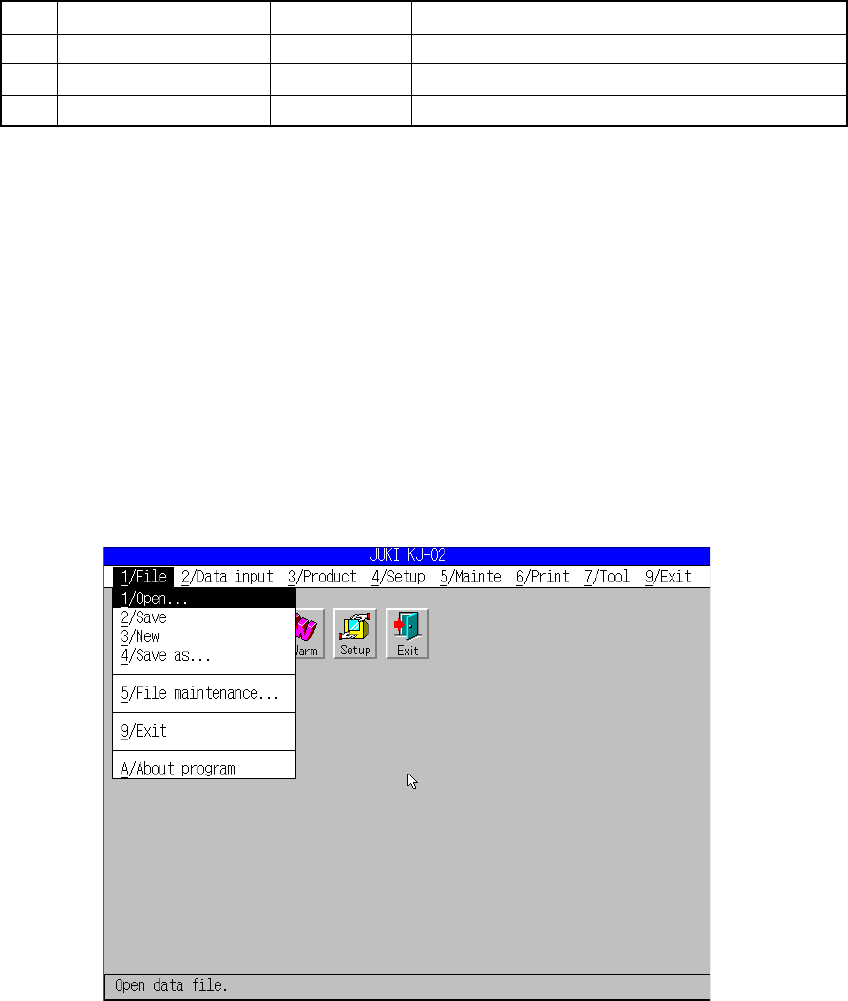
A screen appears as shown in Figure 5.1.1 when [1/ File] is selected from the
menu bar.
Figure 5.1.1 File menu commands
5 − 2
The table below shows the messages displayed on the message line during file
command selection.
No. Command Display on the message line
1 Open Reading the production program already stored.
2 Save Saving the current program.
3 New Creating a new production program.
4 Save as Saving the current program by renaming it.
5 File maintenance Copying, deleting, or renaming the file, or formatting the disk.
6 Exit Exiting from the program.
7 About program Showing the version number of the program.
5.1.1 Open
(1) Operation
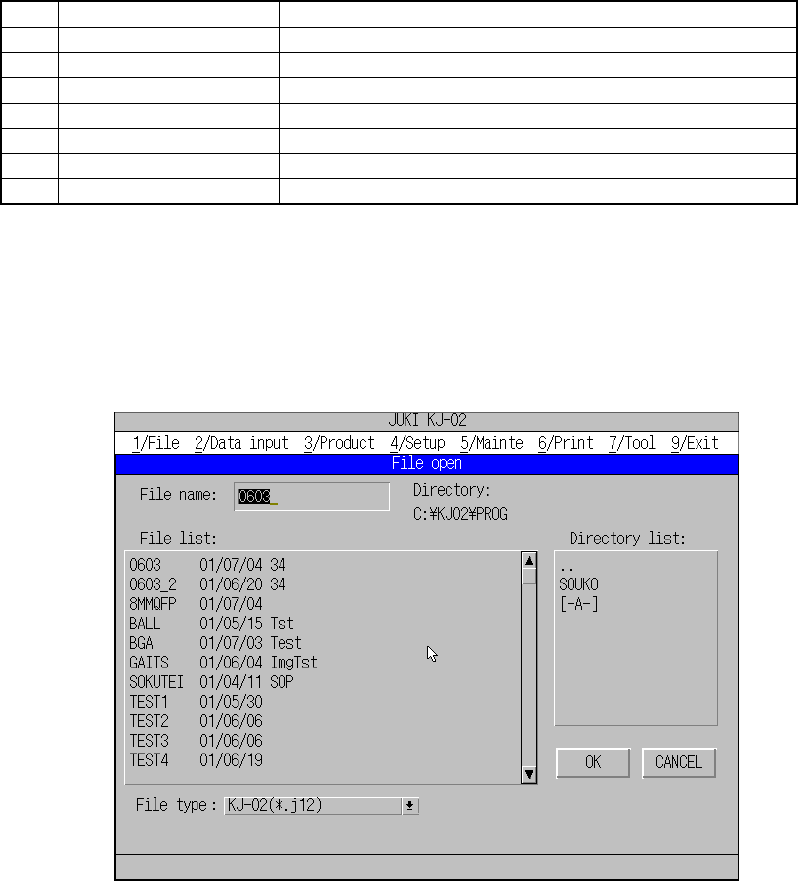
A screen appears as shown in Figure 5.1.1.1 when [Open] is selected from the
File menu.
Figure 5.1.1.1 File Open dialog box
① Description of each display item
File:
– Enter the file name directly in the edit box for “File Name”. Or, use the field
selection key to move to the “File list” and use a cursor key to select the
desired file. The file name highlighted at this time is set in the file name edit
box.
– The read (load) operation is executed when the ENTER key is pressed or
“OK” button is selected with the file name specified.
– An error dialog appears to prompt the operator’s confirmation if the file name
directly entered in the edit box does not exist.
File list:
– Lists the file name, date last modified, and PWB ID for all files. A cursor key is
used to select the desired file.