KJ-01.02.Instruction Manual.REV.02.pdf - 第61页
3 − 4 3.3 Operation Overv iew 3.3.1 Screen organization Here is a rundown of the basic com ponents mak ing up a screen. ←← Figure 3.3. 1.1 File pull -down menu Figure 3.3.1. 2 ←① Title bar ←③ Menu bar ←⑤ Message line ←⑦ …
3 − 3
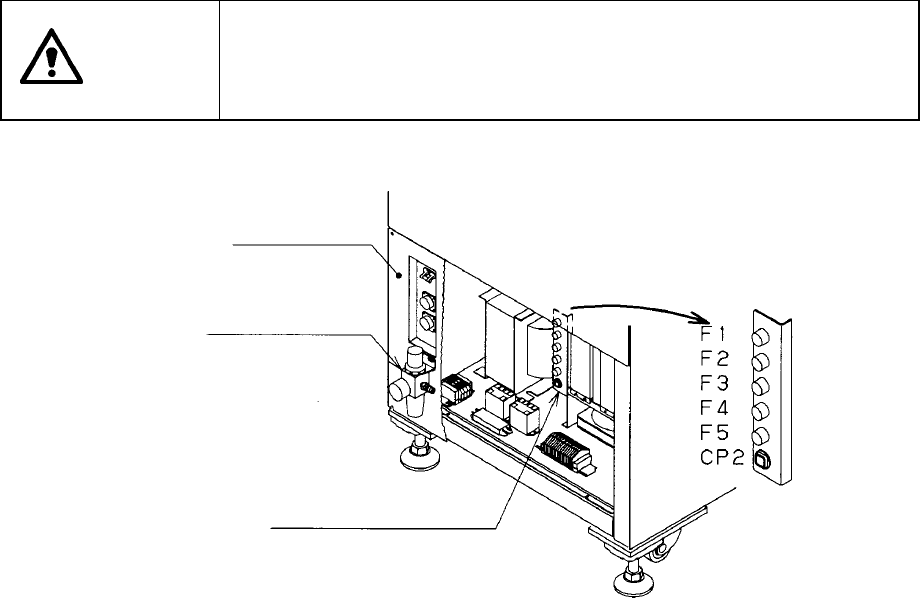
3.2.2 Checking circuit protector
If the machine does not operate properly after it has been turned ON, check the
condition of the circuit protector (CP2) and fuse (F1 to F5) in the power unit found on
the back side of the machine. To check the condition of the circuit protector or that of
the fuses, remove the under cover RB and filter regulator.
If the circuit protector front face protrudes to show the red mark, push the face back in.
Set the CP5 switch to ON. If the fuse is burnt out, replace it with a new one.
To check the fuses (F1 to F5), turn the groove of the fuse holder with a flat-blade driver
to the left while pushing it gently, and then take them out. Be sure to replace the fuse
with a new one of the same rating.
The circuit protector and each fuse are located in the following power supply
systems:
F1: Power supply for a monitor
F2: Power supply for driving the motor of the PWB transport device
F3: Power supply for the switching device
F4: Power supply for driving the motor of the AC servo driver X
F5: Power supply for driving the motor of the AC servo driver Y
CP2: Power supply for driving the motor of the FMLA driver
CAUTION
To avoid a risk of serious injury or death caused by electric shock
hazard, turn off the main power switch of the house current which is
installed in the building where the machine is used.
Note that it is not the main power switch of the machine.
Figure 3.2.2
Filter regulator
Under cover RB
Circuit protector and fuses
3 − 4
3.3 Operation Overview
3.3.1 Screen organization
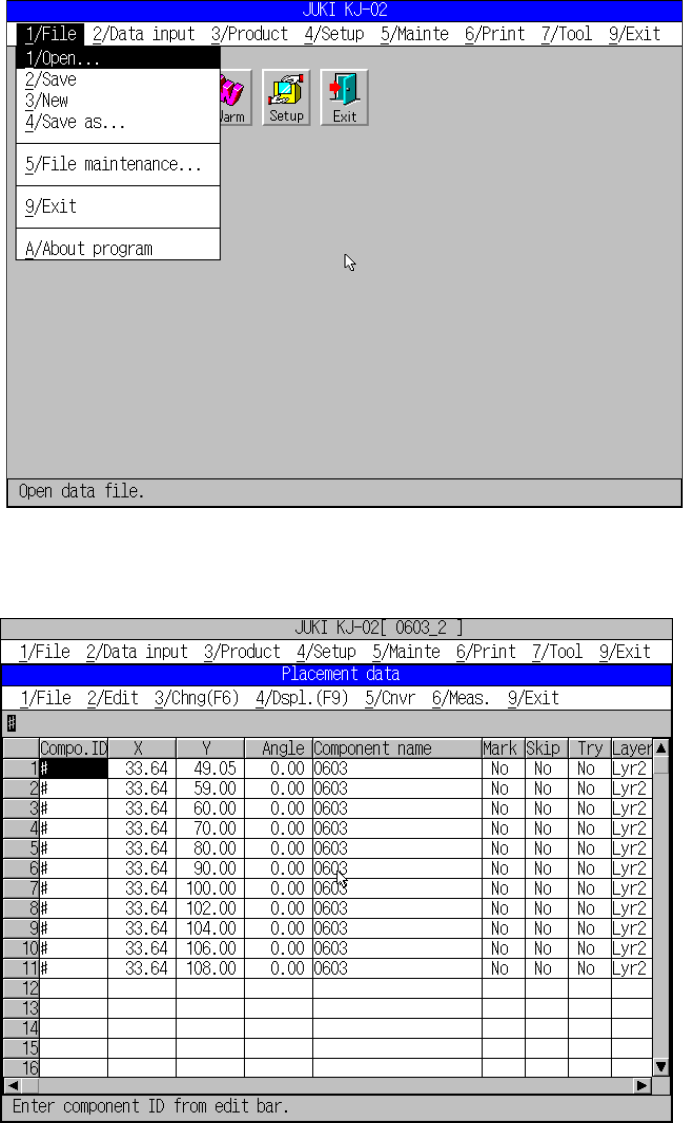
Here is a rundown of the basic components making up a screen.
←←
Figure 3.3.1.1 File pull-down menu
Figure 3.3.1.2
←① Title bar
←③ Menu bar
←⑤
Message line
←⑦
Scroll arrow
←⑧ Scroll box
←⑤ Message line
←①
Title bar
←⑦ Scroll arrow
←⑤ Message line
3 − 5
① Title bar:
Shows at its center the name of the job (i.e., the window name) displayed in that
window.
② Pull-down menu:
A menu of command options that appear after you have selected the command
name on the menu bar. The command options that can be selected are shown
separated from those that cannot.
③ Menu bar:
Lists the names of pull-down menus to select from among. The names vary
depending on the function currently selected.
④ Work area:
Area to which data is entered for generating a program data.
⑤ Message line:
Shows the summary of the function of the command to be executed and the
production program name.
⑥ Formula bar:
Shows the contents of the function of the cell at the cursor, it is where you edit
formulas.
⑦ Scroll arrow:
Indicates that you can scroll the screen in the direction of the arrow to access
more data that are not currently visible on the display.
⑧ Scroll box:
Indicates where you are in the contents of a window.