KJ-01.02.Instruction Manual.REV.02.pdf - 第119页
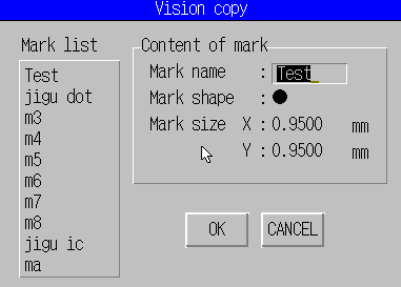
5 − 23 ② [ 9/ Vision copy ] A screen appear s as shown in Figure 5.3.4. 6 when [V ision copy] is selected. Figure 5.3.4. 6 Visi on Copy screen Select t he data name to be copied, and click the <O K> button. I ts co…
5 − 22
(1) Delete
You can use this command when the input focus is located on any of the
setting item.
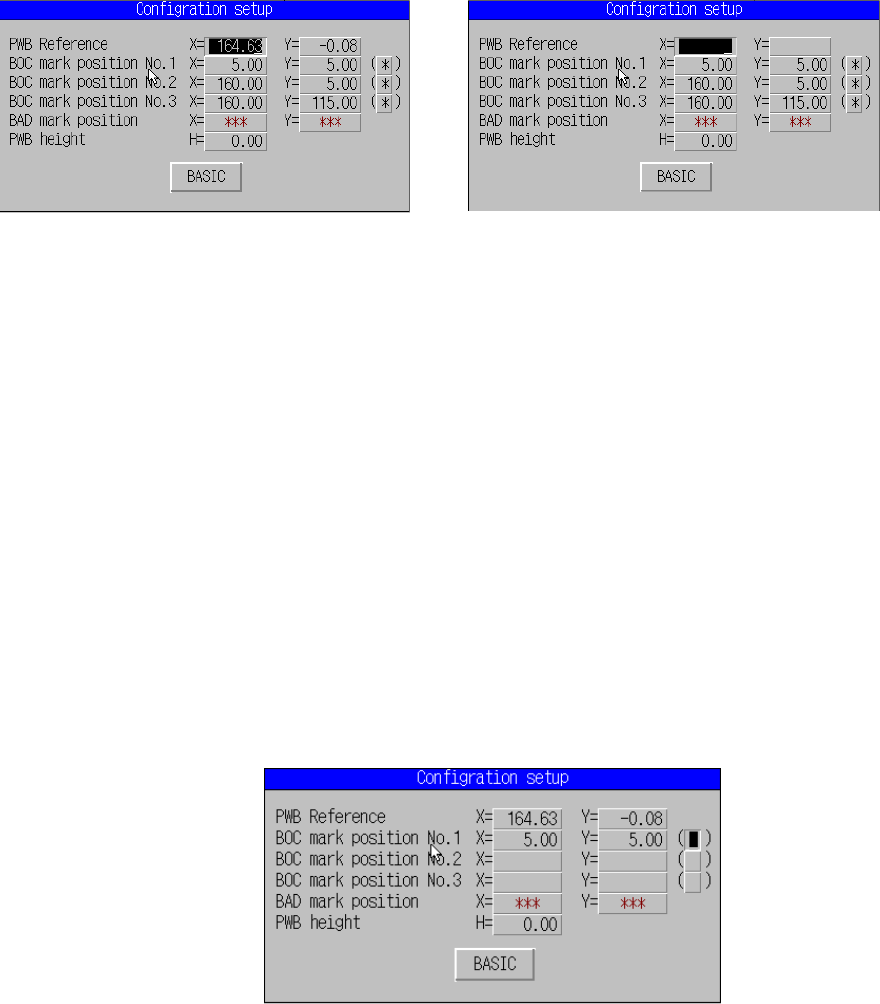
When you select this command, the machine deletes the data displayed on
the line on which the input focus is located. For the item having two input
fields, X and Y, the machine deletes both values. This command functions
immediately after you select it. No confirmation message appears on the
screen.
Before deleting After deleting
Figure 5.3.4.4 [Delete] dialog box
(2) Vision copy
Up to 10 pieces of data can be stored in the mark database as the condition
data for mark recognition.
As the conditions data, the mark shape, mark dimensions and the size of the
inspection window are obtained during the mark teaching process.
Those conditions data can be registered to the data base at the final phase
of teaching operation.
This command uses the condition data copied from the mark database
instead of using the one obtained by teaching.
① This command becomes effective when the cursor is located at the vision
data teaching position.
Figure 5.3.4.5 [
Vision copy]
dialog box
5 − 23
② [9/ Vision copy]
A screen appears as shown in Figure 5.3.4.6 when [Vision copy] is
selected.
Figure 5.3.4.6 Vision Copy screen
Select the data name to be copied, and click the <OK> button. Its
conditions data registered onto the database is copied.
When you click the <CANCEL> key, the machine quits the “Vision copy”
dialog box without copying any data.
3) Mark database
This command deletes/modifies data registered onto the mark database. See
Section 6.4 “Mark Database Management” for details.
5 − 24
(3) Chng (Change)
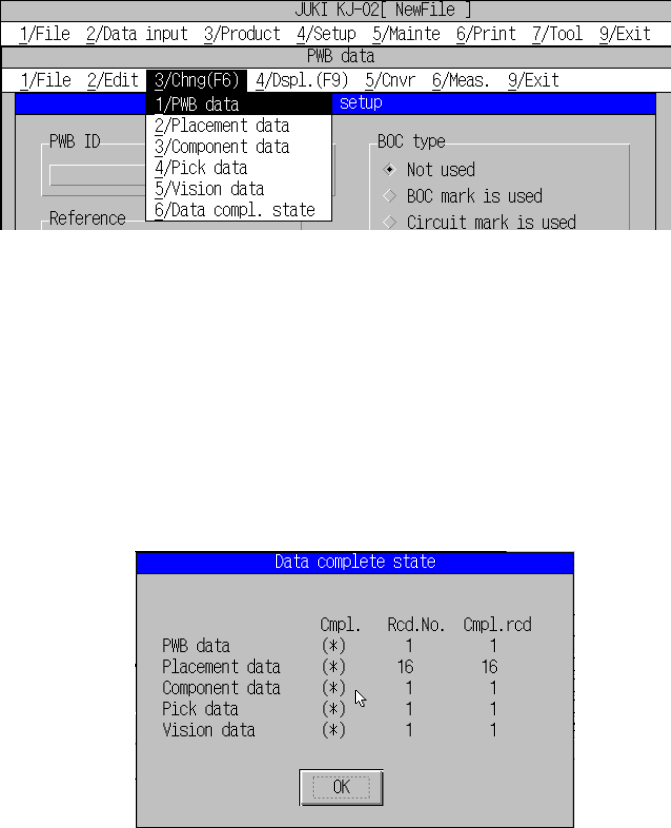
When you select the [3/Chng] command, the screen shown in Figure 5.3.4.6
appears.
Figure 5.3.4.7 [3/Chng] command pull-down menu
1) Changes to the editing screen for the designated data.
2) Data comple. State (data completion state)
This command displays how far each type of data creation progresses.
“(*)” displayed at the “Cmpl.” column indicates that the corresponding type of
data is completely created, while “( )” indicates that it is not created
completely.
Figure 5.3.4.8 [3/Chng] Data creation progresses Dialog
Note: If PWB data is not created completely, you cannot switch the PWB data
screen to any other type of data screen (except for the “Data complete
state” screen).
Until at least one line of Placement data is created, you cannot move to
the Component data, Pick data, or Vision data screen.
(4) Dspl. (Display) menu
The PWB data does not support the “Display” function as it is not used.