KJ-01.02.Instruction Manual.REV.02.pdf - 第289页
8 − 22 (2) [ 2/ Parts supply] This com mand mak es the value on the curs or line or all number of par ts f ull or clears them. Howev er , to supply parts, t he system has to produce no par t or has to st op temporar ily …
8 − 21
<2> Commands
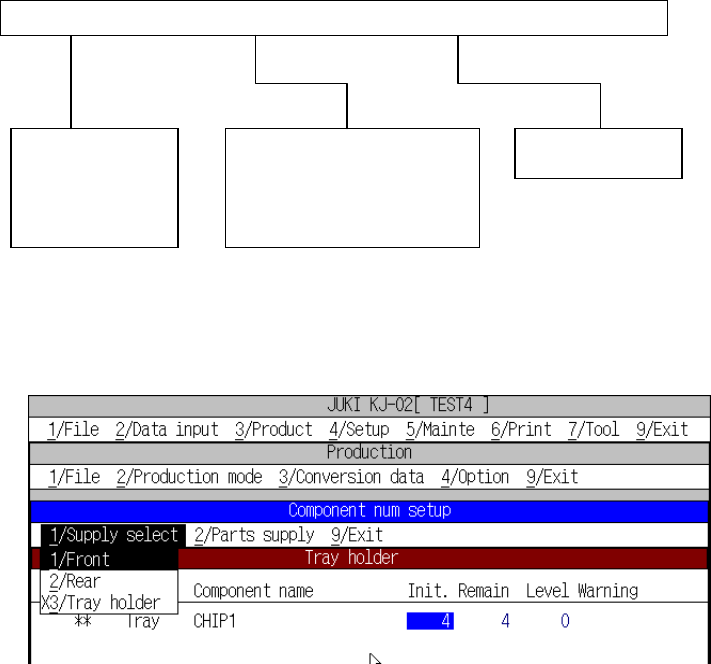
The figure below shows the local commands that can be called in the
components number setup screen.
1/Supply select 2/Parts supply 9/Exit
(1) [1/ Supply select]
This command switches the “Component num setup” screen types each other.
Figure of supply select pull-down menu
① [1/ Front]
When the components number setup screen is called, parts set on the
feeders on the front side only are displayed on the screen.
② [2/ Rear]
This components number setup screen lists the parts set on the feeders on
the rear side only.
③ [3/ Tray holder]
This components number setup screen lists the parts set on the tray holder
only.
1/Front
2/Rear
3/Tray holder
1/Replenish component
2/Replenish all feeders
3/Reflesh
9/Exit
8 − 22
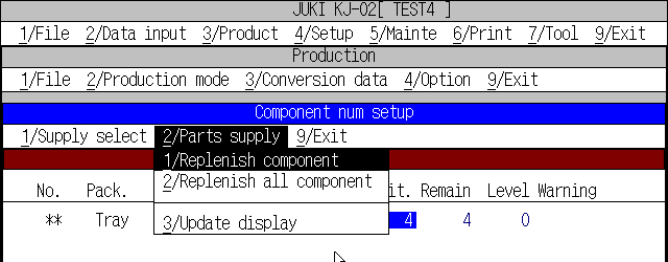
(2) [2/ Parts supply]
This command makes the value on the cursor line or all number of parts full or
clears them.
However, to supply parts, the system has to produce no part or has to stop
temporarily.
Figure of parts supply pull-down menu
① Replenish component
Resets the number of remaining components on the cursor line (when the
command is called) to the initial value and clears all warnings.
② Replenish all feeders
Performs the “1/ Replenish component” operation for all components.
③ Reflesh
Refreshes the screen. The screen is updated when the number of parts is
updated with corresponding to the execution of a pickup and placement
operation while the components number setup screen is being displayed.
(3) [9/ Exit]
Ends the setting of components number function, then returns control to the
caller (Setting of production condition or Setting of production status screen).
8 − 23
8.2.2 Start of production
After setting the number of PC boards to be produced, press the START key on the
operator panel to start production.
CAUTION
The head starts to move immediately after the START key is pressed,
and then the machine starts PC board production.
To avoid a risk of injury, do not place your hand in the machine, nor
move your face or head close to the machine during operation.
Before pressing the START key, check that there is no one who is
working in the machine.
Before pressing the START key, check that there is no one who can
be injured when the head starts to move.
Before pressing the START key, check that there are no obstacles
(tools and jigs) left in the machine.
The PC board production starts and the green signal lamp lights to indicate that PC
board production is in progress.
If home positioning has not been completed when the START key is pressed, press
the HOME key to execute home positioning, then press the START key again.
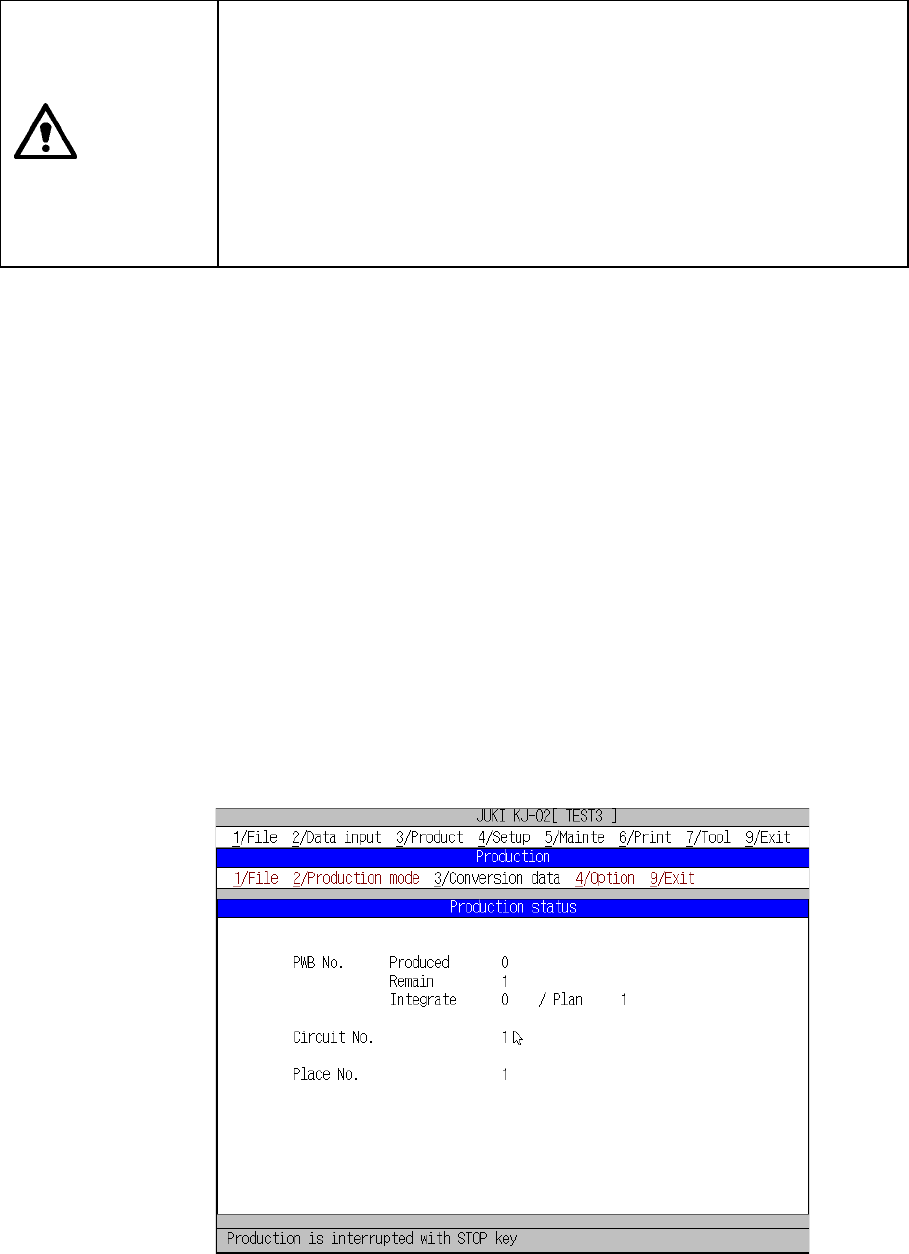
<1> Display of production status
When PC board production starts with the START key pressed, the status of
production is displayed on the screen.
(1) While PC board production is in progress
Figure 8.2.2.1 shows the “Production status” screen that is displayed
normally when the machine starts production, while Figure 8.2.2.2 shows the
“Production status” screen displayed if you check the item “Shows the
number of boards produced in large characters.” on the “Operation option”
screen.
– Display of normal production status
Figure 8.2.2.1 Production status screen (1)