KJ-01.02.Instruction Manual.REV.02.pdf - 第287页
8 − 20 − “Component num setup” screen f or a t ray holder W hen you select a tray holder with the [1/Supply select] command, the screen shown in Figure 8.2.1.2. 3 appears. Figure 8.2. 1.2.3 Number of component for the tr…
8 − 19
Operation
<1> Invocation
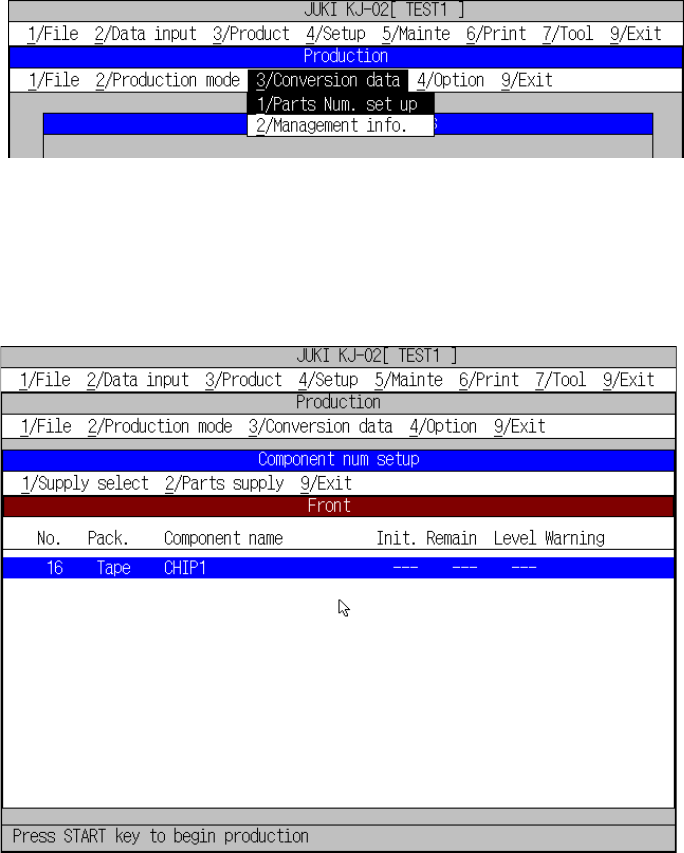
Select [3/ Conversion data] in the menu bar of the PWB production screen.
The “Component num setup” screen is displayed in the form of list, and it
consists of three sections of data: Front side, Rear side and tray holder
respectively. To switch those sections with each other, click the [1/Supply
select] command on the menu bar of the “Component num setup” screen.
Figure 8.2.1.2.1 shows how to invoke the “The components number setup”
dialog box.
Figure 8.2.1.2.1 The components number setup
− “Component num setup” screen for the front/rear sides
Figure 8.2.1.2.2 Number of component for the front side setting screen
8 − 20
− “Component num setup” screen for a tray holder
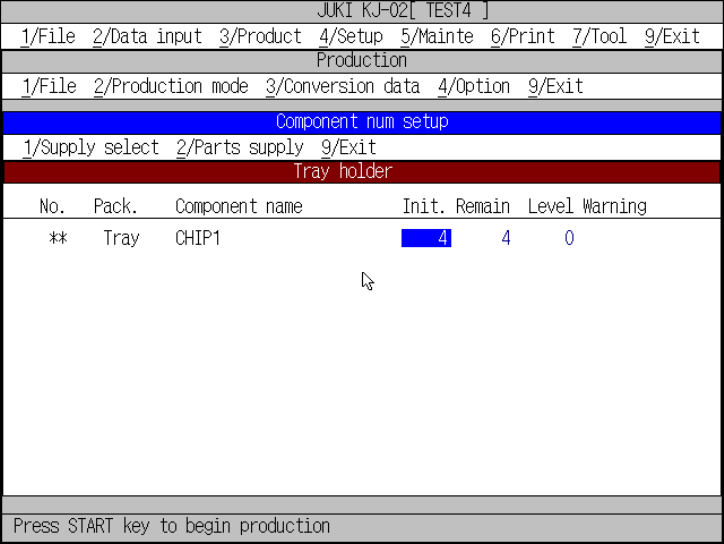
When you select a tray holder with the [1/Supply select] command, the screen
shown in Figure 8.2.1.2.3 appears.
Figure 8.2.1.2.3 Number of component for the try holder setting screen
(1) Initial
Enter an initial value at the cursor position.
(2) Remain
Enter the number of remaining components at the cursor position.
(3) Level
Enter the level of the number of remaining components at which a warning
is output.
(4) Warning
The cursor does not move to this item. The indication disappears when the
number of remaining components is entered or any item of the [2/ Parts
supply] command menu is executed.
Move the cursor to a desired entry field by the ”(UP), ”(DOWN),
SCROLL, PAGE-UP, and PAGE-DOWN keys.
8 − 21
<2> Commands
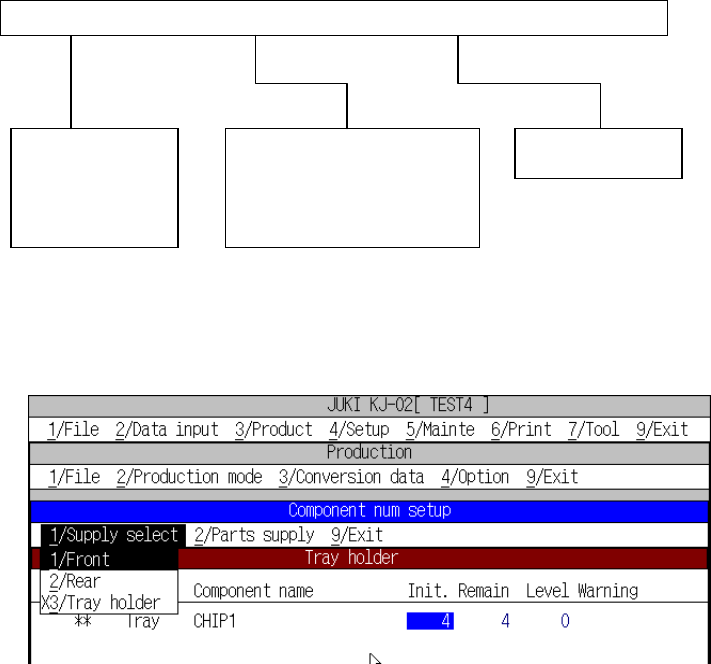
The figure below shows the local commands that can be called in the
components number setup screen.
1/Supply select 2/Parts supply 9/Exit
(1) [1/ Supply select]
This command switches the “Component num setup” screen types each other.
Figure of supply select pull-down menu
① [1/ Front]
When the components number setup screen is called, parts set on the
feeders on the front side only are displayed on the screen.
② [2/ Rear]
This components number setup screen lists the parts set on the feeders on
the rear side only.
③ [3/ Tray holder]
This components number setup screen lists the parts set on the tray holder
only.
1/Front
2/Rear
3/Tray holder
1/Replenish component
2/Replenish all feeders
3/Reflesh
9/Exit