KJ-01.02.Instruction Manual.REV.02.pdf - 第318页
9 − 1 CHA PTER 9 FILE MA INTENA NCE This chapter explains how to m anage the pr oduction progr am f iles stored in t he disk. W hen y ou select the [ 1/File] comm and on the menu bar , and the [ 5/File maintenance] comma…
8 − 50
② Count down num. of PWB produced.
− Set how to display the number of PWBs already produced by checking the
check box.
− When you check this check box, the machine displays the number of PWBs
not produced yet.
− When you do not check this check box, the machine displays the number of
PWBs already produced.
③ Integrate num. of PWB produced.
− Set how to display the number of PWBs already produced by checking the
check box.
− When you check this check box, the machine adds up the number of PWBs
already produced until you clear the production management information.
(The machine displays the total number of PWBs produced.)
− When you do not check this check box, the total number of PWBs produced
is cleared to zero when you press the <Start> key.
④ Check release of component after placing Z up.
− Set whether to check to see if a component is detached from the nozzle
when it is placed on a board by checking the check box.
− When you check this check box, the machine uses laser to check to if a
component is not attached on a nozzle when the Z-axis moves up after
component placement. Note that the machine does not perform component
release check for a component centered with the VCS.
− When you do not check this check box, the machine ignores the setting of
“Release check” on the Component data screen, and will not check the
existence of a component onto a nozzle.
⑤ The BOC mark priority recognition is done.
− Set whether to recognize a BOC mark prior to a bad mark.
− When you check this check box, the machine recognizes a BOC mark prior
to a bad mark.
9 − 1
CHAPTER 9 FILE MAINTENANCE
This chapter explains how to manage the production program files stored in the disk.
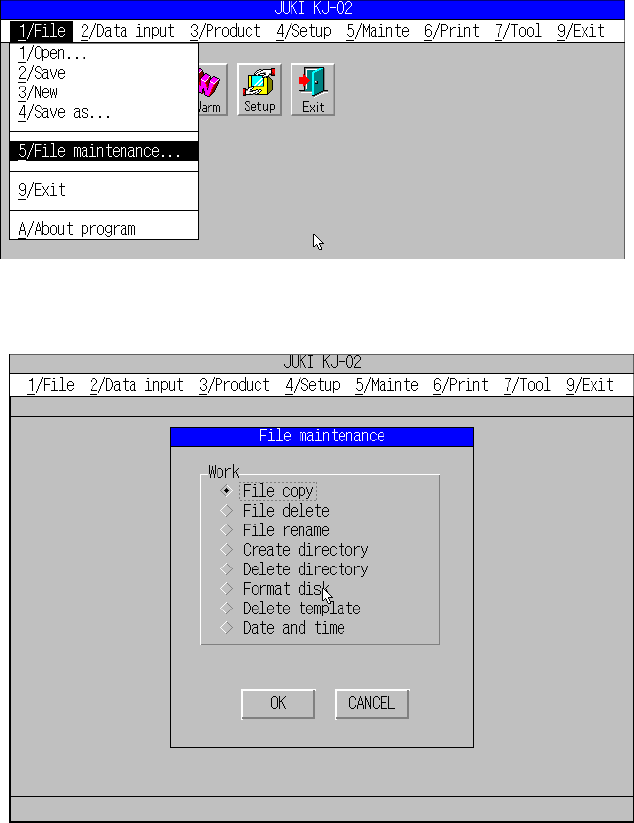
When you select the [1/File] command on the menu bar, and the [5/File maintenance]
command on the “File” menu, the window shown in Figure 9.1.2 appears
Figure 9.1.1 “File” menu commands
Figure 9.1.2 “File maintenance” menu dialog box
9 − 2
9.1 Copying a File
The command “Copy file” is used to copy a production program file.
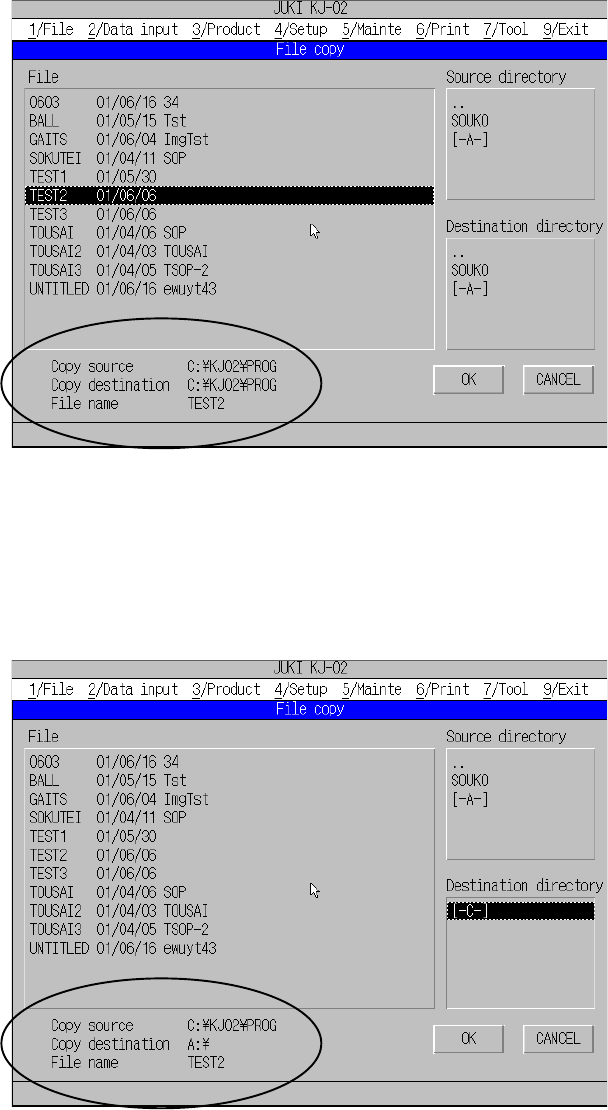
(1) Specify the copy source directory. The specified directory appears at the left
bottom corner of the screen.
(2) Select a production program file to be copied from the production program file list
displayed.
Figure 9.1.3 File copying dialog box (for Copy sender)
(3) Specify the copy destination directory. The specified directory appears at the left
bottom corner of the screen.
(4) If the copy destination directory is correct, click the <OK> button to start copy
operation.
Figure 9.1.4 File copying dialog box (for Copy receiver)