KJ-01.02.Instruction Manual.REV.02.pdf - 第185页
5 − 89 1) Copy Use [1/ Copy] and [5/ Duplicate] when one type of component is supplied from two or more f eeders or t rays. The line on which the cursor is locat ed is inserted (c opied) to the line next t o the cursor l…
5 − 88
5.6.6 Menu commands
The following table lists the menu commands available from the Pickup data editing
Table 5.3.4.1
Pickup
data menu commands
1/File
2/Edit 3/Chng 4/Dspl 5/Cnvr 6/Meas. 9/Exit
1/Open...
2/Save
3/New...
4/Save as...
9/Exit
○
○
○
○
○
1/Copy 2/Delete
2/Delate
3/Move
4/Insert
5/Duplicate
6/Jump
7/Find
8/Vision copy
9/Nozzle sort
A/Component name
B/Pick point recalc
C/Mark database
○
○
×
×
○
×
○
×
×
×
○
○
1/PWB data
2/Placement data
3/Component data
4/Pickup data
5/Vision data
6/Data compl. state
○
○
○
×
○
○
1/Component form
2/Component list
3/Pick input
4/Feeder order
5/ Vision List
6/ Vision Form
×
×
×
○
×
×
1/PWB load
2/PWB eject
3/BOC align
○
○
○
1/Single
measurement
×
9/Exit
○
○: Available △: Available dependent on conditions ×: Unavailable
(1) File menu
All commands provided on this “File” menu can be executed. See Section 5.1
“File Operation Procedure” for details.
(2) Edit menu
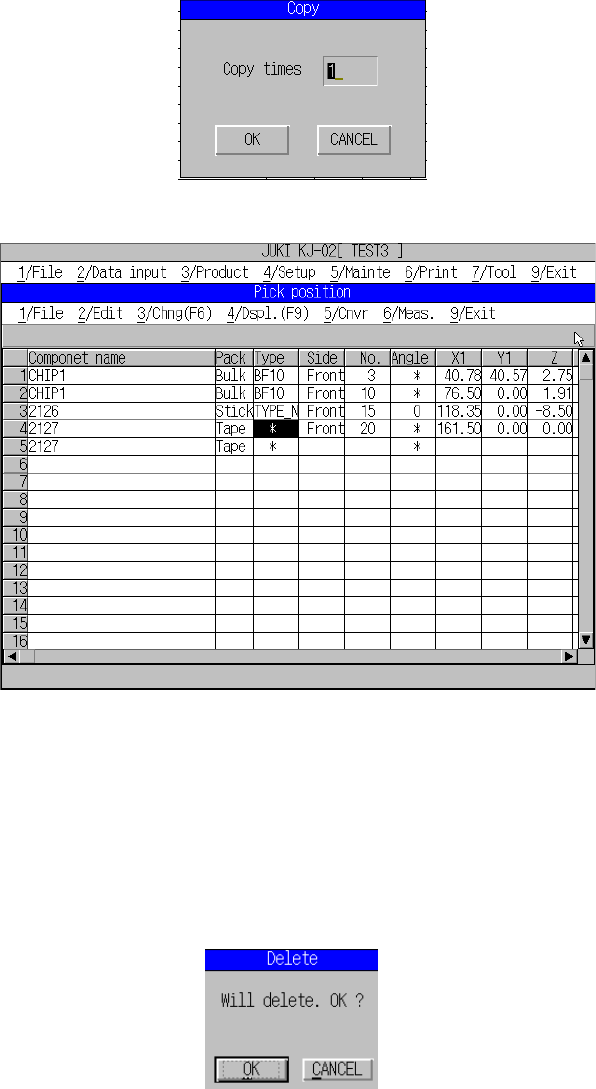
After [2/ Edit] has been selected, Figure 5.6.6.1 screen appears.
Figure 5.6.6.1 [2/Edit] command pull-down menu
5 − 89
1) Copy
Use [1/ Copy] and [5/ Duplicate] when one type of component is supplied
from two or more feeders or trays.
The line on which the cursor is located is inserted (copied) to the line next to
the cursor line as many times as specified. The “component name” and
“package” on the cursor line are copied, while other parameters are
initialized.
The ESC key can be used to cancel the command any time. After the copy
operation, the cursor moves to the beginning of the copied line.
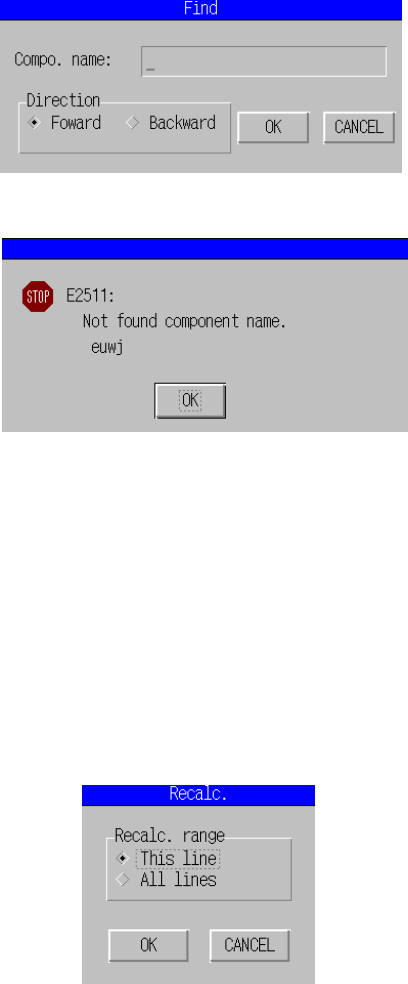
After [1/ Copy] has been selected, a dialog box appears to prompt you to
specify the number of copies.
Figure 5.6.6.2 Dialog box prompting entry of no. of copies
Figure 5.6.6.3 Result of copy operation
2) Delete
This command deletes the line on which the cursor is located.
The line cannot be deleted if only a set of pick data (line) is available with a
component type. The entire line on the cursor is deleted if multiple sets of
pick data (lines) are available with a component type.
When you select the [2/Delete] command, the “Delete” confirmation dialog
box appears.
Figure 5.6.6.4 Dialog box confirming deletion
5 − 90
3) Duplicate]
The line on which the cursor is located is inserted (copied) to the next line.
The parameters that are copied are the “Component name” and “Package”,
with the remainders initialized.
4) Find
This command searches a component name through Pick data. When you
select the [7/Find] command, the “Find” dialog box appears on the screen as
shown in Figure 5.6.6.5. If the machine does not find a name you entered,
the error dialog box appears on the screen.
Figure 5.6.6.5 Pick data finding dialog box
Figure 5.6.6.6 Find error dialog box
5) Pick point recalc
This command displays the following dialog box to ask you whether the
pick-up coordinates of the line the cursor is located should be calculated
again or those of all lines should be calculated again.
The machine recalculates the pick-up coordinates of the current line or all
lines according to your selection.
If you have not entered the component pick-up coordinates (X1, Y1) on a
tray holder, the machine will not recalculate the pick-up coordinates of the
line(s) since the machine calculates that of the line(s) based on the
component pick-up position (X1, Y1).
Figure 5.6.6.7 Pick-up point recalculation dialog box
6) Mark database
This command deletes/modifies data registered onto the mark database.
See Section 6.4 “Mark Database Management” for details