Hanwha SM481 PLUS Series Administrator’s Guide Eng.pdf.pdf - 第124页
6-14 Fast Flexible Placer SM481(L) PLUS Administ r ator’s Guide 1 2 3 6 5 4 [The order of fiducial teaching w hen the count direction is selected to Y] 1 2 4 3 5 6 <Of f set> edit box group Th…
6-13
Board Definition
<By Point> option Button
A method of completing an operation cycle to all array PCBs and then executing
the next cycle operation.
<4. Set Array (Regular Type)> group
Initializes the Array PCB. This function sets the offset value of each Array PCB
automatically when the arrangement of array PCB is regular.
<Number> edit box group
Enter the number of Array PCBs as follows.
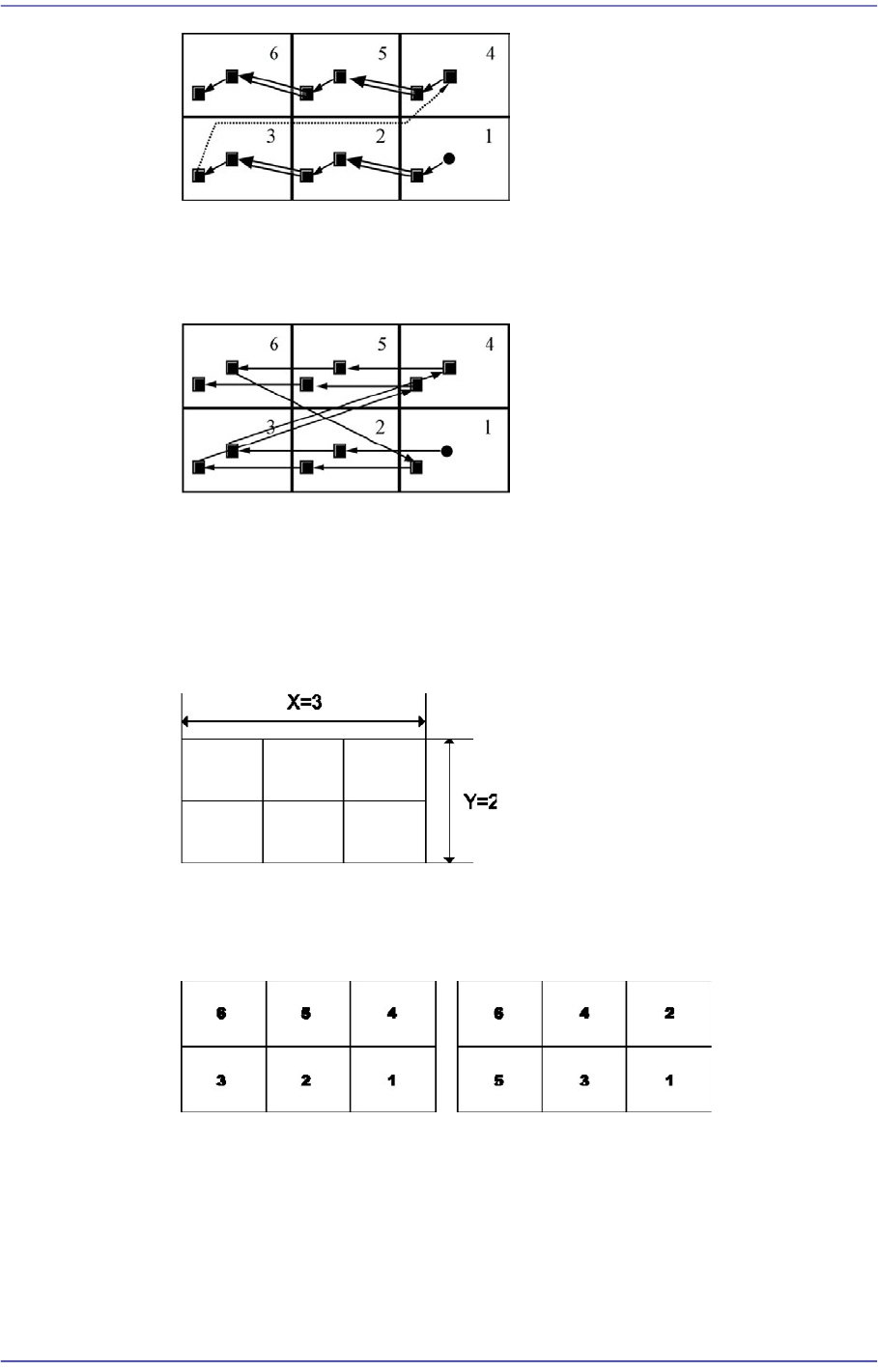
<Count Direction> option Button group
Select a method of numbering Array PCBs.
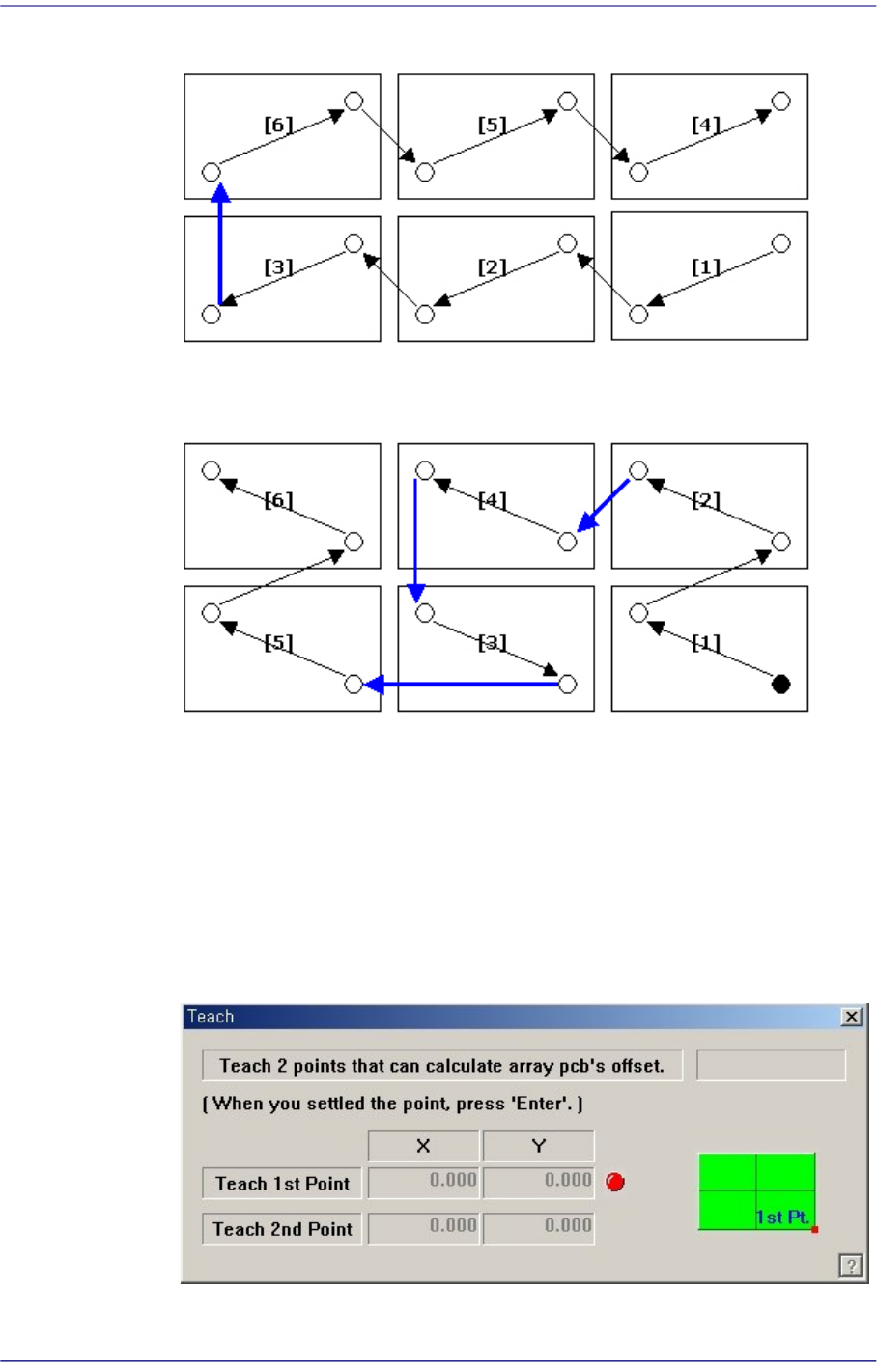
When teaching the fiducial of the small PCB in the Array PCB, the fiducial marks
are taught along the optimum path with shortest moving distance in order to
reduce the time.
[The order of fiducial teaching when the count direction is selected to X]
X Direction Y Direction
6-14
Fast Flexible Placer SM481(L) PLUS Administrator’s Guide
1 2 3 6 5 4
[The order of fiducial teaching when the count direction is selected to Y]
1 2 4 3 5 6
<Offset> edit box group
This value is used to set the offset value of the origin of Array PCB automatically.
It sets the placement origin of small PCBs in the array PCB by increasing the
coordinate as much as the offset from the placement origin of the small PCB,
which becomes the reference in the array PCB.
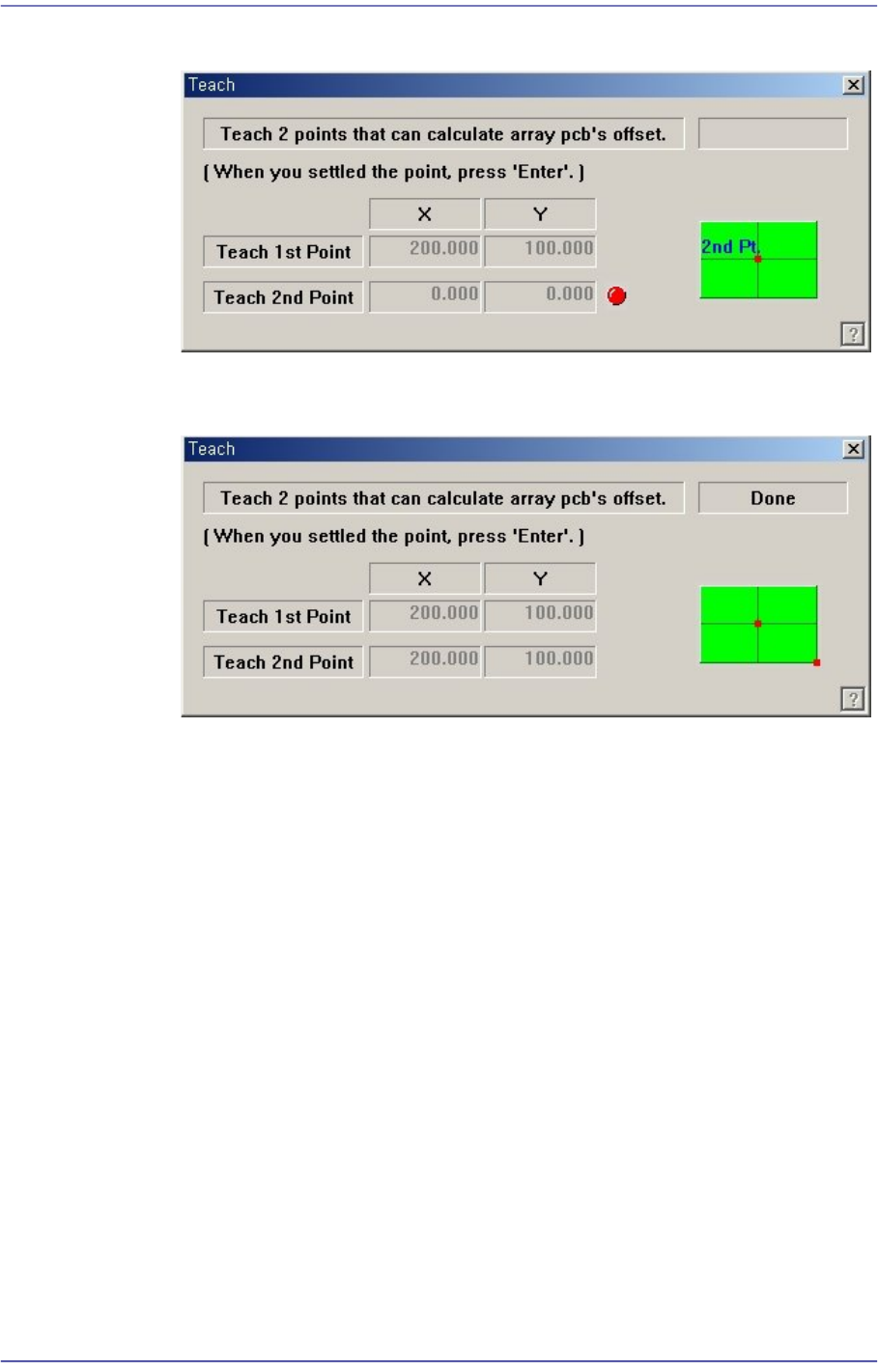
<Teach> button
Teach the offset value of Array PCB. When this Button is clicked on, the
following screens are displayed in succession.
Teach the origin of the small PCB 1. When the “Enter” key is pressed after
6-15
Board Definition
teaching, the following screen is displayed.
Teach the origin of the small PCB on the position that can determine the offset.
When the “Enter” key is pressed after teaching, the following screen is displayed.
Press the “Enter” key to complete the Array PCB offset value teaching operation.
<Apply> button
Automatically creates Array PCB data with the value set in this group.
<5. Add Value> group
Set the values of X, Y, and R to be added to the grid line of the <1. Array> group.
When the “Add” Button is clicked on after setting the desired values, the values are
added to the corresponding grid lines.
<Array Skip/Work Tools> group
All Skip: Set “Skip” for all of the array PCBs.
All Work (No Skip): Release ‘Skip’ settings for all of the array PCBs.
Skip: Set the ‘Skip’ for the array PCB having the number that is inputted in the
‘Array No’.
Work Release ‘Skip’ setting for the array PCB having the number that is inputted
in the ‘Array No’.
<Update> button
Saves the edited data and closes the screen.