Hanwha SM481 PLUS Series Administrator’s Guide Eng.pdf.pdf - 第223页
7-65 Part Registration Memo Conditions for Simultaneous Pickup 1. The par t mus t be picke d up w hen the center of the head pi cking a part is within t he tolerance range. 2. In the case of the i nterlocked heads, t he …
7-64
Fast Flexible Placer SM481(L) PLUS Administrator’s Guide
that the vision system can detect the tape splicing.
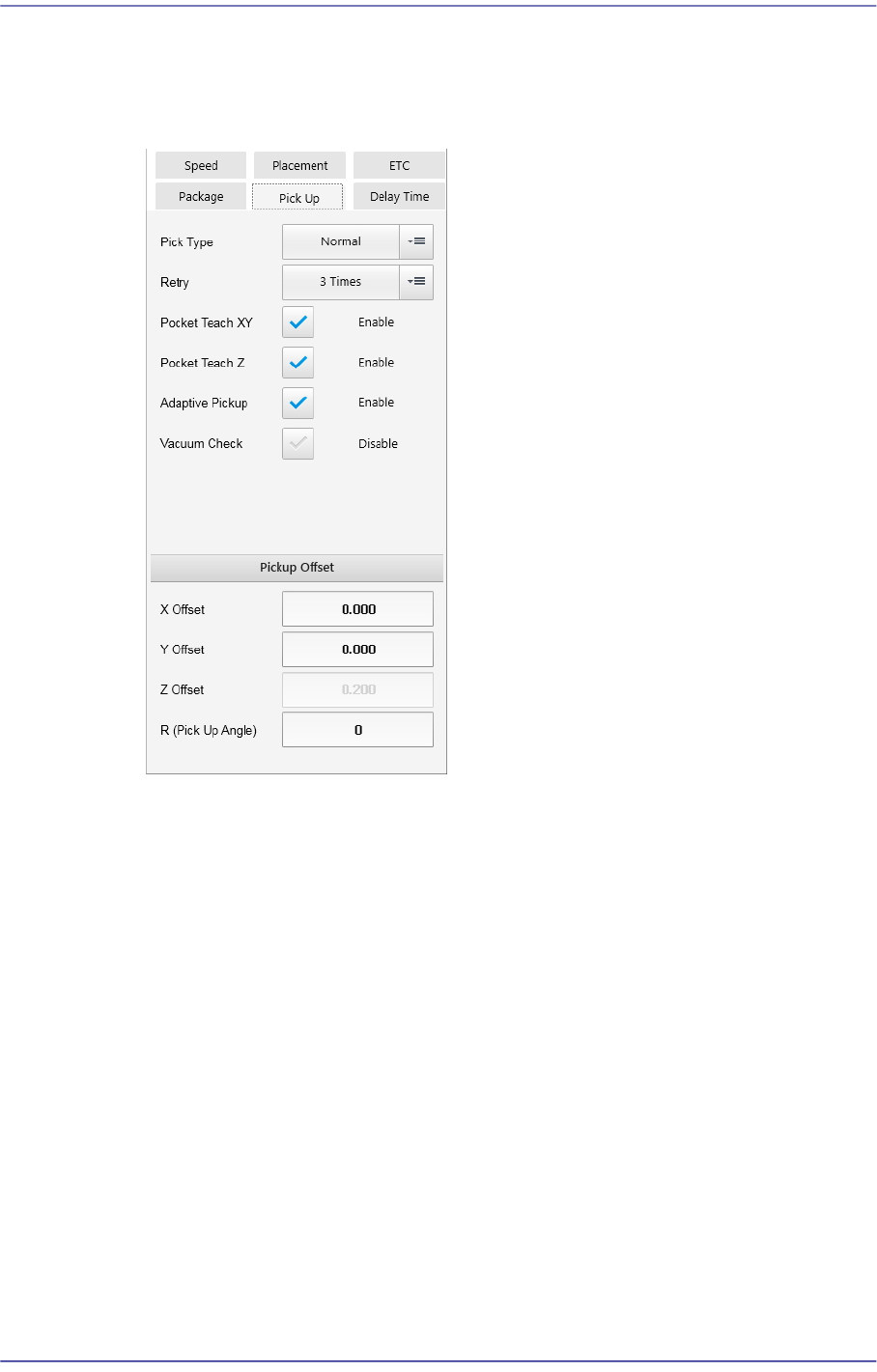
<Pickup Data> tab
Sets the parameters related to the pickup of the supplied parts.
<Sync Pickup Tol(%) - X/Y> edit box
When more than two spindles pick parts from the feeder simultaneously, sets the
tolerance for the pick-up position in the X/ Y direction as a percentage of the part
size in the X/ Y direction.
The default value is 15%. If the tolerance for simultaneous pickup is greater than
the default value, simultaneous pickup is performed well, but may cause a pickup
error.
In the case of micro parts, this value must be small, and pocket teaching must be
performed for parts smaller than the 1005 chip to reduce the part dump rate.
7-65
Part Registration
Memo Conditions for Simultaneous Pickup
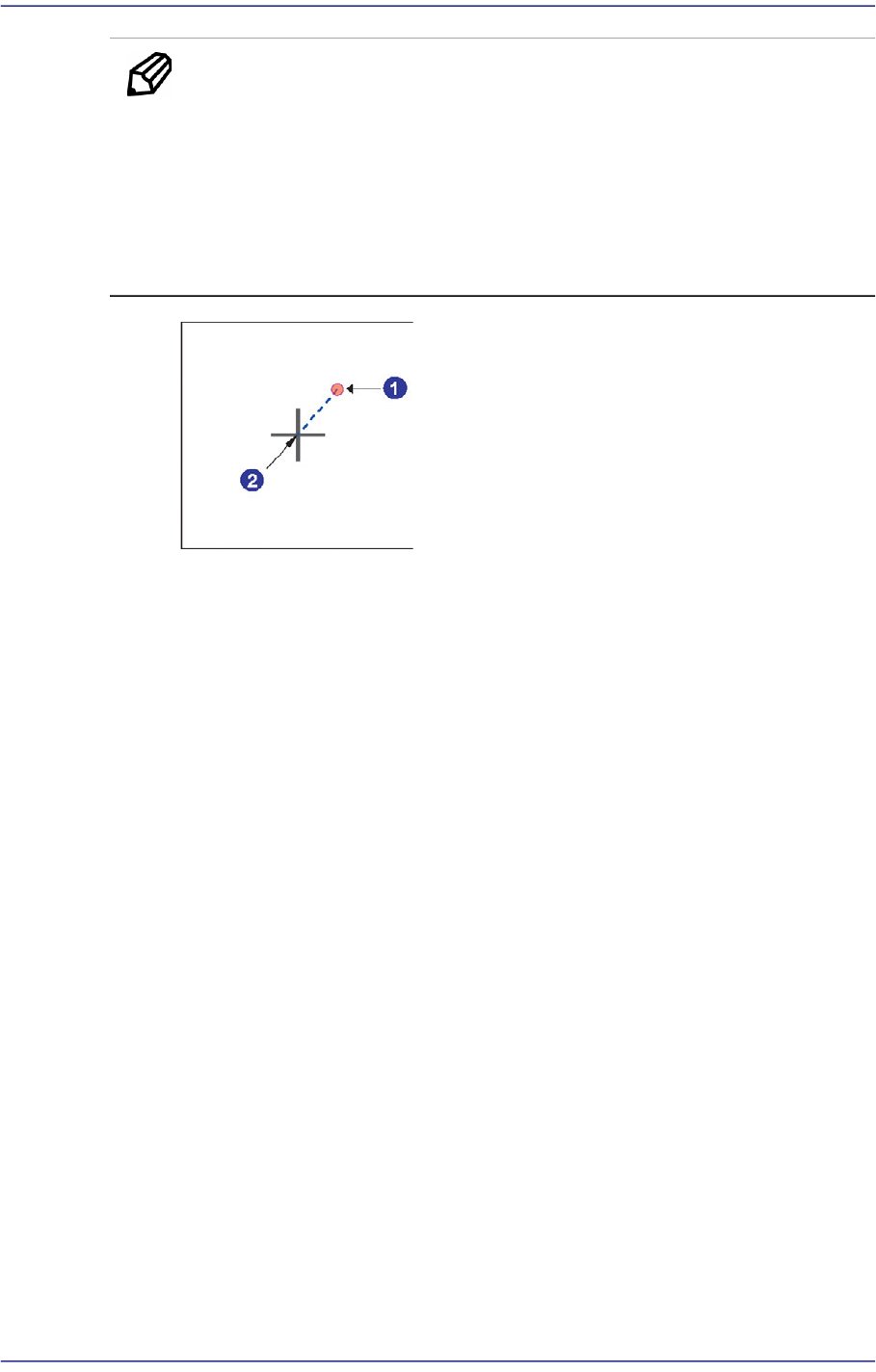
1. The part must be picked up when the center of the head picking a
part is within the tolerance range.
2. In the case of the interlocked heads, the R value must be identical
when picking up a part.
3. The maximum tolerance of the X and Y must be less than 0.5mm.
1: Head Center (Actual Pickup Point)
2: Part Align Point
Here, the tolerance means the offset from the align point of the part to the head
center, which is the actual pickup point.
<Pick Type> selection box
Select the method to pick parts.
Normal
Selected in cases to pick a part in the normal manner.
Virtual Pick
Selected in cases to performs part placement without placing a part actually.
All activities of part pickup and placement are performed using the part center.
However, if the part is long, even though it was placed being held at the
center, both sides of the long part may not come into contact with the PCB
sufficiently.
In this case, this problem can be solved, by pressing the part again so that both
sides of the part or certain section of it may come in contact with the PCB.
As such, this function is useful when performing setup in order to set the
position corresponding to the section with which the specific part already
installed needs to be in close contact without picking up an actual part in order
to have the corresponding part come into close contact with the PCB.
After setting the placement point by using the specific part that needs such
function first, create the next placement point as much as necessary by using
7-66
Fast Flexible Placer SM481(L) PLUS Administrator’s Guide
the corresponding part.
Then, after placing the specific part first, have it come into close contact with
the PCB with the Virtual Pick.
<Retry> selection box
Sets the retry count of part pickup when part pickup failed. Selectable retry count
is 1 - 5.
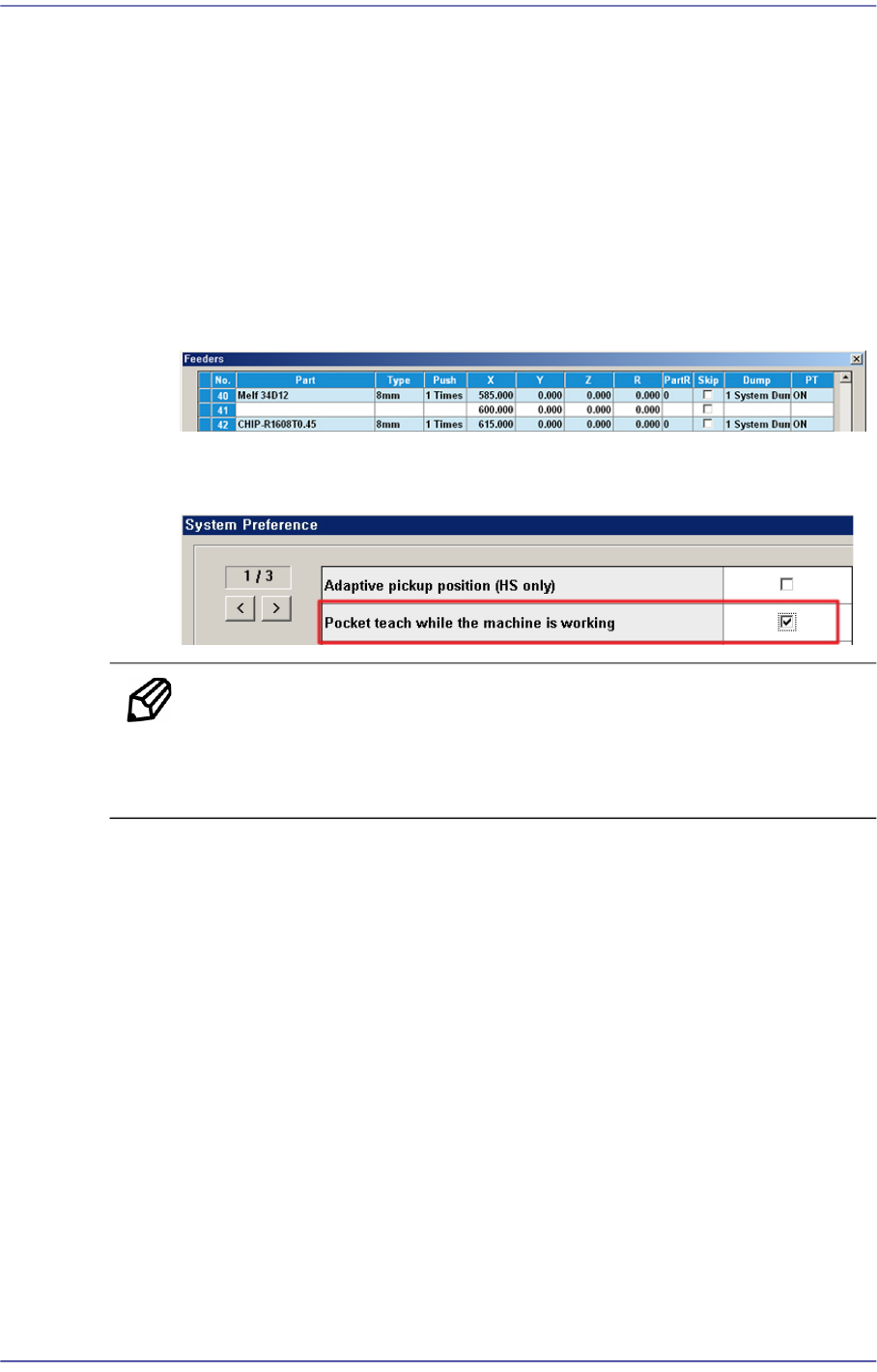
<Enable Pocket Teach XY> check box
If this check box is selected, the Pocket Teach function of the feeding device that
feeds the corresponding part is automatically set up in the 'Feeders' dialog box.
In order to allow the Pocket Teach to be actually applied, the Pocket Teach option
of the Preference submenu of the System Setup menu must be set up.
Memo For parts fed by an 8mm tape feeder, it is recommended that this
function be applied.
Basically, the black splicing tape must be used.
<Vacuum Check> check button
Selected when checking vacuum pressure first before picking or placing a part.
Since the micro chip is very small, even though it has not been actually placed
after performing placement, not only is it difficult to detect such errors in the next
process but also great effort is needed when placing the part again (applicable to
1608 chip and smaller). If this function is used, the machine compares the vacuum
pressure when picking a part with the vacuum pressure when placing it finally and
checks whether there is any difference.
If so, the part may have dropped down due to any reason while the head moves to
the placement point after picking it up.
<Pickup Offset> group
<X Offset> edit box
It is recommended to use the value without setting the offset.
<Y Offset> edit box