Hanwha SM481 PLUS Series Administrator’s Guide Eng.pdf.pdf - 第276页
9-2 Fast Flexible Placer SM481(L) PLUS Administ r ator’s Guide <R> column Set the R position (rotation angle of t h e placement component) of the pl acement position. <Part> column Select the component to…
9-1
Step Programming
Chapter9. Step Programming
The ‘Step’ submenu edits data on PCB placement points, component fiducial marks,
components to be placed, component supplying feeders, and nozzles to pick up
components.
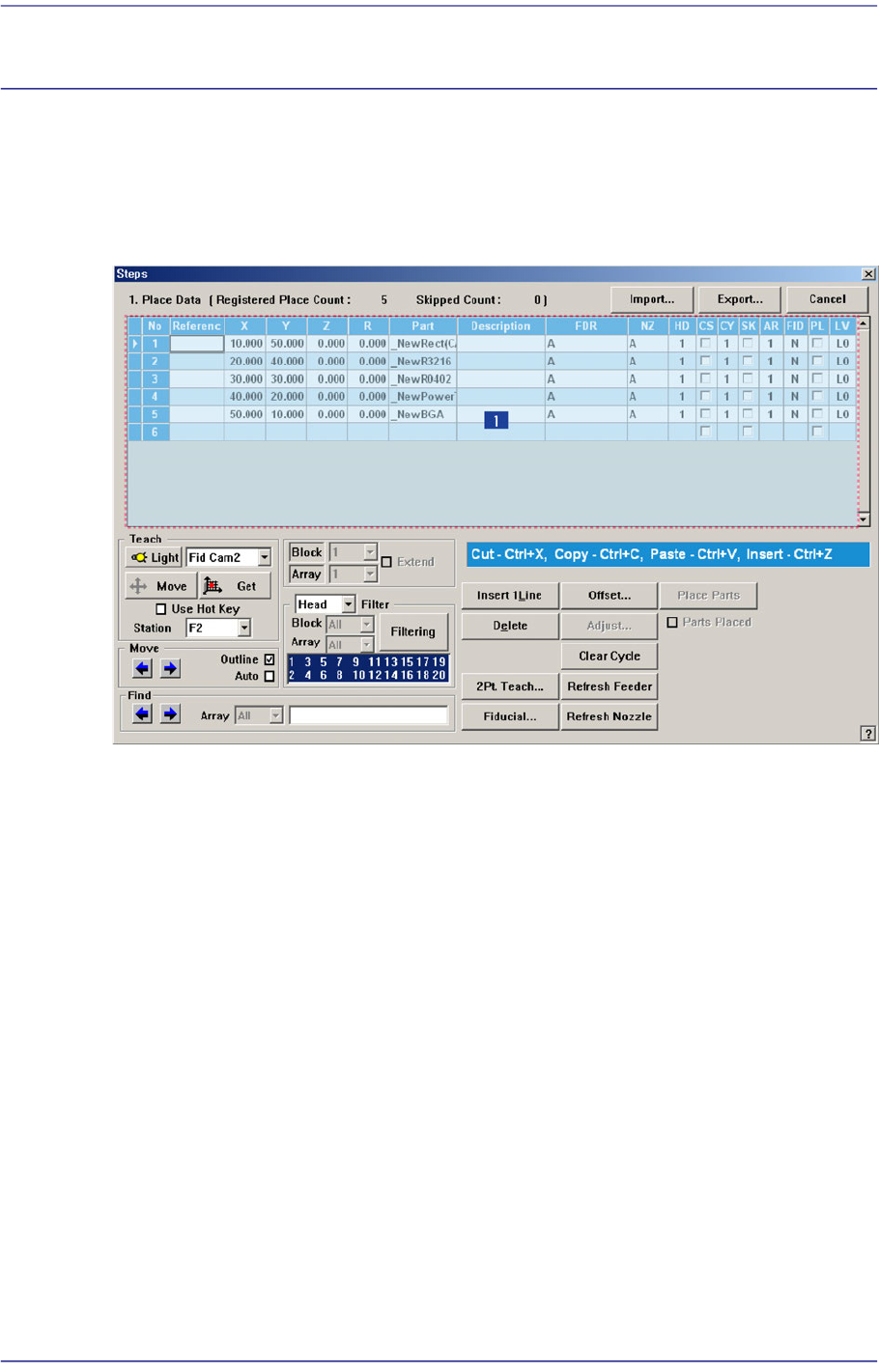
Figure9.1 “Steps” dialog box
1: Grid
‘Grid’ group
Set the edit data related to placement.
<No> column
Refers to the number of the placement point.
<Reference> column
Set the reference name of the placement point. In general, enter the value of R1,
R2, C1, and C2 on the PCB (up to 8 characters).
<X> column
Set the X position of the placement point.
<Y> column
Set the Y position of the placement point.
<Z> column
Set the Z position of the placement point.
9-2
Fast Flexible Placer SM481(L) PLUS Administrator’s Guide
<R> column
Set the R position (rotation angle of the placement component) of the placement
position.
<Part> column
Select the component to place.
<Description> column
Note that slot to display the description of installed components.
<FDR> column
Select the feeder to supply the component.
<NZ> column
Select the nozzle to pick up the component.
<HD> column
Selects the head to pick up the part to be placed.
<CS> column
When you want to start a new cycle, check this check box.
<CY> column
When <Cycle> is clicked on, the corresponding cycle number is displayed.
<SK> column
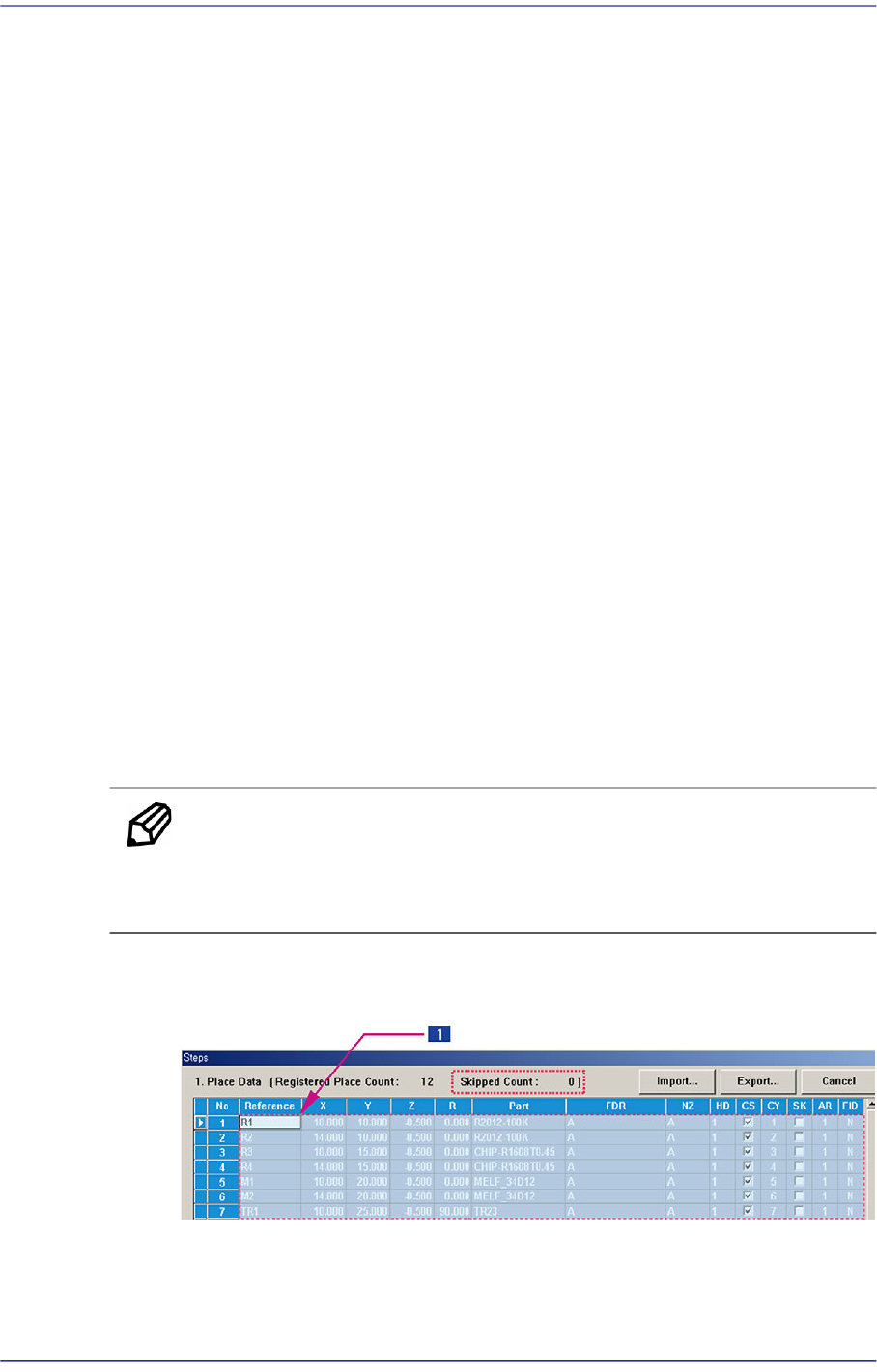
Check the check box when you want to skip the placement point. The number of
skipped rows is indicated in the ‘Skipped Count’.
Memo The part set to be skipped is not included in the number of parts that
can be placed. (The maximum number of parts that can be placed is
150.)
Possible to skip the selected lines after selecting the lines to be skipped with the
mouse. On the contrary, it is possible to setup so as not to skip.
1: Selection of drag using mouse
Select lines using mouse. (Use the mouse drag function.)
9-3
Step Programming
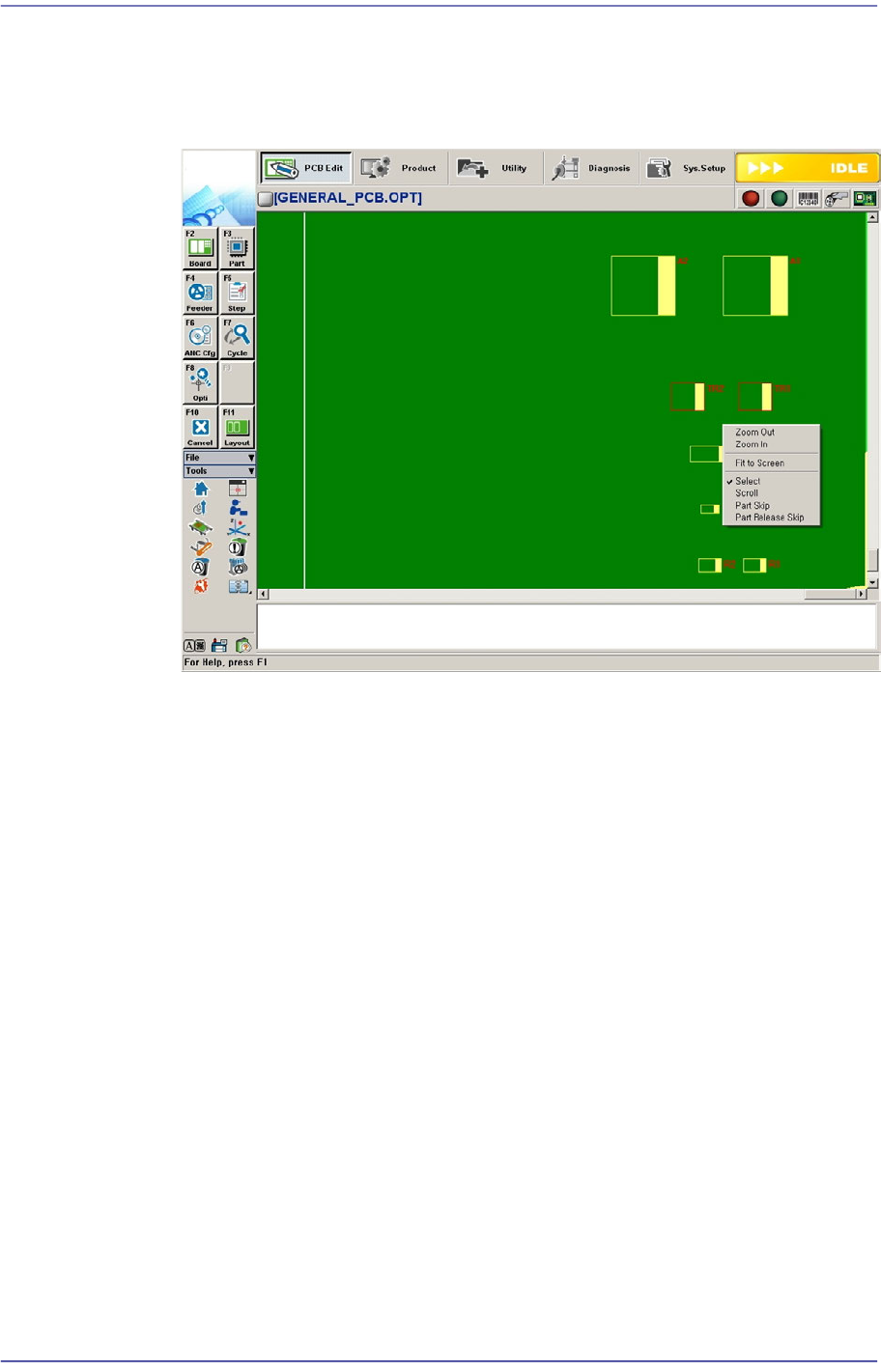
Popup menu appears by clicking the right side button of the mouse.
Select “Skip” or “No Skip”.
It is possible to skip a placement point in the Layout screen.
Part Skip
You can select this function by right clicking the mouse. You can exclude
work on the corresponding placement point by using this function.
Part Skip Release
You can select this function by right clicking the mouse. Use of this function
will allow the placement point, which is set to be skipped, to be worked on
again.
<AR> column
Select the array PCB number to which the placement point belongs.
<FID> column
If the fiducial mark data of the placement point has been set in <Fiducial…>, “Y”
is displayed, if not “N” is displayed.
<PL> column
Checks the placement point at which placement has already performed. This
equipment provides the function that can select a specific placement point in the
Step dialog box and perform placement at the corresponding point.
If placement is performed by this function, the placement point at which the part
has been placed is automatically check-marked to avoid duplicated placement
when performing placement later.