Hanwha SM481 PLUS Series Administrator’s Guide Eng.pdf.pdf - 第286页
9-12 Fast Flexible Placer SM481(L) PLUS Administ r ator’s Guide The following figure shows th e import completed screen. When the component importe d from the CAD data is not registered, the unregistered component must…
9-11
Step Programming
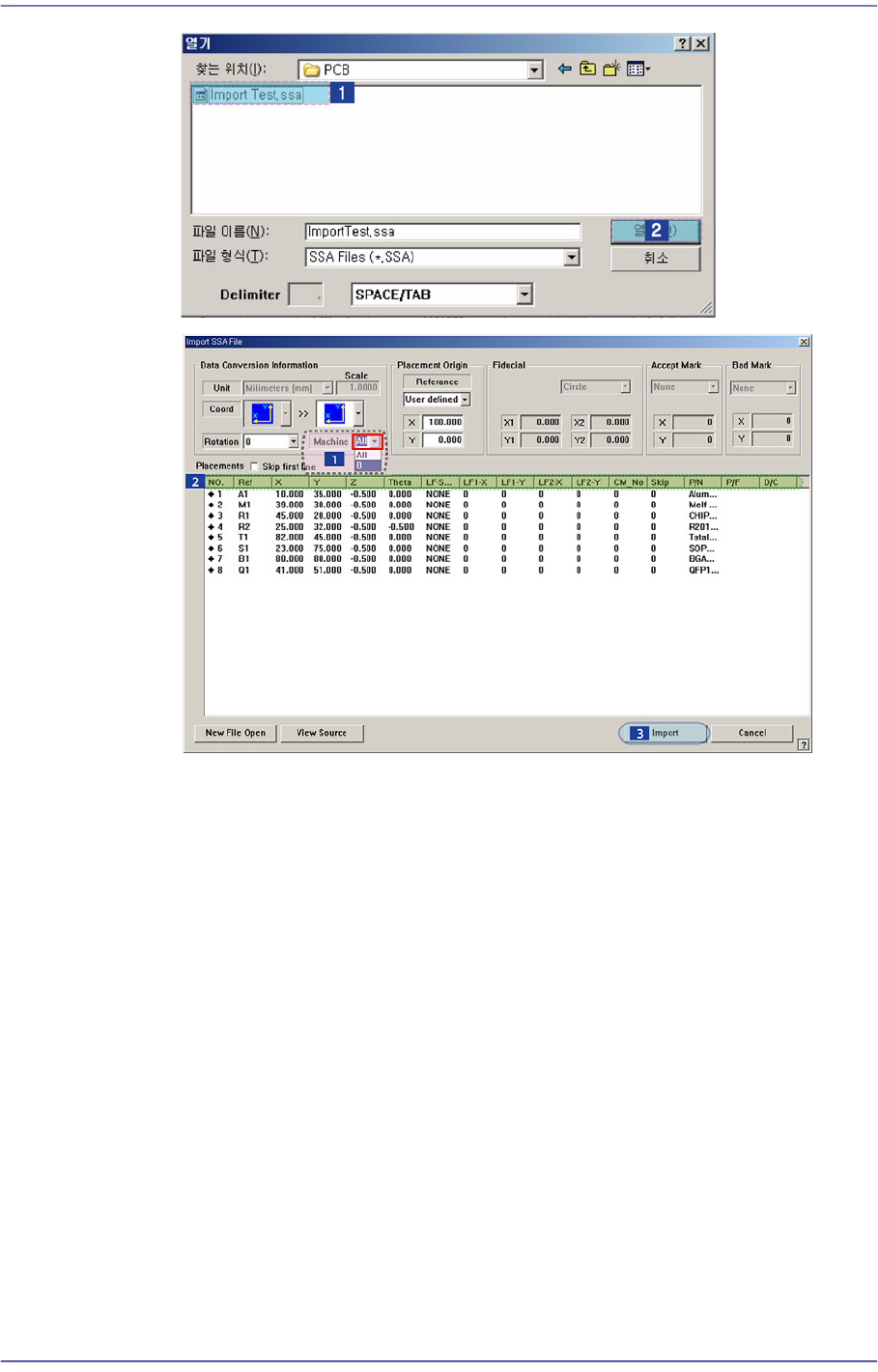
Select the machine to be operated using the imported SSA file.
Select the imported machine and confirm the name of the corresponding row of
placements. In the case of our standard format (SSA), the row value need not be
changed.
Executes Import.
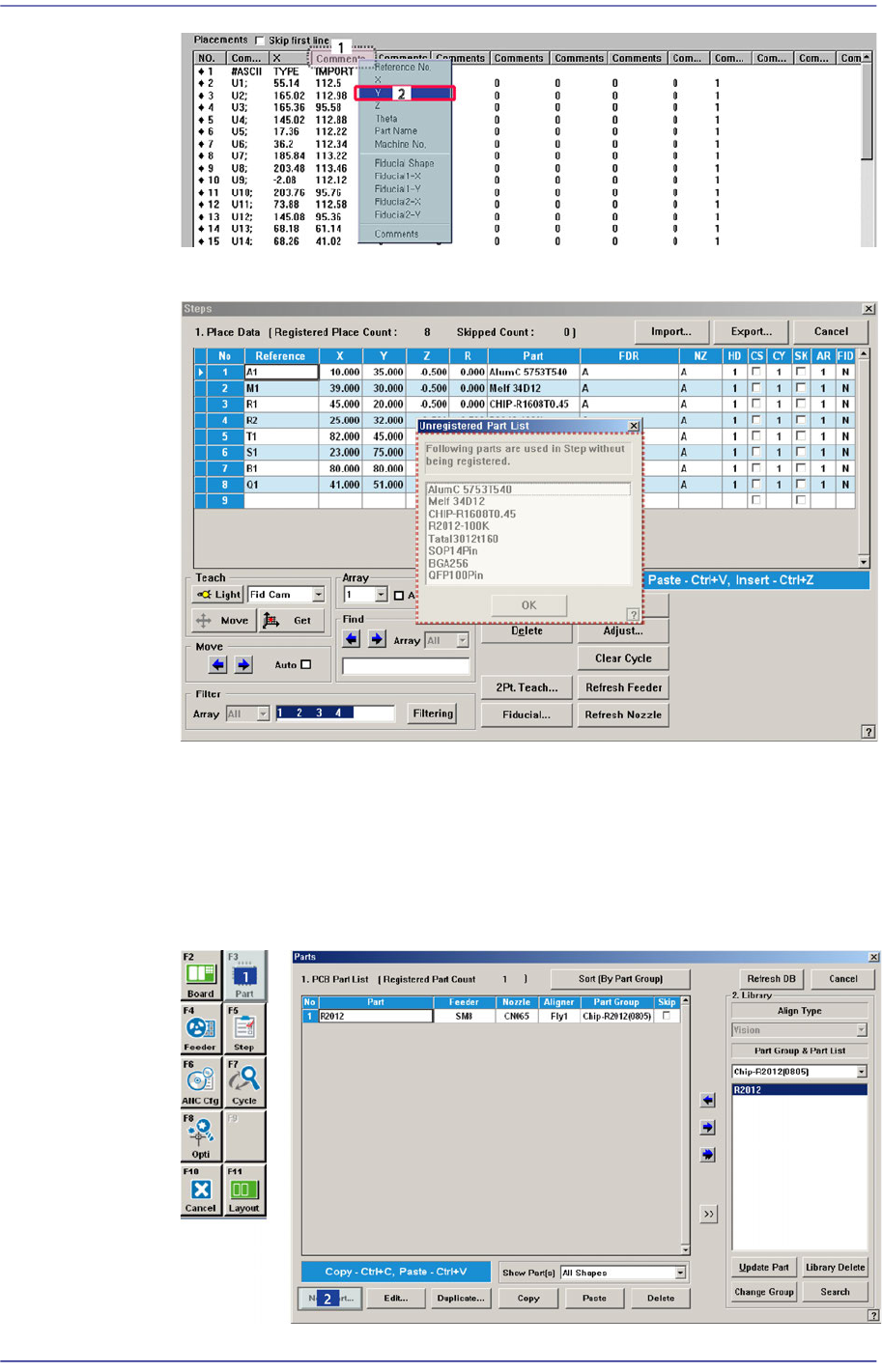
When importing a file in a format other than our standard format, the
corresponding information is indicated in a comment column as follows. Place the
mouse point on the column whose name is to be changed and right click the mouse
to display the menu and select the corresponding name. At this time, when there is
no column name corresponding to the column to be imported, set the column
name in the comment column.
9-12
Fast Flexible Placer SM481(L) PLUS Administrator’s Guide
The following figure shows the import completed screen.
When the component imported from the CAD data is not registered, the
unregistered component must be registered.
If the data of the part to be placed has not been registered in the Part DB of the
machine, the list screen of these parts (list for unregistered parts) is indicated in
the screen. Register the parts in this list in the “Parts” dialog box in the “Part”
menu.
9-13
Step Programming
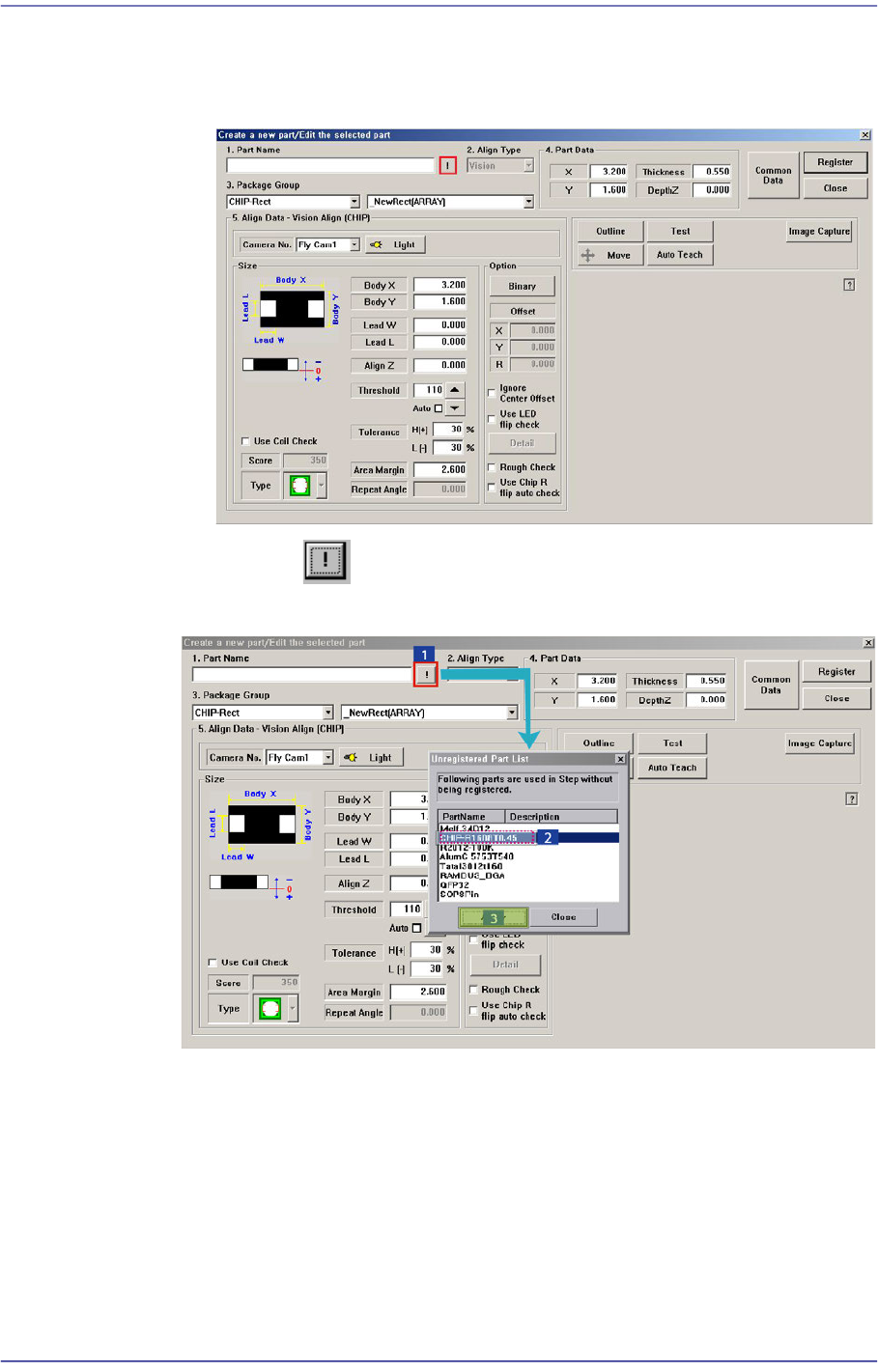
The component that has already been registered in the Local Part DB is
registered automatically as can be seen above. Click the <New Part…> button
and execute the <Part Edit> dialog box.
When the button is clicked, the unregistered part list is displayed as
shown in the following figure.
When the <OK> button is clicked after selecting a component, the name of the
selected file is inputted in the <1.Part Name> edit box.
Select the <Package Group> corresponding to the selected component and
revise the component profile according to the selected component.
Click the <Register> button to register the component to the PCB Part List.