Hanwha SM481 PLUS Series Administrator’s Guide Eng.pdf.pdf - 第156页
6-46 Fast Flexible Placer SM481(L) PLUS Administ r ator’s Guide Clicking the < Block > button will display the following dialog box with which the PCB model type is set. Figure6.12 “Block P C B” dialog box <1.…
6-45
Board Definition
6.7. PCB Block
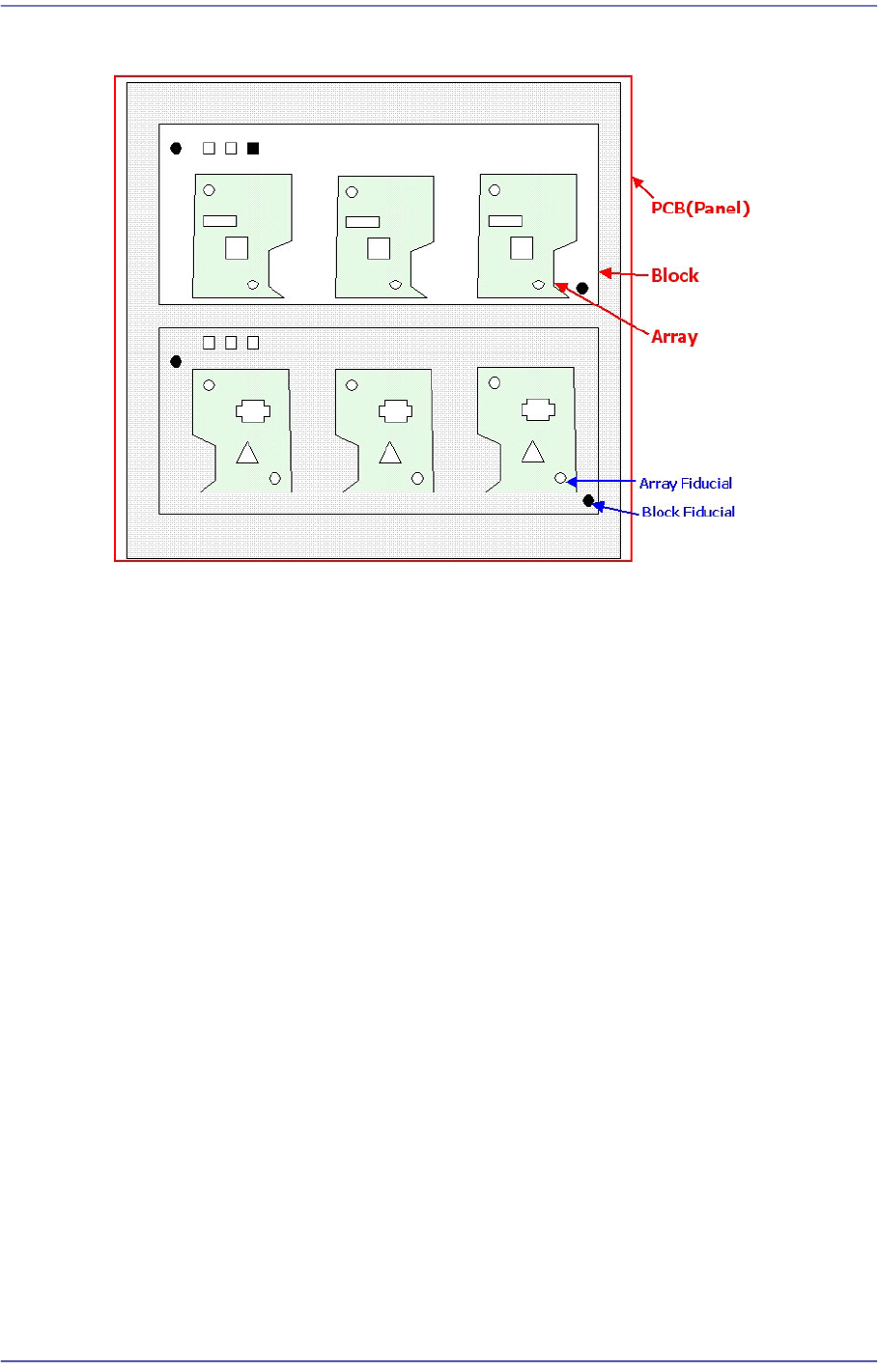
Block
Refers to a unit in the separate form which composes one complete PCB. It is composed in
the form of One Board or array PCB. It is in the same form physically as the existing PCB.
Block Fiducial
Refers to the fiducial representing one block defined to compensate the coordinates for
placement points, etc., in the block.
The concept is the same as that of the existing panel fiducial. However, if only one panel
fiducial exists in the block, the number of block fiducial is equal to the number of blocks.
Block PCB
Refers to the one complete PCB. It is composed in the form of One Board or array PCB.
PCB
One PCB may be composed of one or several blocks.
6-46
Fast Flexible Placer SM481(L) PLUS Administrator’s Guide
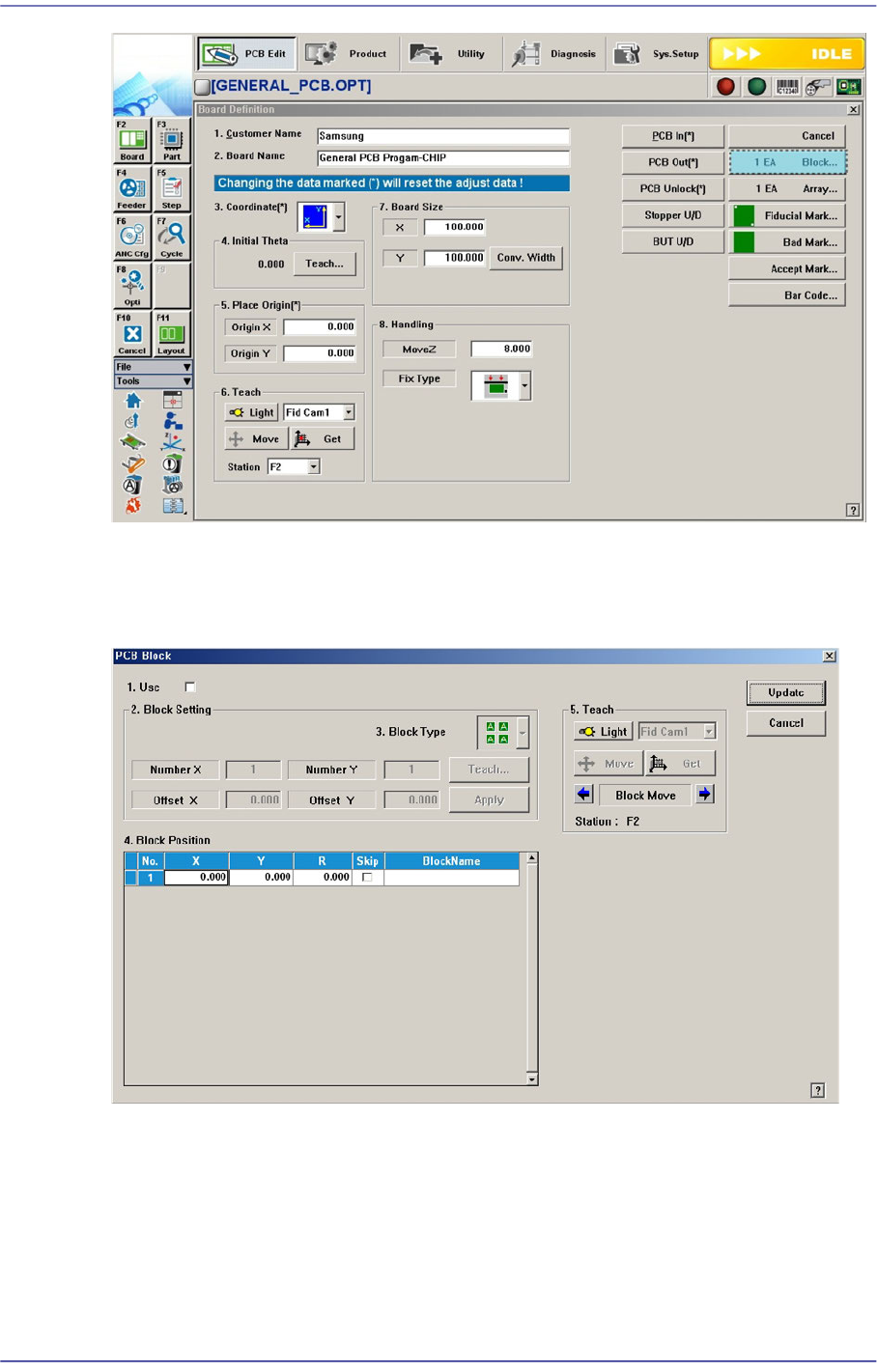
Clicking the <
Block> button will display the following dialog box with which the PCB
model type is set.
Figure6.12 “Block PCB” dialog box
<1.Use> check box
Selected when performing configuration of the model type and block.
<2. Block Setting> group
<3. Block Type> combo box
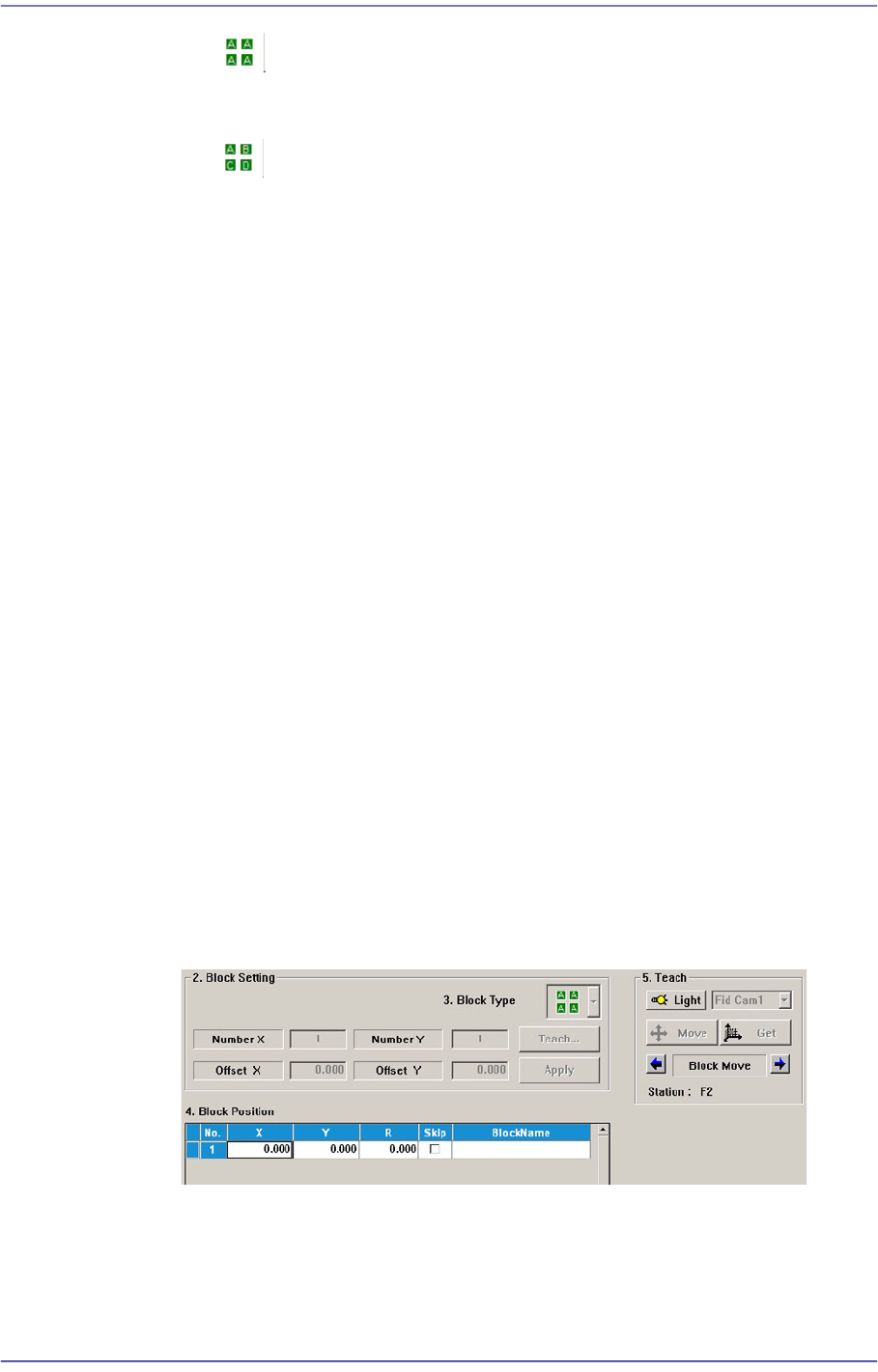
Select the type of model configuration. Three types can be selected as follows;
6-47
Board Definition
[Block PCB - Same Type]
The CAD information (placement point and part) on the block is identical.
[Block PCB - Different Type]
The CAD information (placement point and part) on the block is different.
When the Block PCB type is selected in the <Model Type> combo box
Perform setup for the block in the same manner as performing setup for an array PCB.
First, determine the number of blocks to be configured and apply the offset for the
placement origin of the reference block to set the placement origin of the entire block.
<Number X> edit box
Input the number of blocks in the X direction.
<Number Y> edit box
Input the number of blocks in the Y direction.
<Offset X> edit box
Input the offset in the X direction based on the placement origin of the existing
block.
<Offset Y> edit box
Input the offset in the Y direction based on the placement origin of the existing
block.
<Teach...> button
Teach the XY offset based on the placement origin of the existing block..
<Apply> button
Creates the data in the <3.Model Position> group according to the number of X
and Y blocks as well as the X and Y offset.