Hanwha SM481 PLUS Series Administrator’s Guide Eng.pdf.pdf - 第532页
19-6 Fast Flexible Placer SM481(L) PLUS Administ r ator’s Guide 19.4.5. Recording Check Results Record and store the check results in the “PM Check”. This can be performed in the following manner . Click <Check> …
19-5
PM Manager
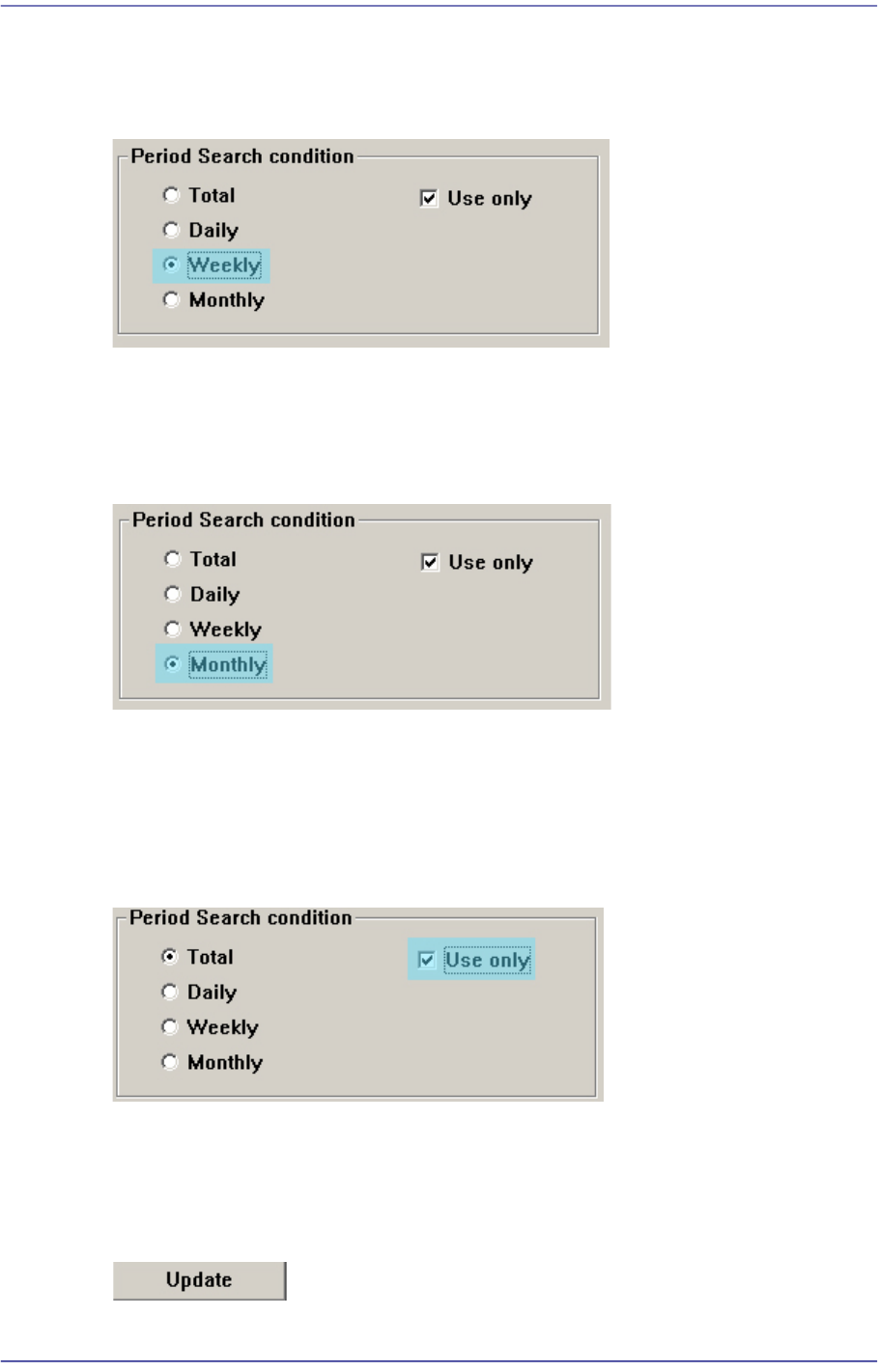
19.4.2.3. Viewing Weekly Check Items
If the <Weekly> option button from the <Period Search Condition> group is clicked,
weekly check items can be checked.
19.4.2.4. Viewing Monthly Check Items
If the <Monthly> option button from the <Period Search Condition> group is clicked,
monthly check items can be checked.
19.4.3. Viewing Only Items in Use
After the check items are registered, setup can be performed so that they are not to be used.
If the <Use only> option button from the <Period Search Condition> group is clicked,
only the check items in use can be checked.
19.4.4. Updating Screens
If the contents of the DB are different from those displayed in the main screen, press the
<Update> button to update the screen output.
19-6
Fast Flexible Placer SM481(L) PLUS Administrator’s Guide
19.4.5. Recording Check Results
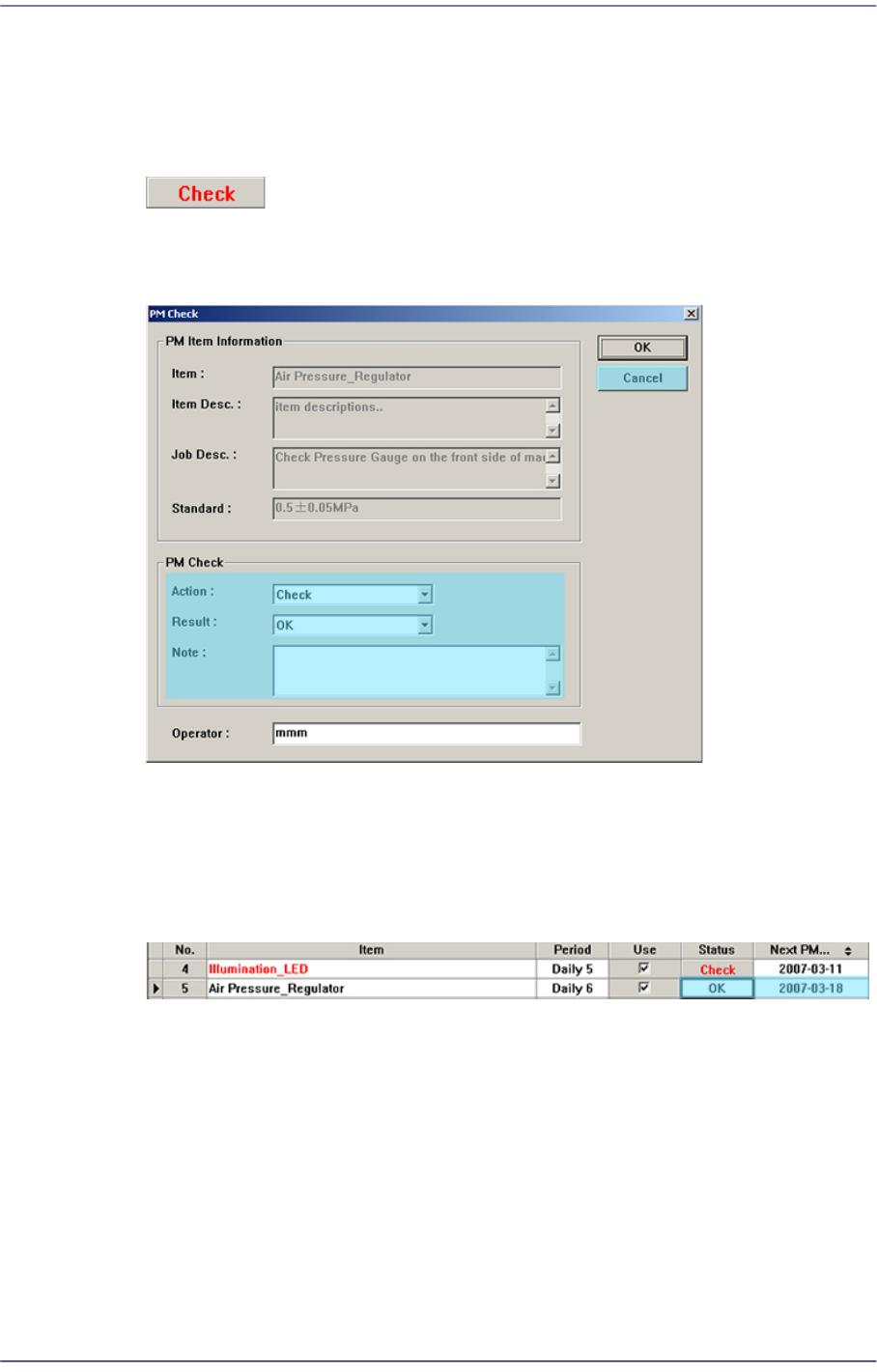
Record and store the check results in the “PM Check”. This can be performed in the
following manner.
Click <Check> button.
Execute ‘PM Check’ Dialog Box
Figure19.5 ‘PM Check’ Dialog Box of PM Manager
Record the measures taken during check (action, result and note) and click the <OK>
button.
For the items for which actions were taken in the <PM Check> group, the <Status>
column is changed from “Check” to “OK” and the date is updated to the PM Check
date in the <Next PM> column as shown below.
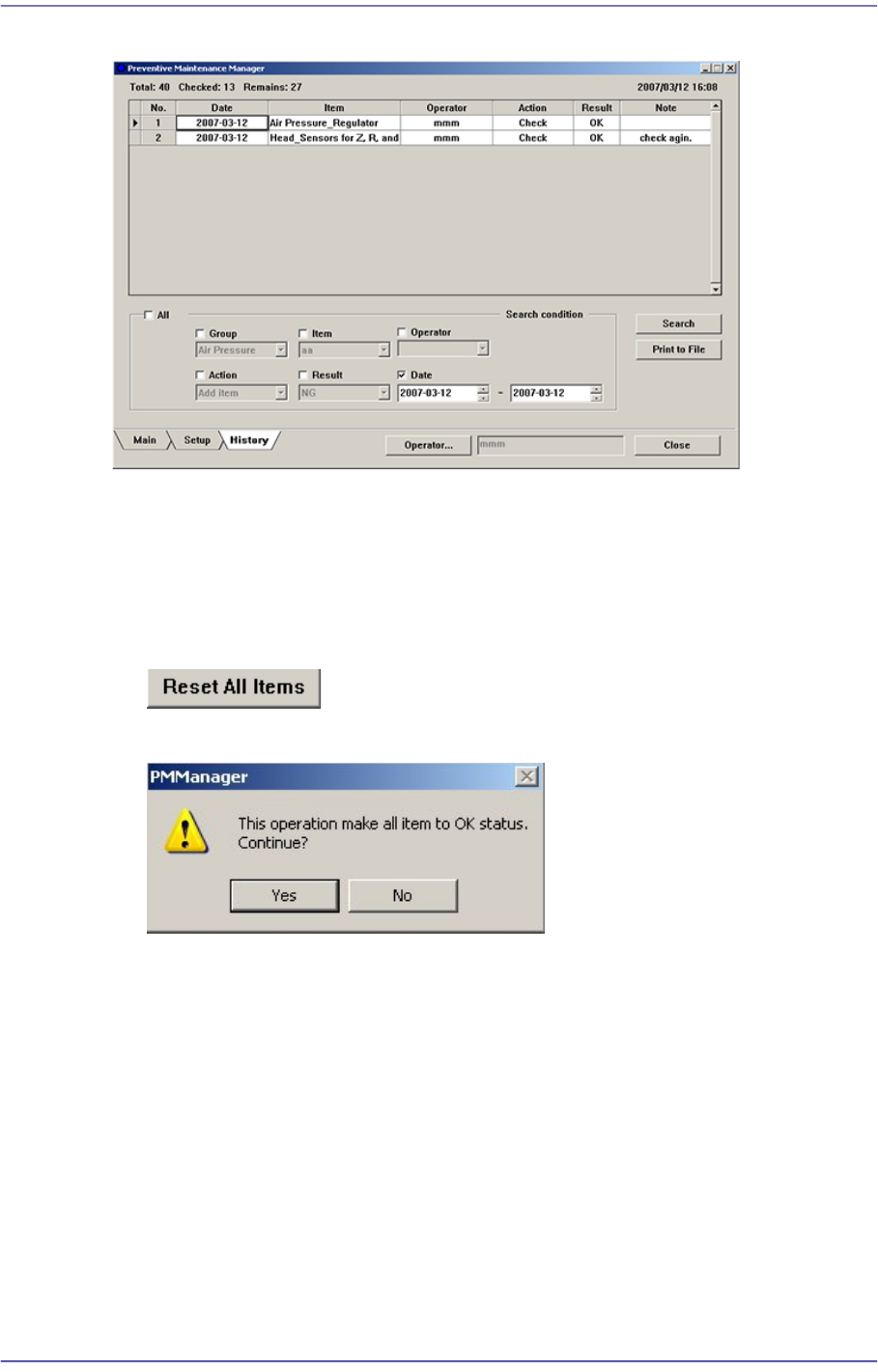
The recorded actions can be checked from the History Screen.
19-7
PM Manager
Figure19.6 Inquiry of Actions Taken During Checking from History Screen
19.4.6. Changing All Check Items to Check Completed Status (“OK”)
All check items can be changed to the check completed status simultaneously. This can be
performed in the following manner.
Click the <Reset All Items> button
When the PM Manager dialog box appears, click the <Yes> button.
Once set as above, all check items in the Main Screen are changed to the check completed
status (“OK”), and the number of items to be inspected are indicated as “0”.